
Set up warehouses and bin controls
Location ownership, warehouse defaults and bin requirements
A warehouse belongs to one company location, also described as an operating unit. It identifies where inventory is handled; bins/locators subdivide that warehouse. Plan these identities before stock operations so documents and allocations refer to the intended location and storage structure.
This chapter is for authorised inventory users and Tenant Administrators within their subscription workspace. A tenant is that subscription/account workspace, not an individual administrator. Platform and tenant database-management procedures are outside scope.
Prepare the location and storage design
Confirm Current Company and the intended active company location. Prepare a clear warehouse code/name and address, decide whether this is the location's default, and decide whether bins will be used. Bins and locators are two labels for the same subdivision in this warehouse form, not two separate levels to configure here.
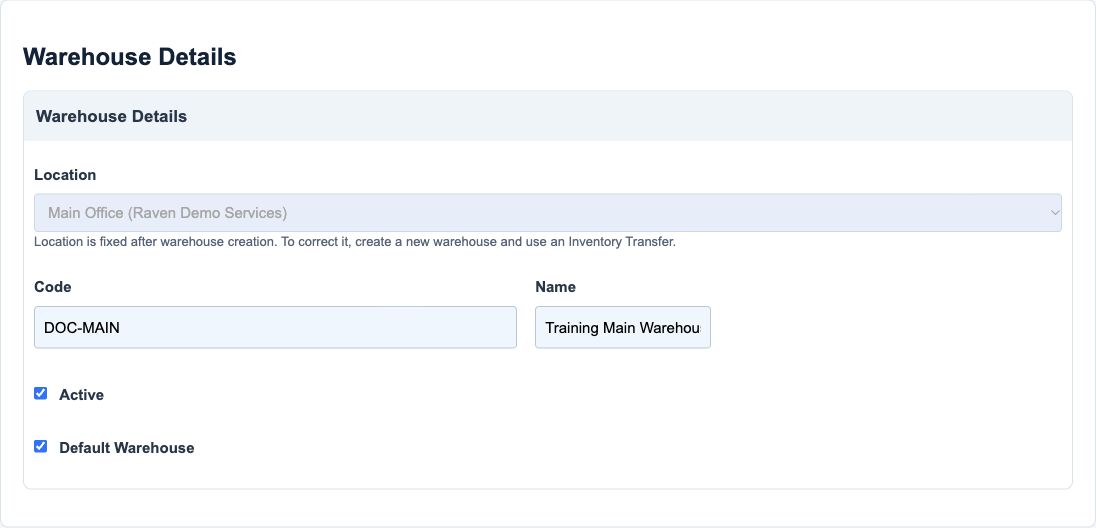
The training example is DOC-MAIN, Training Main Warehouse, at Main Office. It is a default warehouse with bins enabled. A warehouse master does not establish bins, stock quantities or inventory value.
Create and verify the warehouse
- Open the warehouse create action from the inventory area when permitted and confirm the company.
- Select the active company location, then enter the code and name. Review the spelling and location before the first save.
- Review Active and Default Warehouse. Only one default is allowed per company/location; do not assume selecting a new default automatically clears the old one.
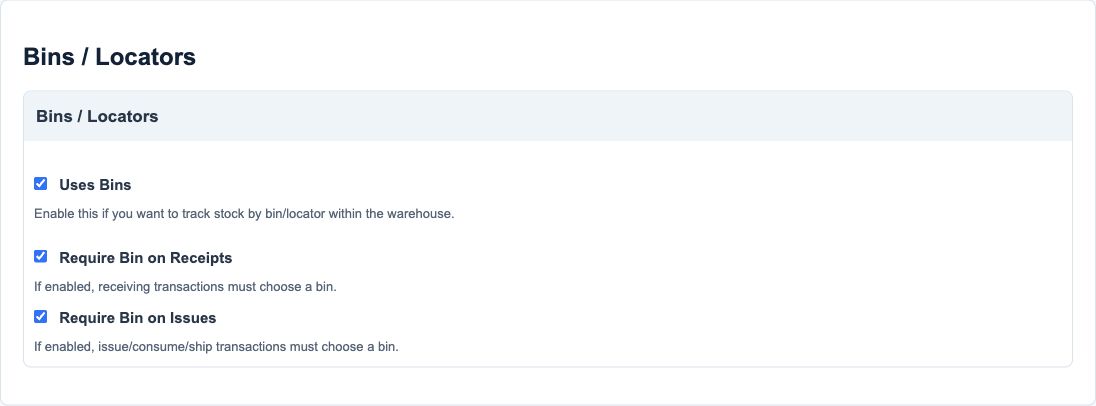
- Set Uses Bins according to the approved storage design. With bins enabled, both receipt and issue bin requirements are forced on. With bins disabled, both are forced off.
- Add the optional address and authorised supporting document if needed. Save and reopen; compare the normalised code, location, name, default and bin settings.
- Before stock entry, create and verify the required bin/locator masters through their separate workflow. Do not use this setup exercise to post opening quantities or move stock.
The Location field is locked after creation, even if the warehouse has never held stock. To correct an incorrect location, create the appropriate warehouse and plan a controlled Inventory Transfer where stock exists; do not rename or edit an existing warehouse as if it moved historical allocations.
Defaults bins and post use restrictions
The default warehouse is scoped to a location, not the whole subscription. If changing a default, review and save the previous default off before assigning the new one; coordinate the change with consuming document entry. An inactive warehouse is not a disposal of its stock.
When Uses Bins is on, receipt and issue requirements are not independent optional choices in the reviewed form: cleaning sets both true. When off, it sets both false. Review the saved state rather than relying on the appearance of a disabled or dependent checkbox.
After warehouse allocation use, bin structure flags have additional restrictions. Do not change warehouse structure to resolve a shortage, expired lot or wrong-bin allocation; use the approved correction workflow.
Form fields and screenshot references
The register covers the 15 fields represented on the warehouse screen. Company is supplied by the current context; generated IDs and creator/updater timestamps are not user inputs.
Warehouse ownership and identity field reference
Figure 1 Warehouse ownership and identity
| Field and screenshot | Entry rule and example | Purpose and implication |
|---|---|---|
| Location - Figure 1 | Required base field. Required active same-company location; disabled on edit, even before stock use. Example: Main Office | Determines the operating unit that permanently owns the warehouse. Caution: If the location is wrong after creation, create a correct warehouse and plan a controlled Inventory Transfer. |
| Code - Figure 1 | Required base field. Maximum 50 characters. Trimmed and uppercased; unique within company/location. Example: DOC-MAIN | Identifies the warehouse within its company location. Caution: Keep the code stable so staff can recognise the correct storage site. |
| Name - Figure 1 | Required base field. Maximum 100 characters. Trimmed; unique within company/location. Example: Training Main Warehouse | Provides the human-readable warehouse identity. Caution: Similar names can cause allocation mistakes; use a clear storage-site description. |
| Active - Figure 1 | Checkbox; the new-field default is True. Example: Checked | Marks the warehouse available in consuming active-warehouse paths. Caution: Deactivation does not move or remove existing stock. |
| Is default - Figure 1 | Checkbox; the new-field default is False. Only one default warehouse per company/location; switch the old default off before assigning another. Example: Checked for the approved location default | Marks the preferred warehouse for this location. Caution: A default is not a global warehouse for every location. |
Bins and locators field reference
Figure 2 Bins and locators
| Field and screenshot | Entry rule and example | Purpose and implication |
|---|---|---|
| Uses Bins - Figure 2 | Checkbox; the new-field default is False. Enabling it forces both receipt and issue bin requirements on; disabling it forces both off. Example: Checked only for a planned bin design | Enables bin/locator tracking in the warehouse. Caution: Decide before stock use; prepare actual bin records before allocating tracked stock. |
| Require Bin on Receipts - Figure 2 | Checkbox; the new-field default is False. The form normalises this to the Uses Bins setting. Example: Managed by Uses Bins | Determines whether receipt allocation requires a bin. Caution: This is not an independent optional toggle when bins are enabled. |
| Require Bin on Issues - Figure 2 | Checkbox; the new-field default is False. The form normalises this to the Uses Bins setting. Example: Managed by Uses Bins | Determines whether issue allocation requires a bin. Caution: Check bin readiness before attempting issues from a tracked warehouse. |
Warehouse address field reference
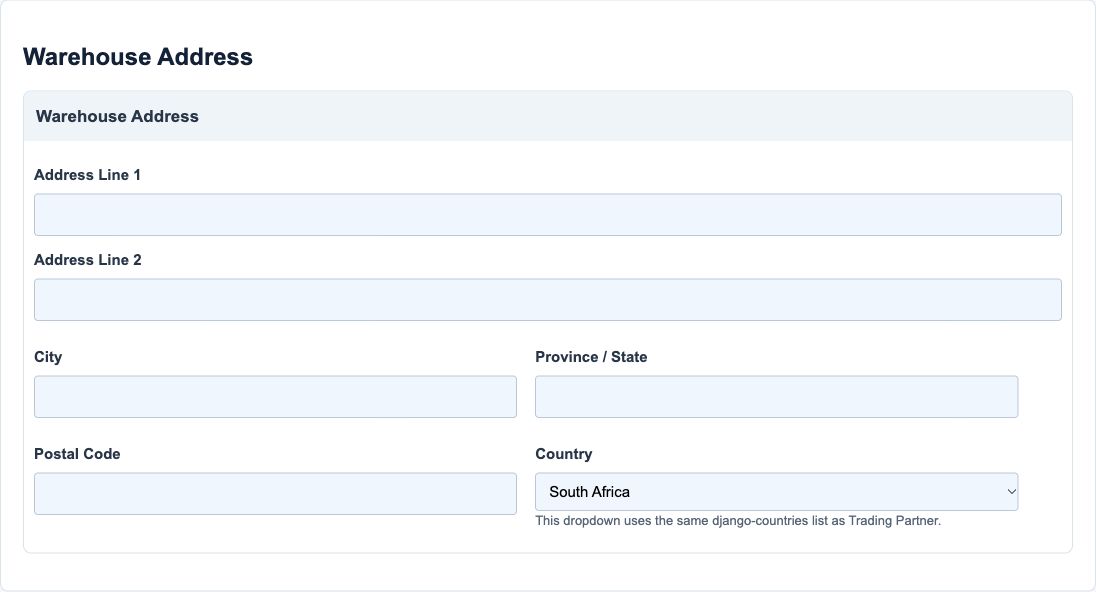
Figure 3 Warehouse address
| Field and screenshot | Entry rule and example | Purpose and implication |
|---|---|---|
| Address line 1 - Figure 3 | Base field permits blank/unchecked; conditional rules still apply. Maximum 255 characters. Example: 1 Training Road | Records the warehouse address line 1 for address identification. Caution: An address change does not transfer warehouse ownership or move stock. |
| Address line 2 - Figure 3 | Base field permits blank/unchecked; conditional rules still apply. Maximum 255 characters. Example: Unit 2, if applicable | Records the warehouse address line 2 for address identification. Caution: An address change does not transfer warehouse ownership or move stock. |
| City - Figure 3 | Base field permits blank/unchecked; conditional rules still apply. Maximum 100 characters. Example: Demo City | Records the warehouse city for address identification. Caution: An address change does not transfer warehouse ownership or move stock. |
| Province - Figure 3 | Base field permits blank/unchecked; conditional rules still apply. Maximum 100 characters. Example: Demo Province | Records the warehouse province for address identification. Caution: An address change does not transfer warehouse ownership or move stock. |
| Postal code - Figure 3 | Base field permits blank/unchecked; conditional rules still apply. Maximum 32 characters. Example: Approved postal code | Records the warehouse postal code for address identification. Caution: An address change does not transfer warehouse ownership or move stock. |
| Country - Figure 3 | Base field permits blank/unchecked; conditional rules still apply. Maximum 64 characters. Example: South Africa | Records the warehouse country for address identification. Caution: An address change does not transfer warehouse ownership or move stock. |
Supporting documents field reference
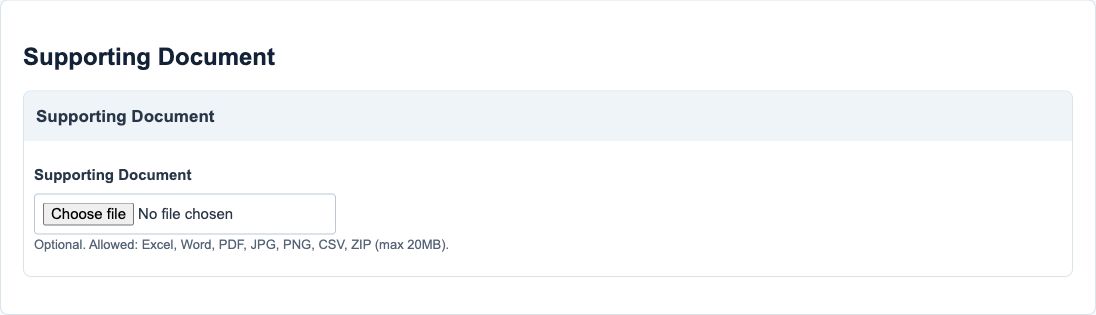
Figure 4 Supporting documents
| Field and screenshot | Entry rule and example | Purpose and implication |
|---|---|---|
| Supporting Document - Figure 4 | Base field permits blank/unchecked; conditional rules still apply. Allowed Excel, Word, PDF, JPG/JPEG, PNG, CSV or ZIP; maximum 20MB. Example: Optional approved warehouse plan | Attaches warehouse supporting evidence through the document-save path. Caution: No attachment was uploaded or removed in this exercise. |
Documents displays and actions
| Action or display | Meaning | Safe response |
|---|---|---|
| Save | Creates or updates the warehouse master | Reopen and compare ownership/default/bin settings; observe the preservation warning before edits |
| Cancel | Leaves unsaved form entry | It does not undo prior warehouse use or inventory movements |
| Locked Location | Permanent location identity after creation | Create a corrected warehouse and use an approved transfer when necessary |
| Existing supporting document | Conditional evidence link/removal controls | Obtain authority for removal and preserve required records |
| Warehouse list filters/options | Help identify warehouses and locations in consuming screens | Confirm both the company location and warehouse identity |
Warehouse code is trimmed and uppercased; code and name are unique within company/location. Address changes describe the site but do not move inventory. A warehouse/bin master is not a stock balance, and a default selection is not a user permission grant.