
Navigate RavenLedger in the correct company
Subscription workspace, company selection, location awareness and module navigation
What you will learn
Select the company you intend to work in, recognise the current company and find your permitted modules. Before recording a transaction, confirm both the company and the location on that document. This prevents a correct amount being recorded in the wrong business context.
Understand your subscription workspace
A tenant is the subscription/account workspace, not a person. A Tenant Administrator manages authorised users and access within that workspace. A company is a business record inside the workspace, with its own accounting setup and accounts. A location is an operating unit of a company, such as Main Office or Warehouse East.
| Context | Meaning | Before you work |
|---|---|---|
| Subscription workspace | The account environment your user belongs to | Use your authorised account. Contact your Tenant Administrator if the workspace is wrong. |
| Company | The business whose records and accounting setup you are using | Read the current company before opening or saving a document. |
| Location | The operating unit recorded on a document or selected in a report | Check the field on that screen; do not infer it from the company name. |
An administrator is not automatically the billing owner. Do not use billing status, a visible link or another user's screenshot as proof of your permission to perform an action.
Before you start
You need an active account and the minimum company/function access for your duties. Ask your Tenant Administrator if access is missing. View permission does not itself authorise creation or changes.
Know the company name/number, location, date, currency and whether the task saves a draft or posts a transaction. Practise saving actions only in approved training.
Select the company
- Sign in using your normal authorised process. If no company is selected, RavenLedger directs the operational home route to Select or Create a Company.
- On Your Companies, compare both Company Number and Company Name with your task.
- Check Status. Do not start work in an inactive company or one whose copy operation is still in progress.
- Choose Select on the intended row. This selects the working context; it does not create a new company or a financial transaction.
- Read the current company on the destination screen before continuing.
Figure 1 Company selection
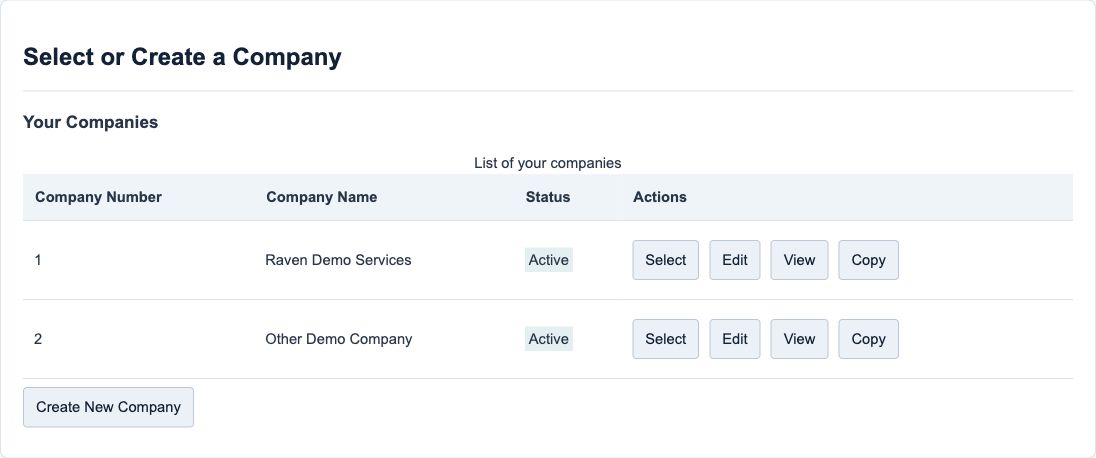
Company selector field and action reference
The selector is a list, not an accounting-entry form. Its fields identify records; its buttons have different consequences. Figure 1 shows an administrator illustration. An ordinary user can have fewer companies or actions.
| Field or action and screenshot | Rule and example | Meaning and caution |
|---|---|---|
| Company Number - Figure 1 | Generated company identifier. Example: 1. | Distinguishes records with similar names. It is not a tax registration number and is not entered on this selector. |
| Company Name - Figure 1 | Displayed business name. Example: Raven Demo Services. | Confirm the intended business. Similar names are not proof that charts, currencies or balances are shared. |
| Status - Figure 1 | Active or Inactive; background-operation status can also appear. Example: Active. | The selector disables Select for inactive or in-progress rows. If an operation failed, contact an authorised administrator; do not repeatedly start copies. |
| Select - Figure 1 | Choose the intended available company row. Example: Select Raven Demo Services. | Changes selected-company context. It does not save unfinished work in another form. |
| View - Figure 1 | Available when permitted. | Opens company information for review. It is not the same as selecting that company for transactions. |
| Edit - Figure 1 | Available when permitted. | Opens company maintenance. Do not use it merely to change your working company. |
| Copy - Figure 1 | Restricted to authorised users; shown here only for recognition. | Starts a separate company-copy workflow with confirmation and background status. It is not a navigation shortcut and is outside this chapter. |
| Create New Company - Figure 1 | Only when your role permits creation. | Opens company setup, including the mandatory one-time starter-chart choice. Use the company-setup guide before saving. |
Recognise the current company
The top bar displays Current Company with the selected company name. Open that menu and use Switch Company to return to the selector. After selecting the next company, reopen the destination function and check the name again.
Selection also records the company's functional currency and time zone for the session. It does not convert unfinished documents, move transactions or merge companies. Check currency and dates on each document.
Figure 2 Current company and module links
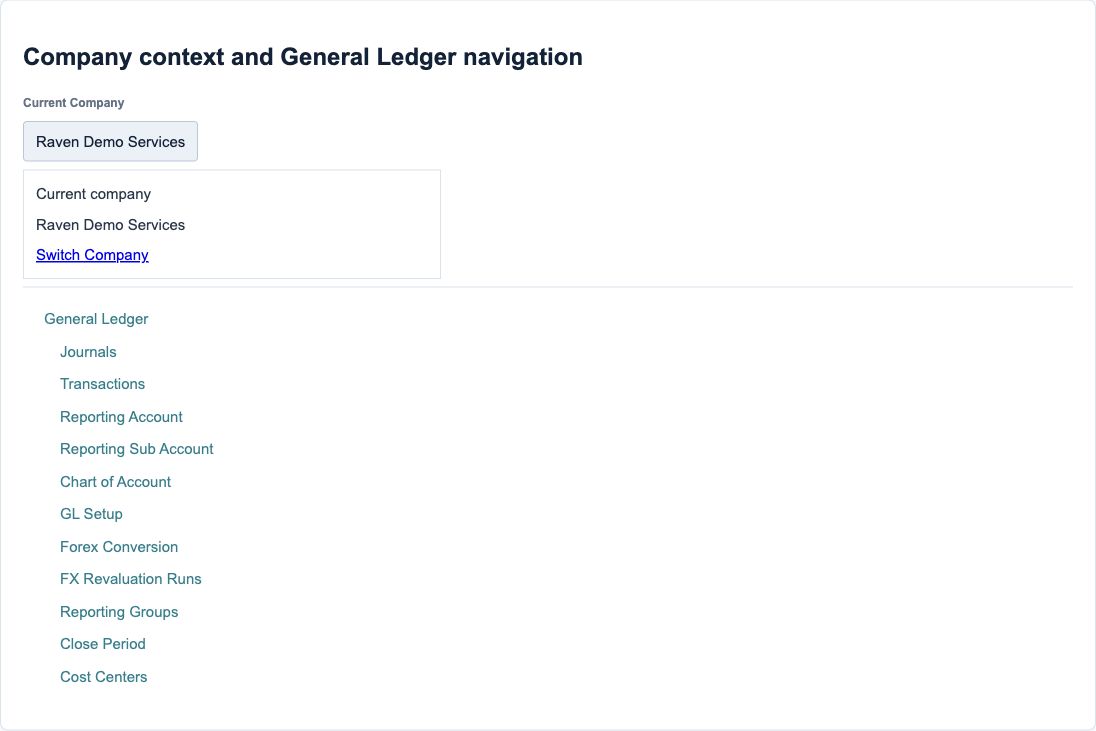
| Display or control and screenshot | Example | Meaning and caution |
|---|---|---|
| Current Company name - Figure 2 | Raven Demo Services | Read-only context indicator. Check it again before saving, posting, exporting or approving. |
| Switch Company - Figure 2 | Return to Your Companies | Opens the company selector. Finish or deliberately cancel unsaved work first. |
| General Ledger links - Figure 2 | Reporting Account, Reporting Sub Account, Chart of Account | Open separate functions in the selected company. A link is navigation, not permission to change every record. |
Find your module
Use the application sidebar for your task. General Ledger's Reporting Account, Reporting Sub Account and Chart of Account are different functions; their relationship is explained in Accounting foundation.
The menu depends on available functions and your access. After company selection, the default destination can be RavenView, My Payslips for a linked employee, the first accessible sidebar function or My Approvals. Not landing on RavenView does not by itself mean selection failed.
Shortcuts do not grant extra permissions. Only eligible main sidebar functions are accepted, not external addresses or individual record URLs.
Check location on each document
The selected company in the header and a document's Location field serve different purposes. A receipt, invoice, warehouse operation or report may have its own location requirement, choices or default.
Before saving a document, compare its location with the real branch or operating unit. A company selection alone is not evidence that Main Office, another branch or all locations are selected. Ask your Tenant Administrator if an expected location is unavailable; do not create a duplicate location to bypass access or setup.
Check location requirements on the relevant transaction or report. Company setup explains the primary-location fields.
Switch company without losing your place
- Review the current form. Save a valid draft only if you intend to create or update that record; otherwise cancel deliberately.
- Do not assume that switching companies automatically saves or discards the form safely. Resolve unsaved work before switching.
- Use Current Company, then Switch Company, then Select on the correct row.
- Reopen the relevant function from the sidebar. Recheck company, document location, currency and dates.
- Avoid continuing an old edit tab after switching in another tab. If its context is unclear, leave it unsaved and reopen the record through the intended company's list.
Do not reuse another user's bookmarked record link to work around an empty list or a denied screen. Report unexpected access or records from the wrong company to your Tenant Administrator or support without editing them.
Use RavenView with accounting judgement
RavenView may be your landing page when your role has access. Treat insights and assistance as aids to review, not replacements for the source document, transaction status or a reconciled report. Verify the company, dates, currency, filters and underlying records before acting on an answer.
Do not include passwords, OTPs, provider keys or unnecessary personal data in prompts or support screenshots.
Resolve common navigation problems
| What you see | What to check | Safe next action |
|---|---|---|
| No companies or an expected company missing | Correct user/workspace, company active status and assigned access | Ask the Tenant Administrator. Do not create a replacement company without approval. |
| Copying or unavailable Select button | Background-operation status on the row | Wait for the authorised operation to finish; escalate a failure instead of repeating it. |
| A function is missing or denied | Your duties, module availability and assigned permissions | Request the specific function and company/location scope needed. |
| Header shows the wrong company | Selected-company name and other open tabs | Stop before Save/Post; switch through the selector and reopen the function. |
| Wrong location on a draft | Document location and intended operating unit | Correct the draft only within your authority; a posted document needs its module's correction procedure. |
Before continuing
Confirm workspace, company, location, function, currency and dates before entry. Read validation and success messages, retain the record reference and check the list after an uncertain response instead of creating duplicates.
Use Company and locations for setup, Accounting foundation for accounts, or User administration for scoped access. A guide being available does not grant access to that function.