
Understand sales orders, stocked invoices and customer credits
Order commitments stock allocation transport evidence and credit application
Order commitments stock allocation transport evidence and credit application. This guide is for authorised sales, stores and receivables users and Tenant Administrators working within their own subscription workspace. A tenant is that workspace, not an administrator person.
Separate orders, stock, invoices and cash
A sales order records commercial demand and can contribute to configured credit exposure. It does not itself create revenue, a receivable, a stock issue or a bank receipt. A customer invoice, its inventory allocations, stock processing, financial journal, receipt and receipt application are separate records or stages. Review each relevant outcome rather than relying on one saved status.
Prepare the customer and inventory design
Confirm Current Company, permitted location, active Customer or Both partner, receivable mappings, item nature, posting groups, units, tax defaults and available stock. Check Receivables Options, credit policy, accounting dates, FX and price-override policy. Inventory items require stock allocation; non-inventory service lines do not become stock merely because a warehouse exists.
Create an order with or without an accepted quote
Use an actual customer. A direct order may omit Quote Line; a source-linked line must be eligible for the customer/location/currency and remaining quote quantity. Review the copied commercial terms. Enabled customer credit checks can include eligible open-order exposure; a refused order needs authorised review, not changes made solely to suppress exposure.
Field explanations and training references
The references pair each listed field or action with its entry rule, example, implication and caution. Illustrations use fictional examples. Fields and available actions depend on document state, permissions, country and item/warehouse policy; choose actual records from the application rather than copying example text.
Sales order header field reference
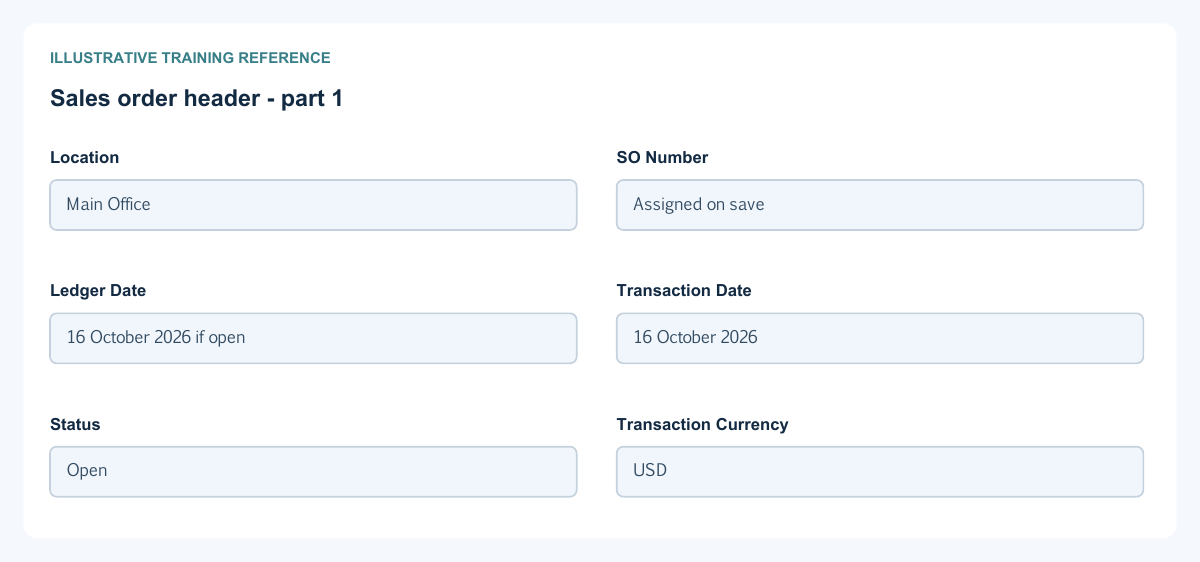
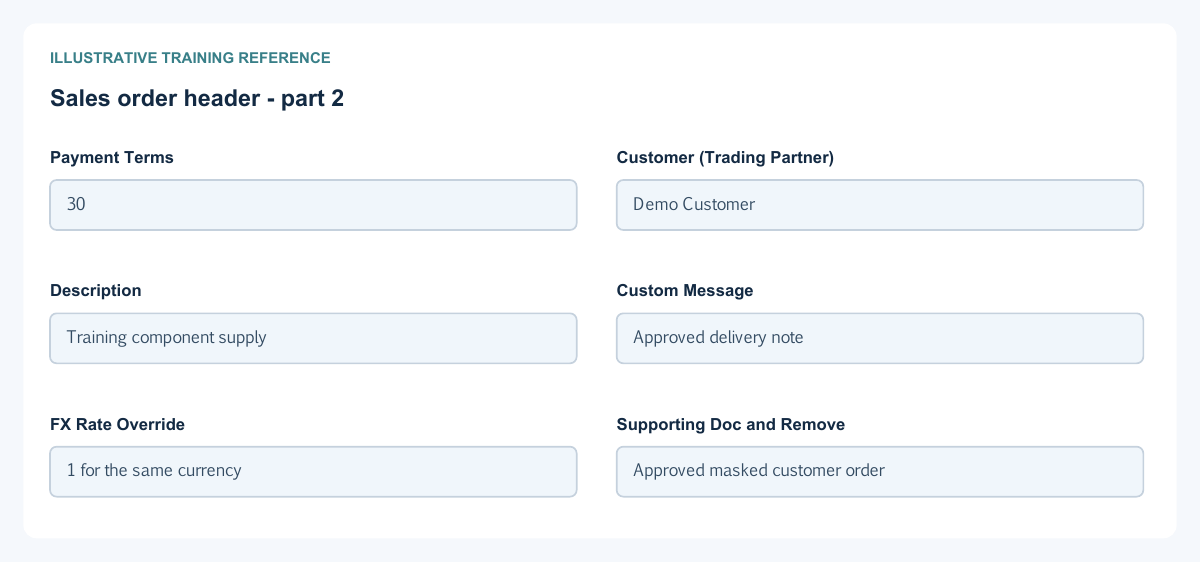
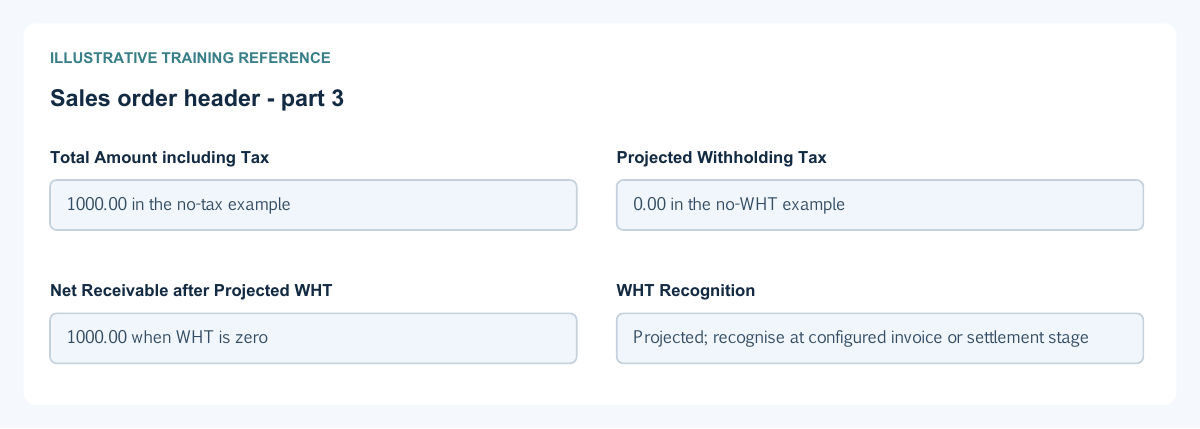
Figure 1 Sales order header
| Field and figure | Entry rule and example | Purpose and implication |
|---|---|---|
| Location - Figure 1 | Required accessible company location. Example: Main Office | Sets operational scope and the permitted order context. Caution: It does not itself allocate a warehouse or grant user access. |
| SO Number - Figure 1 | System-generated read-only number. Example: Assigned on save | Identifies the saved sales order within company/location numbering. Caution: It is not the customer's purchase order number. |
| Ledger Date - Figure 1 | Required eligible open-period date. Example: 16 October 2026 if open | Controls the order's period/date and exchange-rate context. Caution: Despite its name, an order date does not mean a financial journal exists. |
| Transaction Date - Figure 1 | Required order document date after Ledger Date. Example: 16 October 2026 | Records the commercial order date separately from accounting-period context. Caution: Review source quote and invoice dates independently. |
| Status - Figure 1 | Open or Closed. Example: Open | Controls whether the order remains available for the supported order process. Caution: Closing does not reverse invoices, customer receipts or stock movements. |
| Transaction Currency - Figure 1 | Actual selected currency subject to company policy. Example: USD | Denominates order prices and commercial totals. Caution: Review currency again on the subsequent invoice. |
| Payment Terms - Figure 1 | Whole days from 0 to 3650. Example: 30 | Records order credit terms; zero denotes due on receipt. Caution: The invoice's due balance and dates still need review. |
| Customer (Trading Partner) - Figure 1 | Required active same-company Customer or Both selection. Example: Demo Customer | Determines the order owner and credit-control context. Caution: A prospect name or typed label is not sufficient. |
| Description - Figure 1 | Required commercial narrative. Example: Training component supply | Helps identify the order and business purpose. Caution: Do not substitute a narrative for item or source selection. |
| Custom Message - Figure 1 | Optional customer-facing text. Example: Approved delivery note | Adds the message used on commercial output. Caution: Review copied text and avoid secrets or internal pricing commentary. |
| FX Rate Override - Figure 1 | Conditional positive approved rate; functional currency is locked. Example: 1 for the same currency | Supplies the commercial transaction-to-functional conversion basis. Caution: Do not force a rate to make credit exposure appear smaller. |
| Supporting Doc and Remove - Figure 1 | Optional permitted evidence up to 20 MB; existing file can have Remove. Example: Approved masked customer order | Maintains supporting evidence separately from order lines. Caution: Removing evidence does not reverse commercial or accounting activity. |
| Total Amount including Tax - Figure 1 | Calculated order gross total. Example: 1000.00 in the no-tax example | Shows the order's commercial value in transaction currency. Caution: It is not a posted customer balance. |
| Projected Withholding Tax - Figure 1 | Calculated projection. Example: 0.00 in the no-WHT example | Shows the expected withholding measure under the selected line treatments. Caution: It is not proof of withholding recognition or settlement. |
| Net Receivable after Projected WHT - Figure 1 | Calculated order projection. Example: 1000.00 when WHT is zero | Shows the projected net commercial amount. Caution: Do not interpret it as cash already received or invoice unpaid amount. |
| WHT Recognition - Figure 1 | Read-only timing explanation. Example: Projected; recognise at configured invoice or settlement stage | Distinguishes the previewed withholding from its configured recognition point. Caution: Review actual invoice/application journals and the selected code. |
Sales order line grid field reference
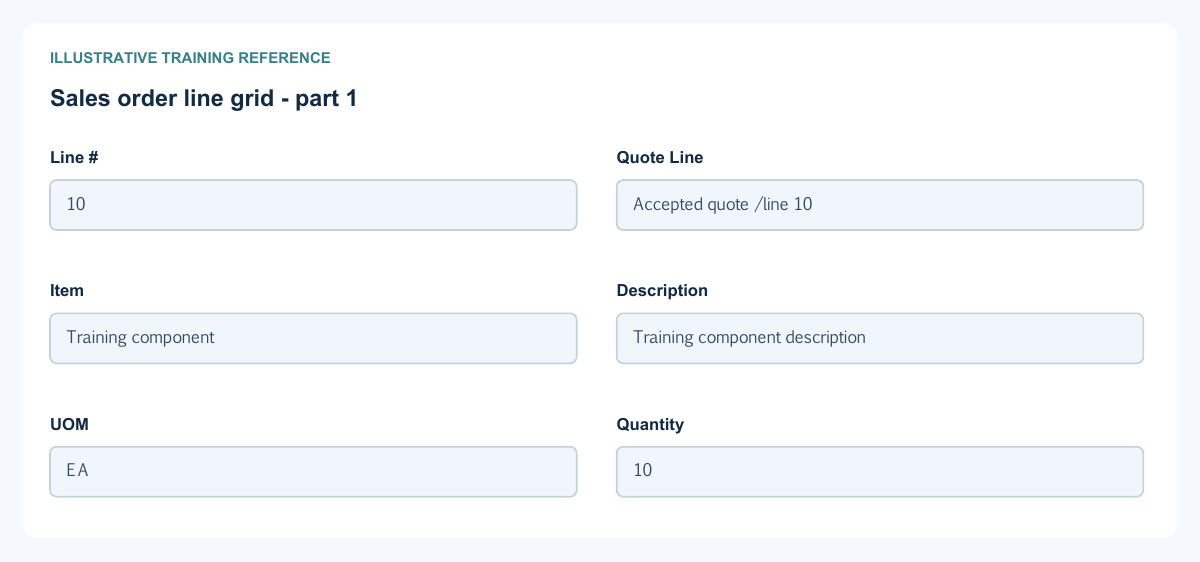
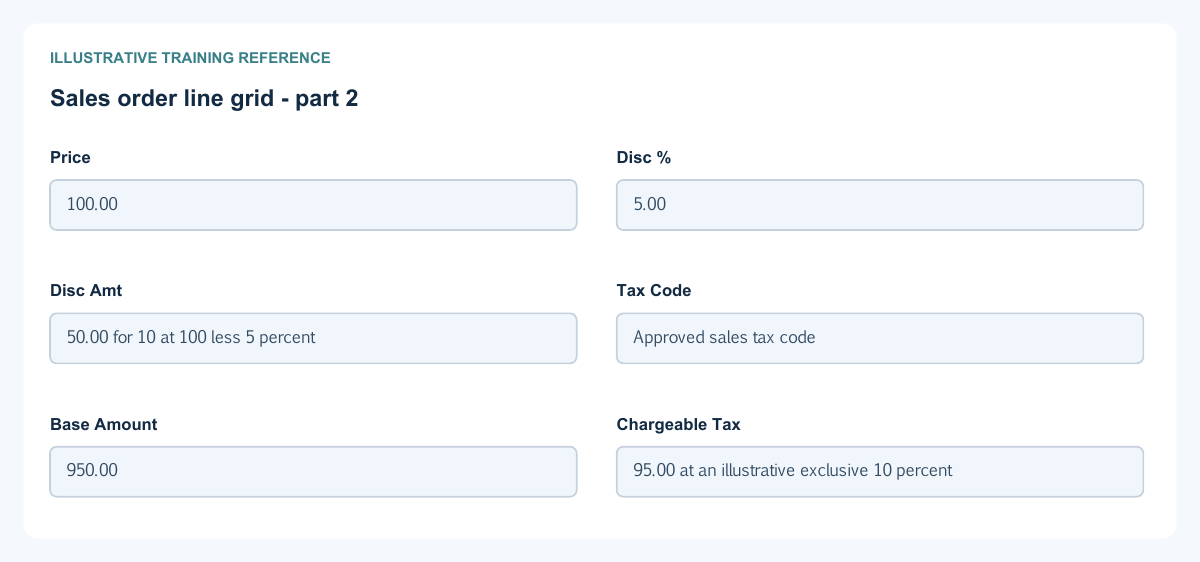
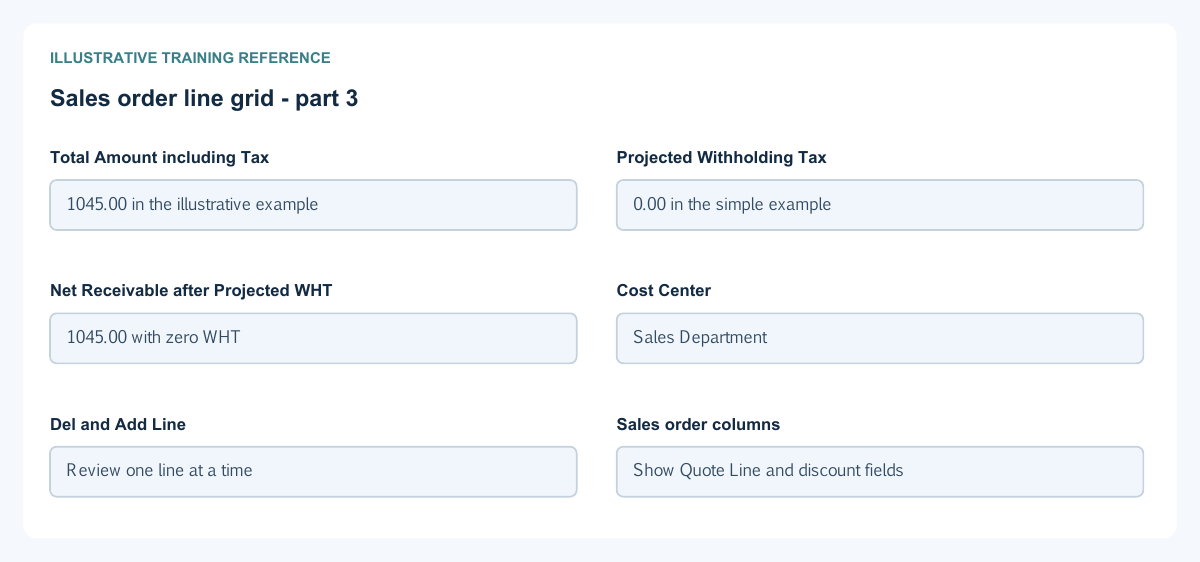
Figure 2 Sales order line grid
| Field and figure | Entry rule and example | Purpose and implication |
|---|---|---|
| Line # - Figure 2 | System row identity. Example: 10 | Distinguishes order lines and invoice/source references. Caution: It is not the order number. |
| Quote Line - Figure 2 | Optional eligible accepted-quote line for the same context. Example: Accepted quote / line 10 | Preserves source provenance and can populate commercial values, subject to remaining quantity. Caution: A direct order need not have a quote; a source link is not a delivery. |
| Item - Figure 2 | Required actual permitted item selection. Example: Training component | Determines item identity and commercial defaults. Caution: Avoid system clearing items and typed-but-unselected text. |
| Description - Figure 2 | Item/source-derived display. Example: Training component description | Identifies what the selected row supplies. Caution: Review the selected master when the description is wrong. |
| UOM - Figure 2 | Derived unit. Example: EA | States the unit in which quantity is measured. Caution: A unit label does not automatically convert quantities. |
| Quantity - Figure 2 | Positive quantity with permitted precision. Example: 10 | States ordered units; source-linked quantities cannot exceed the quote balance. Caution: It is not reserved, picked, issued or invoiced stock. |
| Price - Figure 2 | Nonnegative commercial unit price. Example: 100.00 | Values one ordered unit before discount and tax. Caution: Commercial price precision may exceed total-amount precision. |
| Disc % - Figure 2 | Permitted percentage below 100. Example: 5.00 | Supplies the percentage discount used when present. Caution: Do not apply both a percentage and an independent amount unintentionally. |
| Disc Amt - Figure 2 | Calculated read-only display from Discount %. Example: 50.00 for 10 at 100 less 5 percent | Shows the monetary reduction used to derive the base. Caution: Change the permitted percentage rather than treating this as a second editable discount. |
| Tax Code - Figure 2 | Actual selected approved treatment or deliberate clearing. Example: Approved sales tax code | Controls tax and projected withholding calculations and dependencies. Caution: No tax requires an approved basis, not convenience. |
| Base Amount - Figure 2 | Calculated discounted line base. Example: 950.00 | Shows gross quantity-times-price less the effective discount. Caution: Do not overwrite totals to bypass a pricing error. |
| Chargeable Tax - Figure 2 | Calculated under the chosen code. Example: 95.00 at an illustrative exclusive 10 percent | Shows the chargeable tax preview. Caution: An order does not create the final tax journal or authority invoice. |
| Total Amount including Tax - Figure 2 | Calculated line gross amount. Example: 1045.00 in the illustrative example | Combines the discounted base and chargeable tax. Caution: Review the correct transaction currency and rounding. |
| Projected Withholding Tax - Figure 2 | Calculated withholding projection. Example: 0.00 in the simple example | Separates the commercial WHT estimate from chargeable tax. Caution: Do not count it as a receipt application. |
| Net Receivable after Projected WHT - Figure 2 | Calculated line net projection. Example: 1045.00 with zero WHT | Shows the order's projected net value. Caution: It is not the customer's posted unpaid amount. |
| Cost Center - Figure 2 | Permitted analytical selection where applicable. Example: Sales Department | Attributes the line for analysis. Caution: It does not choose the inventory location or warehouse. |
| Del and Add Line - Figure 2 | Remove an eligible unsaved row or add a line. Example: Review one line at a time | Changes the proposed commercial rows; saved restrictions and source links still apply. Caution: Do not use line deletion as an invoice or stock reversal. |
| Sales order columns - Figure 2 | Hide/show personal presentation columns. Example: Show Quote Line and discount fields | Changes visibility without removing stored data or validation. Caution: Horizontal scrolling may be needed; a hidden column can still contain a value. |
Stocked invoice allocation field reference
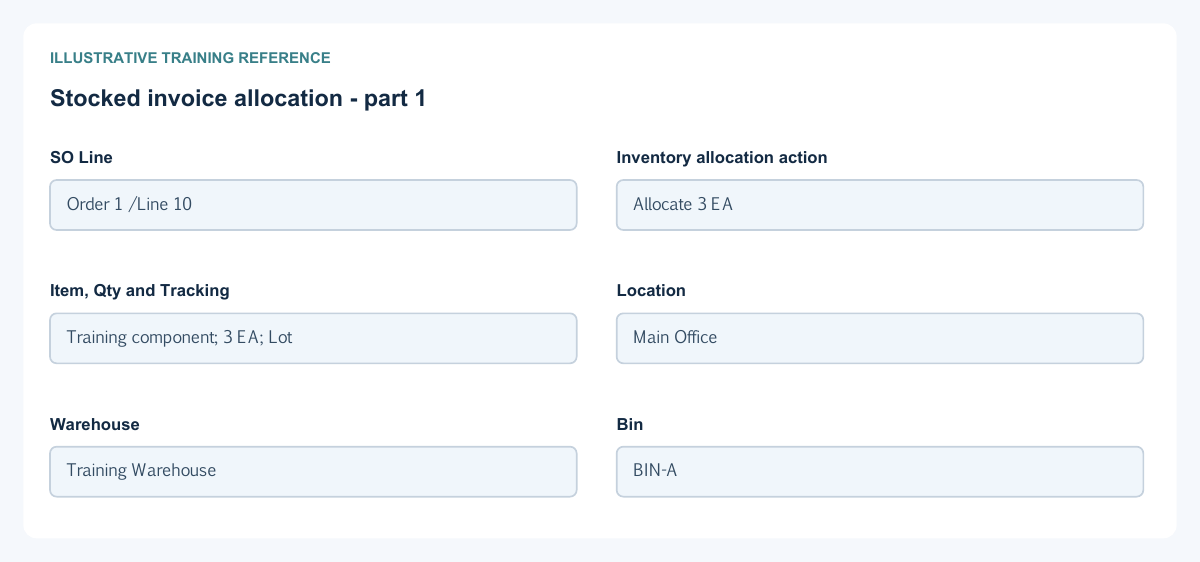
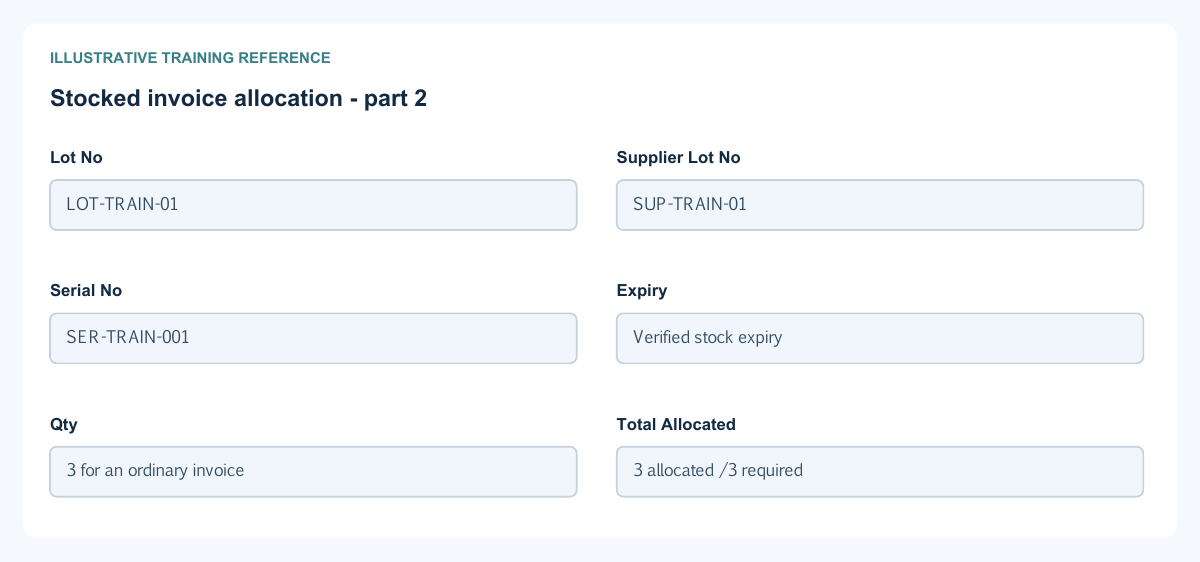
Figure 3 Stocked invoice allocation
| Field and figure | Entry rule and example | Purpose and implication |
|---|---|---|
| SO Line - Figure 3 | Choose an actual eligible order line on the customer invoice. Example: Order 1 / Line 10 | Links invoicing back to the selected commercial order row. Caution: Review customer, location, currency, remaining quantity and copied values. |
| Inventory allocation action - Figure 3 | Required for an inventory line before saving. Example: Allocate 3 EA | Opens the stock-identity allocation for the selected invoice line. Caution: Ship To Address is not stock allocation. |
| Item, Qty and Tracking - Figure 3 | Read-only allocation header from the selected invoice line. Example: Training component; 3 EA; Lot | Identifies the item, signed line quantity and tracking method. Caution: Recheck after changing the item or quantity; previous allocations may no longer fit. |
| Location - Figure 3 | Required permitted location; normally locked to the header. Example: Main Office | Identifies the operational site of the allocated stock. Caution: Do not choose a warehouse from a different site to bypass availability. |
| Warehouse - Figure 3 | Required actual warehouse within the allocation location. Example: Training Warehouse | Identifies the store from which the stock movement is derived. Caution: A matching warehouse name does not prove ownership or available stock. |
| Bin - Figure 3 | Conditional when bins are enabled; select an eligible available stock identity. Example: BIN-A | Identifies the storage bin for that warehouse. Caution: Do not invent a bin or assume bins are optional when the warehouse requires them. |
| Lot No - Figure 3 | Required for Lot or Lot plus Expiry; select eligible stock. Example: LOT-TRAIN-01 | Identifies the internal lot used by the stock line. Caution: A supplier's lot reference is not necessarily the internal lot identity. |
| Supplier Lot No - Figure 3 | Conditional displayed supplementary lot reference. Example: SUP-TRAIN-01 | Preserves the supplier traceability reference associated with the allocation. Caution: Do not replace the internal lot with this reference. |
| Serial No - Figure 3 | Required for Serial; choose eligible stock serials. Example: SER-TRAIN-001 | Identifies the individual tracked unit; each serial row represents one unit with the correct sign. Caution: Duplicate serials or fractional serial quantities are not valid. |
| Expiry - Figure 3 | Required for Lot plus Expiry; customer allocation derives it from stock selection. Example: Verified stock expiry | Preserves the selected stock identity and its expiry date. Caution: Do not type a new expiry to make stock appear eligible. |
| Qty - Figure 3 | Nonzero; same sign as the invoice/note line; serial rows are one signed unit. Example: 3 for an ordinary invoice | Splits the invoice line across stock identities. The displayed customer invoice quantity is positive; the consuming stock movement applies its own direction. Caution: Do not reverse the sign merely because stock will be issued. |
| Total Allocated - Figure 3 | Calculated sum equal to the signed line quantity. Example: 3 allocated / 3 required | Checks coverage of the complete invoice line. Caution: Avoid duplicate composite rows; combine quantities for the same identity. |
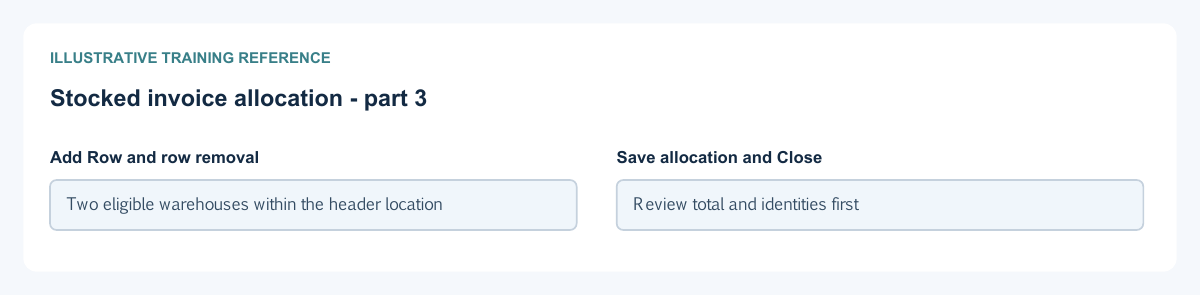
| Add Row and row removal - Figure 3 | Available subject to tracking mode and edit state. Example: Two eligible warehouses within the header location | Splits eligible non-serial allocation identities or removes an erroneous proposed row. Caution: Serial rows are controlled separately; do not bypass tracking restrictions. |
| Save allocation and Close - Figure 3 | Save confirms the proposed line allocation; Close dismisses the dialog. Example: Review total and identities first | On the customer form, allocation is retained with the parent document workflow. Caution: Saving an allocation dialog alone is not proof of a saved invoice or completed stock/GL posting. |
Gate pass details by warehouse group field reference
Figure 4 Gate pass details by warehouse group
| Field and figure | Entry rule and example | Purpose and implication |
|---|---|---|
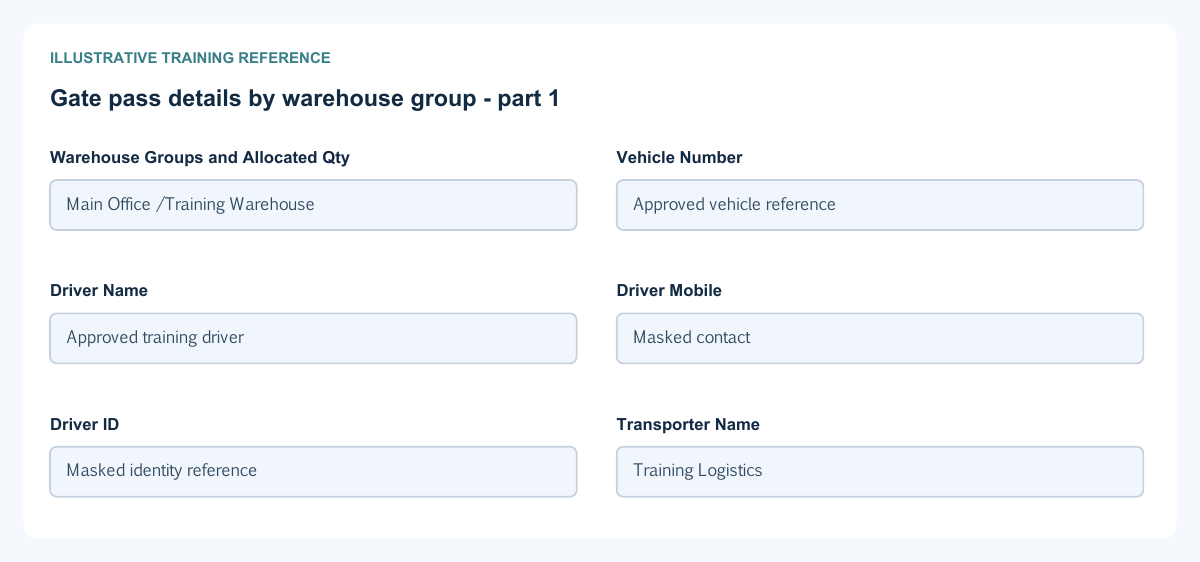
| Warehouse Groups and Allocated Qty - Figure 4 | Select the location/warehouse group with allocated rows. Example: Main Office / Training Warehouse | Scopes transport evidence to the correct physical group and shows its allocated quantity. Caution: Different groups can have different vehicles, carriers and conditions. |
| Vehicle Number - Figure 4 | Optional verified transport reference. Example: Approved vehicle reference | Identifies the vehicle for the selected warehouse group's dispatch evidence. Caution: It does not register a stock movement or prove delivery. |
| Driver Name - Figure 4 | Optional authorised operational contact. Example: Approved training driver | Identifies the driver associated with the movement evidence. Caution: Protect personal information and retain only what is needed. |
| Driver Mobile - Figure 4 | Optional approved operational contact. Example: Masked contact | Records the driver's contact reference. Caution: Do not expose personal numbers in public exports or screenshots. |
| Driver ID - Figure 4 | Optional approved identification reference. Example: Masked identity reference | Supports the organisation's transport evidence process. Caution: Restrict access and avoid copying real identity documents into training. |
| Transporter Name - Figure 4 | Optional carrier reference. Example: Training Logistics | Identifies the carrier for this warehouse group. Caution: A carrier name is not proof of custody or completion. |
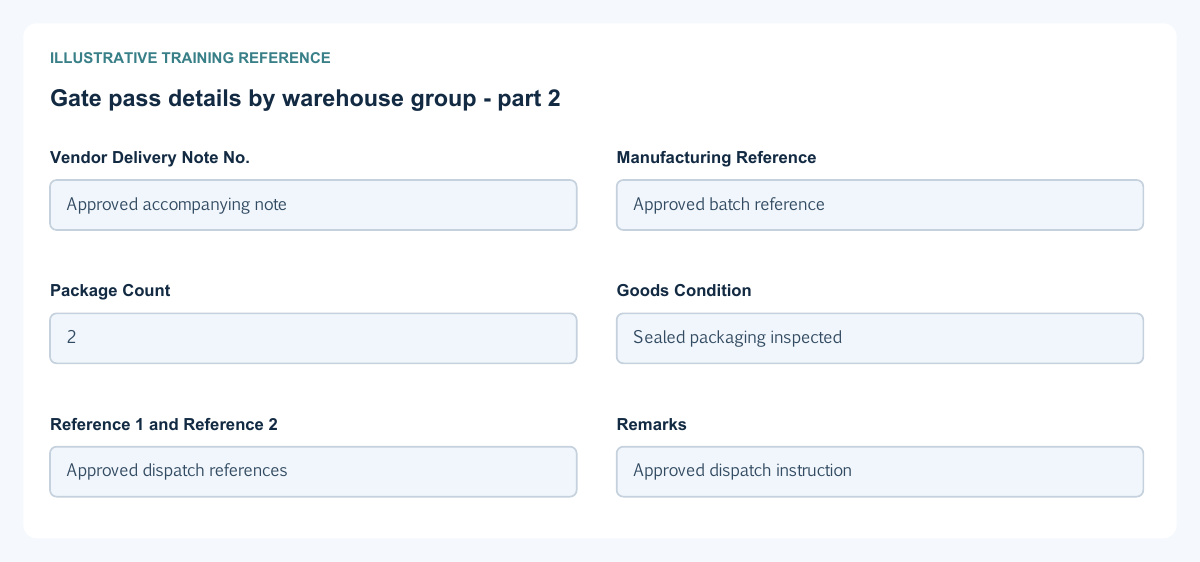
| Vendor Delivery Note No. - Figure 4 | Optional document reference where relevant; screen label retained. Example: Approved accompanying note | Links external transport/source paperwork to the group. Caution: The label does not make a customer dispatch a vendor purchase. |
| Manufacturing Reference - Figure 4 | Optional source-production reference. Example: Approved batch reference | Adds production traceability where relevant. Caution: It does not create or complete a manufacturing batch. |
| Package Count - Figure 4 | Optional permitted package count. Example: 2 | Describes the packages accompanying the allocated goods. Caution: Packages are not the invoice's base-unit quantity. |
| Goods Condition - Figure 4 | Optional factual condition description. Example: Sealed packaging inspected | Records the condition evidence for the group. Caution: Do not use a description to override quality or stock availability controls. |
| Reference 1 and Reference 2 - Figure 4 | Optional additional business references. Example: Approved dispatch references | Supports matching to the organisation's transport records. Caution: Avoid secrets and unrelated personal information. |
| Remarks - Figure 4 | Optional factual movement note. Example: Approved dispatch instruction | Records supplementary group-specific transport evidence. Caution: Remarks do not override saved accounting or stock identities. |
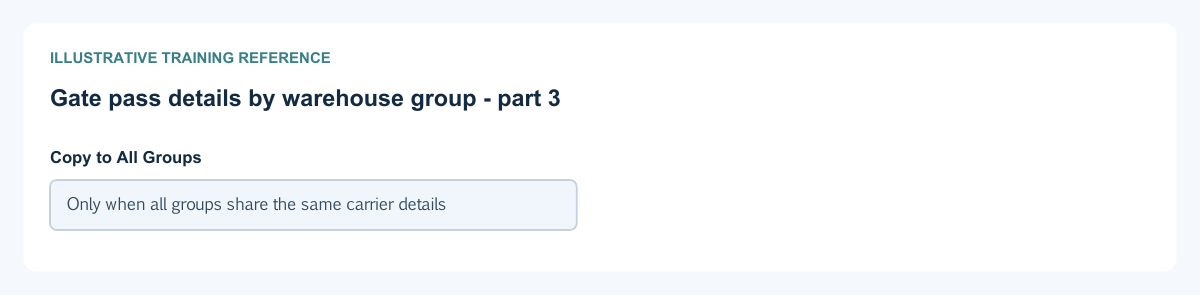
| Copy to All Groups - Figure 4 | Explicit bulk copy of the selected group's details. Example: Only when all groups share the same carrier details | Copies the transport details to other warehouse groups in the current allocation context. Caution: Review every destination; it overwrites their separate detail values. |
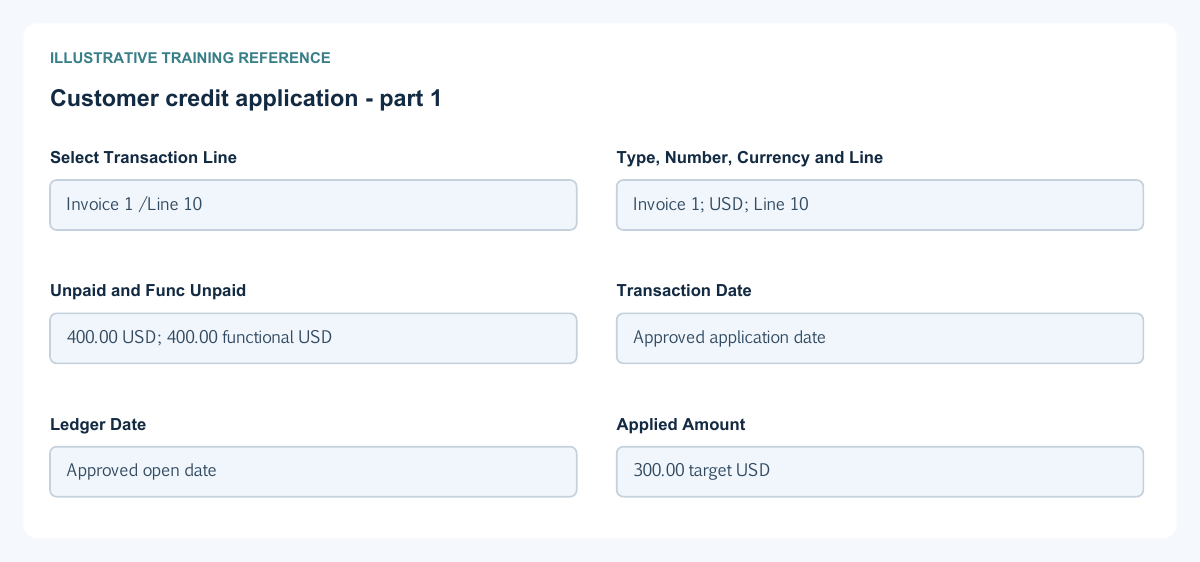
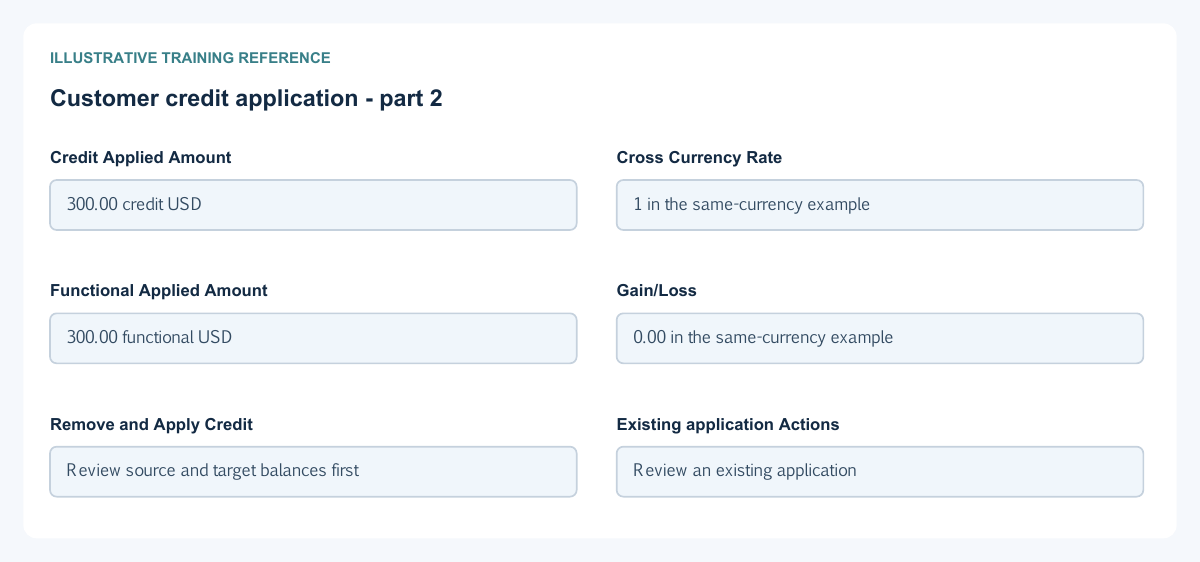
Customer credit application field reference
Figure 5 Customer credit application
| Field and figure | Entry rule and example | Purpose and implication |
|---|---|---|
| Select Transaction Line - Figure 5 | Choose an eligible unpaid target for the same customer and permitted context. Example: Invoice 1 / Line 10 | Identifies the invoice or debit line against which available credit is applied. Caution: It is not a stock-return selection or a bank refund instruction. |
| Type, Number, Currency and Line - Figure 5 | Read-only target identity. Example: Invoice 1; USD; Line 10 | Confirms the exact target document and line. Caution: Similar numbers can occur in different locations or series. |
| Unpaid and Func Unpaid - Figure 5 | Read-only target balances in target and functional currency. Example: 400.00 USD; 400.00 functional USD | Shows remaining target capacity before the new application. Caution: Balances can change; inspect the refreshed result after confirmation. |
| Transaction Date - Figure 5 | Eligible application document date on or after source and target document dates. Example: Approved application date | Dates the application independently from the credit note and invoice. Caution: Do not backdate before either linked transaction. |
| Ledger Date - Figure 5 | Eligible open-period application date on or after source and target ledger dates. Example: Approved open date | Controls application posting-period context. Caution: A different document date does not bypass ledger-period restrictions. |
| Applied Amount - Figure 5 | Positive amount in the target transaction currency, within eligible unpaid capacity. Example: 300.00 target USD | Reduces the selected target line's open balance. Caution: Do not enter the credit-note currency amount here when currencies differ. |
| Credit Applied Amount - Figure 5 | Amount consumed in the credit-note currency; same-currency equivalent or conditional editable cross-currency amount. Example: 300.00 credit USD | Shows how much source credit is used. Caution: Do not exceed the credit line's available amount or confuse it with target currency. |
| Cross Currency Rate - Figure 5 | Calculated read-only rate derived from target and credit amounts. Example: 1 in the same-currency example | Expresses target-currency units per credit-currency unit where currencies differ. Caution: It is not editable here and is not the document's original transaction-to-functional FX rate. |
| Functional Applied Amount - Figure 5 | Calculated functional value. Example: 300.00 functional USD | Supports the ledger settlement and comparison in the company currency. Caution: Reconcile source and target carrying values and application journals. |
| Gain/Loss - Figure 5 | Calculated functional settlement difference. Example: 0.00 in the same-currency example | Shows the functional difference under the application calculation. Caution: It is not additional cash or an editable discount. |
| Remove and Apply Credit - Figure 5 | Remove a pending selection, or confirm an eligible application. Example: Review source and target balances first | Apply Credit is a separate consequential action from saving the credit note. Caution: A credit application is not a physical return, cash refund or fiscal credit-note acceptance. |
| Existing application Actions - Figure 5 | Use the supported action for the saved application and current state. Example: Review an existing application | Maintains application evidence separately from editing the source credit note. Caution: A credit note with existing applications is locked against ordinary commercial editing; do not delete source data to force a change. |
Prepare the stocked invoice
Use Customer Transactions for the invoice and select the actual item and any applicable SO Line. Review dates, customer, currency, quantity, price, tax, contra-account design and the invoice's own values. The regular header, price/tax columns and receipt/application fields are explained in the service invoice and receipt guide; inventory allocation and correction controls are added here.
Allocate the actual stock identities
An inventory line needs allocation before saving. Select the permitted location and warehouse, then bin, lot, serial and expiry as required by item/warehouse policy. Customer allocation uses eligible stock identities rather than invented bins/lots/serials. Allocation quantities must have the same displayed sign as the parent line and sum exactly to it. An ordinary positive invoice quantity produces an outward stock effect through the consuming process; do not manually negate it.
Keep traceability and transport evidence distinct
The internal lot, supplier lot, serial and expiry identify stock. Vehicle, driver, carrier, package count and accompanying references explain its movement. Gate Pass Details groups transport evidence by location and warehouse. Copy to All Groups replaces their separate details, so use it only after checking that the copied information genuinely applies to every group.
Reconcile a simple stocked sale
Illustration only: assume 10 units at company moving-average cost 60 each, same currency, no tax/WHT/discount and an eligible sale of 3 units at 100. The commercial invoice base is 300; expected stock becomes 7 units with value 420 if no other activity or costing change occurs. Expected journal relationships are customer receivable debit 300/revenue credit 300 and cost of sales debit 180/inventory credit 180. These are expected relationships to reconcile against the actual processed stock and posted journal, not evidence that an example was posted.
Record and apply the customer receipt separately
In the same illustrative scenario, a receipt of 200 and a valid separate application leave invoice unpaid 100. The receipt's bank/unapplied-control accounting and application clearing are distinct from invoice revenue and stock cost. Use consistent company, dates, currency, account and report filters. An unapplied receipt does not automatically settle the invoice, and a bank GL balance does not prove statement reconciliation.
Distinguish notes, returns, credits and refunds
Invoice and Debit Note lines use positive quantity in the ordinary form. Credit Note lines use negative quantity and a nonnegative permitted price; zero-total and other validations still apply. Discount editing is restricted on notes. An inventory credit requires its own permitted allocation and stock treatment; a commercial credit application does not physically receive goods. Review the original document and actual supported correction path before changing quantities or accounts.
Apply eligible credit to the correct open line
A saved customer credit and its application are separate. Select the correct target type, number, currency and line; review target unpaid and available source credit. Applied Amount is in the target currency, while Credit Applied Amount is in the credit currency. Application dates cannot precede the linked source/target dates, and period rules apply. A credit with saved applications cannot be commercially edited through the ordinary form; use the supported application action and review its journals/history.
Review fiscal status independently
A customer invoice, credit/debit note, saved credit application and stock movement do not establish tax-authority acceptance. Country routes differ. Do not infer that cancelling, copying, applying credit or refunding cash submits a fiscal correction. Consult the electronic-invoicing guide and the organisation's authorised fiscal process; never change country/fiscal settings to reproduce an example.
Check final balances and recover safely
Reconcile order source/remaining quantities separately from invoiced quantities, stock quantities/value, receivable open items, applications and posted GL. Match report date cutoffs and current-versus-dated inventory bases. After a timeout, inspect saved numbers, allocations, journal/processing status and history before another attempt. Use supported corrections; changing a description, closing an order or deleting an attachment is not a financial reversal.
Related user guides
Customer and vendor setup, items, warehouses, service invoice and receipt fields, inventory reconciliation and electronic invoicing explain related prerequisites and controls.