
Review and extend your chart of accounts
Reporting groups, account properties, sub-accounts and posting combinations
What this setup controls
Your chart of accounts determines which posting combinations users can select and how balances are classified for reporting. Start by reviewing the chart created for the company. Add detail only where an existing account cannot represent the business purpose accurately.
This chapter covers Reporting Groups, Reporting Accounts, Reporting Sub Accounts and Chart of Account maintenance. It explains all fifteen form fields, generated identity, basic list actions and the implications of account properties. It does not teach journals, exchange-rate maintenance, GL Setup fields, opening balances or period closing; those require separate walkthroughs.
Before changing accounts
Obtain approval from the accountant responsible for the company's reporting policy and use your authorised company/function access. Confirm Current Company and review existing account descriptions, classifications and active status. Do not add duplicate accounts simply because a familiar account number is absent.
New companies receive the selected starter chart, including one starter sub-account per reporting account. That choice is used once and is not stored as a company business-type property. Adding or changing accounts later does not rerun company creation or replace the existing chart.
Make practice changes only in an approved training environment. For live changes, agree the business purpose, account type, reporting group, monetary treatment, posting detail and affected module mappings before Save.
Understand the account hierarchy
| Level | Example | Purpose |
|---|---|---|
| Reporting Group | Current Assets, within Balance Sheet / Asset | Organises reporting accounts for presentation. It is not a posting destination. |
| Reporting Account | Refundable Deposits, type Asset | Holds the account description, type, group, cash-flow category and monetary classification. |
| Reporting Sub Account | Refundable rental deposit, number 1000 | Adds posting detail under that reporting account. Additional detail can use 1001 and later numbers. |
| Chart of Account | Company 1 + reporting account 10000 + sub-account 1000 | The company/account/sub-account posting combination, displayed as 1-10000-1000 in this synthetic example. |
The relationship is Reporting Group → Reporting Account → Reporting Sub Account → Chart of Account. A reporting account without its intended posting sub-account is not a complete addition to the chart. Saving a sub-account creates or updates the linked chart combination; you do not independently invent the composite code.
All sub-accounts under one reporting account share that parent's classification. Use separate reporting accounts where monetary treatment or reporting presentation differs. Do not use sub-account names to conceal incompatible policies under the same parent.
Open the setup functions
In the application sidebar, open General Ledger and choose Reporting Groups, Reporting Account, Reporting Sub Account or Chart of Account. The exact links visible to you depend on your access. Choose the intended company's existing list before opening Create, View or Edit.
Review the existing group and account first. If the classification already exists, reuse it. The synthetic names prefixed Documentation in the figures are teaching records, not a recommendation to create those names or numbers in your live chart.
Review reporting groups
A group belongs to the selected company and to a category/subcategory. Asset, Liability and Equity accounts use Balance Sheet groups. Income and Expense accounts use Profit & Loss groups. A name such as Current Assets is useful only when its category and subcategory are also correct.
Figure 1 Reporting Group fields
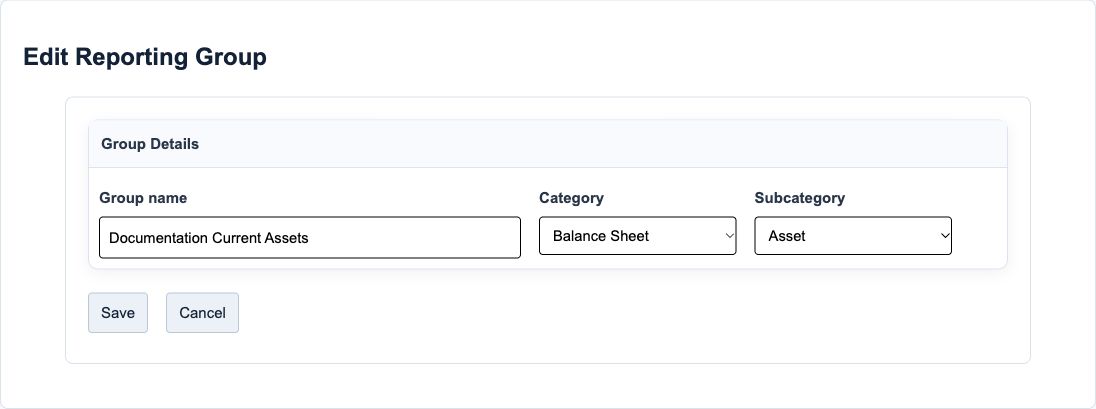
Reporting Group field reference
| Field and screenshot | Entry rule and example | Purpose and implication |
|---|---|---|
| Group name - Figure 1 | Required text, up to 50 characters. Use an unambiguous reporting heading. Example: Documentation Current Assets. | Names the group used to organise reporting accounts. The same group name and category cannot repeat within a company. Caution: A group is not a posting account. Agree reporting presentation before changing an established group. |
| Category - Figure 1 | Required: Balance Sheet or Profit & Loss. Choose before Subcategory. Example: Balance Sheet. | Determines the family of subcategories and whether the group belongs to balance-sheet or income-statement presentation. Caution: Recheck Subcategory after changing Category; the screen rebuilds the available choices. |
| Subcategory - Figure 1 | Choose Asset, Liability or Equity for Balance Sheet; Income or Expense for Profit & Loss. The model allows blank, but a usable reporting account needs a matching group. Example: Asset. | Must agree with the reporting account type. An Asset account cannot use an Income group. Caution: The reviewed screen rebuilds this dropdown on load as well as on category change. Confirm the visible selection before saving, especially when editing non-Asset groups. |
Before Save, confirm all three visible values. The reviewed screen rebuilds Subcategory options on page load; do not assume an existing non-first selection remains correct. Cancel and seek review if the visible classification differs from the intended saved classification.
Create or review a reporting account
- Search the existing Reporting Account list by number, description or monetary classification.
- If a new account is approved, open Create and enter its description and account type.
- Choose the matching reporting group in this company, then confirm the cash-flow category and monetary classification.
- Review Active and all classifications before Save. Do not rely solely on blue/white background styling to determine validation requirements.
- After saving, find the account in its list and confirm the generated number and properties. Then create the required posting sub-account.
Figure 2 New Reporting Account
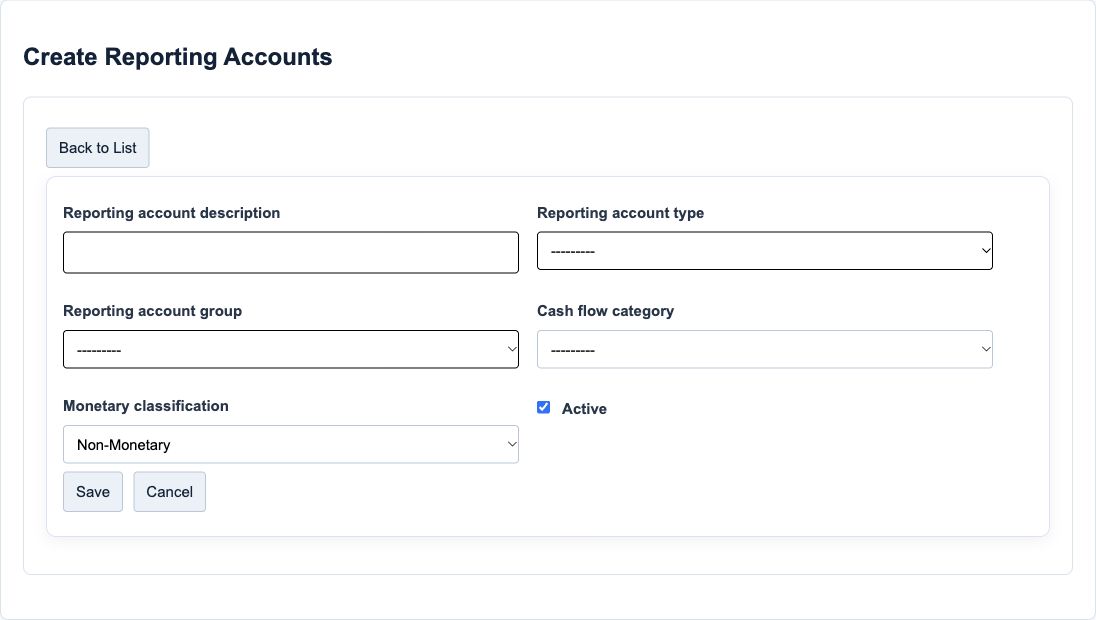
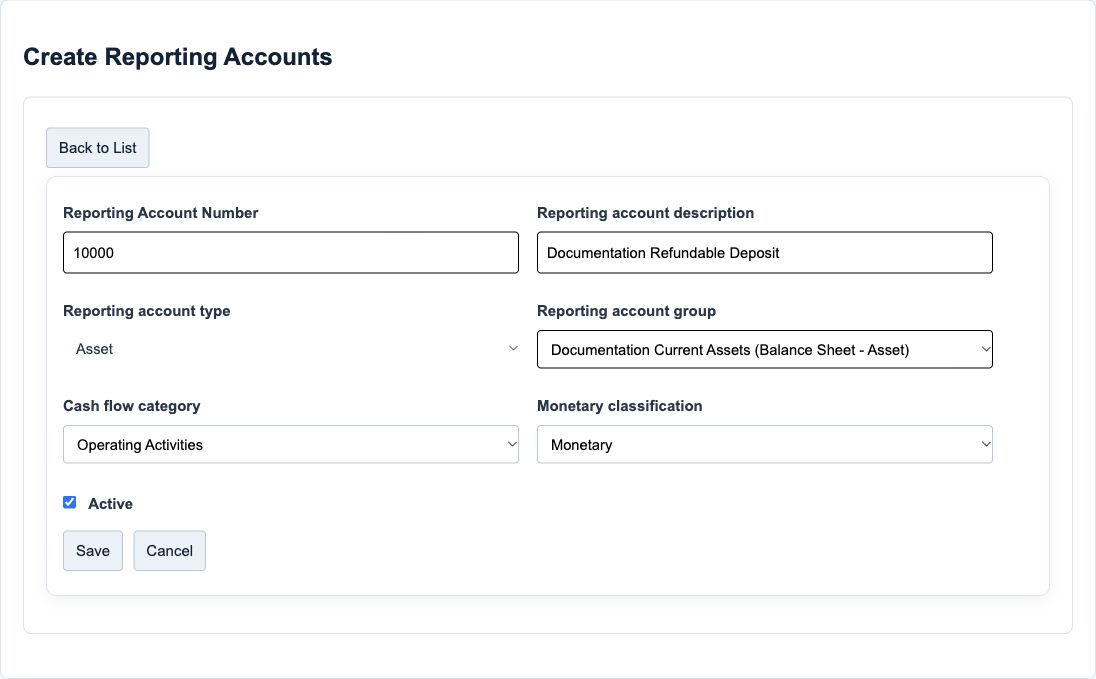
Figure 3 Existing Reporting Account
Reporting Account field reference
| Field and screenshot | Entry rule and example | Purpose and implication |
|---|---|---|
| Reporting account description - Figure 2 and 3 | Required text, up to 100 characters. Search the existing chart first. Example: Documentation Refundable Deposit. | Names the reporting account and forms part of every linked chart description. Caution: A wording change can change how linked accounts appear. Do not repurpose an account with history. |
| Reporting account type - Figure 2 and 3 | Required choice from configured types. Locked on edit; numbering follows the type range. Example: Asset. | Sets the broad accounting family and permitted reporting-group classification. Caution: Choose correctly at creation. If an established type is wrong, seek an approved correction plan rather than renaming the account. |
| Cash flow category - Figure 2 and 3 | Required by the form, even though its visual wrapper is styled as optional. Choose a configured category. Example: Operating Activities in the synthetic deposit example; confirm the real policy. | Provides an account-level reporting classification for cash-flow analysis. Caution: This is not a substitute for reviewing the nature of a cash flow. A single account can contain movements needing different treatment. |
| Reporting account group - Figure 2 and 3 | Required group belonging to the selected company. Its category and subcategory must match Account Type. Example: Documentation Current Assets - Balance Sheet - Asset. | Places the account under the intended reporting heading. Caution: Do not select the first available group solely to clear an error. A correct posting with a wrong group can still misstate presentation. |
| Monetary classification - Figure 2 and 3 | Required: Monetary or Non-Monetary. A new manual account defaults to Non-Monetary. Example: Monetary for a deposit recoverable as a fixed cash amount. | The released FX revaluation selection uses Monetary on eligible balance-sheet accounts. The property belongs to the reporting account, not each sub-account. Caution: Do not accept the default without reviewing settlement terms. Separate cash-refundable and goods-or-services balances when their treatment differs. |
| Active - Figure 2 and 3 | Checkbox; checked by default for a new reporting account. Example: Checked for an account intended for current use. | Records whether this reporting account is active. Linked sub-account and chart statuses are separate records. Caution: Do not assume one checkbox cascades all statuses or removes history. Review linked combinations and module mappings first. |
Reporting Account Number appears as a generated, read-only display when editing (Figure 3). On creation the system assigns the next number within the configured account-type range. It is not an input on this form. The example uses 10000; your account number can differ.
System Reporting Account is not a user-selectable field in this form. Do not attempt to turn an ordinary account into a system account or modify a protected one.
Classify monetary and non monetary balances
A monetary balance represents cash or a right/obligation to a fixed or determinable currency amount. Cash-settled receivables, payables and loans generally meet that test. Inventory, property and prepayments for goods/services generally do not. Foreign-currency monetary balances use closing rates; historical-cost non-monetary items use transaction-date rates, while fair-value items use measurement-date rates. Classification follows settlement terms, not merely the account name. See NZ IAS 21 paragraphs 8, 16 and 23, published by the External Reporting Board.
| Business fact | Account design example | Review point |
|---|---|---|
| Deposit recoverable as a specified cash amount | Separate Monetary deposit reporting account | Keep evidence of the refund entitlement. |
| Advance settled through future services | Separate Non-Monetary prepayment reporting account | Do not mix with cash-refundable advances. |
| Different settlement terms in one broad ledger label | Split reporting accounts where treatment differs | Sub-accounts cannot override the parent's monetary property. |
In RavenLedger, a new manual reporting account defaults to Non-Monetary. The released FX revaluation selection filters Monetary classifications on eligible balance-sheet account types. Changing this property is therefore not cosmetic. Have the responsible accountant approve changes before using revaluation; this chapter does not certify an FX run or the full financial statements as IFRS compliant.
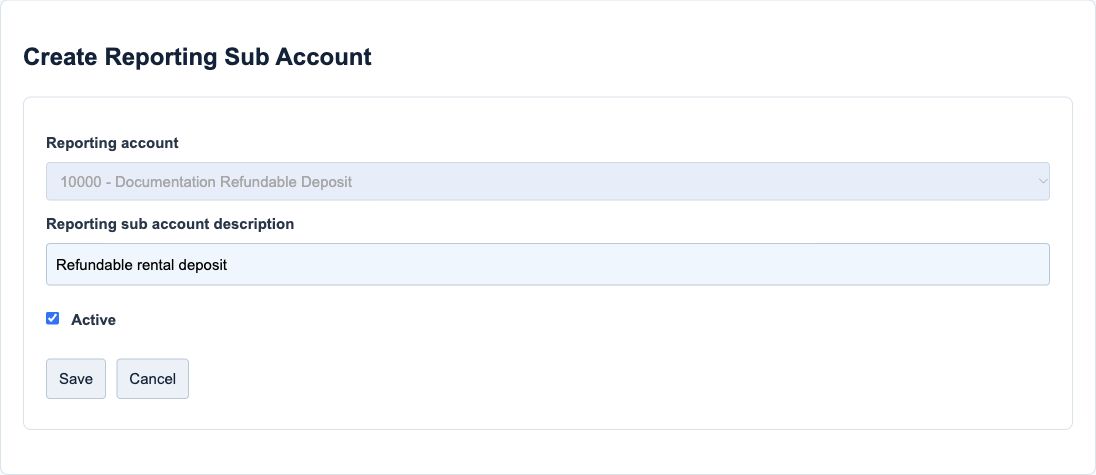
Add the posting sub account
- Open Reporting Sub Account and choose Create for the approved detail.
- Select the intended reporting account in the current company.
- Enter a meaningful sub-account description and confirm Active.
- Save once. Find the new sub-account and its matching Chart of Account combination.
- Verify the complete code and description before allowing a module to use it.
Figure 4 New Reporting Sub Account
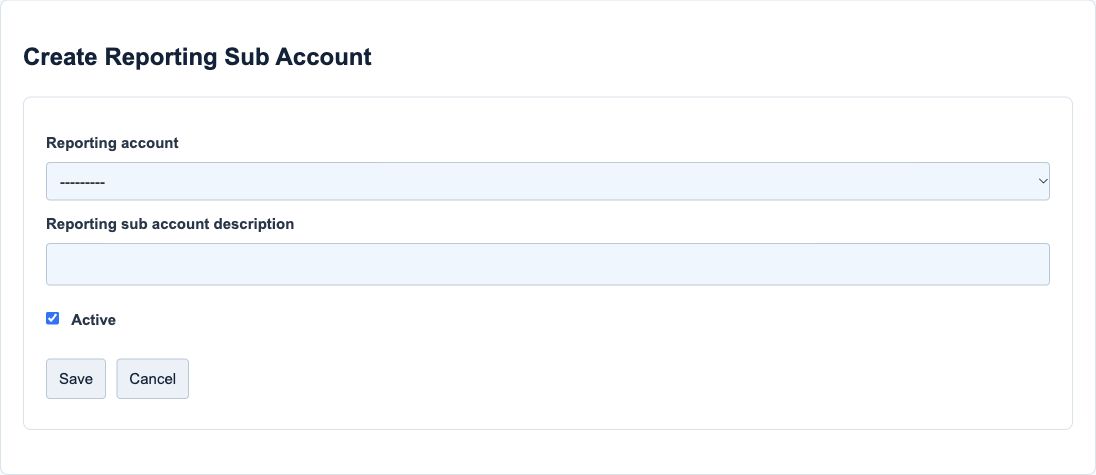
Figure 5 Existing Reporting Sub Account
Reporting Sub Account field reference
| Field and screenshot | Entry rule and example | Purpose and implication |
|---|---|---|
| Reporting account - Figure 4 and 5 | Required parent from the selected company. Disabled on edit. Example: Documentation Refundable Deposit. | Determines the parent classification and the reporting account portion of the posting code. Caution: All sibling sub-accounts share the parent's type, group and monetary classification. Do not combine incompatible settlement policies. |
| Reporting sub account description - Figure 4 and 5 | Required text, up to 100 characters. Example: Refundable rental deposit. | Distinguishes the posting detail within a reporting account and contributes to the chart description. Caution: Use stable accounting meaning; do not use a sub-account as a substitute for the customer/vendor or asset registers. |
| Active - Figure 4 and 5 | Checkbox; checked by default. Saving the sub-account updates its linked chart Active status. Example: Checked while this detail remains available for use. | The save creates or updates the company/account/sub-account posting combination. Caution: A later sub-account save can overwrite a chart-only Active change. Reconcile both statuses before retiring an account. |
The sub-account number is generated, starting at 1000 for the first detail under a reporting account and incrementing for additional details. It is not an editable field in the illustrated form. The first starter detail is 1000; this does not limit every reporting account to only one sub-account.
The save also updates the linked chart combination's Active status and audit attribution. Review this interaction when retiring a combination: a chart-only change can be overwritten by a later sub-account save. Do not assume that parent, sub-account and chart status are one shared checkbox.
Review the chart combination
Open Chart of Account, find the new detail, and confirm the code, description and Active flag. The code is generated from company number, reporting-account number and sub-account number. The description is generated from the corresponding names.
Figure 6 Chart of Account edit fields
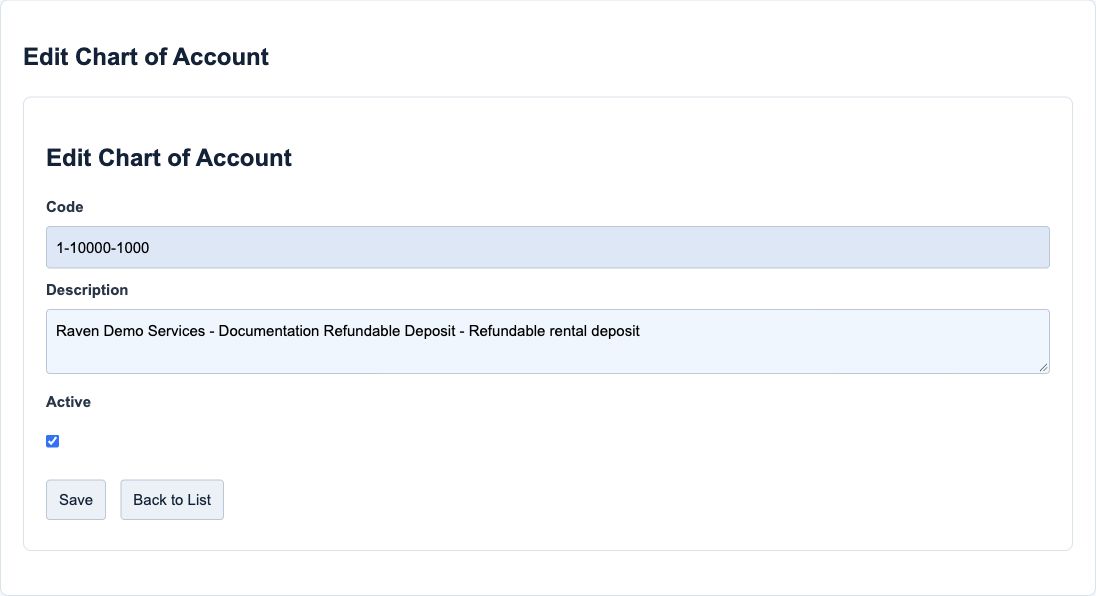
Chart of Account field reference
| Field and screenshot | Entry rule and example | Purpose and implication |
|---|---|---|
| Code - Figure 6 | Generated display, not a manually assigned account identifier. Example: 1-10000-1000 in this synthetic fixture. | Combines company number, reporting-account number and sub-account number. Existing company numbers and account numbers can differ. Caution: Do not copy the example code into a live document. Select the actual company's account. |
| Description - Figure 6 | Derived from company, reporting-account description and sub-account description. Example: Raven Demo Services - Documentation Refundable Deposit - Refundable rental deposit. | Explains the posting combination. The reviewed template shows an editable-looking text area, but this text is not a persisted chart-description field. Caution: Changing this text is not a supported rename. An authorised rename belongs on the underlying master record and needs review. |
| Active - Figure 6 | Checkbox for an ordinary chart combination. System-linked combinations cannot be deactivated through the reviewed update route. Example: Checked for the approved deposit posting combination. | Marks the posting combination active or inactive without changing its identity. Caution: Check sub-account status and all module mappings before changing it. Deactivation is not deletion or reversal of posted transactions. |
Code and description remain derived properties even if display values are submitted to the form. To correct an approved description, review the relevant reporting-account or sub-account record. Do not use an editable-looking chart description area as evidence that a rename was saved.
Search view and export the chart
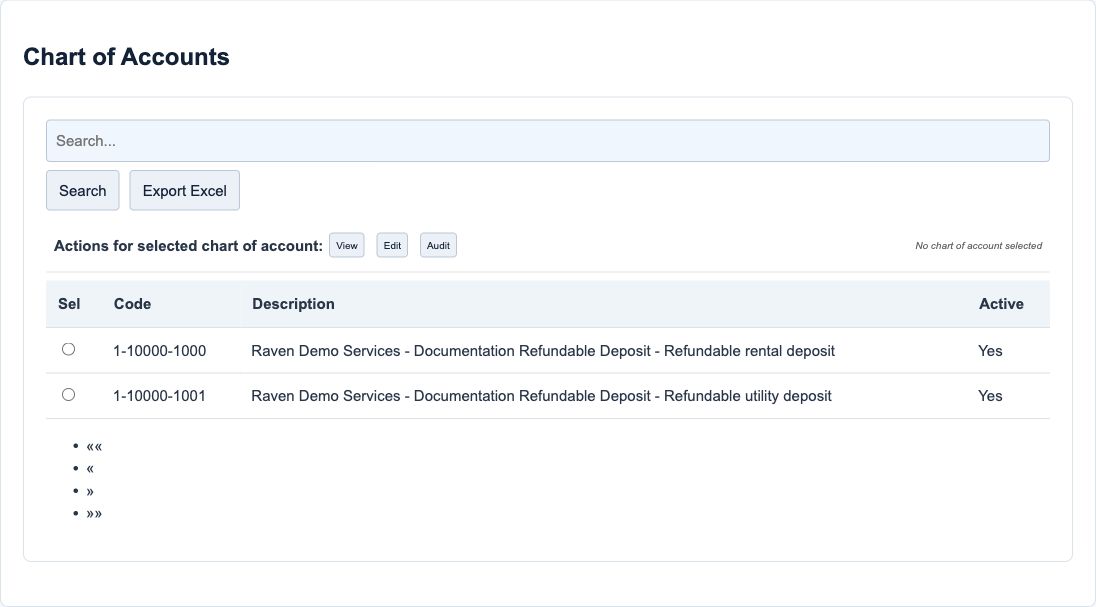
Figure 7 Chart list and actions
| Field or action and screenshot | How to use it | Implication and caution |
|---|---|---|
| Search text and Search - Figure 7 | Enter part of a reporting-account or sub-account description, then Search. Example: rental. | The reviewed chart-list query searches those descriptions, not the complete composite code. A code-only search can return no result even when the account exists. |
| Sel row choice - Figure 7 | Select the intended row before a row action. | Confirms which combination View/Edit/Audit will target. Do not infer selection from a similar description. |
| Code and Description columns - Figure 7 | Compare all code components and names. | These identify the selected company's posting combination, not a customer/vendor or bank register record. |
| Active column - Figure 7 | Read the current chart-combination flag. | This is not proof that every parent, mapping or transaction rule allows posting. |
| View - Figure 7 | Review the selected record when permitted. | Use before Edit when you only need information. |
| Edit - Figure 7 | Change an ordinary combination only within your authority. | System-linked update routes refuse modification. Do not repurpose an existing code. |
| Audit - Figure 7 | Review available record attribution and times. | Master-record audit is not a transaction journal or a complete approval history. |
| Export Excel - Figure 7 | Exports the current search results. | Treat the file as confidential company data; an export is not a database backup or an approved import template. |
| Page controls, when present | Move through results when more than one page is present. | Search/filter scope still matters. |
Reporting Account and Reporting Sub Account lists have their own search rules. Reporting Account searches number, description and monetary classification; Reporting Sub Account searches parent number, sub-account number and description. Do not assume every list has identical search behaviour.
Save cancel and protect existing history
Save validates and persists a master-record change; it does not post a balanced financial journal. Read validation messages and reopen the saved record to verify the outcome. If Save fails or the response is uncertain, check the list before trying again to avoid duplicates.
Cancel and Back to List leave the form without saving the current edits. Their labels vary by screen. A generated identity, locked account type or disabled parent is not an error to bypass.
System-maintained reporting accounts and sub-accounts have protection rules. System-linked chart combinations cannot be deactivated through the reviewed update route. Do not rename, reclassify or reuse a protected account to clear a setup error. Ask for an approved correction instead.
For an ordinary unused account, an authorised accountant can review a description or status change. For an account with history, obtain a correction plan covering reporting effects, linked combinations, module defaults and any needed reclassification entries. Deactivating a master does not reverse historical transactions.
Check module mappings before use
An account appearing in the chart does not automatically configure every module to use it. GL Setup and module-specific posting setups refer to particular chart combinations. Review those mappings separately for customer/vendor control accounts, inventory, bank, fixed assets, payroll, tax, rounding and exchange differences as applicable.
Do not replace a control account casually or post manual opening totals that duplicate subledger balances. Opening balances require a cutover plan and reconciliation of customer/vendor detail, stock, bank, assets and the general ledger. There is no opening-balance wizard demonstrated here.
The presence of exchange-rate, revaluation or Close Period functions in the General Ledger menu is not an instruction to run them during account setup.
Example account structure
The training example uses company 1, one Asset reporting account for a cash-refundable deposit, a matching Balance Sheet / Asset group and Monetary classification. Rental and utility deposit sub-accounts use numbers 1000 and 1001, each with its own chart combination. The example code 1-10000-1000 is not a numbering promise for your company.
| Check | Expected result in the example | Meaning |
|---|---|---|
| Account/group agreement | Asset with Balance Sheet / Asset accepted; Income group rejected | Classification is validated, not just described by a label. |
| Company scope | Group and parent account belong to the intended company | Check Current Company and the selected records. |
| Sub-account save | Separate 1000 and 1001 chart combinations | Both details remain under the same parent classification. |
| Identity and protection | Derived code/description retained; tested system modifications refused | Display edits do not replace generated identity. |
These are account-master records, not journal entries or opening balances.
Troubleshooting and final review
If a group is rejected, check company, category and subcategory against the account type. If Cash flow category is blank, choose the approved category even when the screen looks optional. If a deposit has mixed settlement terms, stop and obtain the accountant's decision instead of changing the monetary flag by guesswork.
If a new reporting account is absent from transaction choices, first check its sub-account, chart combination, active statuses and the module's permitted account types/mappings. Do not add duplicates or change protected accounts to force a choice to appear.
Before handing the chart to users, have the responsible accountant review account purpose, type/group agreement, settlement classification, every required posting detail and module mappings. Reconcile a controlled transaction and its reports in training before live use.
Bulk account, journal and rate imports for Accounting foundation and general ledger
Use the correct bulk action for this module. The following templates are different business operations, not interchangeable create/update files.
| Action and exact template columns | Prepare the file | Check the saved result |
|---|---|---|
| Reporting Accounts - GL Reporting Accounts | Create new reporting accounts after groups/types and cash-flow categories. Review debit/credit nature, balance-sheet/P&L, system restrictions and monetary classification with the accountant. | Reopen properties and reporting hierarchy. A reporting-account import is not a complete posting-account or opening-balance load; use account setup. |
| Reporting Sub Accounts - GL Reporting Sub Accounts | Prepare the correct existing parent reporting account, description and active choice. Do not use an ambiguous parent. | Confirm new sub-accounts under the intended parents and any separate posting-account setup. No balance is created. |
| Journal Entries - GL Journal Entries | Group header and Lines by ext_key. Prepare at least two lines per journal, eligible posting accounts, dates, currency and balanced debit/credit amounts. | Inspect journal numbers, line counts, approval_status and posting_status. Imported/visible does not mean approved or posted. Reconcile functional debits/credits and GL using journal guidance. |
| Forex Conversions - GL Forex Conversion, Bulk Upload | Create currency-pair rates with intended direction and effective start/end dates. Check existing overlapping periods; this is not a historical-transaction repricing file. | Reopen rates/dates and sample the intended conversion using GL controls. A rate import is not an FX revaluation journal. |
Follow this module bulk procedure
- Open the intended Reporting Accounts, Reporting Sub Accounts, Journal Entries or Forex Conversion list in the selected company. Use that list's Bulk Import or Bulk Upload action; the four files are not interchangeable.
- Prepare reporting parents and classifications before sub-accounts, and eligible posting accounts before journals. For rates, agree the currency pair, conversion direction and effective dates without overlapping an existing rate period.
- Download the current template. For journals, give each header a distinct ext_key and repeat it on its Lines rows; keep each journal together when splitting batches. Check dates, currency and balanced debits/credits before Validate.
- Follow the shared Validate and Commit Import procedure once. Review generated account or journal numbers, not just the spreadsheet row count. A reporting-account import is not an opening-balance load or a complete posting-account setup.
- Reopen journals and inspect approval_status and posting_status. Reconcile posted functional debits/credits and the actual account movements. Correct a saved journal through its supported correction/reversal process, never by replaying the file.
Validate, commit and recover safely
For a supported workbook import, use the shared import steps and job recovery. A validated preview is not a saved transaction. Use Show status before retrying; cancelling a job does not reverse committed records. Keep the approved file, job reference and reconciled results securely.