
Configure purchasing policies and PO approval rules
Location matching policies, receipt routes, tolerances and purchasing authority
Before entering purchases, agree how each location orders, receives and matches supplier invoices. Purchasing policy controls the document evidence required, receipt timing, tolerances, account selection and purchase-order approval. A policy change is not a stock receipt, liability, payment or historical correction.
This reference is for authorised purchasing users, accountants and Tenant Administrators within their own subscription workspace. A tenant is the subscription workspace; its administrator manages permitted access, not a separate company ledger. Have the responsible accountant approve the accounts and the purchasing owner approve matching and authority limits.
Prepare the purchasing prerequisites
| Prerequisite | Review before entry | Why it matters |
|---|---|---|
| Company and location | Correct Current Company, authorised location, functional currency | Documents and policies belong to a specific company and location |
| Accounting | Active posting combinations, open posting dates, currency precision and dated FX rates | Downstream invoices, receipts and payments affect accounts and periods |
| Supplier | Active vendor-capable trading partner, terms, addresses, payable account and vendor tax default | Customer defaults are separate; a customer-only record is not a supplier |
| Item | Correct nature, base UOM, purchase policy override and posting group | Determines source matching and stock versus expense treatment |
| Inventory | Warehouse/location, bin and lot/serial requirements, item and global negative policy | Receipt allocation is different from creating an item master |
| Purchasing | Saved location policy, GRNI and price-variance accounts, approval rules and eligible members | A new screen's initial settings are not proof of the saved policy |
| Payments | Approved company bank account with bank GL and supplier-prepayment mappings | An ordinary vendor payment uses these mappings; vendor banking references are not the company's bank account |
Use the company, accounts, trading-partner, item, warehouse and inventory-setup guides for their field references. Do not change protected system items or groups to work around a purchasing setup problem.
Find policies and approval rules
Under Vendors, open Purchasing Setup for location policies and PO Approval Matrix for groups and rules, subject to your permissions. View existing records before adding a policy. A location is selected when a policy is created and remains locked when it is edited.
Approval-group membership is maintained through authorised user administration. A member also needs the appropriate function, company and location access. Keep business approval limits separate from general access grants.
Choose the correct document route
| Matching policy and item | Receipt flow | Supplier invoice source |
|---|---|---|
| Two-Way, inventory | One-Step AP Receipt | PO Line; receiving occurs with the invoice stock process |
| Three-Way, inventory | Two-Step GRN | Posted GRN Line; the related PO is derived from that receipt |
| Invoice Only, inventory | One-Step AP Receipt | No PO or GRN matching source; stock allocation still matters |
| Two-Way or Three-Way, non-inventory | Policy-compatible flow | PO Line; a non-stock item does not become a stocked GRN item |
| Invoice Only, non-inventory | One-Step AP Receipt | No PO or GRN matching source |
An enabled item-level purchasing override supplies that item's effective policy and tolerances instead of the location settings. Check the line's effective policy, not only the location header. The ordinary location policy pairs Two-Way and Invoice Only with One-Step AP Receipt, and Three-Way with Two-Step GRN. Do not infer that every possible policy/receipt combination is supported.
For two-step stocked purchases, the relationship is PO → GRN → supplier invoice → payment and application. For one-step stocked purchases, the supplier invoice carries the receipt allocation; entering another GRN for those same goods would not be the same route. For purchased services, there is no physical inventory receipt merely because an order exists.
Understand tolerances and approval bands
A 5% quantity tolerance on an order for 100 units allows an applicable cumulative upper boundary of 105, not 105 on every receipt. Prior receipts, applicable returns, policy and line eligibility affect the quantity still available. A tolerance is a controlled exception, not a replacement for counting goods or investigating price differences.
Approval amount limits are inclusive and are compared with the PO's functional net amount payable. Currency filters the PO transaction currency; it does not change the threshold denomination. Set limits on the company's functional-currency basis, including for currency-specific rules. For example, an order's foreign-currency amount may be 100 while its functional net amount is 1000; the approval amount comparison uses 1000.
With two-decimal amounts, a band ending at 1000.00 and a following band starting at 1000.01 avoid sharing the same boundary. A blank Max Amount has no upper limit. Review currency-specific and all-currency rules together with the purchasing owner so they provide the intended coverage.
Review the policy and approval fields
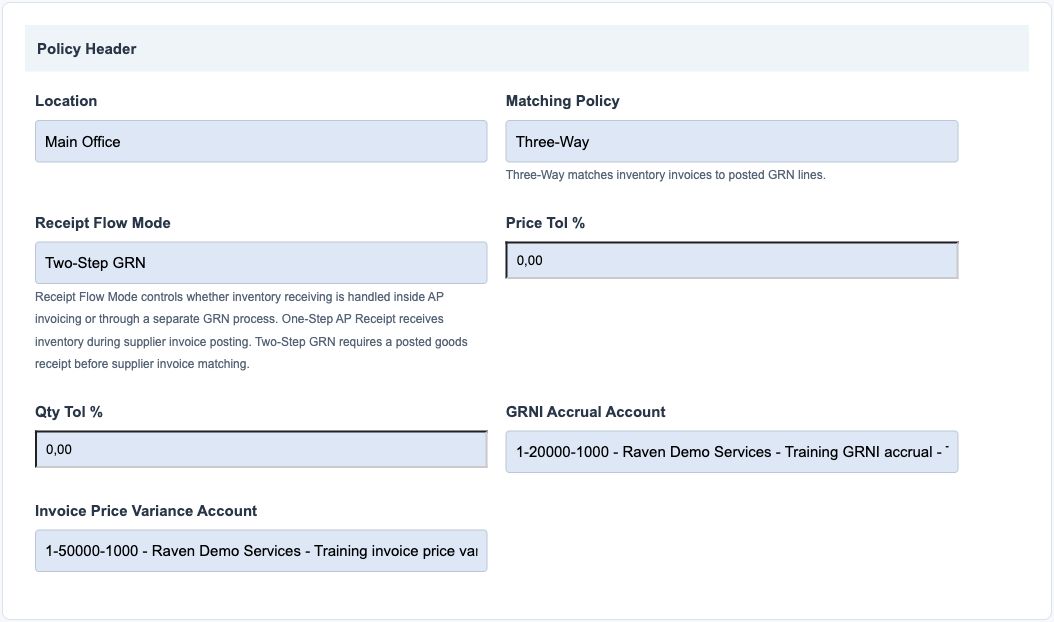
Figures show fictional policy and approval records. The policy account descriptions illustrate separate GRNI and variance destinations; use your own approved account/sub-account combinations. The actual account-search controls appear when creating or editing, not in these view references.
Purchasing policy header field reference
Figure 1 Purchasing policy header
| Field and screenshot | Entry rule and example | Purpose and implication |
|---|---|---|
| Location - Figure 1 | Required on creation; locked on edit. One policy per company/location. Example: Main Office | Scopes the policy used for purchases at that location. Caution: Check Current Company first; do not create another policy to bypass an existing one. |
| Matching Policy - Figure 1 | Required: Two-Way, Three-Way or Invoice Only. Creation screen starts at Two-Way. Example: Three-Way | Determines whether an invoice line requires an order, a posted receipt or no source document, together with item nature and overrides. Caution: The item's enabled policy override can change the effective rule. |
| Receipt Flow Mode - Figure 1 | Two-Way and Invoice Only require One-Step AP Receipt; Three-Way requires Two-Step GRN. Example: Two-Step GRN | Separates physical inventory receipt from supplier invoice matching. Caution: Do not record the same receipt again inside a one-step invoice. |
| Price Tol % - Figure 1 | Required non-negative percentage; initially zero. Entry is rounded to company amount precision. Example: 2.00 | Sets the permitted purchasing price variance under applicable matching checks. Caution: It is a tolerance, not a negotiated price or permission to ignore a mismatch. |
| Qty Tol % - Figure 1 | Required non-negative percentage; initially zero. Entry is rounded to company amount precision. Example: 5.00 | Sets the applicable quantity tolerance, including the GRN receivable limit. Caution: Review cumulative receipts and returns, not just the quantity on this document. |
| GRNI Accrual Account - Figure 1 | Required selected chart account from this company, even for a one-step policy. Example: Approved goods received not invoiced liability | Provides the receipt accrual counterpart in two-step procurement accounting. Caution: Review the complete account/sub-account and active status; an accepted account is not accounting approval. |
| Invoice Price Variance Account - Figure 1 | Required selected chart account from this company. Example: Approved purchase price variance account | Provides the destination for applicable invoice-versus-receipt price differences. Caution: Use the accountant-approved classification; do not choose the GRNI account merely to satisfy requiredness. |
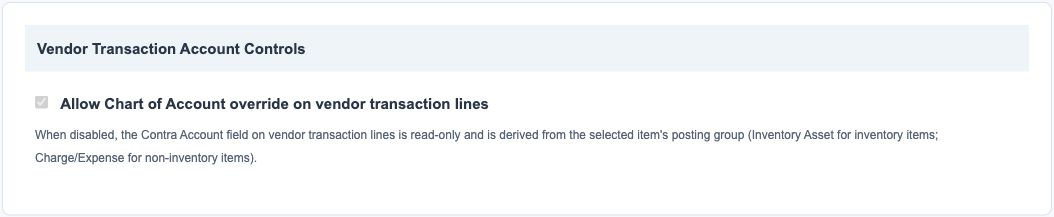
Vendor transaction account control field reference
Figure 2 Vendor transaction account control
| Field and screenshot | Entry rule and example | Purpose and implication |
|---|---|---|
| Allow Chart of Account override on vendor transaction lines - Figure 2 | Checkbox; checked in the new policy screen. Example: Unchecked for controlled item-derived mappings | When off, Contra Account derives from the item's inventory asset or non-inventory charge mapping. Caution: When on, an override still needs an approved same-company account. Do not change policy to repair a posted invoice. |
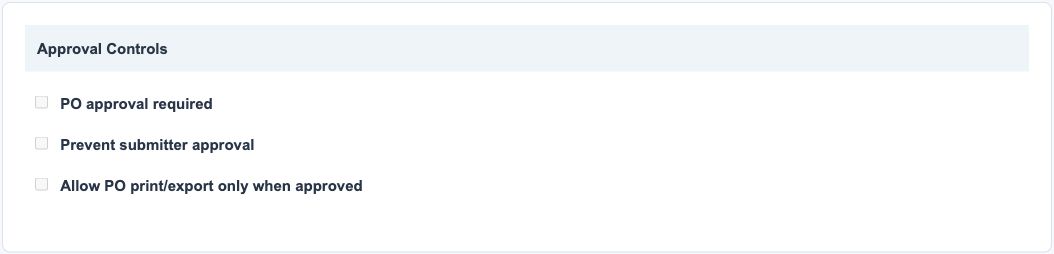
Purchasing approval controls field reference
Figure 3 Purchasing approval controls
| Field and screenshot | Entry rule and example | Purpose and implication |
|---|---|---|
| PO approval required - Figure 3 | Checkbox; checked in the new policy screen. Review the actual saved value. Example: Checked | Requires the purchasing approval process rather than treating a draft save as authorisation. Caution: Do not assume the model fallback or another location has the same setting. |
| Prevent submitter approval - Figure 3 | Checkbox; checked in the new policy screen. Example: Checked | Separates submission from approval when the approval rules apply. Caution: Group membership and permissions must support a different eligible approver. |
| Allow PO print/export only when approved - Figure 3 | Checkbox; initially unchecked. Example: Checked under a controlled supplier-order policy | Restricts PO output according to approval state. Caution: A printable order is still not evidence of goods received, a supplier liability or a payment. |
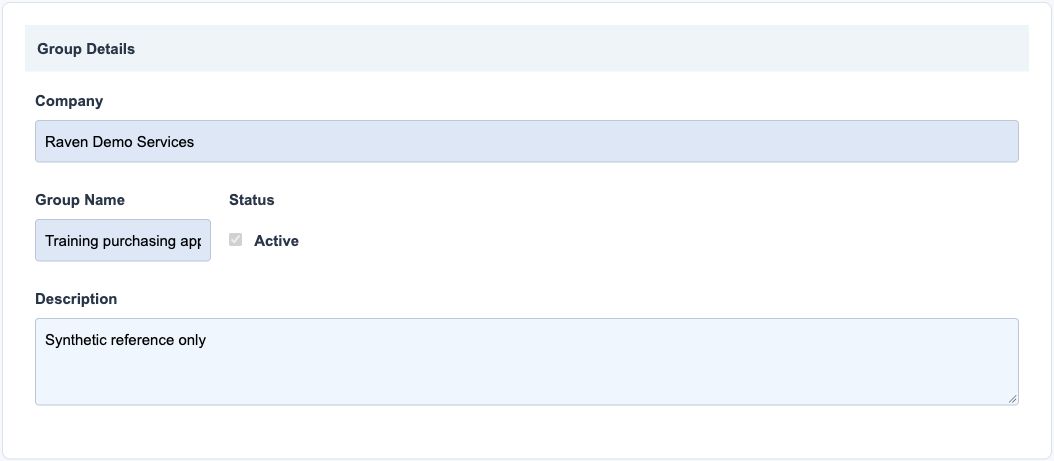
PO approval group field reference
Figure 4 PO approval group
| Field and screenshot | Entry rule and example | Purpose and implication |
|---|---|---|
| Company - Figure 4 | Read-only company display. Example: Raven Demo Services | Identifies the company that owns the approval group. Caution: A group is not a tenant workspace and does not grant company or location access by itself. |
| Group Name - Figure 4 | Required; maximum 100 characters; unique within the company. Example: Purchasing approvers | Identifies the group selected by approval rules and user memberships. Caution: Use an agreed name; do not repurpose a used group without reviewing its members and rules. |
| Status / Active - Figure 4 | Checkbox; checked for a new group. Example: Active | Determines whether the group is active for approval use. Caution: Review outstanding orders before deactivating a group. |
| Description - Figure 4 | Optional descriptive text. Example: Approvers for ordinary purchases | Explains the group's business responsibility. Caution: Description is not an amount limit or a permission grant. |
PO approval rule field reference
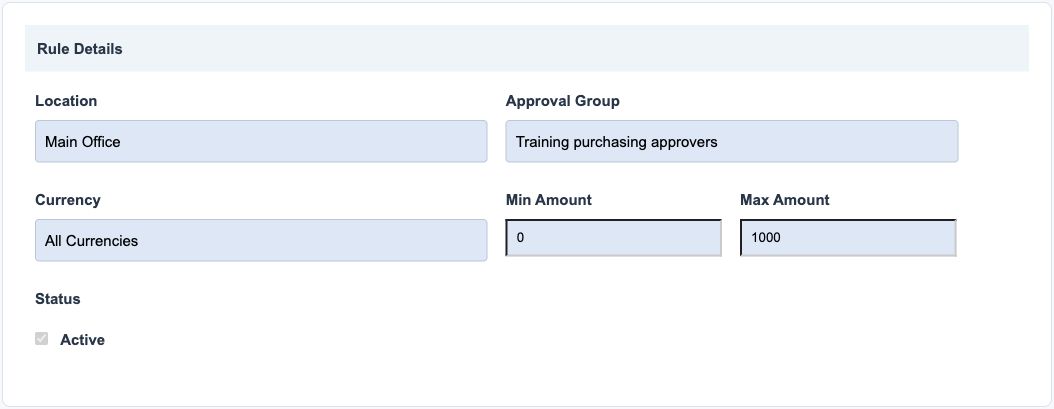
Figure 5 PO approval rule
| Field and screenshot | Entry rule and example | Purpose and implication |
|---|---|---|
| Location - Figure 5 | Required on the rule screen; select a location of this company. Example: Main Office | Scopes the approval amount band to the purchase order's location. Caution: A rule at another location does not provide approval coverage here. |
| Approval Group - Figure 5 | Required group from the selected company. Example: Purchasing approvers | Identifies the group whose eligible members may approve matching orders. Caution: Confirm the group and membership are active; membership does not replace function or location permission. |
| Currency - Figure 5 | Optional selected PO transaction-currency filter; blank means all currencies. Example: USD, or blank for all currencies | Filters eligible orders by transaction currency; the amount comparison still uses the PO functional net amount payable. Caution: Currency does not change the denomination of the numeric approval thresholds. |
| Min Amount - Figure 5 | Required non-negative lower bound, rounded to company amount precision. Example: 0.00 in company functional currency | Sets the inclusive start of the band compared with the PO functional net amount payable. Caution: A band ending at 1000 and another starting at 1000 touch at an inclusive boundary. |
| Max Amount - Figure 5 | Optional upper bound, not below Min Amount; blank has no upper limit. Example: 1000.00 in company functional currency | Sets the inclusive upper limit compared with the PO functional net amount payable. Caution: Review overlap and gaps across currency-specific and all-currency rules; do not enter limits as if Currency changed their basis. |
| Status / Active - Figure 5 | Checkbox; checked for a new rule. Example: Active | Enables the rule for approval resolution. Caution: An inactive rule does not cover new submissions; review pending orders before changing rules. |
Understand accounting responsibilities
A PO is a non-posting commercial commitment. Even though its field is called Ledger Date, it does not itself record inventory, an expense or a supplier payable. Open accounting periods remain essential for downstream receipts, invoices, applications and journals.
A two-step inventory GRN uses an inventory asset debit and GRNI accrual credit. The subsequent matched supplier invoice clears the relevant accrual and recognises the supplier liability, with applicable tax, price and foreign-exchange differences. One-step purchases use their invoice receiving route instead. These are accounting relationships, not a substitute for reviewing the actual generated and posted journals.
GRNI is goods received not invoiced. It is not the supplier payment balance. Do not clear it by selecting a bank account or by posting an unrelated manual journal simply to make a report zero.
Review changes and resolve exceptions
| Situation | Safe response |
|---|---|
| Policy already exists for the location | Review that record rather than adding a duplicate |
| Receipt Flow Mode changes with Matching Policy | Check the supported pairing and item-level overrides before accepting the design |
| Account search accepts a familiar name | Check the complete current-company chart/sub-account, active status and accounting purpose |
| Invoice Contra Account is locked | Review the override control and selected item's posting group; do not alter hidden identifiers |
| No approver is available | Review active groups, memberships, amount/currency/location rules and access with the Tenant Administrator |
| Submitter cannot approve | Use the separate eligible approver required by the saved policy |
| A policy change seems needed for an old document | Preserve the document trail and obtain an approved correction plan; changing defaults does not reverse history |
Use Save only for an authorised policy or rule change, then reopen and compare the saved values. Cancel leaves the current form; it is not a reversal of previously saved transactions. Retain the approval rationale and audit evidence under your organisation's procedures.
Bulk purchase and payment imports for Vendors and purchasing
Use the correct bulk action for this module. The following templates are different business operations, not interchangeable create/update files.
| Action and exact template columns | Prepare the file | Check the saved result |
|---|---|---|
| Purchase Orders - Purchase Orders | Group header/Lines by ext_key; prepare supplier, location, currency, quantity, price, tax and purchasing policy. | Inspect PO numbers/status/totals and applicable approval route. Importing an order does not receive goods or create a vendor liability. Use orders and receipts. |
| Vendor Transactions - Vendor Transactions | Prepare vendor invoice/note type, supplier reference, dates, account/item and supported receipt/source relationships. Review vendor tax independently of customer tax. | Reconcile AP, taxes, GRNI/stock/expense and fiscal state where applicable using vendor invoice guidance. |
| Vendor Payments - Vendor Payments | Prepare supplier/bank/currency and supported invoice applications. Agree cash, withholding, discounts and prepayment intent. | Compare payment numbers, bank/clearing, AP applications and residual balances. A saved payment is not confirmation that a bank executed a transfer. Use payment guidance. |
| Miscellaneous Payments - AP Misc Payments | Prepare miscellaneous cash-payment category, contra account, bank, currency/date and references. | Match cash and contra postings without treating the payment as automatic settlement of supplier invoices. Use cash and bank. |
Follow this module bulk procedure
- Prepare the supplier, liability/expense or inventory mappings, location, purchasing policy, PO approvals and applicable vendor tax setup. Open the intended order, vendor transaction, vendor payment or miscellaneous payment list.
- Download the correct current template. Keep each order/invoice header and its linked rows together. Prepare receipt/source relationships where the vendor transaction template supports them; a PO import is not a goods receipt import.
- Review supplier references, dates, currency, quantities/prices and vendor tax/withholding independently of customer tax. For payments, agree invoice applications, discounts, prepayments and actual cash amounts.
- Validate, inspect the proposed records and commit once. Reopen generated PO/invoice/note/payment identities and approval/posting state. Do not bypass an approval rule by importing the document again.
- Reconcile PO quantities/totals, AP and tax, receipt/GRNI or stock/expense destinations, and payment applications/residuals. A saved payment does not confirm that a bank executed it. Correct through the originating module.
Validate, commit and recover safely
For a supported workbook import, use the shared import steps and job recovery. A validated preview is not a saved transaction. Use Show status before retrying; cancelling a job does not reverse committed records. Keep the approved file, job reference and reconciled results securely.