
Manage users and access in your subscription workspace
Tenant Administrator responsibilities, user onboarding and access control
Use this guide to understand your subscription workspace, add authorised colleagues and give each person the access their job requires. It covers ordinary users and Tenant Administrators within their own workspace. Platform maintenance and cross-tenant administration are not user-guide tasks.
Understand tenants companies and locations
A tenant is your organisation's RavenLedger subscription/account workspace, not a person. A Tenant Administrator is an authorised person who administers that workspace's users and access. The billing owner is the account holder recognised for subscription billing; an additional Tenant Administrator is not automatically the billing owner.
One workspace can contain companies, each representing an accounting entity, and locations belonging to those companies. A colleague added through Create New User joins the administrator's existing workspace; this does not create another subscription or company.
| Term | Meaning for a user | Example and implication |
|---|---|---|
| Tenant or workspace | Subscription/account boundary for an organisation | Fictional Raven Demo workspace. Its administrators manage its users, not users of another customer. |
| Tenant Administrator | Elevated user role for the workspace | Appoints permitted users and manages their access. Assign this role only to approved administrators. |
| Billing owner | Recognised holder of the subscription billing identity | May use the applicable billing portal. Promoting a colleague to Tenant Admin does not transfer ownership. |
| Company | Separate accounting entity inside the workspace | Raven Demo Services. Company accounts and transactions belong to the selected entity. |
| Location | Operational site belonging to a company | Main Office. Check both company and location before entering transactions. |
| Custom User | Ordinary operational role configured with business and scope permissions | A receivables clerk allowed to work only in approved companies and locations. |
Know who can do what
| Task | Ordinary user | Tenant Administrator |
|---|---|---|
| Use business modules | Only with the required permissions and permitted scope | Elevated role is not a substitute for module-specific setup, workflow rules or subscription availability |
| Add users and manage access | Not a normal user task | Within the administrator's own tenant; protected accounts have restrictions |
| Change own access | No | Manage Access rejects self-editing; arrange changes through another authorised administrator or support |
| Edit a Tenant Admin's own profile | Not applicable | Disabled in this release; use the approved support process |
| Manage subscription billing | Not a normal user task | Subject to billing-owner and subscription/provider checks, not the role label alone |
Keep an approved access request identifying the person, role, business functions, companies, locations, approval memberships and authoriser. Prefer Custom User for operational staff. Do not grant Tenant Admin merely to fix a missing menu or failed transaction.
Open the administration dashboard
Open the Account menu and choose Admin Dashboard when your role permits it. Seeing a menu is not proof that every action is allowed. If access is refused, check the assigned role with your administrator; do not use another person's login.
The Users table shows Email, Tenant, Role, Status and Actions. Email identifies the login; Tenant identifies its workspace; Role shows assigned group labels; Status distinguishes Active from Deactivated. The Tenant column may display a system workspace identifier: it is not a field to edit or a company-selection control.
Choose the intended person's row before Manage Access, Change Password, Deactivate User or Reactivate User. The primary account holder and your own account have additional protections. A missing or rejected action should be resolved through the approved administrator/support process, not by creating a replacement owner.
Create New User opens colleague onboarding. Application Logs opens the applicable log interface, not a licence to inspect every user's information. Go Back to Application returns to the ERP. Billing, portal-address and support actions depend on availability; do not use a support-as-user action to test routine access.
Colleague onboarding requirements
The Create User form belongs to the administrator's current subscription workspace. It requires an authorised email address, email verification, a private password and an approved role. Custom User is the normal choice for operational staff; a Tenant Administrator appointment needs explicit authority.
Email verification is tied to the exact address. Changing the address requires verification again. Account creation and access assignment are separate: a new account still needs the intended company, location, business-function and approval permissions. The field references below explain the controls; use your organisation's authorised onboarding process.
Do not record verification codes, passwords or reset links in screenshots, tickets or this manual. Email verification here establishes the onboarding email step; it is not evidence that every future login uses multi-factor authentication. The new account's email must be unique across RavenLedger accounts, not just the current company.
Figure 1 Email verification before account creation
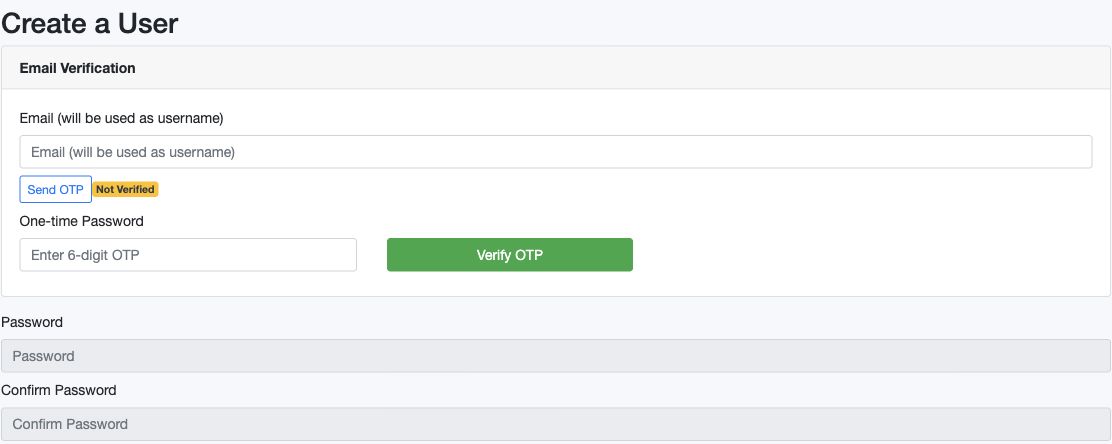
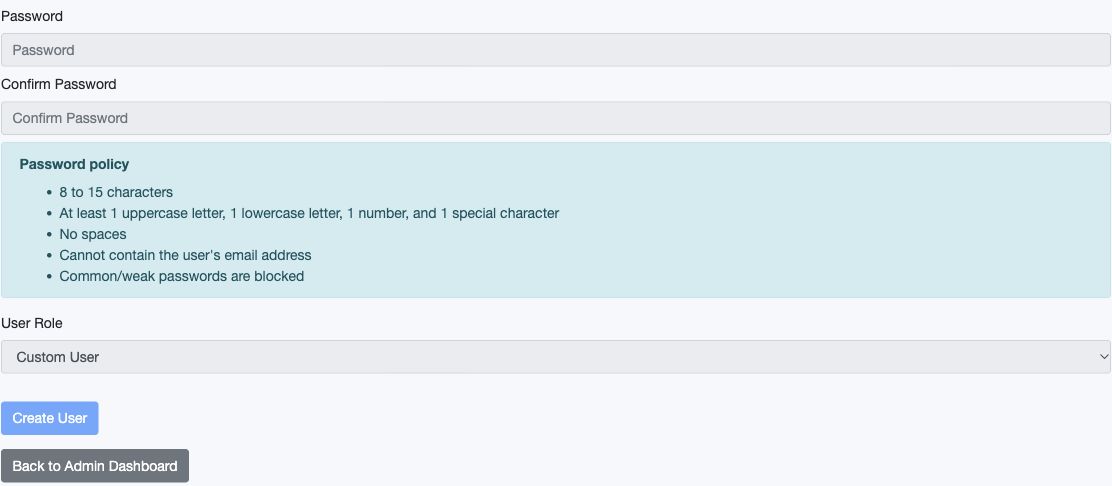
Figure 2 Password policy role and creation actions
Create User field reference
| Field and screenshot | Entry rule and example | Purpose and implication |
|---|---|---|
| Email (will be used as username) - Figure 1 | Required valid email, unique across RavenLedger accounts; use an authorised mailbox. Example: staff.member@example.com, fictional only. | Identifies the new login and receives its verification code; the account belongs to the administrator's existing tenant. Caution: Check the address before sending. Do not create a second subscription to add a colleague. |
| One-time Password - Figure 1 | Enter the six-digit code sent for this exact email through the authorised onboarding process. Example: Use the current code from the intended recipient; none is printed here. | Verify OTP unlocks the password and role controls when verification succeeds. Caution: This email-verification code is not the user's permanent login password. Never record real codes in the guide. |
| Password - Figure 2 | Required after email verification. Current policy: 8-15 characters, upper/lowercase, number, special character, no spaces, no email address; weak passwords are rejected. Example: A unique private password meeting the displayed policy; no shared sample password. | Becomes the login secret for the new account when Create User succeeds. Caution: Use the approved secure onboarding process, not ordinary chat or a shared document, for credentials. |
| Confirm Password - Figure 2 | Required; enter the same private password again. Example: Must match Password exactly. | Checks typing consistency before account creation; it is not another account or an OTP. Caution: A mismatch prevents creation; do not weaken the password to work around validation. |
| User Role - Figure 2 | Required; the creation screen offers Custom User and Tenant Admin. Custom User is initially selected. Example: Custom User for an operational accounts clerk. | Chooses the account's access-management role. Tenant Admin is an elevated role for the existing workspace. Caution: Grant Tenant Admin only with explicit organisational approval. It does not make the person the original billing owner. |
Send OTP sends a verification message, not a permanent password or an account invitation accepted automatically. Verify OTP validates the email/code step. Not Verified and Verified describe that step only. Change Email reopens the address and resets verification. Create User saves the account and selected role; Back to Admin Dashboard navigates away without creating a user. These are different actions, not interchangeable completion indicators.
Plan and assign least privilege access
- Open the intended colleague's Manage Access row action. You cannot use it to edit your own access or the primary account holder's access.
- On Role, review Active and Group. Treat a role change as a complete access review, not a cosmetic label edit.
- On Module Permissions, select the specific business functions needed. Review view, entry, edit, approval, report and export capabilities separately where offered. The exact catalogue depends on the released application and available features.
- For Custom User, review Company Access and Location Access. Use the correct company/location combinations; company or location Edit concerns those records and does not grant every transaction action.
- Where applicable, review PO Approval Groups and Manual Journal Approval Groups. Membership, business-function permission and an active matching approval rule are separate requirements. Check company, location where applicable, currency and amount bands.
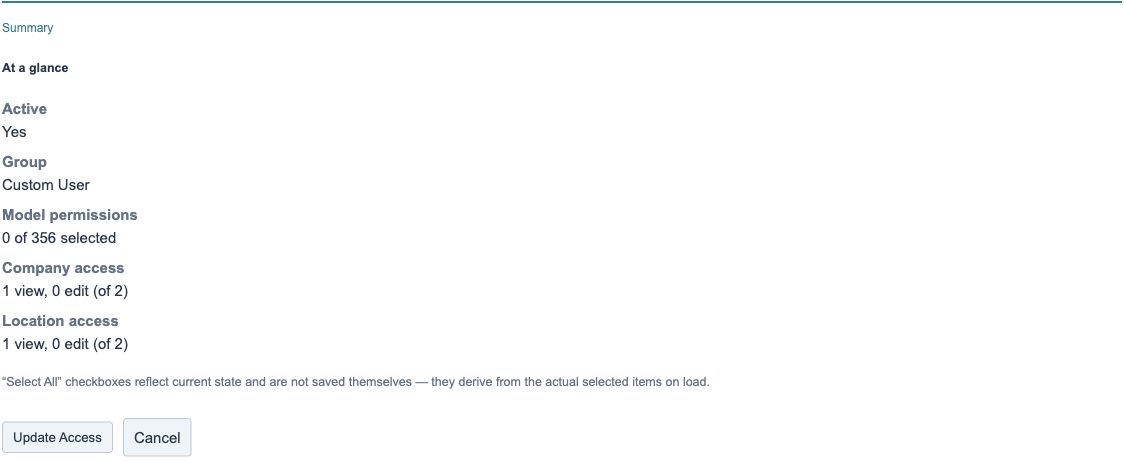
- Open Summary. Compare the proposed selections with the authorised request, including hidden selections after any search. Choose Update Access only after that review; Cancel leaves without saving pending edits.
- Confirm the success result, reopen the saved setup and perform allowed and denied access tests using the colleague's authorised test session. A populated Summary is not evidence that access has been saved or that every permission check passed.
Module permissions remain visible for the ordinary supported roles. Company/location scope controls are shown for Custom User. Changing away from that group clears their visible selections. Some displayed permission choices consolidate related functions, and some undisplayed existing permissions are preserved when saving. The form is therefore not a complete effective-access audit report.
Manage Access field reference
The nine field families below explain role, permissions, company/location scope and approval memberships. Figures 3-7 use fictional training values; they are not a recommended permission configuration for your staff.
| Field and screenshot | Entry rule and example | Purpose and implication |
|---|---|---|
| Active - Figure 3 | Optional checkbox reflecting the account's active flag. Example: Checked for an authorised current employee. | Controls account availability when Update Access is saved. Caution: This is not the same action as Deactivate User, which also invalidates the password. Do not assume it immediately terminates every existing session. |
| Group - Figure 3 | One group must be selected. Use the approved ordinary-user or administrator role. Example: Custom User for scoped operational access. | Update Access replaces group membership with the selected group. Company/location scope controls are presented for Custom User. Caution: Changing away from Custom User clears the visible scope selections. Review and retest the whole access combination, not only the role label. |
| Module Permissions - Figure 4 | Select the business functions the user needs; available checkboxes are generated from the current permission catalogue. Example: Approved view and entry functions for customer invoicing, without unapproved approval rights. | Controls allowed business actions. Some consolidated checkboxes represent related functions; module permission alone does not establish every company/location or approval right. Caution: Avoid Select All. The display is not an exhaustive effective-access report; some undisplayed existing permissions are deliberately preserved. |
| Company Access - View - Figure 5 | For Custom User scope, select the specific companies the user may view. Example: Raven Demo Services only, not the separate demonstration company. | Defines company-level viewing scope; explicit object selections affect how company model permissions are retained. Caution: Blank selections are not proof of no access: broader model/group rights can affect the result. Verify an allowed and a denied company. |
| Company Access - Edit - Figure 5 | For Custom User scope, select only companies whose company records the user may edit. Example: Leave unselected for a clerk who must not edit company setup. | Controls company-record editing scope, not automatic permission to create or approve every transaction. Caution: Do not treat Edit as a substitute for the required View and business-function checks. |
| Location Access - View - Figure 5 | For Custom User scope, select permitted locations, checking the Company column as well as Location. Example: Main Office within Raven Demo Services. | Defines the location viewing boundary used by supported scoped screens. Caution: Similar location names can occur under different companies. Test the actual intended combination. |
| Location Access - Edit - Figure 5 | For Custom User scope, select only locations whose location records the user may edit. Example: Leave unselected where location setup is administrator-controlled. | Controls location-record editing scope; transaction entry and approval still need their own permissions and setup. Caution: A location checkbox does not grant access outside the tenant or complete an approval matrix. |
| PO Approval Groups - Figure 6 (empty state only) | Conditional membership list; available groups are filtered by the selected company when one is selected. Example: An approved purchase-review group for the intended company and location. | Saves group memberships used by purchase-order approval rules. Custom User membership is checked against selected company/location scope. Caution: Membership alone is not an unconditional approval right. Check active rules, currency, amount bands, locations and action permissions. |
| Manual Journal Approval Groups - Figure 6 (empty state only) | Conditional membership list for manual-journal approval groups in the tenant. Example: An approved journal-review group with an appropriate company, currency and amount band. | Saves membership for the separate journal approval workflow. Caution: Do not assume PO validation rules are identical here. Verify journal-specific scope and active rules independently. |
Figure 3 Role and active status
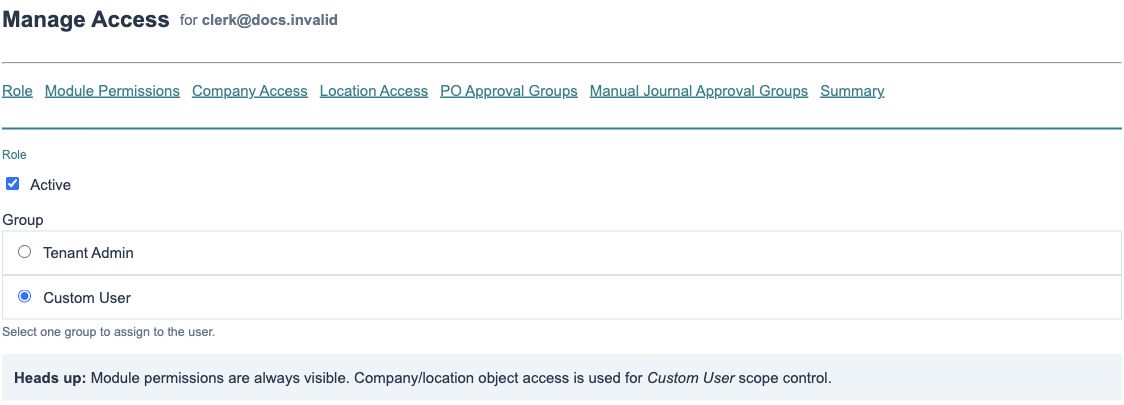
Figure 4 Generated module permissions
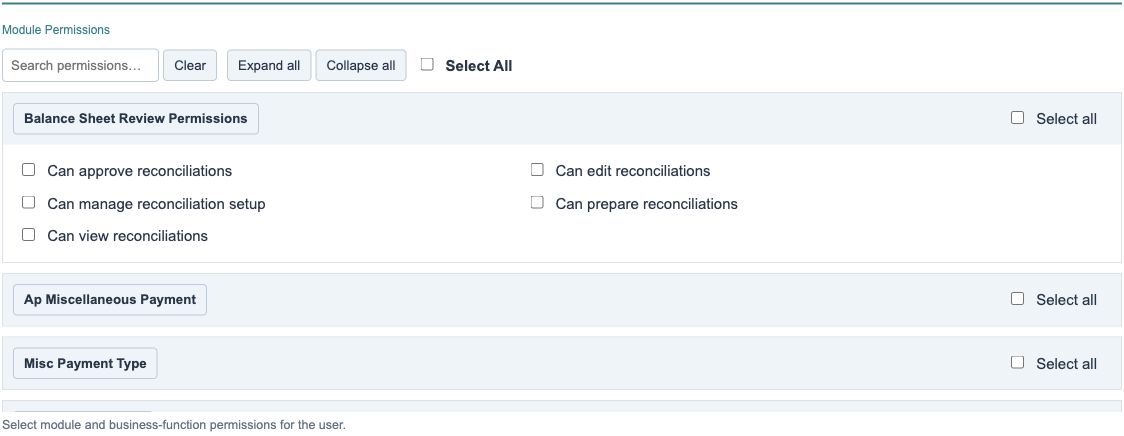
Figure 5 Company and location scope
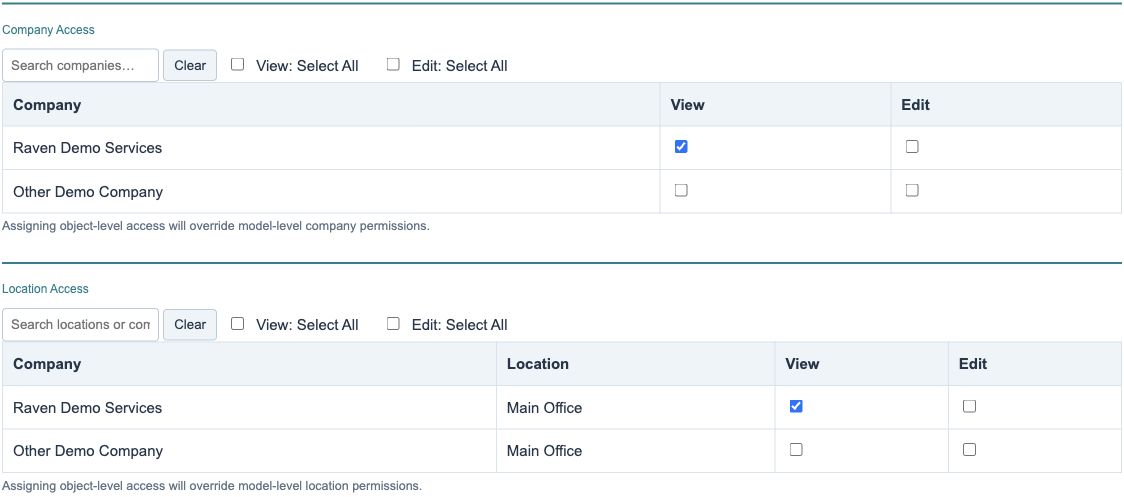
Figure 6 Approval groups without configured rules
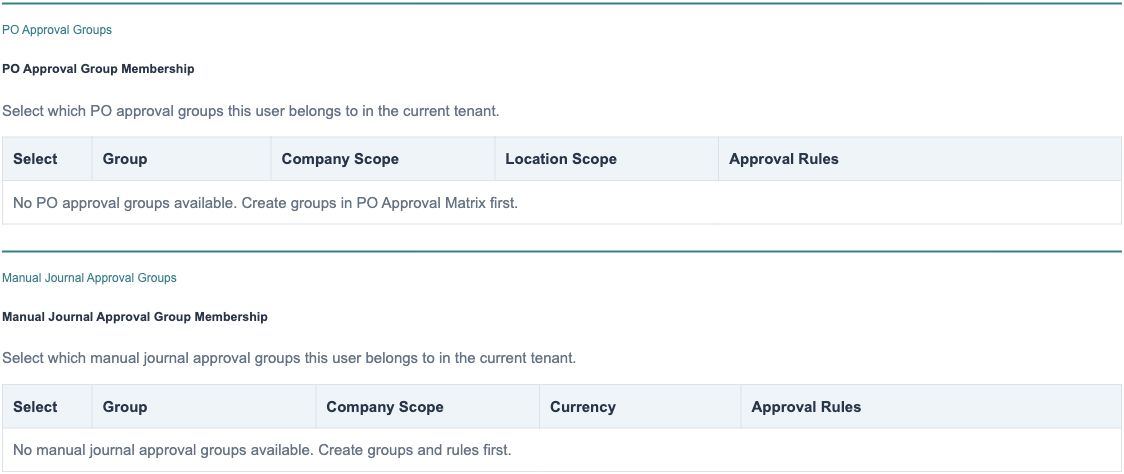
Figure 7 Summary and access actions
Understand searches summaries and approval displays
| Control or display | Purpose | Consequence and caution |
|---|---|---|
| Role, Module Permissions, Company Access, Location Access and Summary tabs | Organise the pending access setup | Switching tabs does not save. Conditional approval tabs appear only when their fields are available. |
| Search permissions, Search companies, Search locations or companies | Filter the rows shown | Filtering does not remove existing selections. Review hidden selections before saving. |
| Clear | Remove the current search text | Does not revoke permissions or clear all selected rows. |
| Expand all and Collapse all | Open or close permission blocks | Display changes only; they do not grant or revoke access. |
| Select All and per-block Select all | Toggle a set of checkboxes | Can grant far more than the intended job. Company/location bulk controls act on their full checkbox collections, not only the filtered visible rows. Avoid them for narrow access. |
| Company, Location, View and Edit columns | Identify the object and separate scope choices | Confirm the company as well as the location name. Do not infer that Edit automatically supplies all needed viewing or transaction rights. |
| Approval group Select and Group columns | Choose group membership and identify the group | An inactive group is labelled; selecting it does not prove an effective approval path. |
| Company Scope, Location Scope where displayed, Currency and Approval Rules | Describe existing approval configuration | Review active/inactive rules, amount bands and matching context. These are read-only rule summaries, not editors for approval thresholds. |
| Summary: Active, Group, Model permissions, Company access and Location access | Preview pending form selections | Counts are not an exhaustive effective-rights report, saved confirmation or a summary of every approval-group rule. |
| Update Access and Cancel | Save the intended access update or abandon pending edits | Saving changes security access and requires an approved request. Cancellation does not undo an earlier saved update. |
Password fields and credential safety
The administrator password form contains New Password and Confirm New Password. Credential changes require an authorised request and secure handling. Protected primary-owner accounts have additional restrictions. Never put a password or reset link in a shared document, screenshot or ordinary support message.
| Field and screenshot | Entry rule and example | Purpose and implication |
|---|---|---|
| New Password | Required new private password meeting the displayed policy described above. Example: A newly generated private password, never the fictional user's email address. | Change Password replaces the selected permitted account's login secret. Caution: Verify the target identity first and let the authorised person complete credential entry. Never screenshot or log passwords. |
| Confirm New Password | Required; must match New Password. Example: The exact same private value as New Password. | Checks the new secret before the password change is saved. Caution: A password reset does not grant permissions, reactivate a disabled account or transfer subscription ownership. |
The password-recovery request identifies an account by email. A recovery request does not reactivate a disabled account or restore removed permissions. Reset links are private and time-limited.
| Field and screenshot | Entry rule and example | Purpose and implication |
|---|---|---|
| Email for password recovery | Enter the email used for the account on the reset request form. Example: The user's own approved login email, not an administrator's alternative address. | Send Reset Link can email a recovery link for an eligible active account. The acknowledgement is deliberately generic. Caution: The acknowledgement does not prove that an account exists or that email arrived. Follow rate limits and do not repeatedly submit requests. |
The message If this email exists, a password reset link has been sent is deliberately generic. It does not prove account existence or delivery. Follow your organisation's identity-support process for delivery problems; do not bypass throttling with repeated requests.
Deactivate and reactivate without losing history
Use Deactivate User for an approved departure or access-removal request. Confirm the target row and the confirmation prompt. The action disables the account and invalidates its password while preserving transaction history and audit references. It is not a deletion of invoices, journals, company records or the subscription.
You cannot deactivate yourself or the primary account holder with this action. If the protected account needs attention, escalate through support. Do not create a substitute owner, delete business history or use a company operation as an offboarding shortcut.
Reactivate User is a separate approved action for an eligible inactive account in the same workspace. Review restored role/permissions and current scope, arrange an authorised password reset, and retest access before handing the account back. Reactivation does not recover an invalidated old password and must not be treated as an automatic return to a safe access configuration.
The Active checkbox in Manage Access and the dedicated lifecycle actions have different consequences. Neither a success message nor a disabled login proves that every already-open session or cached permission has been terminated immediately. Session and effective-access checks belong in the offboarding acceptance test.
Understand subscription administration boundaries
Manage Billing, when shown, is subject to the recognised billing owner and provider/subscription conditions. The label does not mean every Tenant Administrator can manage payment details. Do not use billing actions to add an ordinary colleague or change company permissions.
Review subscription status and follow the approved billing/support process when service availability changes. Charges, payment-method changes, resubscription and ownership changes need explicit authority. No billing portal action is required for the access example in this chapter. Partner-portal availability and subscription entitlements are documented separately from user role assignments.
Verify the saved outcome
Use fictional staff identities only in an approved isolated training environment. Do not create accounts or send OTP/reset mail to invented external addresses in a working system. The example address in the field table is explanatory, not a mailbox to use.
| Acceptance check | Expected observation | If it does not match |
|---|---|---|
| New account and role | Intended user appears once in the same tenant with the approved role | Stop and inspect the saved record before retrying; do not create another tenant |
| Allowed function and company/location | User can complete only the approved task in the intended context | Check action permissions, object scope, module setup and feature availability together |
| Denied function and excluded company/location | Access is refused for the excluded case | Stop rollout; narrow the configuration and investigate the actual permission path |
| Approval membership | Only the matching active approval workflow permits the intended decision | Review group, business permission, rule status, company/location, currency and amount |
| Saved change and audit | Reopened setup and applicable logs match the authorised request | Retain the target and request details; investigate without exposing credentials |
| Deactivation and reactivation | Login/continued-session behaviour and restored access match policy; old invalidated password does not return | Keep the account out of use until the lifecycle and credential checks pass |
Creating a user or assigning access does not post an accounting journal. No financial posting, subscription ownership transfer or company setup is implied by a successful administration save.
Resolve common access problems
| Symptom | Safe response |
|---|---|
| Password, User Role or Create User is disabled | Complete authorised email verification first; changing the email requires another verification |
| Email is already in use | Confirm the existing login and ownership with support; do not assume uniqueness is limited to this tenant |
| Cannot edit own access or a protected profile | Respect the restriction and obtain help from the authorised administrator/support process |
| User sees a menu but an action is denied | Check the actual action permission, company/location context, record state and workflow setup |
| Hidden selected permissions unexpectedly remain | Clear search and inspect selections; some undisplayed existing permissions are preserved by design |
| Approval group conflicts with access | For PO groups, correct the company/location compatibility conflict; verify journal groups independently |
| Reactivated account cannot use its old password | Arrange an authorised new password; reactivation does not restore an invalidated secret |
| Billing portal is unavailable to another administrator | Confirm the original billing owner and subscription/provider conditions; do not promote users to work around it |
Data-loading prerequisites and limits for User and tenant administration
User creation and access changes use authorised administration forms. Employee Master import creates HR employee records, not login users or permission grants. Do not broaden a user's company/location access merely to bypass an import error.
Continue with the HR attendance and payroll bulk guidance.