
Manage cash, bank accounts and reconciliation
Account mappings transfers statement matching and balance review
Set up the company's cash and bank records, then use them for transfers and statement reconciliation. A bank master connects a real account to accounting destinations; it does not open an account or send money. This guide is for authorised finance users in the selected company.
Prepare and save a bank master
Have the approved bank identity, account currency, permitted locations and three posting mappings ready. GL means general ledger. The bank GL records cash; the supplier-prepayment asset records advances; the unapplied-receipt liability records customer cash not yet allocated to invoices. These accounts have different purposes.
- Select the company, then open Cash & Bank, Cash & Bank Accounts. Search existing records before starting Create Bank Account.
- Enter the real account number, bank name and account title from approved evidence. Preserve leading zeros. Choose account type and currency; do not substitute functional currency for a genuinely foreign bank account just to bypass a restriction.
- Select the locations that may use this account and the actual lookup result for each posting mapping. A typed search phrase is not a selected account.
- Complete applicable country/routing details and review Active. Save once, then find and reopen the saved bank record.
- Compare currency, account identity, locations and mappings with the approved design before recording receipts or payments. No opening balance is established by this master save.
For the transaction sequence and a complete numerical example, continue to worked bank reconciliation. Use vendor payments and customer receipts for their own cash records, not Bank Transfers.
Understand the bank account record
A cash/bank master links a real-world account, its currency and permitted locations to company ledger destinations. It does not open a bank account, grant a banking mandate or execute a payment. Review bank identity independently from the bank GL, supplier-prepayment asset and unapplied-customer-receipt liability mappings.
Prepare bank accounts and currency
In Cash & Bank Accounts, review existing records before adding another account. Confirm bank name, account title/number, account type, currency, locations and active state against approved evidence. Select actual account-search results for each mapping; typed descriptions alone may not establish the intended posting combination. GL Setup can restrict currency to company functional currency. Never change mappings to conceal an unreconciled balance.
Keep transfers separate from payments
Bank Transfers record movement between company accounts. Review the source and destination accounts, dates, currencies, amounts, exchange basis, references and the configured bank-transfer clearing account. A vendor payment, customer receipt and bank transfer are different records. An accounting transfer is not an instruction sent to a bank; reconcile both actual bank sides and any charges separately.
Field explanations and training references
Each reference describes the field or control, entry rule, example and practical implication. Illustrations use blank or fictional training values. Conditional fields and actions depend on your selected policy, country, record state and permissions; choose actual application lookup records rather than copying text or hidden identities.
Bank Account field reference
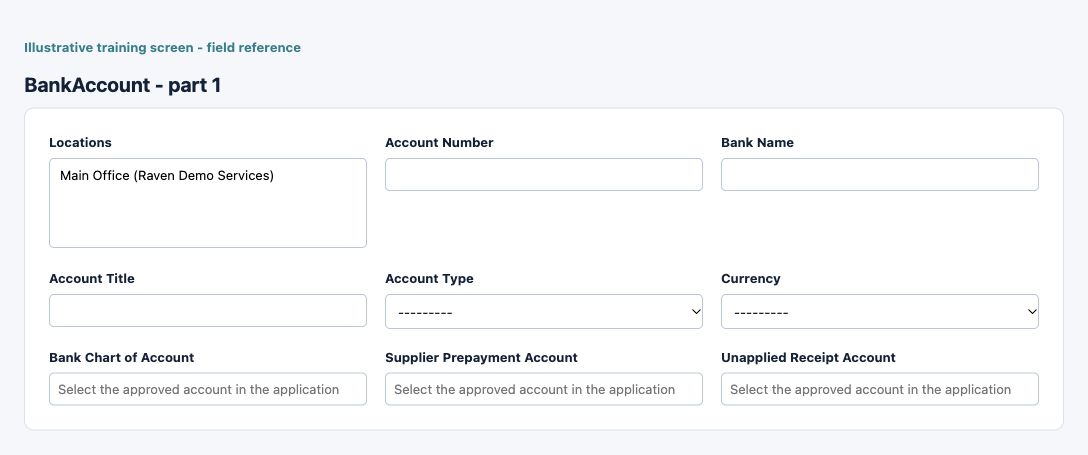
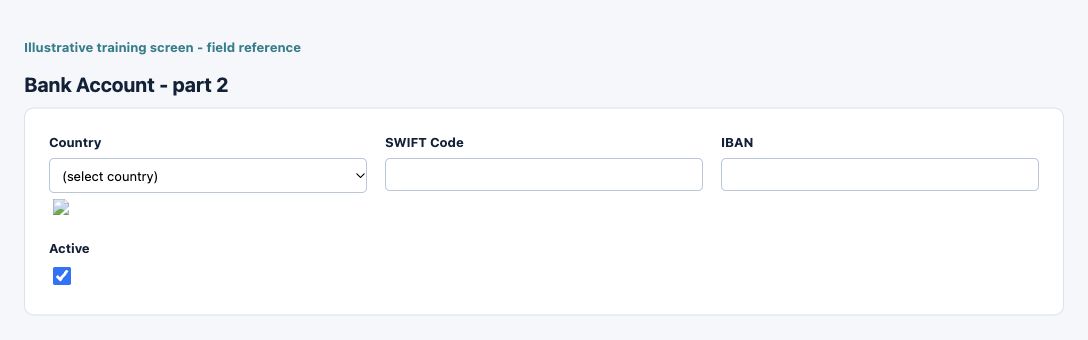
Figure 1 Bank Account
| Field and screenshot | Entry rule and example | Purpose and implication |
|---|---|---|
| Locations - Figure 1 | Required entry. Example: Main Office | Select the current-company operating location or permitted locations. This determines operational scope; a shared name does not establish access to another location. Select the locations associated with this bank account. Caution: Confirm the saved value and affected workflow before relying on the result. |
| Account Number - Figure 1 | Required entry. Maximum 50 characters. Example: Verified bank number (masked) | Bank account identity. Preserve leading zeros and verify beneficiary details independently; entering it does not execute a bank payment. Caution: Form acceptance is not accounting approval; inspect company, active state and purpose. |
| Bank Name - Figure 1 | Required entry. Maximum 50 characters. Example: Fictional Training Bank | Identifies the financial institution, not its ledger account. Check it against approved account evidence before use. Enter the name of the bank up to 50 characters. Caution: Protect sensitive information and use independently verified authorised evidence. |
| Account Title - Figure 1 | Required entry. Maximum 100 characters. Example: Raven Demo Services | Name of the bank account holder. It should agree with approved banking evidence, not merely the employee or company display name. Enter the account title up to 100 characters. Caution: Form acceptance is not accounting approval; inspect company, active state and purpose. |
| Account Type - Figure 1 | Required entry. Choices: Checking, Savings, Credit, Loan. Example: Checking | Identifies the type of company cash/bank account. It is not a financial-statement account classification. Caution: Form acceptance is not accounting approval; inspect company, active state and purpose. |
| Currency - Figure 1 | Required entry. Example: The approved business value or selected record | Currency in which this bank account is denominated. Functional currency and foreign-currency permissions remain separate accounting controls. Caution: Confirm the saved value and affected workflow before relying on the result. |
| Bank Chart of Account - Figure 1 | Required entry. Example: Approved active company posting account | Company ledger destination for this cash/bank account. Posting to it changes accounting balances, not the actual bank statement. Chart of Account for the bank account. Caution: Protect sensitive information and use independently verified authorised evidence. |
| Supplier Prepayment Account - Figure 1 | Required entry. Example: Approved active company posting account | Asset destination for amounts advanced before settlement. Reconcile outstanding advances separately from expense and supplier liabilities. Asset account used for supplier/vendor prepayments. Caution: Form acceptance is not accounting approval; inspect company, active state and purpose. |
| Unapplied Receipt Account - Figure 1 | Required entry. Example: Approved active company posting account | Liability destination for customer cash not yet allocated. Recording cash and applying it to an invoice are separate events. Chart of Account for unapplied receipts. Caution: Form acceptance is not accounting approval; inspect company, active state and purpose. |
| Country - Figure 1 | Required entry. Example: South Africa for this fictional example | Country relevant to this record. It is distinct from transaction currency and does not by itself activate a tax or e-invoicing route. Caution: Confirm the saved value and affected workflow before relying on the result. |
| SWIFT Code - Figure 1 | Optional or policy-dependent entry. Maximum 11 characters. Example: Verified SWIFT/BIC | Bank routing identifier for applicable banking arrangements. A syntactically accepted code is not proof of a valid beneficiary. Caution: Confirm the saved value and affected workflow before relying on the result. |
| IBAN - Figure 1 | Optional or policy-dependent entry. Maximum 34 characters. Example: Verified IBAN (masked) | International account identifier where applicable. Preserve the approved value; it does not replace bank verification or treasury authorisation. Caution: Protect sensitive information and use independently verified authorised evidence. |
| Active - Figure 1 | Checkbox policy setting; review the saved on/off state. Example: The approved on/off policy | Controls whether this configuration remains available for relevant use. Turning it off does not reverse earlier transactions or erase history. Caution: Confirm the saved value and affected workflow before relying on the result. |
Bank reconciliation controls field reference
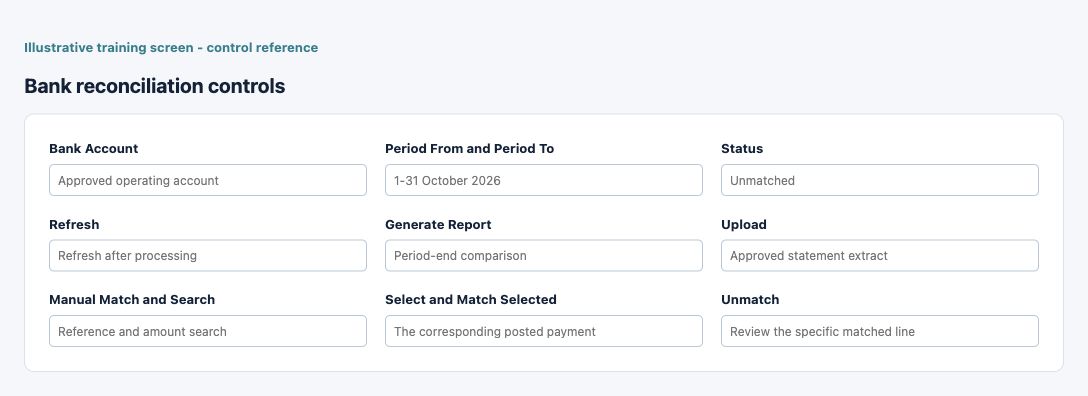
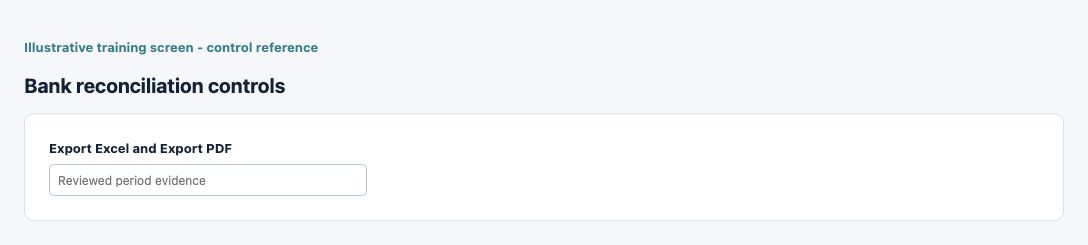
Figure 2 Bank reconciliation controls
| Field and screenshot | Entry rule and example | Purpose and implication |
|---|---|---|
| Bank Account - Figure 2 | Select the company bank account. Example: Approved operating account | Determines statement, book and currency context. Caution: Check the selected record, scope and current state before a consequential action. |
| Period From and Period To - Figure 2 | Choose the review range. Example: 1-31 October 2026 | Limits the reconciliation period; compare openings and closings consistently. Caution: Check the selected record, scope and current state before a consequential action. |
| Status - Figure 2 | Choose the required match-state filter. Example: Unmatched | Filters displayed statement rows, not the underlying ledger. Caution: Check the selected record, scope and current state before a consequential action. |
| Refresh - Figure 2 | Reload the selected context. Example: Refresh after processing | Refreshes rows rather than posting a new payment. Caution: Check the selected record, scope and current state before a consequential action. |
| Generate Report - Figure 2 | Review the reconciliation calculation. Example: Period-end comparison | Compares statement/book opening, movements and closing balances. Caution: Check the selected record, scope and current state before a consequential action. |
| Upload - Figure 2 | Use the supported statement file. Example: Approved statement extract | Adds bank-statement evidence, not an accounting payment. Caution: Check the selected record, scope and current state before a consequential action. |
| Manual Match and Search - Figure 2 | Inspect eligible source candidates. Example: Reference and amount search | Narrows candidates; a reference alone is not economic proof. Caution: Check the selected record, scope and current state before a consequential action. |
| Select and Match Selected - Figure 2 | Confirm the actual candidate. Example: The corresponding posted payment | Associates statement and accounting evidence without executing a bank transaction. Caution: Check the selected record, scope and current state before a consequential action. |
| Unmatch - Figure 2 | Remove a mistaken association. Example: Review the specific matched line | Does not reverse the original financial transaction. Caution: Check the selected record, scope and current state before a consequential action. |
| Export Excel and Export PDF - Figure 2 | Export the current report. Example: Reviewed period evidence | Creates a dated snapshot, not a live automatically updated statement. Caution: Check the selected record, scope and current state before a consequential action. |
Review statement uploads
Open Bank Reconciliation for the intended bank account and period. Use the supported upload template/format shown by that screen. Preserve statement dates, reference, description, debit/credit, currency and opening/closing evidence. Check for an earlier upload before retrying. A statement upload supplies reconciliation evidence; it is not permission to create duplicate receipts or payments to force a match.
Match statement and book transactions
Review both sides of a proposed match: source document, transaction number, date, location, reference, amount and currency. Manual Match offers eligible candidates; use Match Selected only for the actual economic event. Unmatch removes the reconciliation association, not the underlying payment or ledger entry. A reference match alone is insufficient when dates, currency or amounts differ.
Reconcile opening and closing balances
Generate Report compares book and statement openings, movement and closings. Review every unmatched bank line and book transaction, not only the final difference. If statement balances were omitted, the report can derive a balance from supplied movement or use a zero-opening fallback; such a figure is not independent bank evidence. For example, a book payment of 900 and an unmatched statement debit 900 may explain a timing difference, but only a confirmed matching event clears the item.
Read statement fields and actions
Bank Account selects the account being reconciled. Period From and Period To define the review range. Status narrows the listed matched/unmatched rows. Refresh reloads rows; Generate Report calculates the comparison; Export Excel/PDF produces evidence for the chosen filters. Upload adds statement evidence. In the candidate dialog, Search filters candidates, Select chooses the intended row, Match Selected confirms the association and Cancel/Close leave the dialog. None of these actions executes a bank transfer.
Investigate differences at their source
Check currency, date cutoff, fees, missing or unposted accounting, duplicate uploads, transferred funds in transit and unapplied customer/supplier cash. Correct accounting through its originating process and authorised period controls. Do not post an unexplained balancing entry merely because the reconciliation difference becomes zero.
Protect banking information
Restrict access to account numbers, beneficiary references, statements and exports. Keep secrets and online-banking credentials out of notes and attachments. An employee beneficiary change requires the organisation's separate verification controls even if the HR form permits editing.
Keep close evidence
Retain the approved statement, exported reconciliation, explanations and references to the underlying posted records. Use consistent company, bank currency and period. A saved reconciliation association is not evidence that every accounting journal, bank movement or approval is complete.
Confirm the account and reconciliation result
| Situation | What to do |
|---|---|
| A saved bank cannot be selected | Check company, assigned locations, currency policy and Active with the authorised administrator; do not create a duplicate account. |
| Bank and book totals differ | Compare actual opening/closing statement evidence, unposted source documents and every unmatched line; equal net totals can conceal offsetting errors. |
| A match was wrong | Review the selected association and use the supported Unmatch action; the underlying receipt, payment or journal still exists. |
Continue with the related task
Worked reconciliation and transfers, customer receipts, vendor payments and period close.
Bank statement imports for Cash and bank
Use the correct bulk action for this module. The following templates are different business operations, not interchangeable create/update files.
| Action and exact template columns | Prepare the file | Check the saved result |
|---|---|---|
| Bank Statement Lines - selected bank statement/reconciliation | Confirm selected bank, statement period, dates, signed amounts and references. Resolve duplicates/skipped lines from the job result. | Compare imported/skipped counts and statement totals; reconcile with ledger transactions. It imports bank evidence, not an instruction to transfer cash. Use worked bank reconciliation. |
Follow this module bulk procedure
- Open bank reconciliation or the statement import for the intended bank in the correct company. Confirm the bank and statement period before downloading its Bank Statement Lines template.
- Prepare statement dates, signed amounts and traceable references in the current template. Compare the source statement totals and check for previously imported lines before uploading.
- Validate and inspect accepted, duplicate or skipped lines as reported. Resolve sign, date and bank-context errors in the workbook; do not change the bank merely to make the file validate.
- Commit the validated job once and use Show status before retrying an interrupted request. Compare imported/skipped counts and bank-statement totals with the original evidence.
- Match statement evidence to ledger transactions and investigate the residual difference. Importing a bank statement does not create a cash transfer or prove reconciliation is complete.
Validate, commit and recover safely
For a supported workbook import, use the shared import steps and job recovery. A validated preview is not a saved transaction. Use Show status before retrying; cancelling a job does not reverse committed records. Keep the approved file, job reference and reconciled results securely.