
Manage employees, attendance and payroll records
Personnel compensation policies earnings deductions and settlement controls
Prepare employee, compensation and attendance records for payroll, with access appropriate to each duty. HR means human resources. This guide is for authorised HR/payroll administrators; employees should use their assigned self-service functions rather than payroll setup. Use payroll transactions for run actions and payment reconciliation.
Prepare HR and payroll in dependency order
Have approved employment/compensation records, payroll accounts, policy periods, work calendars and privacy permissions ready. An employee record, application login and payable trading-partner relationship are separate identities.
- In HRMS, review HRMS Setup and the approved payroll tax, earning, deduction and fund definitions before assigning them to employees. Do not infer a statutory rule from an example rate or amount.
- Maintain the intended employee identity, location, dates/status and independently verified banking details. An employee master is not automatically an application login and does not grant payroll access.
- Establish the employee's effective compensation and applicable assignments. Compare start/end dates and the mid-period policy before changing a value that could affect the current pay period.
- Where attendance is used, prepare positions, calendars, policies and effective assignments before employee self-service/enrolment. Review accepted attendance and exceptions rather than assuming a submitted attempt was accepted.
- Continue to payroll transactions for calculation, posting, linked payables and actual payment review. Check run/payslip/AP balances; a displayed Paid state is not by itself proof of full settlement.
AP means accounts payable. Employee tax, biometrics and bank records are sensitive: collect and export only what the authorised process needs. Employment termination, final settlement and application-user deactivation require their own controlled actions.
Separate employee identity and application access
An Employee record is an HR identity, not automatically an application login. User administration, job position, payroll classification and customer/vendor trading-partner roles are different relationships. Restrict HR data to authorised personnel and employees using their own self-service functions.
Prepare HRMS setup
Review salary expense, supplier liability, payroll clearing and employee advance mappings, employee partner defaults, company timezone, policy year/periods, mid-period salary treatment and payslip footer. These defaults must agree with the accountant's design and the HR owner's policy; changing setup is not a historical payroll correction.
Maintain employee details responsibly
Confirm location, employee identity, job title/category, contact/address, employment dates/status, position/cost centre and approved banking details. Employment Category is descriptive reporting classification and does not change payroll calculation. A termination date does not itself complete final settlement or remove application-user access.
Field explanations and training references
Each reference describes the field or control, entry rule, example and practical implication. Illustrations use blank or fictional training values. Conditional fields and actions depend on your selected policy, country, record state and permissions; choose actual application lookup records rather than copying text or hidden identities.
Employee field reference
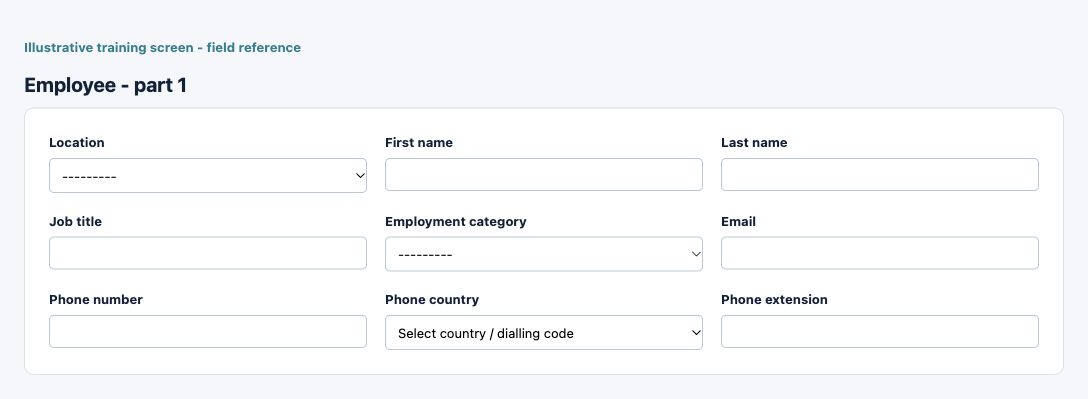
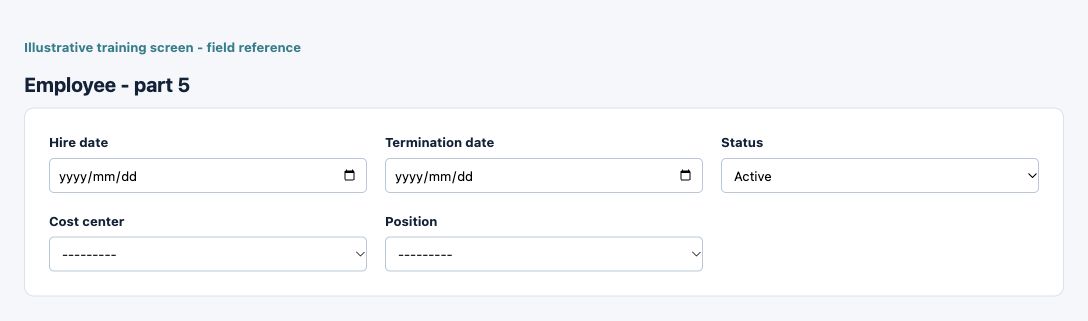
Figure 1 Employee
| Field and screenshot | Entry rule and example | Purpose and implication |
|---|---|---|
| Location - Figure 1 | Required entry. Example: Main Office | Select the current-company operating location or permitted locations. This determines operational scope; a shared name does not establish access to another location. Caution: Keep personnel access and effective records consistent with approved HR policy. |
| First name - Figure 1 | Required entry. Maximum 100 characters. Example: Amina | Employee personal identity used across HR records. Use the authorised identity and restrict access to personnel information. Caution: Keep personnel access and effective records consistent with approved HR policy. |
| Last name - Figure 1 | Required entry. Maximum 100 characters. Example: Khan | Employee personal identity used across HR records. Use the authorised identity and restrict access to personnel information. Caution: Keep personnel access and effective records consistent with approved HR policy. |
| Job title - Figure 1 | Optional or policy-dependent entry. Maximum 120 characters. Example: Stores Coordinator | Descriptive job title. This text is separate from the Position selection and its attendance/leave policy relationships. Caution: Keep personnel access and effective records consistent with approved HR policy. |
| Employment category - Figure 1 | Optional or policy-dependent entry. Choices: Permanent, Fixed-term, Temporary, Casual, Intern. Example: Permanent | Reporting classification for the employee. The form explicitly states that this classification does not change payroll calculation. Optional reporting classification; it does not change payroll calculation. Caution: Keep personnel access and effective records consistent with approved HR policy. |
| Email - Figure 1 | Optional or policy-dependent entry. Maximum 254 characters. Example: person@example.invalid | Contact email used by the relevant employee or portal process. A matching address is not itself a grant of application access or authority over every account. Caution: Keep personnel access and effective records consistent with approved HR policy. |
| Phone number - Figure 1 | Optional or policy-dependent entry. Maximum 30 characters. Example: Verified contact (masked) | Approved contact number for the employee. Review country context and privacy; a telephone field is not an attendance device or login identity. Caution: Keep personnel access and effective records consistent with approved HR policy. |
| Phone country - Figure 1 | Optional or policy-dependent entry. Example: Afghanistan (+93) | Country context used when interpreting the associated contact number. It does not change employment location or payroll tax jurisdiction by itself. Caution: Keep personnel access and effective records consistent with approved HR policy. |
| Phone extension - Figure 1 | Optional or policy-dependent entry. Maximum 10 characters. Example: 204 | Internal telephone extension, separate from the main contact number. Leave it blank when not applicable. Caution: Keep personnel access and effective records consistent with approved HR policy. |
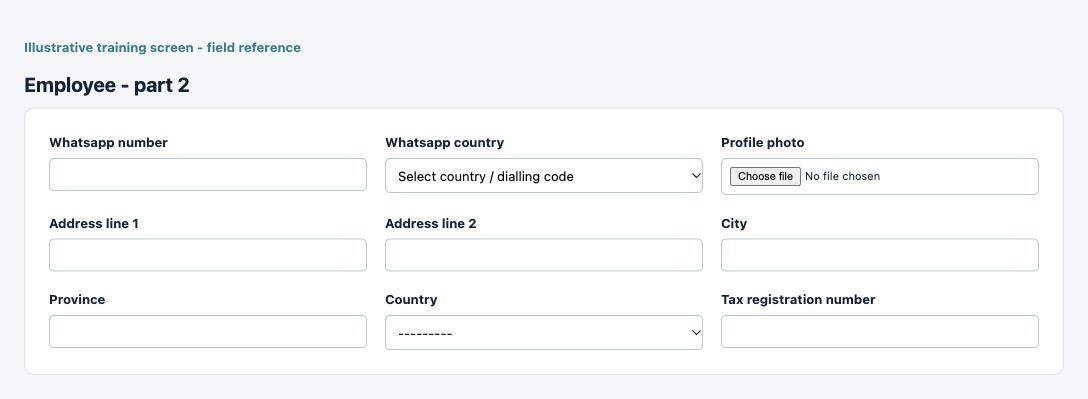
| Whatsapp number - Figure 1 | Optional or policy-dependent entry. Maximum 30 characters. Example: Verified contact (masked) | Approved contact number for the employee. Review country context and privacy; a telephone field is not an attendance device or login identity. Caution: Keep personnel access and effective records consistent with approved HR policy. |
| Whatsapp country - Figure 1 | Optional or policy-dependent entry. Example: Afghanistan (+93) | Country context used when interpreting the associated contact number. It does not change employment location or payroll tax jurisdiction by itself. Caution: Keep personnel access and effective records consistent with approved HR policy. |
| Profile photo - Figure 1 | Optional or policy-dependent entry. Maximum 100 characters. Example: Approved fictional training image | Employee profile image used by HR presentation. Do not treat a profile photo as completed biometric enrollment or attendance consent. Caution: Keep personnel access and effective records consistent with approved HR policy. |
| Address line 1 - Figure 1 | Optional or policy-dependent entry. Maximum 255 characters. Example: 1 Training Road | Employee address component used for approved HR contact records. It is not the company or location address and should not contain unnecessary personal information. Caution: Keep personnel access and effective records consistent with approved HR policy. |
| Address line 2 - Figure 1 | Optional or policy-dependent entry. Maximum 255 characters. Example: Training Building | Employee address component used for approved HR contact records. It is not the company or location address and should not contain unnecessary personal information. Caution: Keep personnel access and effective records consistent with approved HR policy. |
| City - Figure 1 | Optional or policy-dependent entry. Maximum 100 characters. Example: Training City | Employee address component used for approved HR contact records. It is not the company or location address and should not contain unnecessary personal information. Caution: Keep personnel access and effective records consistent with approved HR policy. |
| Province - Figure 1 | Optional or policy-dependent entry. Maximum 100 characters. Example: Training Province | Employee address component used for approved HR contact records. It is not the company or location address and should not contain unnecessary personal information. Caution: Keep personnel access and effective records consistent with approved HR policy. |
| Country - Figure 1 | Optional or policy-dependent entry. Example: South Africa for this fictional example | Country relevant to this record. It is distinct from transaction currency and does not by itself activate a tax or e-invoicing route. Caution: Keep personnel access and effective records consistent with approved HR policy. |
| Tax registration number - Figure 1 | Required entry. Maximum 64 characters. Example: The approved business value or selected record | Sensitive employee tax or identity reference. Use verified authorised data, restrict access and avoid exposing it in screenshots or general exports. Caution: Keep personnel access and effective records consistent with approved HR policy. |
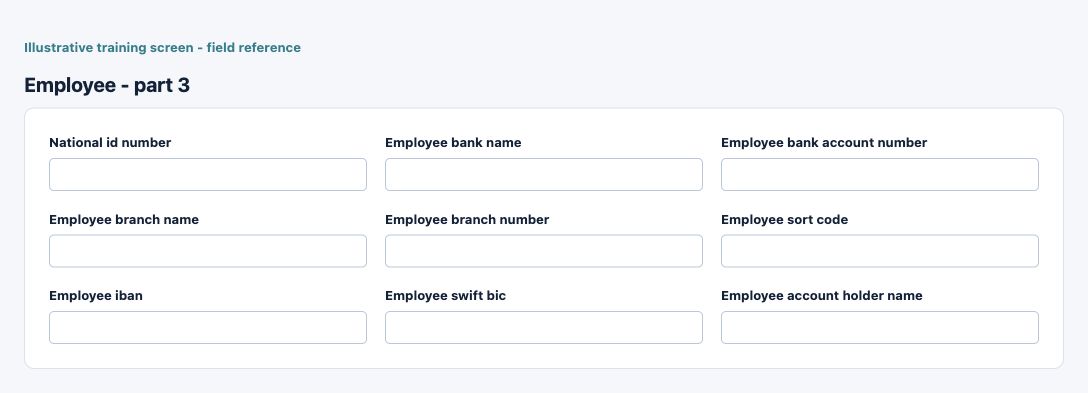
| National id number - Figure 1 | Required entry. Maximum 64 characters. Example: The approved business value or selected record | Sensitive employee tax or identity reference. Use verified authorised data, restrict access and avoid exposing it in screenshots or general exports. Caution: Protect sensitive information and use independently verified authorised evidence. |
| Employee bank name - Figure 1 | Required entry. Maximum 128 characters. Example: Fictional Training Bank | Identifies the financial institution, not its ledger account. Check it against approved account evidence before use. Caution: Protect sensitive information and use independently verified authorised evidence. |
| Employee bank account number - Figure 1 | Required entry. Maximum 64 characters. Example: Verified beneficiary account (masked) | Bank account identity. Preserve leading zeros and verify beneficiary details independently; entering it does not execute a bank payment. Caution: Protect sensitive information and use independently verified authorised evidence. |
| Employee branch name - Figure 1 | Required entry. Maximum 128 characters. Example: The approved business value or selected record | Bank branch/routing information for the employee account where applicable. Verify it with the beneficiary account, not in isolation. Caution: Keep personnel access and effective records consistent with approved HR policy. |
| Employee branch number - Figure 1 | Required entry. Maximum 32 characters. Example: The approved business value or selected record | Bank branch/routing information for the employee account where applicable. Verify it with the beneficiary account, not in isolation. Caution: Keep personnel access and effective records consistent with approved HR policy. |
| Employee sort code - Figure 1 | Required entry. Maximum 32 characters. Example: The approved business value or selected record | Bank branch/routing information for the employee account where applicable. Verify it with the beneficiary account, not in isolation. Caution: Keep personnel access and effective records consistent with approved HR policy. |
| Employee iban - Figure 1 | Required entry. Maximum 64 characters. Example: Verified IBAN (masked) | International account identifier where applicable. Preserve the approved value; it does not replace bank verification or treasury authorisation. Caution: Protect sensitive information and use independently verified authorised evidence. |
| Employee swift bic - Figure 1 | Required entry. Maximum 11 characters. Example: Verified SWIFT/BIC | Bank routing identifier for applicable banking arrangements. A syntactically accepted code is not proof of a valid beneficiary. Caution: Keep personnel access and effective records consistent with approved HR policy. |
| Employee account holder name - Figure 1 | Required entry. Maximum 128 characters. Example: Amina Khan | Name of the bank account holder. It should agree with approved banking evidence, not merely the employee or company display name. Caution: Form acceptance is not accounting approval; inspect company, active state and purpose. |
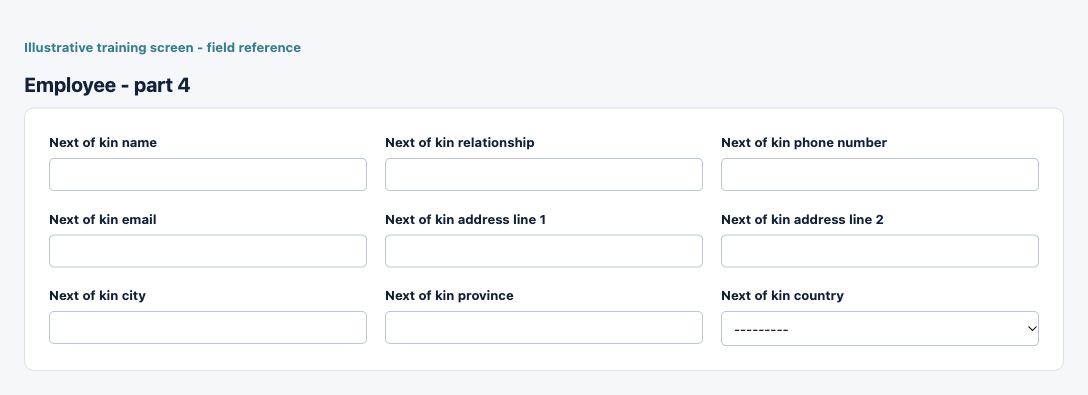
| Next of kin name - Figure 1 | Optional or policy-dependent entry. Maximum 150 characters. Example: Approved emergency-contact detail (masked) | Emergency-contact name for the employee. Use only necessary authorised contact information; it is not a payroll beneficiary or application access grant. Caution: Keep personnel access and effective records consistent with approved HR policy. |
| Next of kin relationship - Figure 1 | Optional or policy-dependent entry. Maximum 80 characters. Example: Approved emergency-contact detail (masked) | Emergency-contact relationship for the employee. Use only necessary authorised contact information; it is not a payroll beneficiary or application access grant. Caution: Keep personnel access and effective records consistent with approved HR policy. |
| Next of kin phone number - Figure 1 | Optional or policy-dependent entry. Maximum 30 characters. Example: Approved emergency-contact detail (masked) | Emergency-contact phone number for the employee. Use only necessary authorised contact information; it is not a payroll beneficiary or application access grant. Caution: Keep personnel access and effective records consistent with approved HR policy. |
| Next of kin email - Figure 1 | Optional or policy-dependent entry. Maximum 254 characters. Example: Approved emergency-contact detail (masked) | Emergency-contact email for the employee. Use only necessary authorised contact information; it is not a payroll beneficiary or application access grant. Caution: Keep personnel access and effective records consistent with approved HR policy. |
| Next of kin address line 1 - Figure 1 | Optional or policy-dependent entry. Maximum 255 characters. Example: Approved emergency-contact detail (masked) | Emergency-contact address line 1 for the employee. Use only necessary authorised contact information; it is not a payroll beneficiary or application access grant. Caution: Keep personnel access and effective records consistent with approved HR policy. |
| Next of kin address line 2 - Figure 1 | Optional or policy-dependent entry. Maximum 255 characters. Example: Approved emergency-contact detail (masked) | Emergency-contact address line 2 for the employee. Use only necessary authorised contact information; it is not a payroll beneficiary or application access grant. Caution: Keep personnel access and effective records consistent with approved HR policy. |
| Next of kin city - Figure 1 | Optional or policy-dependent entry. Maximum 100 characters. Example: Approved emergency-contact detail (masked) | Emergency-contact city for the employee. Use only necessary authorised contact information; it is not a payroll beneficiary or application access grant. Caution: Keep personnel access and effective records consistent with approved HR policy. |
| Next of kin province - Figure 1 | Optional or policy-dependent entry. Maximum 100 characters. Example: Approved emergency-contact detail (masked) | Emergency-contact province for the employee. Use only necessary authorised contact information; it is not a payroll beneficiary or application access grant. Caution: Keep personnel access and effective records consistent with approved HR policy. |
| Next of kin country - Figure 1 | Optional or policy-dependent entry. Example: Approved emergency-contact detail (masked) | Emergency-contact country for the employee. Use only necessary authorised contact information; it is not a payroll beneficiary or application access grant. Caution: Keep personnel access and effective records consistent with approved HR policy. |
| Hire date - Figure 1 | Required entry. Example: 16 October 2026, on the approved effective basis | Employment boundary date used by applicable HR/payroll processes. A termination date is not a completed final settlement or automatic application-user offboarding. Caution: Keep personnel access and effective records consistent with approved HR policy. |
| Termination date - Figure 1 | Optional or policy-dependent entry. Example: 16 October 2026, on the approved effective basis | Employment boundary date used by applicable HR/payroll processes. A termination date is not a completed final settlement or automatic application-user offboarding. Caution: Keep personnel access and effective records consistent with approved HR policy. |
| Status - Figure 1 | Required entry. Choices: Active, Terminated, On Hold. Example: Active | Operational state of this record. Check the specific record and allowed actions; a status label alone does not certify posting, payment or approval. Caution: Keep personnel access and effective records consistent with approved HR policy. |
| Cost center - Figure 1 | Optional or policy-dependent entry. Example: The approved business value or selected record | Cost-centre assignment for analysis and allocation. It is distinct from the employee location and the underlying expense account. Caution: Keep personnel access and effective records consistent with approved HR policy. |
| Position - Figure 1 | Optional or policy-dependent entry. Example: The approved business value or selected record | Position master assigned to the employee or policy relationship. Check effective dates and linked attendance/leave settings. Caution: Keep personnel access and effective records consistent with approved HR policy. |
Employee Compensation field reference
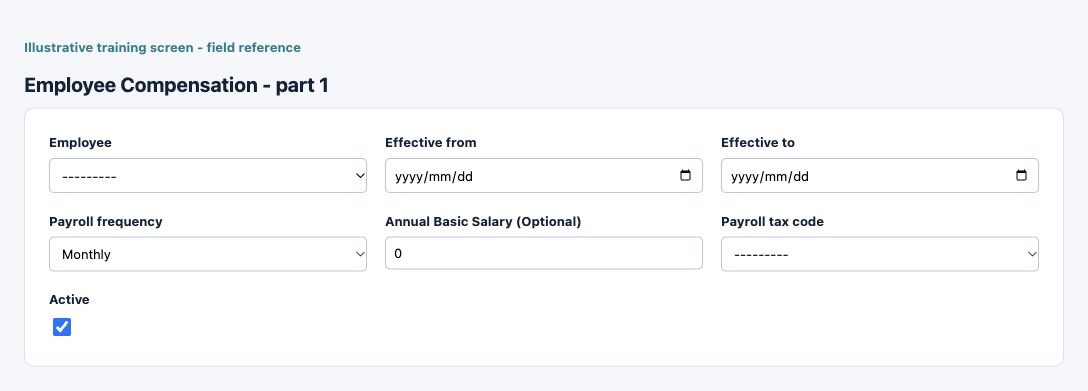
Figure 2 Employee Compensation
| Field and screenshot | Entry rule and example | Purpose and implication |
|---|---|---|
| Employee - Figure 2 | Required entry. Example: Training Employee | Select the intended employee identity in the current company. Names alone may not distinguish different employee records. Caution: Keep personnel access and effective records consistent with approved HR policy. |
| Effective from - Figure 2 | Required entry. Example: 16 October 2026, on the approved effective basis | Start of this configuration or review-item period. Use the applicable business basis and check other effective records for overlap. Caution: Keep personnel access and effective records consistent with approved HR policy. |
| Effective to - Figure 2 | Optional or policy-dependent entry. Example: 31 October 2026, when an end is applicable | End of the applicable date range when present. A blank end can represent continuing applicability; it is not automatic deletion of older records. Caution: Keep personnel access and effective records consistent with approved HR policy. |
| Payroll frequency - Figure 2 | Required entry. Choices: Annual, Monthly, Every 4 Weeks, Semi-monthly, Biweekly, Weekly. Example: Annual | Frequency for the employee compensation. It determines the applicable payroll period basis and must agree with payroll policy. Caution: Keep personnel access and effective records consistent with approved HR policy. |
| Annual Basic Salary (Optional) - Figure 2 | Fixed compensation amount, or blank for activity-only employees. Example: 1000.00 on the selected frequency | Fixed basic compensation on the selected frequency basis. It can be blank for activity-only employees; this is not necessarily the final taxable or net-pay amount. Leave blank for employees paid only by hourly, daily, shift, or unit activity. Caution: Keep personnel access and effective records consistent with approved HR policy. |
| Payroll tax code - Figure 2 | Required entry. Example: The approved business value or selected record | Effective payroll tax configuration applied to compensation. Review the applicable year, periods and slabs before calculating a run. Caution: Keep personnel access and effective records consistent with approved HR policy. |
| Active - Figure 2 | Checkbox policy setting; review the saved on/off state. Example: The approved on/off policy | Controls whether this configuration remains available for relevant use. Turning it off does not reverse earlier transactions or erase history. Caution: Keep personnel access and effective records consistent with approved HR policy. |
HR Payroll Tax Code field reference
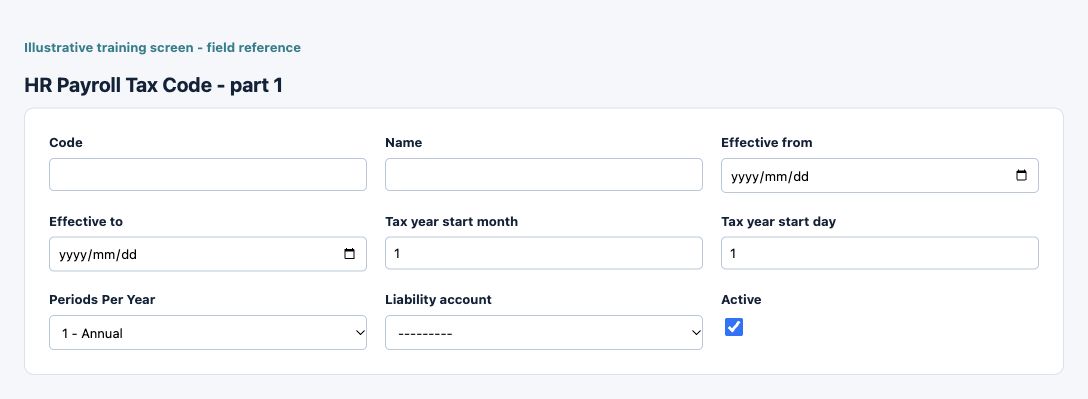
Figure 3 HR Payroll Tax Code
| Field and screenshot | Entry rule and example | Purpose and implication |
|---|---|---|
| Code - Figure 3 | Required entry. Maximum 32 characters. Example: TRAIN-001 | Business code identifying the configuration or master record. Use a stable naming scheme and check existing records before adding another. Caution: Keep personnel access and effective records consistent with approved HR policy. |
| Name - Figure 3 | Required entry. Maximum 100 characters. Example: Training configuration | Business description used to recognise this record in lists and selections; it is not a posting account or an approval. Caution: Keep personnel access and effective records consistent with approved HR policy. |
| Effective from - Figure 3 | Optional or policy-dependent entry. Example: 16 October 2026, on the approved effective basis | Start of this configuration or review-item period. Use the applicable business basis and check other effective records for overlap. Caution: Keep personnel access and effective records consistent with approved HR policy. |
| Effective to - Figure 3 | Optional or policy-dependent entry. Example: 31 October 2026, when an end is applicable | End of the applicable date range when present. A blank end can represent continuing applicability; it is not automatic deletion of older records. Caution: Keep personnel access and effective records consistent with approved HR policy. |
| Tax year start month - Figure 3 | Required entry. Example: 1 | Start month or day defining the payroll tax year. This is separate from a calendar payroll run date. Tax year start month (1-12). Caution: Keep personnel access and effective records consistent with approved HR policy. |
| Tax year start day - Figure 3 | Required entry. Example: 1 | Start month or day defining the payroll tax year. This is separate from a calendar payroll run date. Tax year start day (1-31). Caution: Keep personnel access and effective records consistent with approved HR policy. |
| Periods Per Year - Figure 3 | Required entry. Choices: 1 - Annual, 12 - Monthly, 13 - Every 4 weeks, 24 - Semi-monthly, 26 - Biweekly, 52 - Weekly. Example: 1 - Annual | Annual period count for the relevant policy, tax or attendance calculation. Do not assume monthly, fortnightly and weekly bases are interchangeable. Caution: Keep personnel access and effective records consistent with approved HR policy. |
| Liability account - Figure 3 | Required entry. Example: Approved active company posting account | Approved company ledger mapping for the tax, deduction or liability concerned. Select an active account with the correct accounting purpose; a search result alone is not approval. Caution: Form acceptance is not accounting approval; inspect company, active state and purpose. |
| Active - Figure 3 | Checkbox policy setting; review the saved on/off state. Example: The approved on/off policy | Controls whether this configuration remains available for relevant use. Turning it off does not reverse earlier transactions or erase history. Caution: Keep personnel access and effective records consistent with approved HR policy. |
Payroll run header field reference
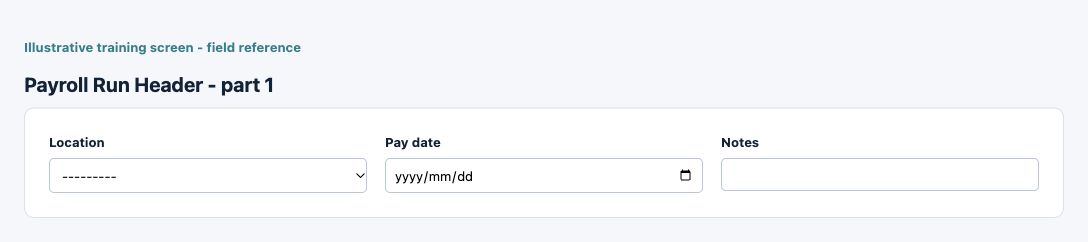
Figure 4 Payroll run header
| Field and screenshot | Entry rule and example | Purpose and implication |
|---|---|---|
| Location - Figure 4 | Required entry. Example: Main Office | Select the current-company operating location or permitted locations. This determines operational scope; a shared name does not establish access to another location. Caution: Keep personnel access and effective records consistent with approved HR policy. |
| Pay date - Figure 4 | Required entry. Example: 16 October 2026, on the approved effective basis | Intended payroll payment date. It is not proof that a bank payment occurred or that every payroll liability has been settled. Caution: Keep personnel access and effective records consistent with approved HR policy. |
| Notes - Figure 4 | Optional or policy-dependent entry. Maximum 255 characters. Example: Relevant supporting explanation | Business explanation supporting the record and its review. Text does not replace source documents, approval or calculated accounting values. Caution: Keep personnel access and effective records consistent with approved HR policy. |
HRMS accounting and policy defaults field reference
Figure 5 HRMS accounting and policy defaults
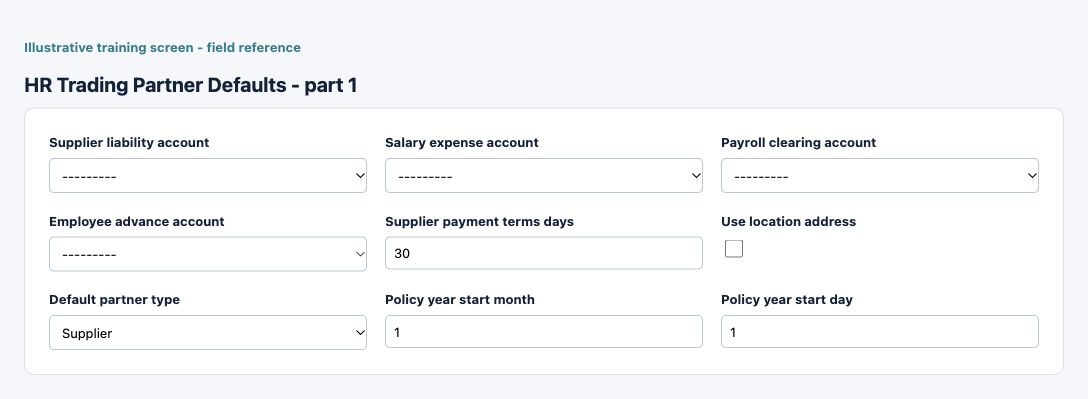
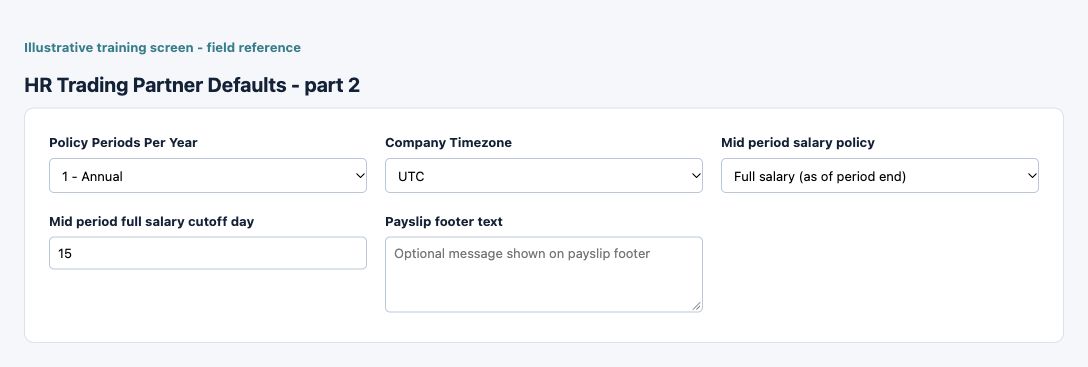
| Field and screenshot | Entry rule and example | Purpose and implication |
|---|---|---|
| Supplier liability account - Figure 5 | Required entry. Example: Approved active company posting account | Liability destination for supplier or employee trading-partner balances under this setup. It must not be substituted for the bank or advance account. Caution: Form acceptance is not accounting approval; inspect company, active state and purpose. |
| Salary expense account - Figure 5 | Required entry. Example: Approved active company posting account | Expense destination for the relevant salary or earning charge. Check the approved account purpose and current company before selection. Caution: Form acceptance is not accounting approval; inspect company, active state and purpose. |
| Payroll clearing account - Figure 5 | Required entry. Example: Approved active company posting account | Intermediate payroll settlement destination. Reconcile it against payroll liabilities and settlement records rather than treating it as a bank account. Caution: Form acceptance is not accounting approval; inspect company, active state and purpose. |
| Employee advance account - Figure 5 | Required entry. Example: Approved active company posting account | Asset destination for amounts advanced before settlement. Reconcile outstanding advances separately from expense and supplier liabilities. Caution: Form acceptance is not accounting approval; inspect company, active state and purpose. |
| Supplier payment terms days - Figure 5 | Required entry. Example: 30 | Default payment terms for generated employee supplier records, measured in days. This does not replace the payroll pay date. Caution: Keep personnel access and effective records consistent with approved HR policy. |
| Use location address - Figure 5 | Checkbox policy setting; review the saved on/off state. Example: The approved on/off policy | Controls whether employee trading-partner address defaults use location rather than company details. It does not copy the employee private address automatically. If enabled, employee trading partners inherit the employee location address for bill/ship defaults. If disabled, company address is used. Caution: Keep personnel access and effective records consistent with approved HR policy. |
| Default partner type - Figure 5 | Required entry. Choices: Supplier, Both. Example: Supplier | Default trading-partner role used by the employee linkage. Employee identity and customer/vendor ledger roles remain distinct. Caution: Keep personnel access and effective records consistent with approved HR policy. |
| Policy year start month - Figure 5 | Required entry. Example: 1 | Start month or day of the company HR policy year. Review it independently from the tax year and calendar year. Company policy year start month (1-12). Caution: Keep personnel access and effective records consistent with approved HR policy. |
| Policy year start day - Figure 5 | Required entry. Example: 1 | Start month or day of the company HR policy year. Review it independently from the tax year and calendar year. Company policy year start day (1-31). Caution: Keep personnel access and effective records consistent with approved HR policy. |
| Policy Periods Per Year - Figure 5 | Required entry. Choices: 1 - Annual, 12 - Monthly, 13 - Every 4 weeks, 24 - Semi-monthly, 26 - Biweekly, 52 - Weekly. Example: 1 - Annual | Annual period count for the relevant policy, tax or attendance calculation. Do not assume monthly, fortnightly and weekly bases are interchangeable. Caution: Keep personnel access and effective records consistent with approved HR policy. |
| Company Timezone - Figure 5 | Required entry. Example: Africa/Abidjan | Timezone used by applicable HR date/time interpretation. It does not change the actual instant of a recorded attendance event. Caution: Keep personnel access and effective records consistent with approved HR policy. |
| Mid period salary policy - Figure 5 | Required entry. Choices: Full salary (as of period end), Prorate by active days in payroll period, Full salary if effective day is on/before cutoff; prorate after cutoff, No salary if hire date is after cutoff day. Example: Full salary (as of period end) | Treatment when compensation starts or changes inside a payroll period. Review the policy before interpreting pro-rated or full-period salary. Controls salary treatment when compensation starts/changes inside payroll period. Caution: Keep personnel access and effective records consistent with approved HR policy. |
| Mid period full salary cutoff day - Figure 5 | Required entry. Example: 15 under the selected policy | Cutoff day used by the selected mid-period policy, within the supported 1-28 range. It is not a general salary-payment deadline. Cutoff day in month (1-28). Caution: Keep personnel access and effective records consistent with approved HR policy. |
| Payslip footer text - Figure 5 | Optional or policy-dependent entry. Maximum 500 characters. Example: Contact authorised payroll support for queries | Optional text printed on payslips. It does not change earnings, tax or payment calculations. Optional footer note shown at the bottom of employee payslips. Caution: Keep personnel access and effective records consistent with approved HR policy. |
HR Tax Setup field reference
Figure 6 HR Tax Setup
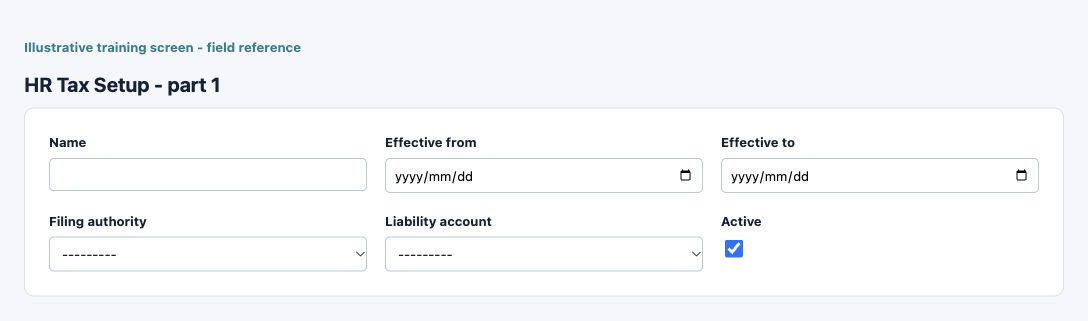
| Field and screenshot | Entry rule and example | Purpose and implication |
|---|---|---|
| Name - Figure 6 | Required entry. Maximum 100 characters. Example: Training configuration | Business description used to recognise this record in lists and selections; it is not a posting account or an approval. Caution: Keep personnel access and effective records consistent with approved HR policy. |
| Effective from - Figure 6 | Required entry. Example: 16 October 2026, on the approved effective basis | Start of this configuration or review-item period. Use the applicable business basis and check other effective records for overlap. Caution: Keep personnel access and effective records consistent with approved HR policy. |
| Effective to - Figure 6 | Optional or policy-dependent entry. Example: 31 October 2026, when an end is applicable | End of the applicable date range when present. A blank end can represent continuing applicability; it is not automatic deletion of older records. Caution: Keep personnel access and effective records consistent with approved HR policy. |
| Filing authority - Figure 6 | Required entry. Example: The approved business value or selected record | Payroll tax filing authority reference. The reference is not a tax return submission or evidence of payment to that authority. Caution: Keep personnel access and effective records consistent with approved HR policy. |
| Liability account - Figure 6 | Required entry. Example: Approved active company posting account | Approved company ledger mapping for the tax, deduction or liability concerned. Select an active account with the correct accounting purpose; a search result alone is not approval. Caution: Form acceptance is not accounting approval; inspect company, active state and purpose. |
| Active - Figure 6 | Checkbox policy setting; review the saved on/off state. Example: The approved on/off policy | Controls whether this configuration remains available for relevant use. Turning it off does not reverse earlier transactions or erase history. Caution: Keep personnel access and effective records consistent with approved HR policy. |
HR Tax Slab field reference
Figure 7 HR Tax Slab
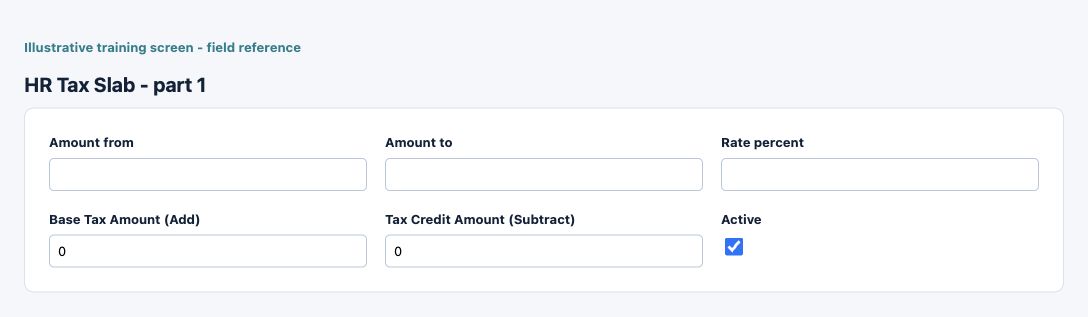
| Field and screenshot | Entry rule and example | Purpose and implication |
|---|---|---|
| Amount from - Figure 7 | Required entry. Form precision up to 6 decimal places; consuming company policy also applies. Example: 0.00 | Lower or upper monetary boundary of a tax slab. Review ordering, coverage and the applicable tax-year basis before activating the schedule. Caution: Keep personnel access and effective records consistent with approved HR policy. |
| Amount to - Figure 7 | Optional or policy-dependent entry. Form precision up to 6 decimal places; consuming company policy also applies. Example: 10000.00 | Lower or upper monetary boundary of a tax slab. Review ordering, coverage and the applicable tax-year basis before activating the schedule. Caution: Keep personnel access and effective records consistent with approved HR policy. |
| Rate percent - Figure 7 | Required entry. Form precision up to 6 decimal places; consuming company policy also applies. Example: 10.00 | Percentage applied by the selected calculation rule. Enter percentage units, not a currency amount or an assumed decimal fraction. Caution: Keep personnel access and effective records consistent with approved HR policy. |
| Base Tax Amount (Add) - Figure 7 | Required entry. Form precision up to 6 decimal places; consuming company policy also applies. Example: 0.00 | Fixed tax component for the slab calculation. It is distinct from the percentage rate and any tax credit. Caution: Keep personnel access and effective records consistent with approved HR policy. |
| Tax Credit Amount (Subtract) - Figure 7 | Required entry. Form precision up to 6 decimal places; consuming company policy also applies. Example: 0.00 | Credit component used by the payroll tax calculation. Do not treat it as cash already paid to an employee. Caution: Keep personnel access and effective records consistent with approved HR policy. |
| Active - Figure 7 | Checkbox policy setting; review the saved on/off state. Example: The approved on/off policy | Controls whether this configuration remains available for relevant use. Turning it off does not reverse earlier transactions or erase history. Caution: Keep personnel access and effective records consistent with approved HR policy. |
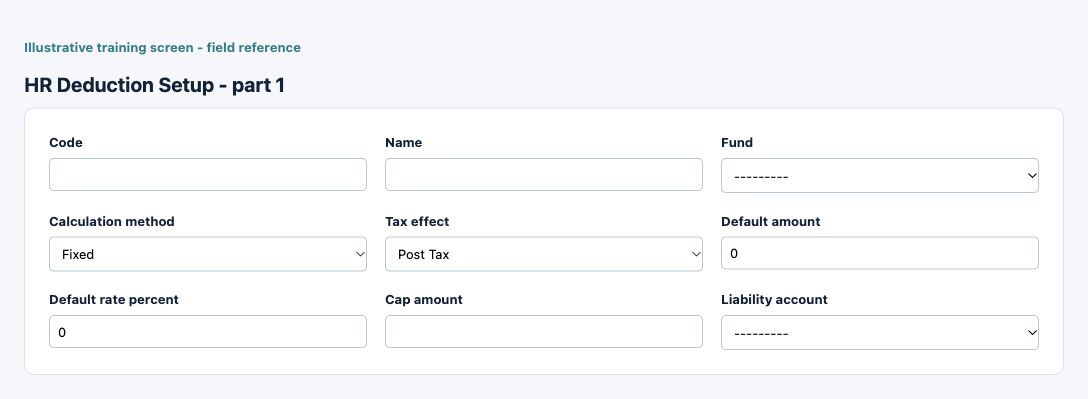
HR Deduction Setup field reference
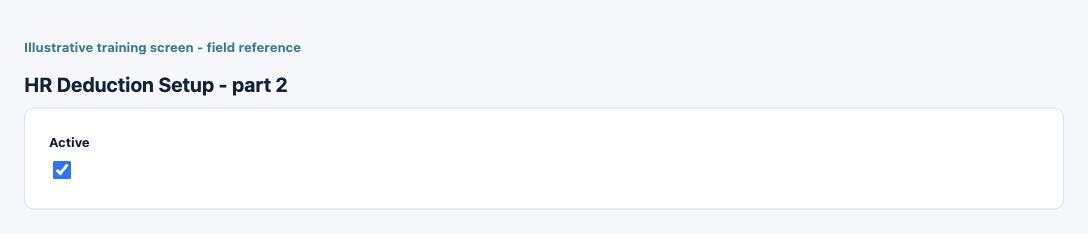
Figure 8 HR Deduction Setup
| Field and screenshot | Entry rule and example | Purpose and implication |
|---|---|---|
| Code - Figure 8 | Required entry. Maximum 32 characters. Example: TRAIN-001 | Business code identifying the configuration or master record. Use a stable naming scheme and check existing records before adding another. Caution: Keep personnel access and effective records consistent with approved HR policy. |
| Name - Figure 8 | Required entry. Maximum 100 characters. Example: Training configuration | Business description used to recognise this record in lists and selections; it is not a posting account or an approval. Caution: Keep personnel access and effective records consistent with approved HR policy. |
| Fund - Figure 8 | Optional or policy-dependent entry. Example: The approved business value or selected record | Fund associated with an earning or deduction. Linking a fund does not by itself create a withdrawal or settle its liability. Caution: Keep personnel access and effective records consistent with approved HR policy. |
| Calculation method - Figure 8 | Required entry. Choices: Fixed, Percent. Example: Fixed | Method used to calculate the earning or deduction. Amount and rate inputs have different meanings under different methods. Caution: Keep personnel access and effective records consistent with approved HR policy. |
| Tax effect - Figure 8 | Required entry. Choices: Pre Tax, Post Tax, Employer Only. Example: Pre Tax | Controls the configured tax treatment of the earning/deduction. This application setting is not a legal determination of taxability. Caution: Keep personnel access and effective records consistent with approved HR policy. |
| Default amount - Figure 8 | Optional or policy-dependent entry. Form precision up to 6 decimal places; consuming company policy also applies. Example: 100.00 | Default monetary amount for the earning or deduction method. An employee-specific assignment may change the effective amount. Caution: Keep personnel access and effective records consistent with approved HR policy. |
| Default rate percent - Figure 8 | Optional or policy-dependent entry. Form precision up to 6 decimal places; consuming company policy also applies. Example: 5.00 | Percentage applied by the selected calculation rule. Enter percentage units, not a currency amount or an assumed decimal fraction. Caution: Keep personnel access and effective records consistent with approved HR policy. |
| Cap amount - Figure 8 | Optional or policy-dependent entry. Form precision up to 6 decimal places; consuming company policy also applies. Example: 200.00 | Limit on the calculated deduction where applicable. A cap is not the employee remaining fund or advance balance. Caution: Keep personnel access and effective records consistent with approved HR policy. |
| Liability account - Figure 8 | Required entry. Example: Approved active company posting account | Approved company ledger mapping for the tax, deduction or liability concerned. Select an active account with the correct accounting purpose; a search result alone is not approval. Caution: Form acceptance is not accounting approval; inspect company, active state and purpose. |
| Active - Figure 8 | Checkbox policy setting; review the saved on/off state. Example: The approved on/off policy | Controls whether this configuration remains available for relevant use. Turning it off does not reverse earlier transactions or erase history. Caution: Keep personnel access and effective records consistent with approved HR policy. |
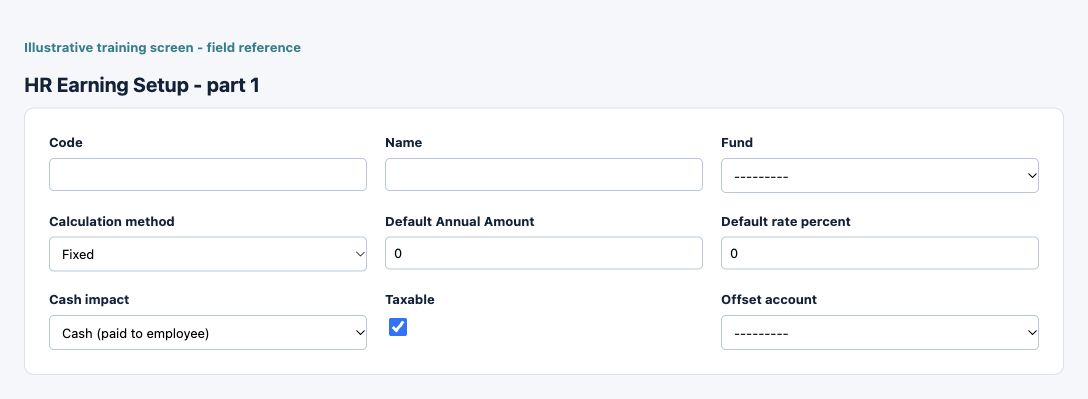
HR Earning Setup field reference
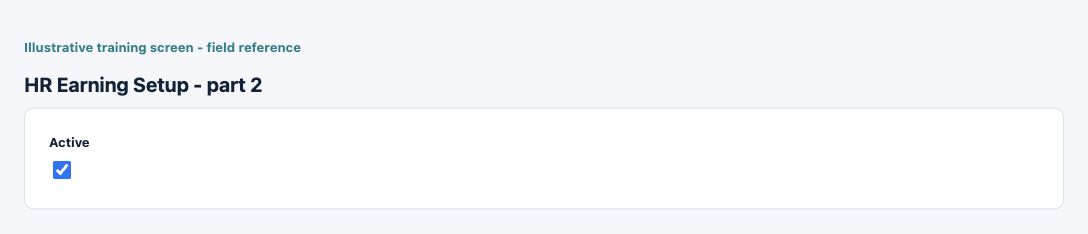
Figure 9 HR Earning Setup
| Field and screenshot | Entry rule and example | Purpose and implication |
|---|---|---|
| Code - Figure 9 | Required entry. Maximum 32 characters. Example: TRAIN-001 | Business code identifying the configuration or master record. Use a stable naming scheme and check existing records before adding another. Caution: Keep personnel access and effective records consistent with approved HR policy. |
| Name - Figure 9 | Required entry. Maximum 100 characters. Example: Training configuration | Business description used to recognise this record in lists and selections; it is not a posting account or an approval. Caution: Keep personnel access and effective records consistent with approved HR policy. |
| Fund - Figure 9 | Optional or policy-dependent entry. Example: The approved business value or selected record | Fund associated with an earning or deduction. Linking a fund does not by itself create a withdrawal or settle its liability. Caution: Keep personnel access and effective records consistent with approved HR policy. |
| Calculation method - Figure 9 | Required entry. Choices: Fixed, Percent of Basic Salary, Hourly rate, Daily rate, Shift rate, Unit rate. Example: Fixed | Method used to calculate the earning or deduction. Amount and rate inputs have different meanings under different methods. Caution: Keep personnel access and effective records consistent with approved HR policy. |
| Default Annual Amount - Figure 9 | Optional or policy-dependent entry. Form precision up to 6 decimal places; consuming company policy also applies. Example: 100.00 | Default monetary amount for the earning or deduction method. An employee-specific assignment may change the effective amount. Caution: Keep personnel access and effective records consistent with approved HR policy. |
| Default rate percent - Figure 9 | Optional or policy-dependent entry. Form precision up to 6 decimal places; consuming company policy also applies. Example: 5.00 | Percentage applied by the selected calculation rule. Enter percentage units, not a currency amount or an assumed decimal fraction. Caution: Keep personnel access and effective records consistent with approved HR policy. |
| Cash impact - Figure 9 | Required entry. Choices: Cash (paid to employee), Non-cash (taxable benefit only). Example: Cash (paid to employee) | Distinguishes an earning affecting payable cash from other configured benefits. Review net pay separately from total earnings. Caution: Keep personnel access and effective records consistent with approved HR policy. |
| Taxable - Figure 9 | Checkbox policy setting; review the saved on/off state. Example: The approved on/off policy | Controls the configured tax treatment of the earning/deduction. This application setting is not a legal determination of taxability. Caution: Keep personnel access and effective records consistent with approved HR policy. |
| Offset account - Figure 9 | Optional or policy-dependent entry. Example: Approved active company posting account | Expense destination for the relevant salary or earning charge. Check the approved account purpose and current company before selection. Caution: Form acceptance is not accounting approval; inspect company, active state and purpose. |
| Active - Figure 9 | Checkbox policy setting; review the saved on/off state. Example: The approved on/off policy | Controls whether this configuration remains available for relevant use. Turning it off does not reverse earlier transactions or erase history. Caution: Keep personnel access and effective records consistent with approved HR policy. |
HR Fund Master field reference
Figure 10 HR Fund Master
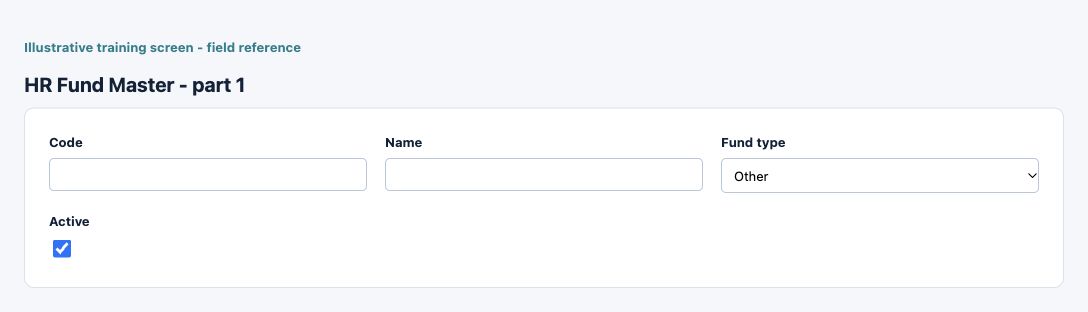
| Field and screenshot | Entry rule and example | Purpose and implication |
|---|---|---|
| Code - Figure 10 | Required entry. Maximum 32 characters. Example: TRAIN-001 | Business code identifying the configuration or master record. Use a stable naming scheme and check existing records before adding another. Caution: Keep personnel access and effective records consistent with approved HR policy. |
| Name - Figure 10 | Required entry. Maximum 120 characters. Example: Training configuration | Business description used to recognise this record in lists and selections; it is not a posting account or an approval. Caution: Keep personnel access and effective records consistent with approved HR policy. |
| Fund type - Figure 10 | Required entry. Choices: Retirement, Pension, Provident, Social Security, Insurance, Other. Example: Retirement | Classification of the HR fund. Confirm its accounting and employee entitlement purpose rather than inferring it from the name. Caution: Keep personnel access and effective records consistent with approved HR policy. |
| Active - Figure 10 | Checkbox policy setting; review the saved on/off state. Example: The approved on/off policy | Controls whether this configuration remains available for relevant use. Turning it off does not reverse earlier transactions or erase history. Caution: Keep personnel access and effective records consistent with approved HR policy. |
Employee Earning Assignment field reference
Figure 11 Employee Earning Assignment
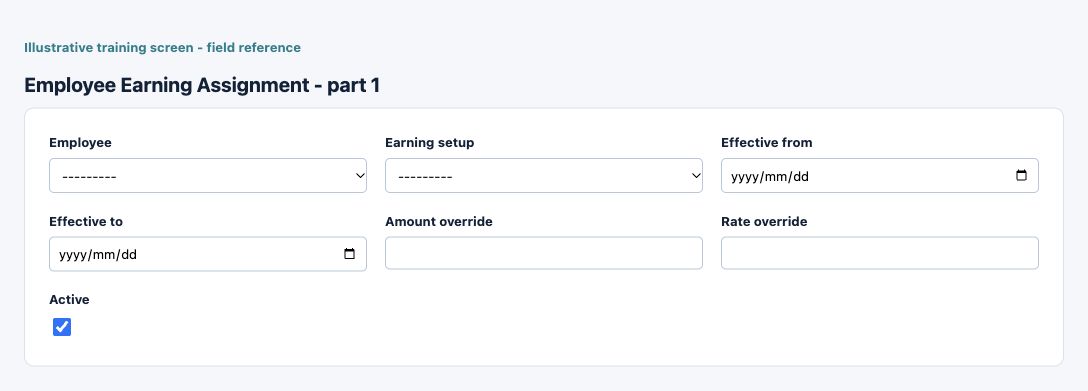
| Field and screenshot | Entry rule and example | Purpose and implication |
|---|---|---|
| Employee - Figure 11 | Required entry. Example: Training Employee | Select the intended employee identity in the current company. Names alone may not distinguish different employee records. Caution: Keep personnel access and effective records consistent with approved HR policy. |
| Earning setup - Figure 11 | Required entry. Example: The approved business value or selected record | Select the relevant earning or deduction definition for the employee. Check its method, accounts, tax treatment and active state. Caution: Keep personnel access and effective records consistent with approved HR policy. |
| Effective from - Figure 11 | Required entry. Example: 16 October 2026, on the approved effective basis | Start of this configuration or review-item period. Use the applicable business basis and check other effective records for overlap. Caution: Keep personnel access and effective records consistent with approved HR policy. |
| Effective to - Figure 11 | Optional or policy-dependent entry. Example: 31 October 2026, when an end is applicable | End of the applicable date range when present. A blank end can represent continuing applicability; it is not automatic deletion of older records. Caution: Keep personnel access and effective records consistent with approved HR policy. |
| Amount override - Figure 11 | Optional or policy-dependent entry. Form precision up to 6 decimal places; consuming company policy also applies. Example: 125.00 | Employee-specific replacement for the corresponding default amount or rate. Review which method uses it and the effective date range. Caution: Keep personnel access and effective records consistent with approved HR policy. |
| Rate override - Figure 11 | Optional or policy-dependent entry. Form precision up to 6 decimal places; consuming company policy also applies. Example: 6.00 | Employee-specific replacement for the corresponding default amount or rate. Review which method uses it and the effective date range. Caution: Keep personnel access and effective records consistent with approved HR policy. |
| Active - Figure 11 | Checkbox policy setting; review the saved on/off state. Example: The approved on/off policy | Controls whether this configuration remains available for relevant use. Turning it off does not reverse earlier transactions or erase history. Caution: Keep personnel access and effective records consistent with approved HR policy. |
Employee Deduction Assignment field reference
Figure 12 Employee Deduction Assignment
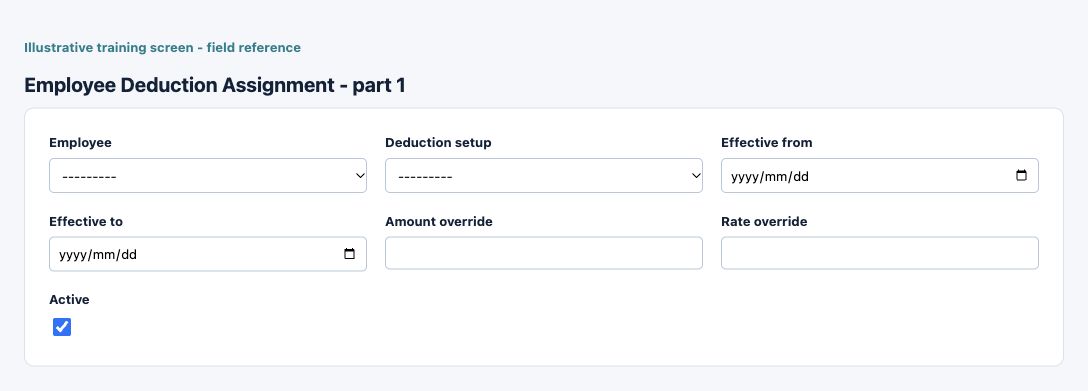
| Field and screenshot | Entry rule and example | Purpose and implication |
|---|---|---|
| Employee - Figure 12 | Required entry. Example: Training Employee | Select the intended employee identity in the current company. Names alone may not distinguish different employee records. Caution: Keep personnel access and effective records consistent with approved HR policy. |
| Deduction setup - Figure 12 | Required entry. Example: The approved business value or selected record | Select the relevant earning or deduction definition for the employee. Check its method, accounts, tax treatment and active state. Caution: Keep personnel access and effective records consistent with approved HR policy. |
| Effective from - Figure 12 | Required entry. Example: 16 October 2026, on the approved effective basis | Start of this configuration or review-item period. Use the applicable business basis and check other effective records for overlap. Caution: Keep personnel access and effective records consistent with approved HR policy. |
| Effective to - Figure 12 | Optional or policy-dependent entry. Example: 31 October 2026, when an end is applicable | End of the applicable date range when present. A blank end can represent continuing applicability; it is not automatic deletion of older records. Caution: Keep personnel access and effective records consistent with approved HR policy. |
| Amount override - Figure 12 | Optional or policy-dependent entry. Form precision up to 6 decimal places; consuming company policy also applies. Example: 125.00 | Employee-specific replacement for the corresponding default amount or rate. Review which method uses it and the effective date range. Caution: Keep personnel access and effective records consistent with approved HR policy. |
| Rate override - Figure 12 | Optional or policy-dependent entry. Form precision up to 6 decimal places; consuming company policy also applies. Example: 6.00 | Employee-specific replacement for the corresponding default amount or rate. Review which method uses it and the effective date range. Caution: Keep personnel access and effective records consistent with approved HR policy. |
| Active - Figure 12 | Checkbox policy setting; review the saved on/off state. Example: The approved on/off policy | Controls whether this configuration remains available for relevant use. Turning it off does not reverse earlier transactions or erase history. Caution: Keep personnel access and effective records consistent with approved HR policy. |
HR Position Master field reference
Figure 13 HR Position Master
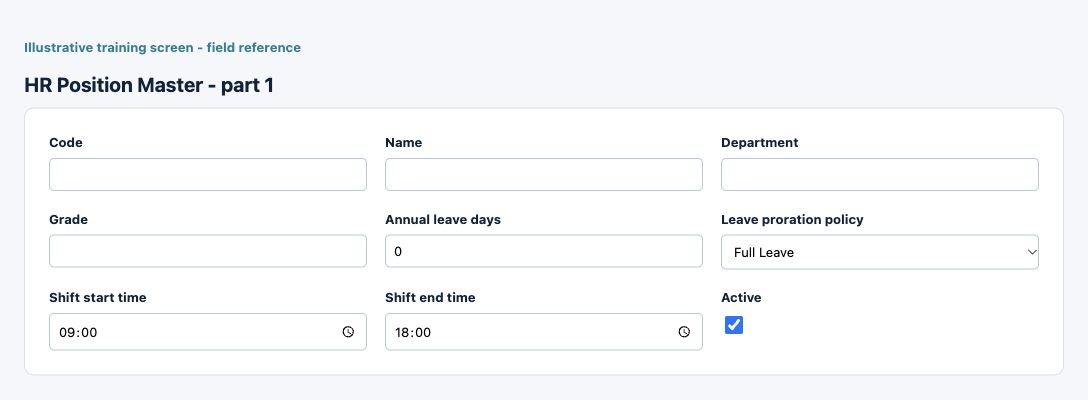
| Field and screenshot | Entry rule and example | Purpose and implication |
|---|---|---|
| Code - Figure 13 | Required entry. Maximum 32 characters. Example: TRAIN-001 | Business code identifying the configuration or master record. Use a stable naming scheme and check existing records before adding another. Caution: Keep personnel access and effective records consistent with approved HR policy. |
| Name - Figure 13 | Required entry. Maximum 120 characters. Example: Training configuration | Business description used to recognise this record in lists and selections; it is not a posting account or an approval. Caution: Keep personnel access and effective records consistent with approved HR policy. |
| Department - Figure 13 | Optional or policy-dependent entry. Maximum 120 characters. Example: The approved business value or selected record | Organisational classification of a position. This does not independently grant application permissions or set salary. Caution: Keep personnel access and effective records consistent with approved HR policy. |
| Grade - Figure 13 | Optional or policy-dependent entry. Maximum 64 characters. Example: The approved business value or selected record | Organisational classification of a position. This does not independently grant application permissions or set salary. Caution: Keep personnel access and effective records consistent with approved HR policy. |
| Annual leave days - Figure 13 | Required entry. Form precision up to 2 decimal places; consuming company policy also applies. Example: 20 under the approved policy | Position leave entitlement or pro-ration design. Review policy-year dates and employment boundaries rather than assuming a full-year allocation. Caution: Keep personnel access and effective records consistent with approved HR policy. |
| Leave proration policy - Figure 13 | Required entry. Choices: Full Leave, Pro-rated Leave. Example: Full Leave | Position leave entitlement or pro-ration design. Review policy-year dates and employment boundaries rather than assuming a full-year allocation. Caution: Keep personnel access and effective records consistent with approved HR policy. |
| Shift start time - Figure 13 | Required entry. Example: The approved business value or selected record | Scheduled shift boundary used by the position. Check timezone, overnight work and effective attendance policy. Caution: Keep personnel access and effective records consistent with approved HR policy. |
| Shift end time - Figure 13 | Required entry. Example: The approved business value or selected record | Scheduled shift boundary used by the position. Check timezone, overnight work and effective attendance policy. Caution: Keep personnel access and effective records consistent with approved HR policy. |
| Active - Figure 13 | Checkbox policy setting; review the saved on/off state. Example: The approved on/off policy | Controls whether this configuration remains available for relevant use. Turning it off does not reverse earlier transactions or erase history. Caution: Keep personnel access and effective records consistent with approved HR policy. |
HR Holiday Calendar Header field reference
Figure 14 HR Holiday Calendar Header
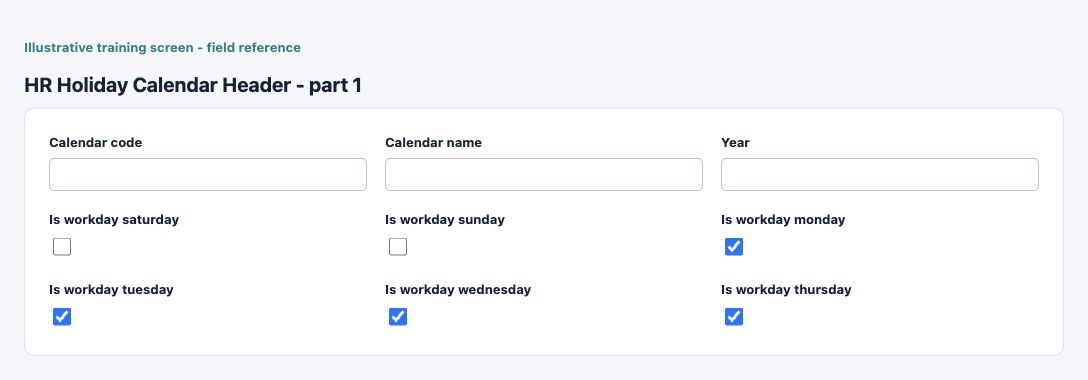
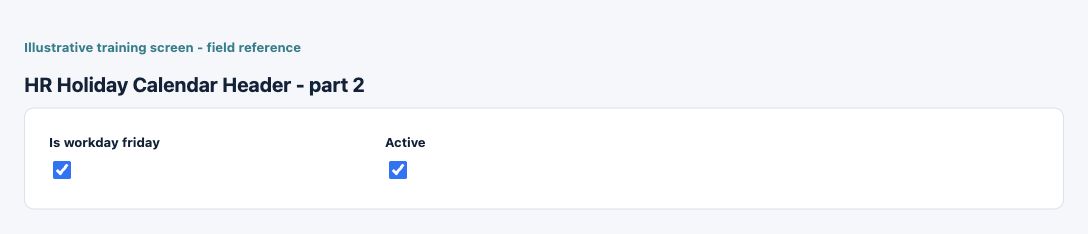
| Field and screenshot | Entry rule and example | Purpose and implication |
|---|---|---|
| Calendar code - Figure 14 | Required entry. Maximum 32 characters. Example: CAL-2026 | Business code identifying the configuration or master record. Use a stable naming scheme and check existing records before adding another. Caution: Keep personnel access and effective records consistent with approved HR policy. |
| Calendar name - Figure 14 | Required entry. Maximum 120 characters. Example: Training calendar 2026 | Business description used to recognise this record in lists and selections; it is not a posting account or an approval. Caution: Keep personnel access and effective records consistent with approved HR policy. |
| Year - Figure 14 | Required entry. Example: 2026 | Calendar or first-review year for this record. In review setup it must be combined with the selected frequency and month/quarter when applicable. Caution: Keep personnel access and effective records consistent with approved HR policy. |
| Is workday saturday - Figure 14 | Checkbox policy setting; review the saved on/off state. Example: The approved on/off policy | Whether Saturday is ordinarily a workday in this calendar. Individual holiday entries and effective policy still need review. Caution: Keep personnel access and effective records consistent with approved HR policy. |
| Is workday sunday - Figure 14 | Checkbox policy setting; review the saved on/off state. Example: The approved on/off policy | Whether Sunday is ordinarily a workday in this calendar. Individual holiday entries and effective policy still need review. Caution: Keep personnel access and effective records consistent with approved HR policy. |
| Is workday monday - Figure 14 | Checkbox policy setting; review the saved on/off state. Example: The approved on/off policy | Whether Monday is ordinarily a workday in this calendar. Individual holiday entries and effective policy still need review. Caution: Keep personnel access and effective records consistent with approved HR policy. |
| Is workday tuesday - Figure 14 | Checkbox policy setting; review the saved on/off state. Example: The approved on/off policy | Whether Tuesday is ordinarily a workday in this calendar. Individual holiday entries and effective policy still need review. Caution: Keep personnel access and effective records consistent with approved HR policy. |
| Is workday wednesday - Figure 14 | Checkbox policy setting; review the saved on/off state. Example: The approved on/off policy | Whether Wednesday is ordinarily a workday in this calendar. Individual holiday entries and effective policy still need review. Caution: Keep personnel access and effective records consistent with approved HR policy. |
| Is workday thursday - Figure 14 | Checkbox policy setting; review the saved on/off state. Example: The approved on/off policy | Whether Thursday is ordinarily a workday in this calendar. Individual holiday entries and effective policy still need review. Caution: Keep personnel access and effective records consistent with approved HR policy. |
| Is workday friday - Figure 14 | Checkbox policy setting; review the saved on/off state. Example: The approved on/off policy | Whether Friday is ordinarily a workday in this calendar. Individual holiday entries and effective policy still need review. Caution: Keep personnel access and effective records consistent with approved HR policy. |
| Active - Figure 14 | Checkbox policy setting; review the saved on/off state. Example: The approved on/off policy | Controls whether this configuration remains available for relevant use. Turning it off does not reverse earlier transactions or erase history. Caution: Keep personnel access and effective records consistent with approved HR policy. |
HR Holiday Calendar Line field reference
Figure 15 HR Holiday Calendar Line
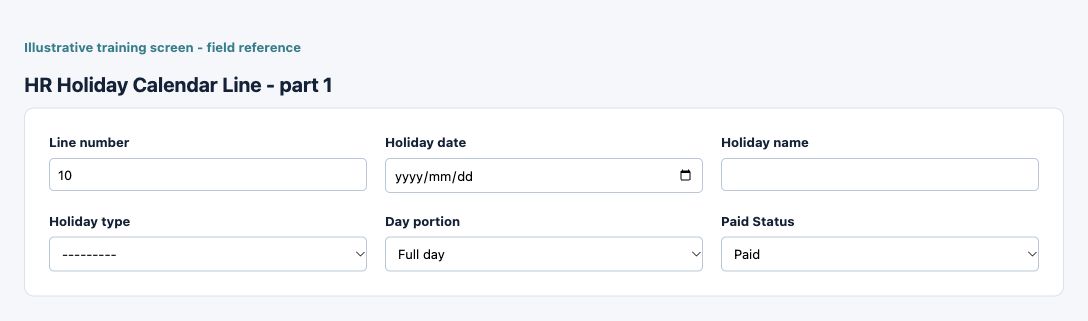
| Field and screenshot | Entry rule and example | Purpose and implication |
|---|---|---|
| Line number - Figure 15 | Required entry. Example: 10 | Sequence identifying the detail within its parent record. It is not a ledger account or external document reference. Caution: Keep personnel access and effective records consistent with approved HR policy. |
| Holiday date - Figure 15 | Required entry. Example: 16 October 2026, on the approved effective basis | Date, description or classification of the holiday entry. Check the correct calendar year and applicable employee policy. Caution: Keep personnel access and effective records consistent with approved HR policy. |
| Holiday name - Figure 15 | Required entry. Maximum 160 characters. Example: Approved holiday | Date, description or classification of the holiday entry. Check the correct calendar year and applicable employee policy. Caution: Keep personnel access and effective records consistent with approved HR policy. |
| Holiday type - Figure 15 | Optional or policy-dependent entry. Choices: Public, Optional, Company Holiday, Regional. Example: Public | Date, description or classification of the holiday entry. Check the correct calendar year and applicable employee policy. Caution: Keep personnel access and effective records consistent with approved HR policy. |
| Day portion - Figure 15 | Required entry. Choices: Full day, Half day. Example: Full day | Full/partial-day and paid/unpaid treatment of the holiday. These affect applicable attendance/payroll interpretation and should follow approved policy. Caution: Keep personnel access and effective records consistent with approved HR policy. |
| Paid Status - Figure 15 | Required entry. Choices: Paid, Unpaid. Example: Paid | Full/partial-day and paid/unpaid treatment of the holiday. These affect applicable attendance/payroll interpretation and should follow approved policy. Caution: Keep personnel access and effective records consistent with approved HR policy. |
HR Attendance Policy field reference
Figure 16 HR Attendance Policy
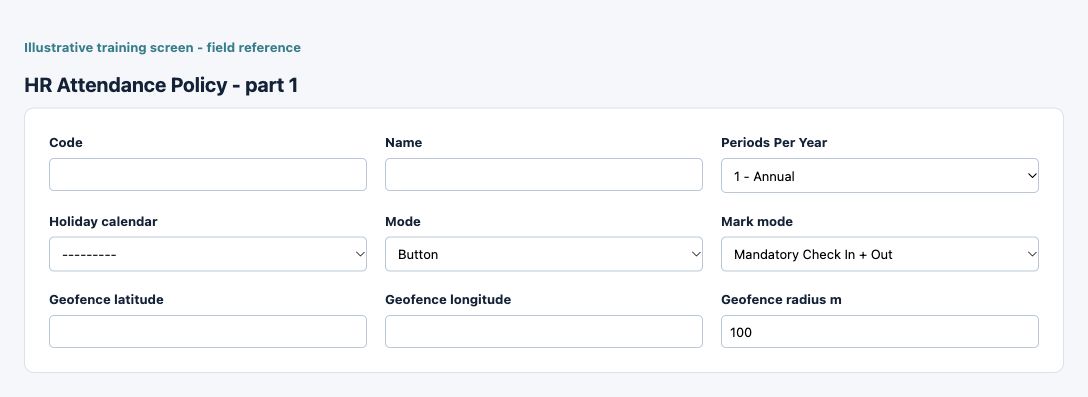
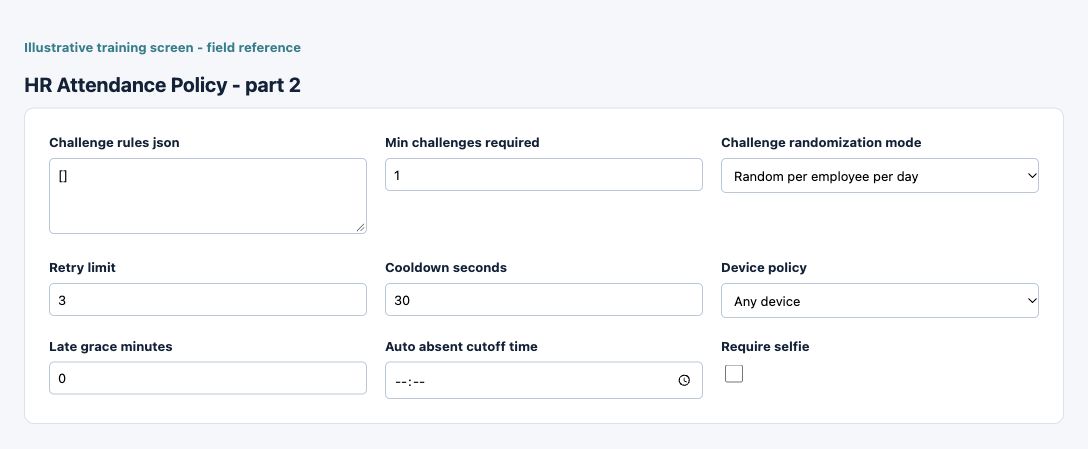
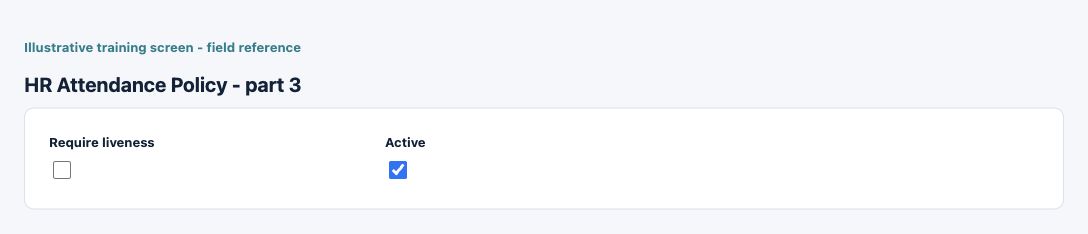
| Field and screenshot | Entry rule and example | Purpose and implication |
|---|---|---|
| Code - Figure 16 | Required entry. Maximum 32 characters. Example: TRAIN-001 | Business code identifying the configuration or master record. Use a stable naming scheme and check existing records before adding another. Caution: Keep personnel access and effective records consistent with approved HR policy. |
| Name - Figure 16 | Required entry. Maximum 120 characters. Example: Training configuration | Business description used to recognise this record in lists and selections; it is not a posting account or an approval. Caution: Keep personnel access and effective records consistent with approved HR policy. |
| Periods Per Year - Figure 16 | Required entry. Choices: 1 - Annual, 12 - Monthly, 13 - Every 4 weeks, 24 - Semi-monthly, 26 - Biweekly, 52 - Weekly. Example: 1 - Annual | Annual period count for the relevant policy, tax or attendance calculation. Do not assume monthly, fortnightly and weekly bases are interchangeable. Caution: Keep personnel access and effective records consistent with approved HR policy. |
| Holiday calendar - Figure 16 | Required entry. Example: The approved business value or selected record | Calendar supplying workday and holiday context for this attendance policy. It is not automatically the same as every location calendar. Caution: Keep personnel access and effective records consistent with approved HR policy. |
| Mode - Figure 16 | Required entry. Choices: Button, Geo, Selfie, Selfie + Geo, Liveness, Liveness + Geo. Example: Button | Configured attendance or marking mode. Review its required evidence and device behaviour before assigning it to employees. Caution: Keep personnel access and effective records consistent with approved HR policy. |
| Mark mode - Figure 16 | Required entry. Choices: Mandatory Check In, Mandatory Check In + Out. Example: Mandatory Check In | Configured attendance or marking mode. Review its required evidence and device behaviour before assigning it to employees. Caution: Keep personnel access and effective records consistent with approved HR policy. |
| Geofence latitude - Figure 16 | Optional or policy-dependent entry. Form precision up to 7 decimal places; consuming company policy also applies. Example: The approved workplace coordinate/radius (masked) | Coordinates or radius in metres defining the configured attendance zone. This is sensitive workplace location policy, not proof of a valid attendance event. Caution: Protect sensitive information and use independently verified authorised evidence. |
| Geofence longitude - Figure 16 | Optional or policy-dependent entry. Form precision up to 7 decimal places; consuming company policy also applies. Example: The approved workplace coordinate/radius (masked) | Coordinates or radius in metres defining the configured attendance zone. This is sensitive workplace location policy, not proof of a valid attendance event. Caution: Protect sensitive information and use independently verified authorised evidence. |
| Geofence radius m - Figure 16 | Required entry. Form precision up to 2 decimal places; consuming company policy also applies. Example: The approved workplace coordinate/radius (masked) | Coordinates or radius in metres defining the configured attendance zone. This is sensitive workplace location policy, not proof of a valid attendance event. Caution: Protect sensitive information and use independently verified authorised evidence. |
| Challenge rules json - Figure 16 | Optional or policy-dependent entry. Example: The approved business value or selected record | Structured challenge configuration used by the supported attendance policy. Use an approved supported configuration, not arbitrary executable code or personal credentials. Caution: Keep personnel access and effective records consistent with approved HR policy. |
| Min challenges required - Figure 16 | Required entry. Example: 2 | Challenge requirement or selection policy for attendance verification. Review it with liveness, retry and privacy settings. Caution: Keep personnel access and effective records consistent with approved HR policy. |
| Challenge randomization mode - Figure 16 | Required entry. Choices: Random per employee per day, Same random for all employees per day. Example: Random per employee per day | Challenge requirement or selection policy for attendance verification. Review it with liveness, retry and privacy settings. Caution: Keep personnel access and effective records consistent with approved HR policy. |
| Retry limit - Figure 16 | Required entry. Example: 3 | Attempt limit or waiting period in seconds for attendance challenges. These are verification controls, not a reason to repeatedly submit the same event. Caution: Keep personnel access and effective records consistent with approved HR policy. |
| Cooldown seconds - Figure 16 | Required entry. Example: 60 | Attempt limit or waiting period in seconds for attendance challenges. These are verification controls, not a reason to repeatedly submit the same event. Caution: Keep personnel access and effective records consistent with approved HR policy. |
| Device policy - Figure 16 | Required entry. Choices: Any device, Known devices only. Example: Any device | Device restriction policy for attendance capture. It is separate from application-user permissions and biometric consent. Caution: Keep personnel access and effective records consistent with approved HR policy. |
| Late grace minutes - Figure 16 | Required entry. Example: 5 under the approved policy | Allowed lateness interval in minutes for the attendance policy. A grace window is not a change to scheduled shift time. Caution: Keep personnel access and effective records consistent with approved HR policy. |
| Auto absent cutoff time - Figure 16 | Optional or policy-dependent entry. Example: The approved business value or selected record | Policy cutoff time for applicable automatic absence treatment. Review timezone and actual accepted attendance before payroll. Caution: Keep personnel access and effective records consistent with approved HR policy. |
| Require selfie - Figure 16 | Checkbox policy setting; review the saved on/off state. Example: The approved on/off policy | Controls required attendance evidence. A stored photo alone does not prove a successful liveness check or accepted attendance. Caution: Protect sensitive information and use independently verified authorised evidence. |
| Require liveness - Figure 16 | Checkbox policy setting; review the saved on/off state. Example: The approved on/off policy | Controls required attendance evidence. A stored photo alone does not prove a successful liveness check or accepted attendance. Caution: Keep personnel access and effective records consistent with approved HR policy. |
| Active - Figure 16 | Checkbox policy setting; review the saved on/off state. Example: The approved on/off policy | Controls whether this configuration remains available for relevant use. Turning it off does not reverse earlier transactions or erase history. Caution: Keep personnel access and effective records consistent with approved HR policy. |
HR Position Policy Map field reference
Figure 17 HR Position Policy Map
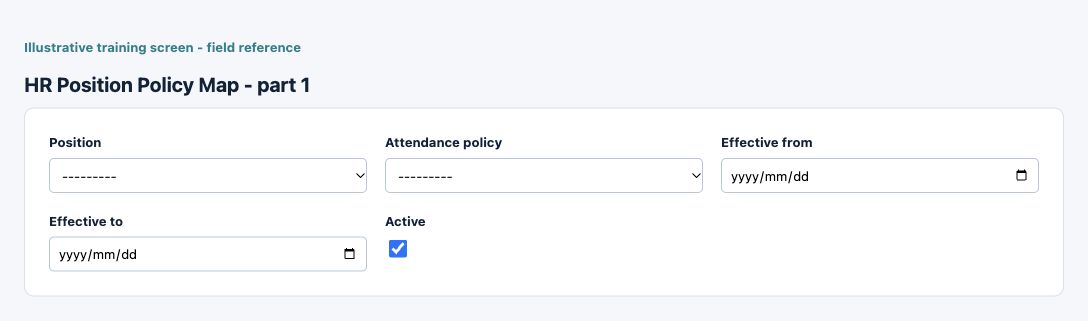
| Field and screenshot | Entry rule and example | Purpose and implication |
|---|---|---|
| Position - Figure 17 | Required entry. Example: The approved business value or selected record | Position master assigned to the employee or policy relationship. Check effective dates and linked attendance/leave settings. Caution: Keep personnel access and effective records consistent with approved HR policy. |
| Attendance policy - Figure 17 | Required entry. Example: The approved business value or selected record | Policy linked to a position over the specified effective dates. Confirm the employee position assignment as well as the policy itself. Caution: Keep personnel access and effective records consistent with approved HR policy. |
| Effective from - Figure 17 | Required entry. Example: 16 October 2026, on the approved effective basis | Start of this configuration or review-item period. Use the applicable business basis and check other effective records for overlap. Caution: Keep personnel access and effective records consistent with approved HR policy. |
| Effective to - Figure 17 | Optional or policy-dependent entry. Example: 31 October 2026, when an end is applicable | End of the applicable date range when present. A blank end can represent continuing applicability; it is not automatic deletion of older records. Caution: Keep personnel access and effective records consistent with approved HR policy. |
| Active - Figure 17 | Checkbox policy setting; review the saved on/off state. Example: The approved on/off policy | Controls whether this configuration remains available for relevant use. Turning it off does not reverse earlier transactions or erase history. Caution: Keep personnel access and effective records consistent with approved HR policy. |
Employee Position Assignment field reference
Figure 18 Employee Position Assignment
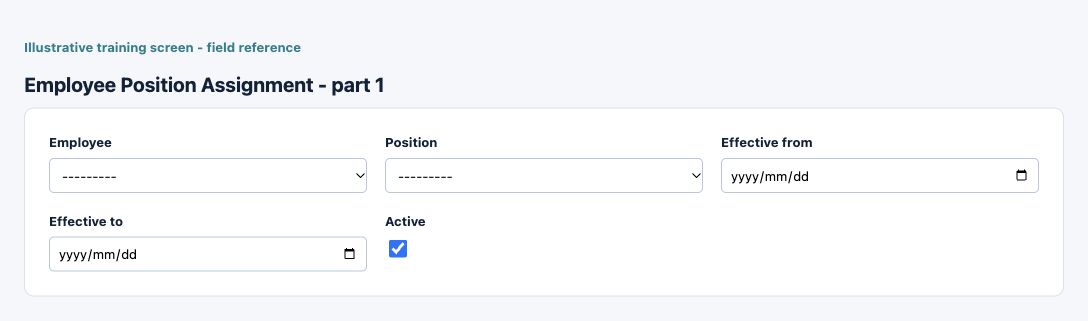
| Field and screenshot | Entry rule and example | Purpose and implication |
|---|---|---|
| Employee - Figure 18 | Required entry. Example: Training Employee | Select the intended employee identity in the current company. Names alone may not distinguish different employee records. Caution: Keep personnel access and effective records consistent with approved HR policy. |
| Position - Figure 18 | Required entry. Example: The approved business value or selected record | Position master assigned to the employee or policy relationship. Check effective dates and linked attendance/leave settings. Caution: Keep personnel access and effective records consistent with approved HR policy. |
| Effective from - Figure 18 | Required entry. Example: 16 October 2026, on the approved effective basis | Start of this configuration or review-item period. Use the applicable business basis and check other effective records for overlap. Caution: Keep personnel access and effective records consistent with approved HR policy. |
| Effective to - Figure 18 | Optional or policy-dependent entry. Example: 31 October 2026, when an end is applicable | End of the applicable date range when present. A blank end can represent continuing applicability; it is not automatic deletion of older records. Caution: Keep personnel access and effective records consistent with approved HR policy. |
| Active - Figure 18 | Checkbox policy setting; review the saved on/off state. Example: The approved on/off policy | Controls whether this configuration remains available for relevant use. Turning it off does not reverse earlier transactions or erase history. Caution: Keep personnel access and effective records consistent with approved HR policy. |
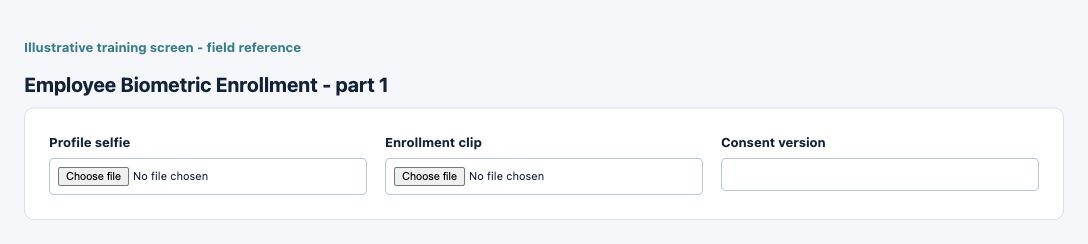
Employee Biometric Enrollment field reference
Figure 19 Employee Biometric Enrollment
| Field and screenshot | Entry rule and example | Purpose and implication |
|---|---|---|
| Profile selfie - Figure 19 | Optional or policy-dependent entry. Maximum 100 characters. Example: Private employee evidence | Biometric enrollment evidence collected through the approved employee process. Handle it as sensitive data; uploading it is not proof that enrollment or attendance succeeded. Caution: Protect sensitive information and use independently verified authorised evidence. |
| Enrollment clip - Figure 19 | Optional or policy-dependent entry. Maximum 100 characters. Example: Private enrollment evidence | Biometric enrollment evidence collected through the approved employee process. Handle it as sensitive data; uploading it is not proof that enrollment or attendance succeeded. Caution: Protect sensitive information and use independently verified authorised evidence. |
| Consent version - Figure 19 | Optional or policy-dependent entry. Maximum 32 characters. Example: The approved business value or selected record | Version of the consent statement associated with enrollment. Use the organisation-approved consent process and do not invent evidence of consent. Caution: Keep personnel access and effective records consistent with approved HR policy. |
Use effective compensation records
Employee Compensation defines frequency, basic salary, payroll tax code, active state and effective dates. Basic salary may be blank for activity-only employees. Review effective changes within a period under the configured mid-period policy; do not assume a new amount replaces earlier earned compensation silently.
Configure earnings, deductions, funds and tax
Earning/deduction definitions distinguish calculation method, defaults, employee overrides, tax effect, cash impact, caps and ledger/fund mappings. Assignments have their own effective dates. Payroll tax codes and slabs use an annual period basis, boundaries, base tax, rates and credits. Configuration is not a legal determination; use the organisation's approved current payroll rules.
Prepare positions, calendars and attendance policies
Positions define organisation, shift and leave policy. Holiday calendars define working days and specific holiday treatment. Attendance policies define marking mode, timezone-related cutoff/grace, device/geofence and challenge/evidence requirements. Employee-position and position-policy assignments connect these records over effective dates.
Protect biometric and attendance evidence
Biometric Enrollment and My Attendance collect sensitive evidence through the permitted employee process. Consent version, profile selfie, enrollment clip, liveness and challenge settings are different controls. A profile photo or submitted attendance attempt is not proof of successful enrollment or an accepted attendance record. Do not share biometric images or challenge codes in ordinary support screenshots.
Review payroll calculation and approval
A payroll run identifies its location and pay date and uses eligible effective employees/compensation/activity. Review earnings, deductions, tax, fund/advance balances and resulting net payable before approving or posting. For a simple example, gross USD 1,000 less approved deductions USD 100 gives USD 900 before any other applicable components; the payslip and configured calculation explain the actual result.
Keep advances, withdrawals and final settlement distinct
Employee Advances, Fund Withdrawals and Final Settlements have separate purposes. Review the employee, location, effective date, eligible balance, supporting evidence and resulting accounting. A recorded settlement or pay date does not execute a bank payment or prove beneficiary verification.
Reconcile payroll and employee self service
Compare run totals, employee payslips, salary expense, payroll/supplier liabilities, clearing, advances, funds and actual payment evidence. Review attendance exceptions before payroll where relevant. My Payslips and My Attendance Records are scoped employee views; access to HR setup is not required for ordinary self-service.
Control changes and retain evidence
Review overlapping effective dates, duplicate assignments, terminated employees, unapproved bank changes and missing policy mappings before recalculating. Preserve original payslips and explanations for corrections. Employment decisions, privacy consent and statutory compliance remain governed organisational decisions, not automatic conclusions from a field or calculated score.
Resolve an HR or payroll prerequisite
| Situation | What to do |
|---|---|
| Employee is absent from a run | Check location, eligibility/status, effective compensation/assignments and pay-period inputs. Do not create a second employee identity. |
| Attendance attempt did not create a record | Inspect its accepted/result state and relevant policy with the authorised HR owner; a photo or submission alone is not accepted attendance. |
| Payroll shows Paid but a liability remains | Compare the linked payable, actual applied payments and residual balance. HR status alone does not establish complete cash settlement. |
Continue with the related task
Payroll runs and reconciliation, vendor payments, user administration and report parameters.
Bulk HR and payroll-input imports for HR attendance and payroll
Use the correct bulk action for this module. The following templates are different business operations, not interchangeable create/update files.
| Action and exact template columns | Prepare the file | Check the saved result |
|---|---|---|
| Employee Master - HR Employees | Creates employees; prepare employee identity, hire/termination dates, department/designation and supported bank/tax links. Restrict file access. | Compare created employee numbers, eligibility and protected personal fields using HR setup. This is not a user-account or salary-payment import. |
| HR Earnings Setup - HR Earnings Setup | New earning codes; prepare calculation method, amount/rate, tax/cash impact and applicable expense/fund mapping. Existing earning codes are not updated by replay. | Reopen code/method/defaults and verify expense/cash treatment before use in compensation. Use HR setup. |
| Employee Compensation Master - HR Employee Compensation | New effective-dated compensation headers and linked lines for existing employees. A new version can close the preceding effective version. Check date overlap, earning/deduction methods, currency and payroll tax setup with the payroll owner. | Reopen new and preceding effective versions and basic/earning/deduction lines. Reconcile the next applicable draft payroll, not a historical payslip rewrite; use payroll transactions. |
| Payroll Variable Inputs - HR Payroll Variable Inputs | Add inputs to a DRAFT payroll run. Prepare employee, earning/deduction type, activity date within the run month, amount or units and effective compensation rate. | Compare run/employee/line numbers and input totals, then review payroll calculation and approved payroll reconciliation. It does not execute salary payments; use payroll guidance. |
Follow this module bulk procedure
- Restrict access to employee/pay data. Prepare employee identities, departments/designations, earning/deduction setup, effective compensation, payroll tax and employee payable mappings in the correct company.
- Select Employee Master, HR Earnings Setup, Employee Compensation Master or Payroll Variable Inputs from its intended list. Download the current template; an employee import is not a user-account or salary-payment import.
- Load prerequisite employees/earning codes before compensation versions, and compensation before rate-based variable inputs. Review effective dates and overlaps: a new compensation version can close the preceding version.
- For variable inputs, select the intended DRAFT payroll run, employee, earning/deduction code and activity date within that run month. Check whether the method expects units with an effective rate or an input amount; avoid duplicating attendance/manual inputs.
- Validate, commit once and compare created employee/version/input identities. Reopen new and preceding compensation versions and reconcile the intended draft payroll calculation, tax, deductions and net pay. Importing inputs does not post payroll or execute salary payments.
Validate, commit and recover safely
For a supported workbook import, use the shared import steps and job recovery. A validated preview is not a saved transaction. Use Show status before retrying; cancelling a job does not reverse committed records. Keep the approved file, job reference and reconciled results securely.