
Process payroll activities, advances, funds and settlements
Monthly inputs tax overrides payroll review employee obligations and payment evidence
Monthly inputs tax overrides payroll review employee obligations and payment evidence. For authorised operational users and Tenant Administrators working within their subscription workspace.
Prepare the authorised payroll scope
Use the HR area in the correct company and permitted location. Confirm employee effective dates, pay structures, variable earning/deduction codes, funds, tax setup, employee payables mapping and HR clearing accounts. The HR setup guide explains those controls. A Tenant Administrator administers their subscription workspace; that role does not by itself justify unrestricted sharing of employee payroll or attendance.
Prepare the monthly run and activities
Review Payroll Run Date and Payroll Month before saving the Draft. Add each approved variable input for the actual Employee, Type and Code. Check whether the calculation expects a quantity or an input value, and record the truthful Source and reason. Reconcile manual, attendance, import and API inputs to avoid counting the same activity twice. A Source label does not import or approve external activity.
Calculate and review before posting
Calculate Draft after the inputs are ready and again after relevant changes. Review every employee row, non-cash taxable benefits, tax, deductions, employer contributions and net pay. Review authorised tax overrides against Engine Tax and retain their reasons. Do not add non-cash taxable benefits to cash pay or subtract employer contributions from employees simply because those values appear in the review table.
Field explanations and training references
Each listed control has an entry rule, example, implication and caution. Figures use fictional training values. Available controls depend on the saved state, permissions, country, item tracking and company policy; select actual application records rather than copying the example text.
Payroll run header and accounting references field reference
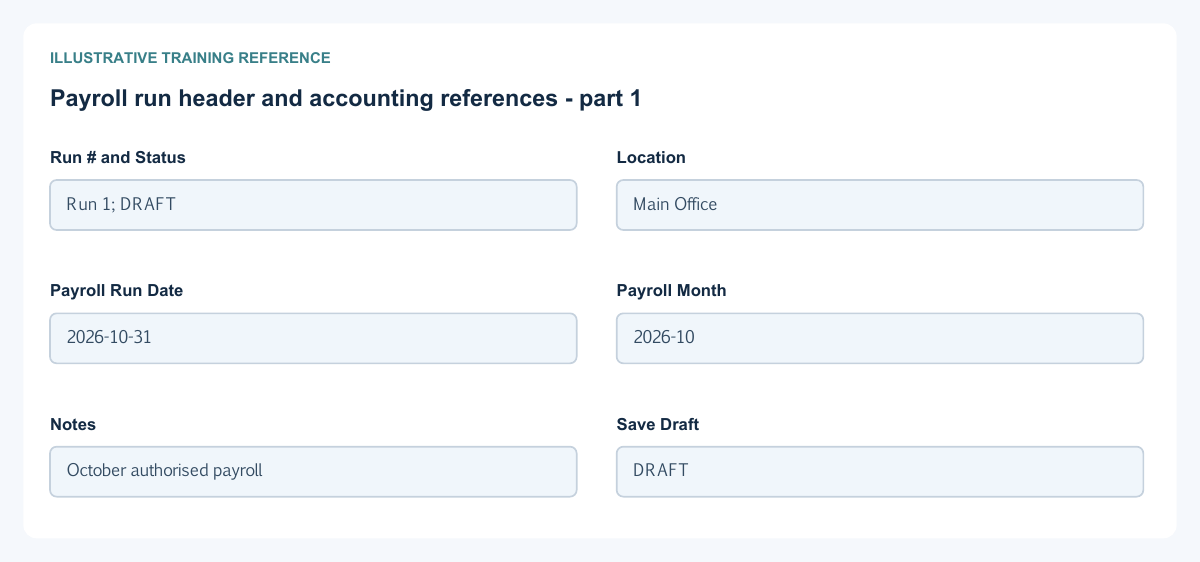
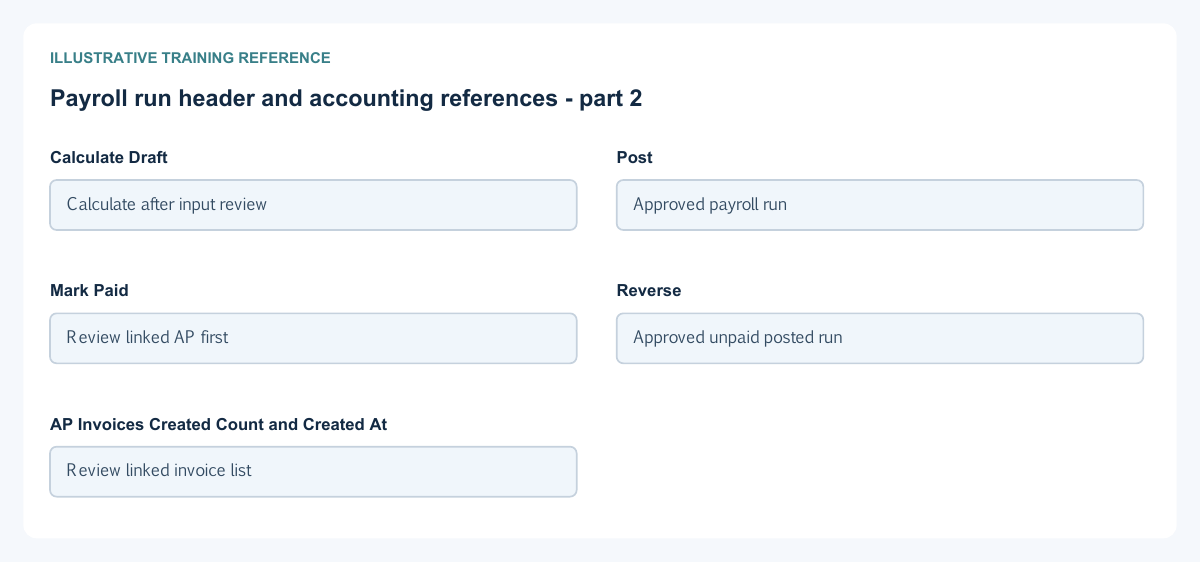
Figure 1 Payroll run header and accounting references
| Field and figure | Entry rule and example | Purpose and implication |
|---|---|---|
| Run # and Status - Figure 1 | Generated run identity and workflow state. Example: Run 1; DRAFT | Identify the payroll cycle and whether inputs remain editable. Caution: Do not infer full payment solely from PAID. |
| Location - Figure 1 | Required permitted payroll location. Example: Main Office | Scopes the payroll employees and context. Caution: A location selection does not grant access to other employees. |
| Payroll Run Date - Figure 1 | Required supported date. Example: 2026-10-31 | Identifies the payroll run's date and monthly context. Caution: Check the period before saving or recalculating. |
| Payroll Month - Figure 1 | Derived monthly period display. Example: 2026-10 | Shows which month's compensation is being calculated. Caution: Changing a date can change the intended period; recheck all activity. |
| Notes - Figure 1 | Optional factual payroll explanation. Example: October authorised payroll | Records the business reference. Caution: Avoid medical, identity or bank details in free-text notes. |
| Save Draft - Figure 1 | Save the editable run. Example: DRAFT | Retains run preparation. Caution: Saving is not calculating, posting or paying employees. |
| Calculate Draft - Figure 1 | Available for an eligible saved Draft. Example: Calculate after input review | Builds employee lines and amounts for review. Caution: Input changes can make results stale; recalculate before posting. |
| Post - Figure 1 | Available for a current calculated Draft with lines. Example: Approved payroll run | Requests payroll posting and associated obligations. Caution: Review results and linked records after processing; do not pay twice after a slow response. |
| Mark Paid - Figure 1 | Available after posting, subject to actual AP-payment evidence. Example: Review linked AP first | Synchronises payment status; manual unsupported marking is rejected. Caution: Any positive linked AP payment can trigger PAID; inspect all unpaid balances to establish full settlement. |
| Reverse - Figure 1 | Available only under the saved workflow and dependency restrictions. Example: Approved unpaid posted run | Requests the supported payroll reversal. Caution: Paid/partially paid AP and later posted periods must be addressed through their supported correction paths first. |
| AP Invoices Created Count and Created At - Figure 1 | Read-only linked-payables indicators. Example: Review linked invoice list | Identify generated employee/authority obligations and creation timing. Caution: A count or flag does not prove journals posted or payments completed. |
Variable employee activities field reference
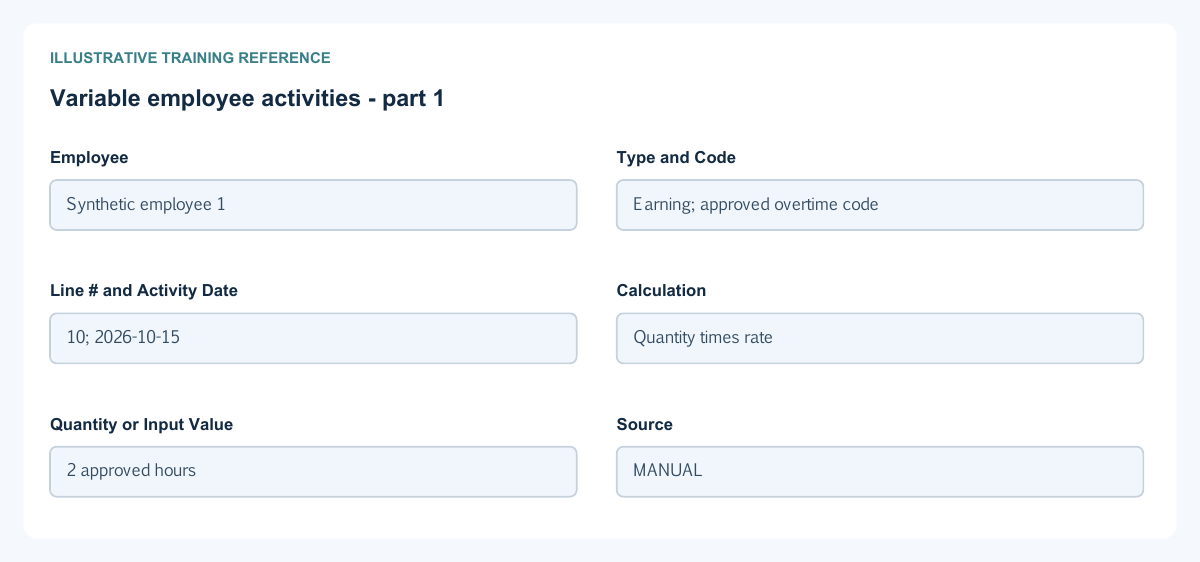
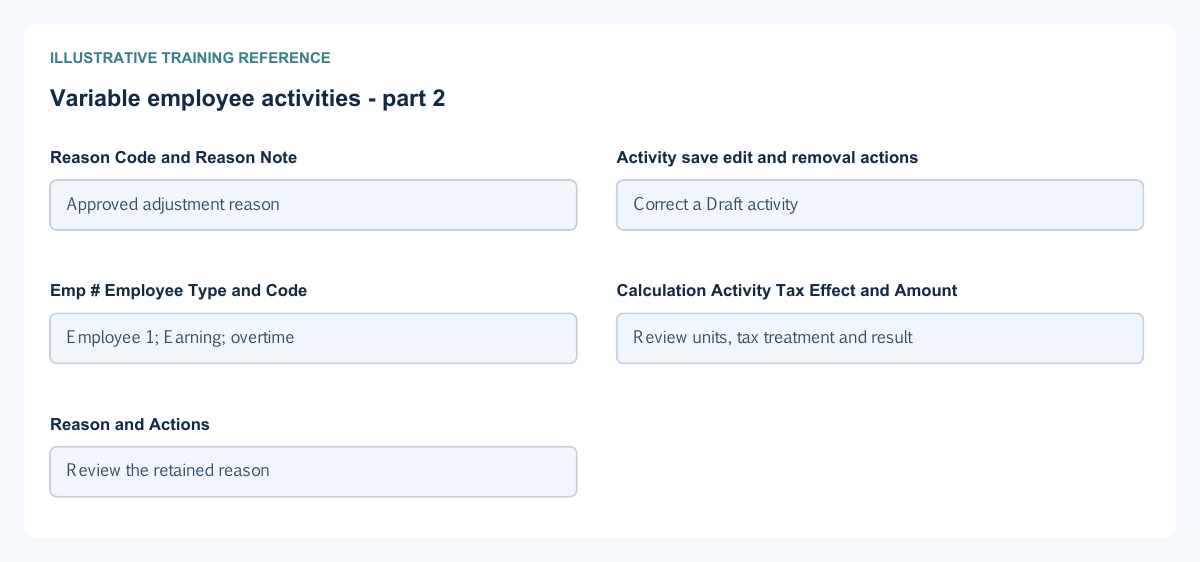
Figure 2 Variable employee activities
| Field and figure | Entry rule and example | Purpose and implication |
|---|---|---|
| Employee - Figure 2 | Required actual employee selection. Example: Synthetic employee 1 | Identifies whose monthly activity is being recorded. Caution: Use only employees within the authorised company/location scope. |
| Type and Code - Figure 2 | Choose Earning or Deduction and an eligible configured code. Example: Earning; approved overtime code | Determine calculation, tax and accounting treatment. Caution: A code must have the intended configuration; its name alone is insufficient. |
| Line # and Activity Date - Figure 2 | Activity row identity and eligible business date. Example: 10; 2026-10-15 | Distinguish multiple activities and place them in the payroll period. Caution: Avoid duplicate source activity and dates outside the intended month. |
| Calculation - Figure 2 | Configured calculation reference. Example: Quantity times rate | Explains how an activity produces a monetary result. Caution: Do not type a final amount into a quantity-based calculation unless that is the configured input. |
| Quantity or Input Value - Figure 2 | Required value under the selected calculation. Example: 2 approved hours | Supplies units or the configured monetary input. Caution: Check whether the label is Quantity or Input Value; the meaning changes with the code. |
| Source - Figure 2 | Choose the truthful provenance: Manual, Attendance, Import or API. Example: MANUAL | Records where the activity originated. Caution: Selecting Attendance does not automatically import attendance records. |
| Reason Code and Reason Note - Figure 2 | Required where the code or action requires explanation. Example: Approved adjustment reason | Retain the basis for the variable input. Caution: Do not store sensitive employee information unrelated to payroll calculation. |
| Activity save edit and removal actions - Figure 2 | Available while the run and permissions allow. Example: Correct a Draft activity | Maintain the source inputs used by the next calculation. Caution: Removing a proposed activity is not reversing posted payroll. |
| Emp # Employee Type and Code - Figure 2 | Read-only saved activity identity columns. Example: Employee 1; Earning; overtime | Help review who and what will be calculated. Caution: Review the employee number as well as the name. |
| Calculation Activity Tax Effect and Amount - Figure 2 | Saved activity calculation and financial displays. Example: Review units, tax treatment and result | Explain how the input contributes to the calculated run. Caution: An activity amount is not an employee bank payment. |
| Reason and Actions - Figure 2 | Saved explanation and permitted maintenance controls. Example: Review the retained reason | Support traceability and correction before posting. Caution: Do not overwrite source evidence to make a variance disappear. |
Manual tax and calculated employee results field reference
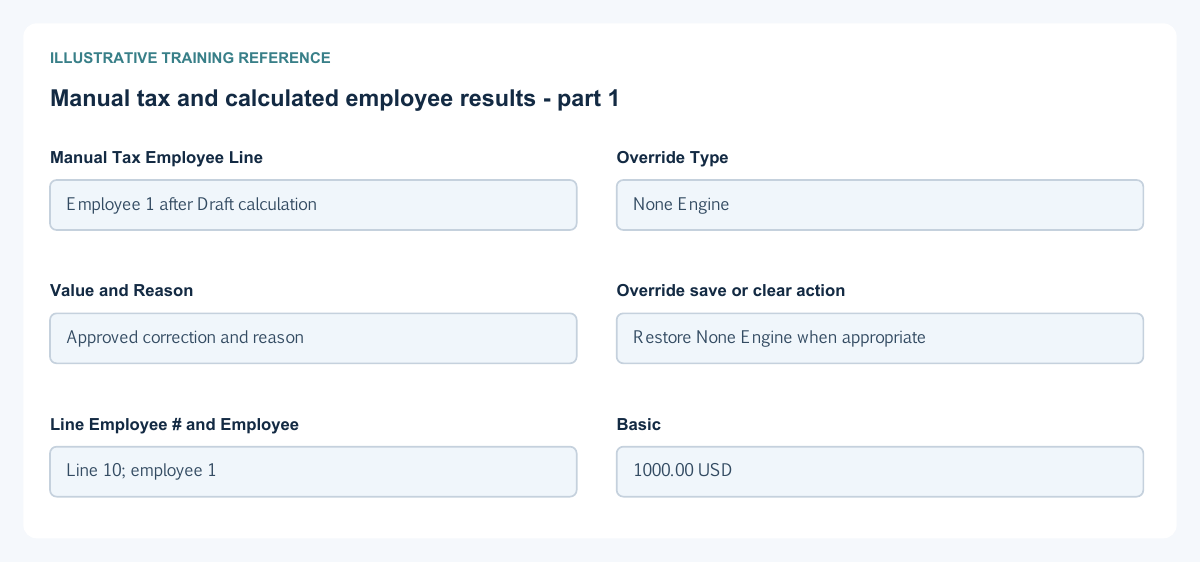
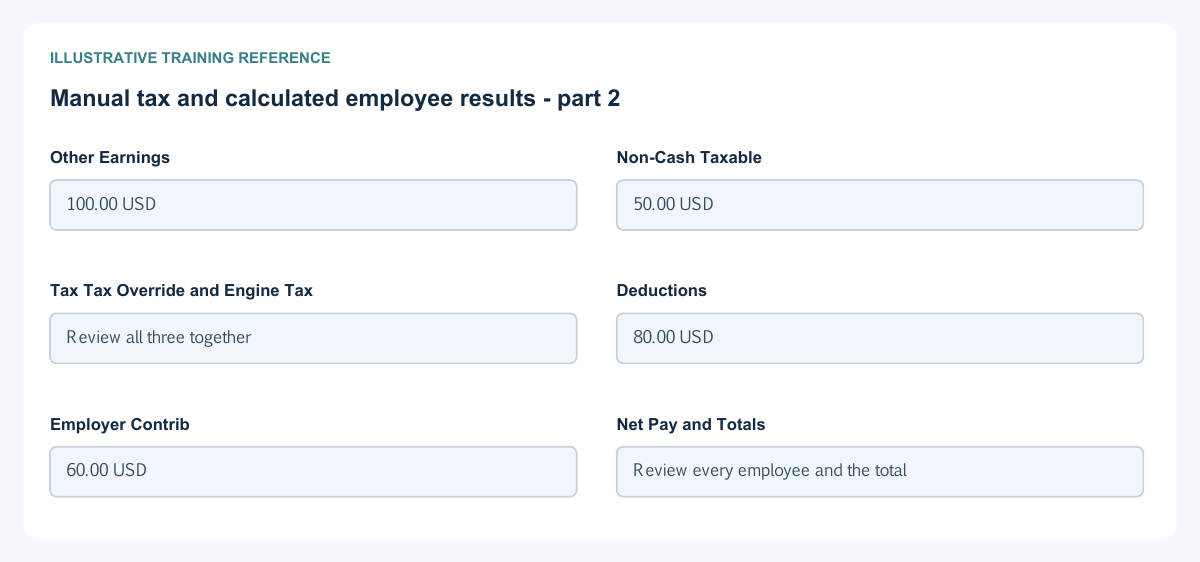
Figure 3 Manual tax and calculated employee results
| Field and figure | Entry rule and example | Purpose and implication |
|---|---|---|
| Manual Tax Employee Line - Figure 3 | Select an actual calculated payroll line. Example: Employee 1 after Draft calculation | Scopes an authorised override to one employee result. Caution: Do not select an activity row instead of the employee payroll line. |
| Override Type - Figure 3 | None Engine, Amount or Percent of Taxable. Example: None Engine | Determines whether the engine amount or an authorised manual basis is used. Caution: An override requires the organisation's payroll/tax authority; it is not a tax-exemption switch. |
| Value and Reason - Figure 3 | Conditional override value and required explanation. Example: Approved correction and reason | Record the alternative tax basis and audit explanation. Caution: A percent is not an amount; confirm the label and authorised basis. |
| Override save or clear action - Figure 3 | Maintain only while permitted in Draft. Example: Restore None Engine when appropriate | Retains or removes the deliberate override. Caution: Recheck the calculated Tax and Engine Tax rather than assuming a field clear changed posting. |
| Line Employee # and Employee - Figure 3 | Calculated employee-row identity. Example: Line 10; employee 1 | Identify the employee result and payslip basis. Caution: Keep payroll exports restricted to authorised recipients. |
| Basic - Figure 3 | Calculated basic earnings. Example: 1000.00 USD | Shows the core pay component. Caution: The amount depends on employee setup, dates and calculation rules. |
| Other Earnings - Figure 3 | Calculated cash earnings display. Example: 100.00 USD | Shows additional cash earnings in the review table. Caution: Do not add non-cash taxable benefits to cash payable a second time. |
| Non-Cash Taxable - Figure 3 | Calculated taxable benefit display. Example: 50.00 USD | Shows benefits that affect the tax basis without becoming cash wages. Caution: Taxable does not necessarily mean payable in cash. |
| Tax Tax Override and Engine Tax - Figure 3 | Calculated tax, override marker and engine reference. Example: Review all three together | Explain the effect of an authorised override against the engine calculation. Caution: A manual override is not independent confirmation of tax compliance. |
| Deductions - Figure 3 | Calculated employee deductions. Example: 80.00 USD | Reduce the employee settlement according to configured deductions. Caution: Avoid deducting the same advance manually and through configured recovery. |
| Employer Contrib - Figure 3 | Calculated employer contributions. Example: 60.00 USD | Identify the employer's separate contribution obligation. Caution: Do not automatically subtract this from employee Net Pay. |
| Net Pay and Totals - Figure 3 | Calculated employee cash result and run totals. Example: Review every employee and the total | Show the intended net payable after the applicable calculation. Caution: Tie the totals to linked AP, journals and payslips, not only the run header. |
Employee advances and fund withdrawals field reference
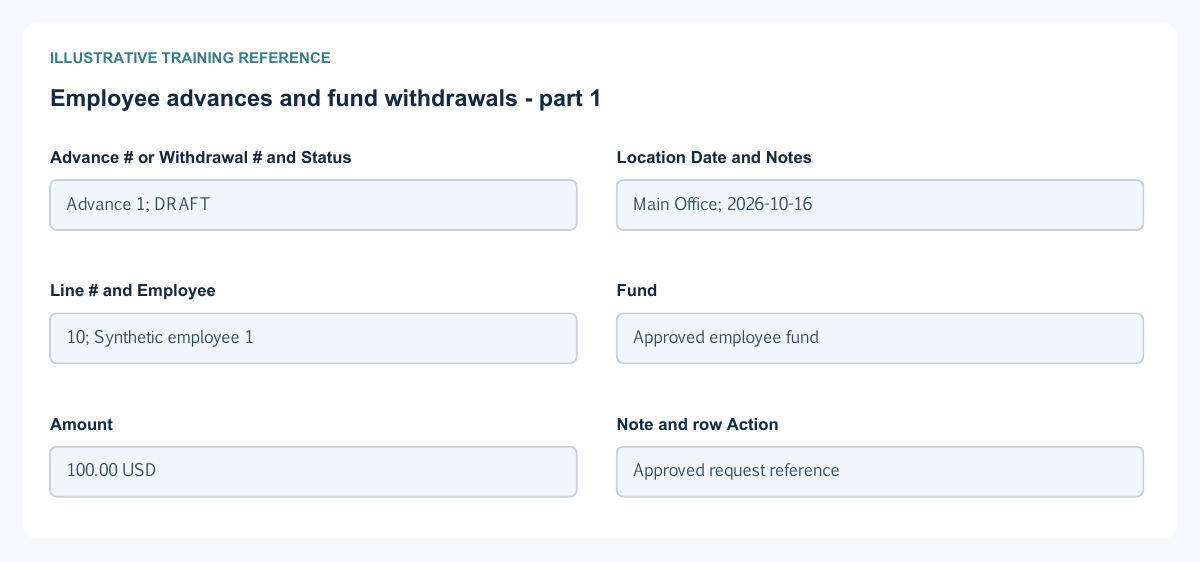
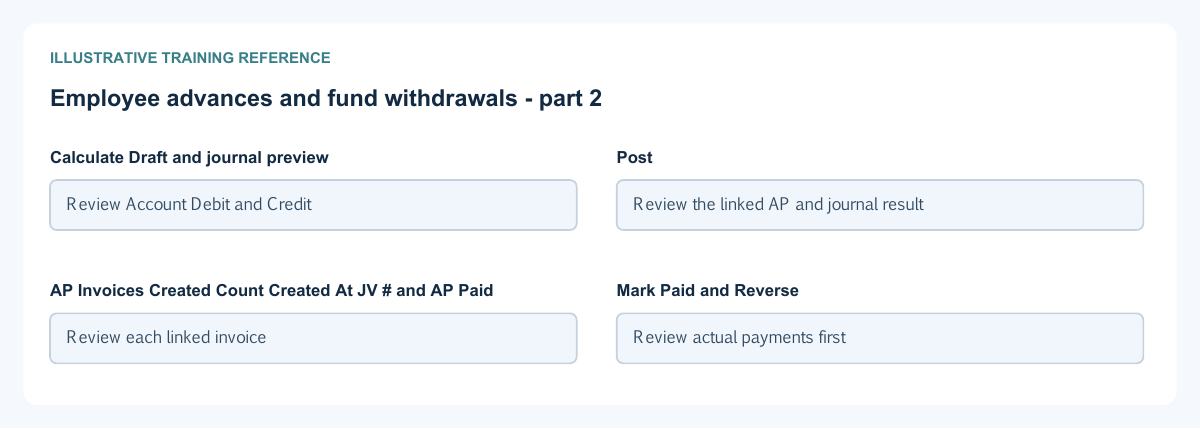
Figure 4 Employee advances and fund withdrawals
| Field and figure | Entry rule and example | Purpose and implication |
|---|---|---|
| Advance # or Withdrawal # and Status - Figure 4 | Generated identity and saved state. Example: Advance 1; DRAFT | Distinguish an employee advance from withdrawal of an accumulated fund. Caution: They are different accounting transactions. |
| Location Date and Notes - Figure 4 | Required permitted location and date; optional explanation. Example: Main Office; 2026-10-16 | Scope and date the obligation. Caution: Do not use notes to override employee or fund eligibility. |
| Line # and Employee - Figure 4 | Required line identity and eligible employee selection. Example: 10; Synthetic employee 1 | Identify the recipient on each line. Caution: Review employee vendor/payables setup before posting. |
| Fund - Figure 4 | Required only for a fund withdrawal line. Example: Approved employee fund | Selects the accumulated fund and related liability. Caution: An employee advance does not withdraw an accrued fund merely because the employee matches. |
| Amount - Figure 4 | Positive eligible line amount. Example: 100.00 USD | Defines the advance or requested fund withdrawal. Caution: Review fund availability and advance recovery arrangements before posting. |
| Note and row Action - Figure 4 | Optional line explanation and Draft row maintenance. Example: Approved request reference | Support the line's business basis. Caution: Row removal does not cancel a posted payable or recover paid cash. |
| Calculate Draft and journal preview - Figure 4 | Available for the saved editable Draft. Example: Review Account Debit and Credit | Show the proposed advance/fund obligation and clearing entries. Caution: A preview is not a posted journal. |
| Post - Figure 4 | Consequential eligible saved-Draft action. Example: Review the linked AP and journal result | Creates the supported obligation, journal and employee payable processing. Caution: It does not by itself send money to the employee's bank. |
| AP Invoices Created Count Created At JV # and AP Paid - Figure 4 | Read-only linked accounting/payment displays. Example: Review each linked invoice | Connect the HR document with its financial records. Caution: AP Paid can reflect some payment; check remaining unpaid amounts. |
| Mark Paid and Reverse - Figure 4 | Use only where permitted by the saved state and AP dependencies. Example: Review actual payments first | Synchronise supported payment status or request the supported correction. Caution: Paid or partially paid linked AP must not be bypassed through direct HR edits. |
Final settlements attendance and employee evidence field reference
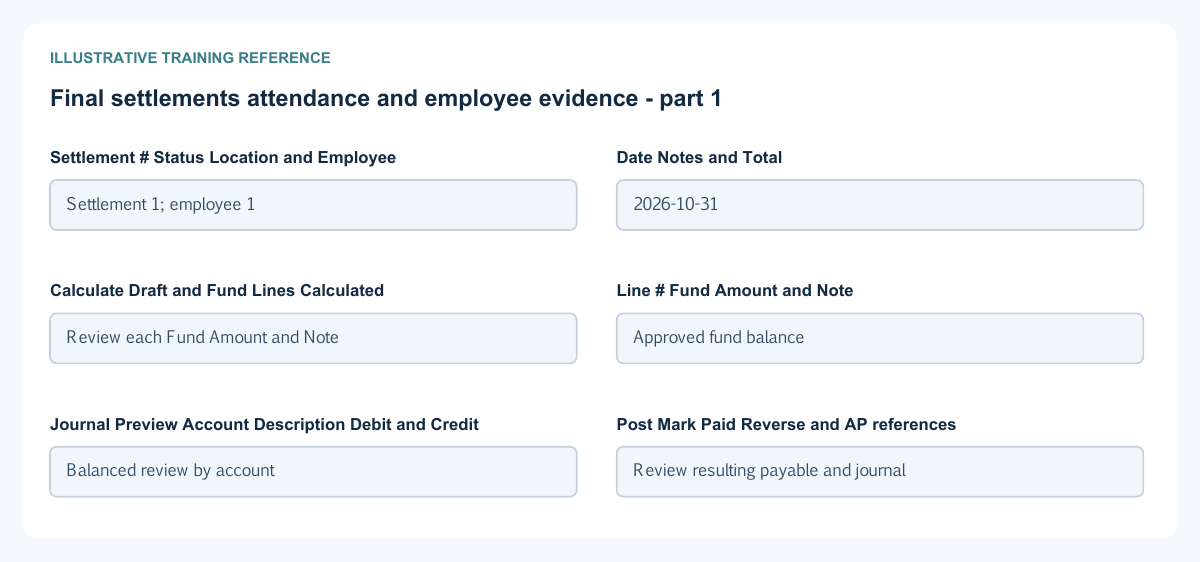
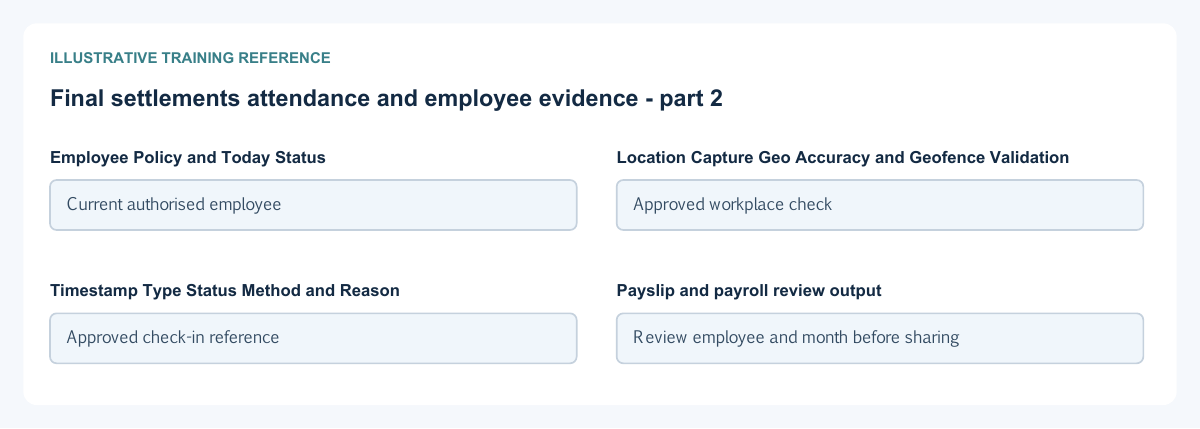
Figure 5 Final settlements attendance and employee evidence
| Field and figure | Entry rule and example | Purpose and implication |
|---|---|---|
| Settlement # Status Location and Employee - Figure 5 | Generated identity and required permitted context. Example: Settlement 1; employee 1 | Identify whose accumulated-fund settlement is being calculated. Caution: This screen is not a general-purpose termination-benefit calculator. |
| Date Notes and Total - Figure 5 | Required eligible date, optional explanation and calculated total. Example: 2026-10-31 | Date and describe the settlement and display the calculated obligation. Caution: The Total is not an editable bank-payment instruction. |
| Calculate Draft and Fund Lines Calculated - Figure 5 | Calculate eligible fund balances for the selected employee/date. Example: Review each Fund Amount and Note | Build the supported fund settlement lines. Caution: Review prior withdrawals and fund history; do not add unrelated leave/severance amounts by assumption. |
| Line # Fund Amount and Note - Figure 5 | Calculated settlement detail. Example: Approved fund balance | Explain the components of the settlement Total. Caution: Do not treat a balance display as approval to pay. |
| Journal Preview Account Description Debit and Credit - Figure 5 | Read-only proposed journal lines. Example: Balanced review by account | Show the proposed fund liability and clearing treatment. Caution: A balanced preview can still use the wrong employee, date or account. |
| Post Mark Paid Reverse and AP references - Figure 5 | Conditional saved-workflow controls and linked evidence. Example: Review resulting payable and journal | Connect settlement calculation, posting and payment evidence. Caution: Partial AP payment can trigger paid status; use unpaid balances to confirm complete settlement. |
| Employee Policy and Today Status - Figure 5 | Self-service attendance identity and policy displays. Example: Current authorised employee | Identify whose attendance is shown and the relevant attendance rules. Caution: Self-service does not authorise viewing other employees' attendance. |
| Location Capture Geo Accuracy and Geofence Validation - Figure 5 | Conditional attendance location and accuracy results. Example: Approved workplace check | Explain location capture and whether it meets the configured geofence. Caution: Only grant location permission where the workplace policy requires it; accuracy and validation are separate results. |
| Timestamp Type Status Method and Reason - Figure 5 | Read-only attendance history columns. Example: Approved check-in reference | Explain when and how an attendance event was recorded and its result. Caution: An event does not automatically establish payable hours or approve an absence. |
| Payslip and payroll review output - Figure 5 | Use the permitted employee/run document. Example: Review employee and month before sharing | Provide employee compensation evidence separately from bank settlement. Caution: Restrict payroll, attendance and fund exports; never use real employee data in public training screenshots. |
Keep HR posting, AP and payment separate
Post requests the supported payroll accounting and linked payables processing. Reopen the run and review generated AP invoices, applicable journals and the payroll review output. Vendor payments and applications settle the linked obligations; posting payroll alone does not transfer money. Use the AP references to trace employees and authorities separately.
Read Paid as a status, not full settlement proof
The released payroll and related HR payment checks can mark a document PAID when a linked AP invoice has any paid amount, including a partial payment. To confirm full settlement, inspect every linked invoice and its remaining unpaid balance, payment/application records and bank evidence. For example, a USD 1000 obligation paid by USD 100 still has USD 900 outstanding regardless of an HR Paid label.
Distinguish advances, fund withdrawals and final settlements
An Employee Advance creates the supported recoverable advance and payable obligation. A Fund Withdrawal draws against the selected accumulated fund under its eligibility rules. Final Settlement calculates the supported employee fund balances for a date; it is not an automatic calculation of every legal termination benefit. Review fund history, earlier withdrawals, liabilities and employee balances before posting or paying.
Reconcile payroll and employee obligations
Compare employee/run totals and payslips with posted salary, tax, fund, advance, contribution and clearing entries. Tie linked AP balances to the employee and authority obligations. Trace each payment application and residual amount; reconcile bank settlement separately. Explain differences caused by non-cash benefits, employer contributions, partial payments and timing rather than forcing totals to match by changing tax.
Correct in dependency order and protect employee data
Correct permitted Draft inputs and recalculate before posting. Payroll reversal is restricted by paid/partially paid linked AP, existing reversals and later posted payroll periods. Use authorised AP/bank and later-period correction paths first where required; do not bypass the checks with manual database edits. Limit payroll, payslip, attendance and fund outputs to approved recipients. Location capture is an attendance-policy permission, not a reason to grant unrelated device access.
Work through gross pay, benefits and deductions
Assume an illustrative payroll calculation in one functional currency: basic cash salary 1,000, cash allowance 100, non-cash taxable benefit 50, employee tax 120 and another employee cash deduction 30. Cash earnings are 1,100 and illustrative cash net pay is 1,100 minus 120 minus 30 = 950. A taxable-basis display can include the non-cash 50, but that does not make cash pay 1,000. The figures and tax amount are fictional, not a tax rate or statutory calculation.
An employer contribution of 40, if applicable under the approved setup, is a separate employer expense/liability; do not automatically deduct it from that 950 employee cash pay. Check the actual run's taxable/non-taxable and cash/non-cash design, effective compensation and every earning/deduction/fund code before accepting totals.
Follow the run to each payable and payment
| Stage | What to inspect | What remains separate |
|---|---|---|
| Inputs | Employee, payroll month, effective compensation, approved variable activities and source | An imported/activity Source label is not proof it was approved or not counted twice |
| Calculation | Per-employee earnings, benefits, tax, deductions, employer contributions and net pay | A Draft calculation is not a payable or bank transfer |
| Posting | Saved run status, linked AP invoices, journals and any failure details | A queued request or linked invoice count is not complete payment |
| Employee settlement | Actual employee AP invoice, payment/application and residual | HR Paid can reflect a partial payment; review all remaining balances |
| Tax and funds | Authority/fund liabilities, due dates, separate AP/payment evidence where applicable | Paying the employee does not necessarily settle the authority or fund |
| Reconciliation | Payroll review, payslips, HR-to-AP report, GL and bank | Keep the same company, month, date/currency basis and permitted location scope |
For an employee payable of 950 paid by 600, the remaining employee payable is 350 before other applications. Do not treat that as an unpaid gross salary of 500 or as full settlement because an HR status reads Paid. Investigate each linked invoice and payment rather than changing payroll tax or benefits to make a report agree.
Check attendance and effective dates before calculation
Confirm the employee's applicable position, attendance policy, company timezone, shift/holiday calendar, accepted attendance and authorised exception adjustments. A profile photo is not completed biometric enrolment; a captured attempt is not necessarily accepted attendance. Missing or disputed attendance must be resolved through the approved HR process before it affects payroll.
Use the effective compensation dates for the actual payroll period. Check the mid-period policy and any cutoff rather than assuming a full monthly salary or inventing a daily rate. Employment termination, payroll final settlement and application-user offboarding are separate tasks. Restrict employee identity, bank, biometric and payslip evidence to authorised recipients.
Verify corrections before recalculating
For an editable Draft, correct the actual input, recalculate and compare the changed employee/run totals. For a posted run, review linked payments/applications, paid/partially paid AP and later payroll periods before requesting a supported reversal. Retain original and replacement references. A manual GL correction does not amend an employee's payslip, fund history or AP balance.
Related user guides
HR and payroll setup, vendor payments and applications, accounting controls, approvals and audit and cash and bank.