
Review the Cash Flow Statement
Activity classification cash bridge drill downs and Excel export
Open Cash Flow > Cash Flow Statement for the cash-flow dashboard. It groups account movements into Operating Activities, Investing Activities and Financing Activities, then compares the resulting cash bridge with Opening and Closing Cash & Cash Equivalents. Use it to investigate movement and classification; it is not a cash forecast, bank statement or payment instruction.
The amounts use the selected company's functional currency. There is no location filter or transaction-currency selector on this screen. This guide is for authorised accounting and treasury users with appropriate company-wide financial access.
Prepare cash flow classifications
Reporting Accounts carry a Cash Flow Category. Confirm that the intended cash and qualifying cash-equivalent accounts use Cash & Cash Equivalents, and that other accounts have the approved Operating, Investing or Financing category. A bank account record alone does not determine this classification. Review all posting sub-accounts beneath each reporting account because they inherit its reporting classification.
Keep the system retained-earnings account intact; its roll-forward is not an additional financing cash receipt. Review account types, mappings, backdated postings, revaluation and any balance-processing problem before relying on a historical view. Use account setup and the financial Dashboard to inspect the broader ledger.
For external financial statements, the accounting owner must also assess non-cash movements, exchange effects, classification, offsets and required disclosures. A zero reconciliation difference alone is not proof of IAS7 compliance. See the official IAS7 overview and the company's applicable accounting policy.
Generate and review the statement
- Confirm Current Company and open Cash Flow > Cash Flow Statement.
- Enter From Date and To Date as a valid chronological range. The initial default is the current calendar year to date, not necessarily your financial year.
- Select Reporting Account for parent totals or Chart of Account for posting-account detail. The level button refreshes the form.
- Choose Generate after date changes. Verify the displayed dates, currency and Report Level before investigating the values.
- Review all three activity totals, opening cash, expected closing cash, actual closing cash and Reconciliation Difference. Follow linked values to supporting records and export the generated statement where needed.
Generating, changing the grouping or exporting does not create a bank movement, post a journal or correct a cash-flow category.
Recognise the Cash Flow Statement screen
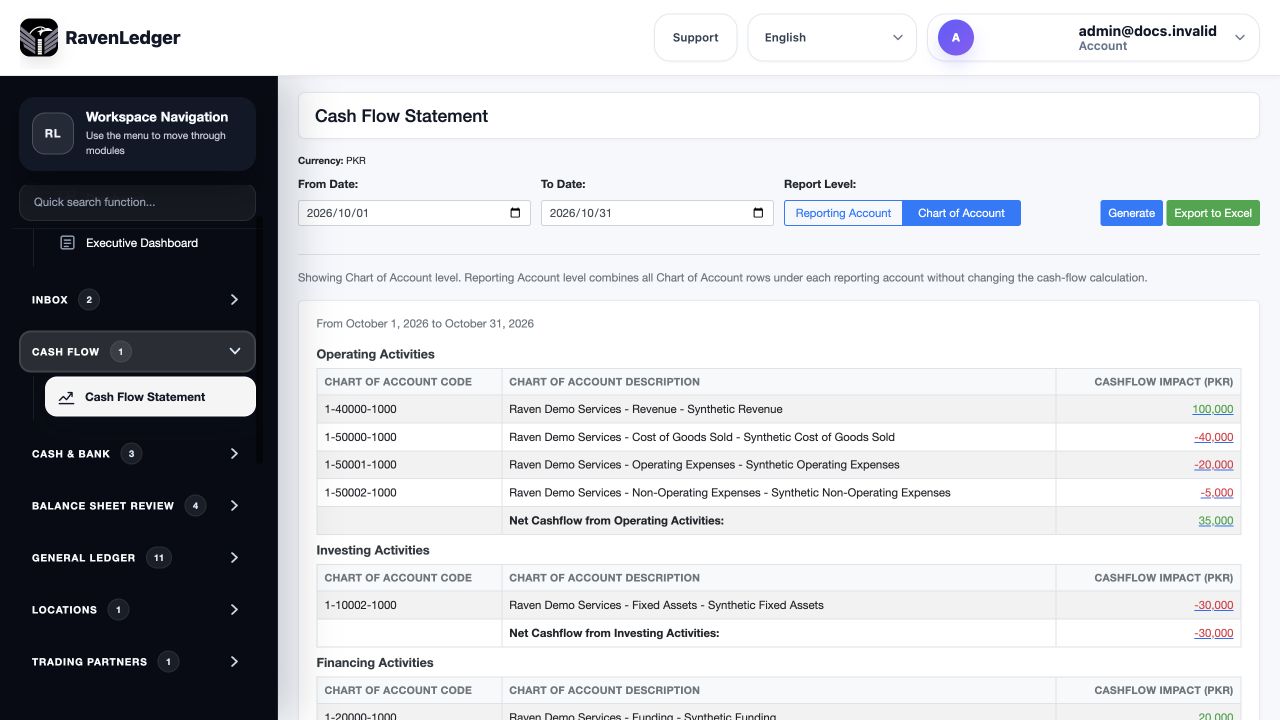
Understand every field and action
| Field or control | Meaning | Implication and check |
|---|---|---|
| Currency | Company's functional currency | Not the currency of every bank or invoice; do not add source-currency values to these totals. |
| From Date | First day of the movement period | Opening cash is before this date. |
| To Date | Last day of the movement period and closing cutoff | Includes relevant balances through this date. |
| Report Level: Reporting Account | Combines posting accounts under each parent | Changes rows, not the underlying activity total. |
| Report Level: Chart of Account | Shows individual posting accounts; initial detail level | Useful for isolating a cash or mapped activity account. |
| Generate | Refreshes the view with entered parameters | Check the resulting period, not only unsent form values. |
| Export to Excel | Downloads the generated cash-flow statement | Generate first; the link reflects the last generated dates and level. Keep financial exports secure. |
| Linked activity amount | Opens posted journal activity for that account/category and period | The movement sign is different from the cash-flow impact described below. |
| Linked opening or closing cash | Opens cash-equivalent account activity for the selected period | This is not a separate opening/closing-balance transaction listing. |
| Journal # in drill-down | Opens the permitted journal view | Review the actual source and posting status; do not edit to force a report total. |
| Pagination controls | Show additional supporting rows | Top totals cover all matching rows, not only the visible page. |
| Back to Cash Flow | Returns with the dates | Recheck the Report Level because it may return to the default detail level. |
The supporting detail has no separate Excel-export button on this screen. Use the statement export or an appropriate GL transaction report if a detailed workbook is required.
Read activity rows and signs correctly
Each activity table shows the selected account level's Code, Description and Cashflow Impact. The released calculation uses the inverse of the non-cash account's functional debit-minus-credit movement: a positive movement in an asset can therefore create a negative cash-flow impact, while a credit movement can create a positive impact.
| Example account movement | GL movement Dr-Cr | Cash-flow bridge impact |
|---|---|---|
| Receivables increase by PKR20,000 | +20,000 | -20,000 in its approved activity category. |
| Payables increase by PKR15,000 | -15,000 | +15,000 in its approved activity category. |
| Equity funding is credited PKR50,000 | -50,000 | +50,000 if approved as financing. |
| Asset acquisition is debited PKR30,000 | +30,000 | -30,000 if approved as investing; assess any non-cash portion separately. |
These are bridge relationships, not proof that every movement represents actual cash. For example, a non-cash asset/liability exchange can create offsetting category movements without a cash transfer. Review non-cash investing/financing movements and disclosures rather than treating every displayed movement as a cash receipt or payment.
Cash & Cash Equivalents accounts are excluded from the three activity tables because they provide the opening/closing cash comparison. The retained-earnings roll-forward is also excluded to avoid counting the P&L contribution twice. Unmapped or inappropriate categories can leave movements out of the bridge or place them in the wrong activity.
Interpret every reconciliation total
| Total | Calculation or meaning | How to use it |
|---|---|---|
| Net Cashflow from Operating Activities | Sum of the operating rows | Investigate customer, supplier, expense and other approved operating effects. It is not simply net profit. |
| Net Cashflow from Investing Activities | Sum of the investing rows | Review approved asset/investment movements and any non-cash components. |
| Net Cashflow from Financing Activities | Sum of the financing rows | Review approved capital/funding movements and any non-cash components. |
| Net Cashflow from All Activities | Operating + Investing + Financing | This is the period's mapped bridge movement. |
| Opening Cash & Cash Equivalents | Cash-category balance before From Date | Tie to the preceding cutoff's approved GL cash-equivalent balance. |
| Expected Closing Cash (Opening + Net Cashflow) | Opening cash plus mapped activity total | An expected bridge result, not an independent bank balance. |
| Closing Cash & Cash Equivalents | Cash-category balance through To Date | Tie to the same-cutoff functional GL cash accounts. |
| Reconciliation Difference | Closing cash minus Expected Closing Cash | Investigate a nonzero difference; zero does not establish correct statutory classification or bank reconciliation. |
Positive and negative amounts use colour as a visual aid. Always read the sign and label; colour alone is not an approval or a performance judgment.
Work through a complete cash bridge
Assume fictional PKR opening cash of 100,000, operating inflow of 40,000, investing outflow of 30,000 and financing inflow of 20,000. Net Cashflow is 30,000, Expected Closing Cash is 130,000, and actual Closing Cash of 130,000 gives Reconciliation Difference 0.
If actual Closing Cash is 128,000, the difference is -2,000. Investigate missing/misclassified movements, posting completeness and the cash-category balances. Do not create a PKR2,000 journal solely to make the report show zero. Bank fees, exchange effects and real corrections require their actual supported accounting treatment and evidence.
Understand the supporting transaction screen
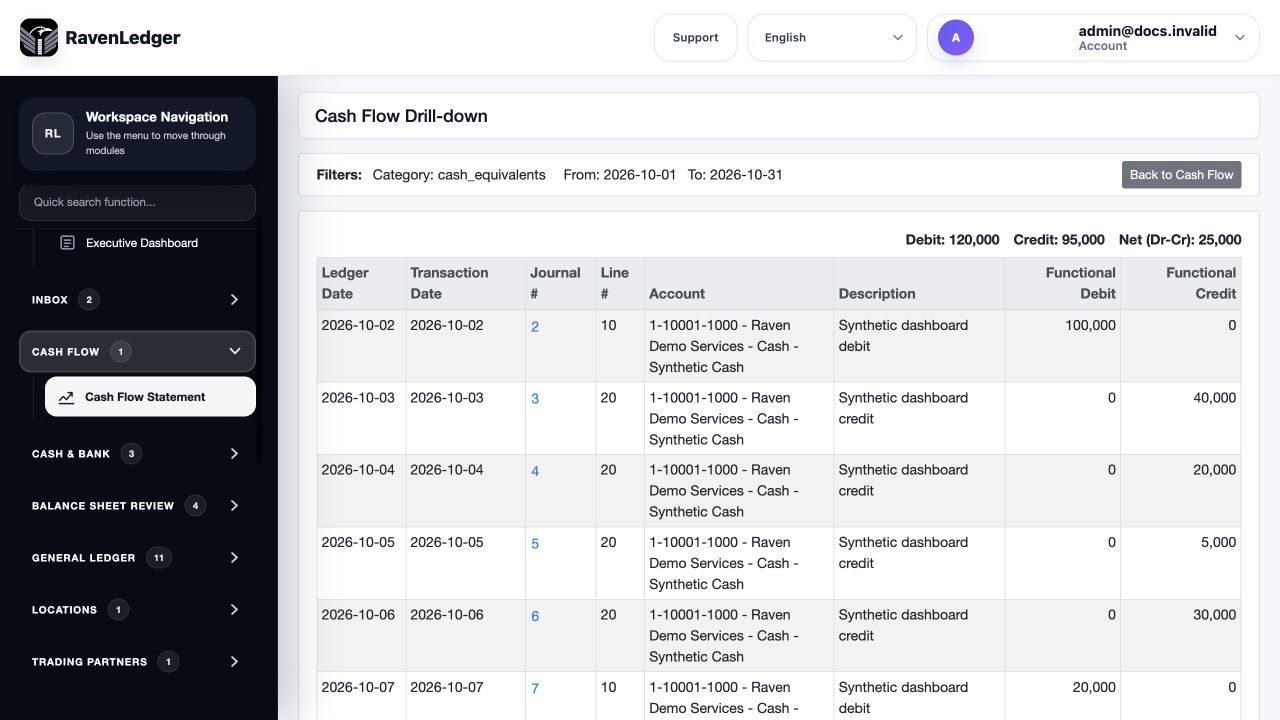
The drill-down shows Category, Account, From and To where selected. Its columns are Ledger Date, Transaction Date, Journal #, Line #, Account, Description, Functional Debit and Functional Credit. The totals are Debit, Credit and Net (Dr-Cr) for all matching posted lines in that period.
For a non-cash activity account, the cash-flow impact normally has the opposite sign to the supporting Net (Dr-Cr). A receivables net debit of 20,000 therefore supports cash-flow impact -20,000, not +20,000. Category drill-downs may include rows that offset each other; inspect the account-level contribution.
The opening and closing cash links use the same selected-period cash-account activity. The training example's period movement of 25,000 cannot by itself demonstrate opening cash of 100,000 or closing cash of 125,000. Reconcile opening plus movement to closing using the appropriate balance/transaction report; widen the source dates only when that is the intended investigation. Do not mistake an empty period list for proof that no opening cash exists.
Reconcile foreign currency and the bank statement separately
Foreign-currency bank transactions appear here through their functional accounting. Review the actual conversion, posted revaluation and applicable cash-flow exchange-effect treatment with the accounting owner. This screen does not provide a separately labelled exchange-effect reconciliation line or a currency-by-currency bank statement.
Reconcile each real bank account against its statement using bank reconciliation. A reconciled GL cash bridge is not evidence that an electronic payment was executed, that a bank statement is complete or that a source currency has no difference.
Correct the cause and regenerate
| Problem | Investigate | Safe next action |
|---|---|---|
| Opening or closing cash is missing | Reporting-account cash category, selected company, cutoff and actual ledger balance | Review setup and source records; do not classify every bank-related control as cash. |
| Activity is in the wrong category | Approved Reporting Account Cash Flow Category and inherited posting accounts | Obtain the accounting owner's classification decision before a permitted setup change; rerun prior comparisons if reporting changes. |
| Statement total and drill-down differ | Opening balance, inverse sign, cumulative balance versus period activity and posting dates | Compare the correct basis before treating it as a missing posting. |
| Reconciliation Difference is nonzero | Missing categories, wrong cash scope, processing, exchange or other adjustments | Retain the parameters and evidence and investigate; do not enter a balancing plug. |
| Excel uses an old date range | Last generated parameters | Generate, export again and inspect the workbook heading. |
| The period appears empty | Company, displayed dates, posted state and grouping | Use the source transaction/balance report; do not assume company-wide zero cash. |
If an underlying transaction is wrong, use its authorised correction route and confirm posting before regenerating. A change to a report filter or a spreadsheet export does not change accounting records.
Continue with the related task
Financial Dashboard, Executive Dashboard, cash and bank setup, bank reconciliation, GL close, foreign-currency applications and report parameters.