
Import data and manage supporting documents
Templates validation commit recovery evidence and protected exports
Use this guide to import an approved file and confirm what was actually saved. The selected module's template determines whether the job creates, updates or appends records. Supporting documents are evidence attached to records, not a substitute for importing or posting the transaction. You need the applicable company, location and import permissions.
Complete one controlled import
Before starting, identify the business record type, authorised source file and intended company. Prepare required masters and use exact template columns for field meanings and the workflow handbook for the module's preparation order.
- Open Bulk Import from the intended module/list or contextual screen. Confirm the import type and any locked company, bank or review context before downloading its current template.
- Replace sample rows with approved data. Keep worksheet names, headers, parent/line keys and accepted formats. Use a small first file; do not include spreadsheet subtotals as transaction lines.
- Choose the file and Validate. Read the preview, every row error and the proposed identities, counts, currencies, tax treatment and amounts. Correct the source and validate again when needed.
- Only when the intended changes are correct, use Commit Import, or Commit on an existing eligible job. This writes business records; Validate alone does not. Do not commit again while the same job is processing.
- Use Show status to inspect the job and final result. Record the job and created document references. Reopen representative saved records and complete their required approval, posting and reconciliation checks in the originating module.
If a response is lost, inspect the existing job and saved identities before uploading again. A different filename does not make a repeated import safe. Cancel my active imports is a job-control action, not a reversal of already saved business records.
Distinguish upload validation and commit
Bulk Import uses a module-specific template, validation result and explicit commit. Uploading a file or receiving a clean preview is not proof that records were committed or downstream posting completed. Different import types have different create/update/append purposes.
Download the correct template
Use the current application's template for the intended import type and company. Keep worksheet names, required columns, grouping references and supported formats. Templates use the displayed human codes/names where specified, not invented database IDs. Do not reuse an old workbook merely because its columns look similar.
Prepare a controlled file
Start with a small approved sample. Preserve leading zeros, true dates, currencies, quantities, decimal precision and external/upload references. Distinguish blank, explicit none/exempt and automatic/default choices where supported. Check that masters, locations, items, accounts and matching sources exist and are eligible.
Field explanations and training references
Each reference describes the field or control, entry rule, example and practical implication. Illustrations use blank or fictional training values. Conditional fields and actions depend on your selected policy, country, record state and permissions; choose actual application lookup records rather than copying text or hidden identities.
Bulk import controls field reference
Figure 1 Bulk import controls
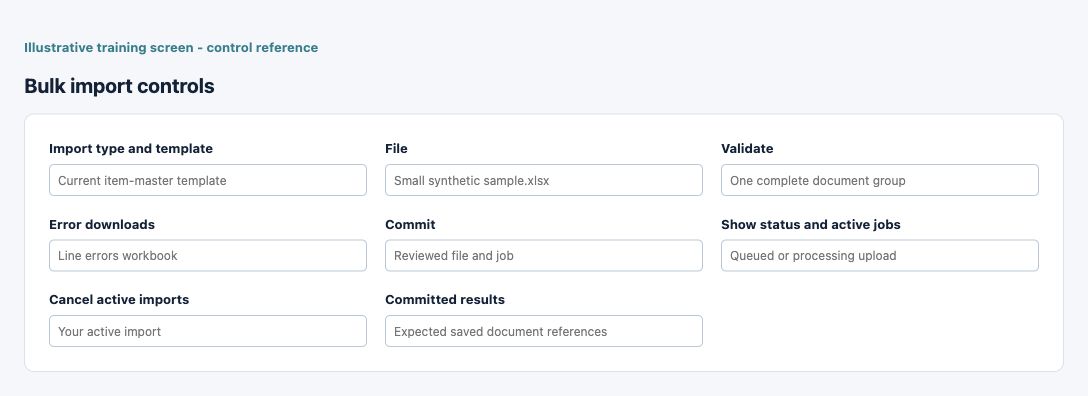
| Field and screenshot | Entry rule and example | Purpose and implication |
|---|---|---|
| Import type and template - Figure 1 | Use the intended module/import template. Example: Current item-master template | Defines supported fields and create/change/append semantics. Caution: Check the selected record, scope and current state before a consequential action. |
| File - Figure 1 | Choose the reviewed supported workbook. Example: Small synthetic sample.xlsx | Selecting a file alone does not create a saved business record. Caution: Check the selected record, scope and current state before a consequential action. |
| Validate - Figure 1 | Inspect errors and the proposed results. Example: One complete document group | Validation is separate from commit and downstream posting. Caution: Check the selected record, scope and current state before a consequential action. |
| Error downloads - Figure 1 | Review the offered detail export. Example: Line errors workbook | Helps correct source data; protect any personal or bank identifiers. Caution: Check the selected record, scope and current state before a consequential action. |
| Commit - Figure 1 | Authorise the validated business-write job once. Example: Reviewed file and job | Creates the applicable records/changes; inspect the saved outcome. Caution: Check the selected record, scope and current state before a consequential action. |
| Show status and active jobs - Figure 1 | Resume observation of the existing job. Example: Queued or processing upload | Closing a window does not necessarily cancel server work. Caution: Check the selected record, scope and current state before a consequential action. |
| Cancel active imports - Figure 1 | Review the exact applicable job scope. Example: Your active import | Cancellation is not a reversal of records already committed. Caution: Check the selected record, scope and current state before a consequential action. |
| Committed results - Figure 1 | Compare created identities and totals. Example: Expected saved document references | A committed import still needs relevant stock/GL/report reconciliation. Caution: Check the selected record, scope and current state before a consequential action. |
Read the validation preview
Validate checks the selected file and returns headers/lines, warnings/errors and proposed results. Inspect tax/default resolution, group totals and references as well as row counts. Download error details when offered, correct the source file and validate again; do not assume a green summary certifies every accounting or access outcome.
Commit once and inspect results
Commit is the business-write step for the validated job. Confirm the file, import type and intended changes before using it. Inspect committed identities/counts and the actual saved records. A committed transaction import can still require downstream accounting/stock review; a master import does not create operational balances by itself.
Recover an interrupted job
Use Show status or the active-job controls where available before uploading again. Queued/processing work can continue after a window closes. Cancel active imports or Cancel my active imports targets the applicable job scope; it is not a reversal of records already committed. Partial outcomes need inspection of the existing job and saved records, not blind replay.
Respect specialised update boundaries
A bulk change is not an ordinary create import, and an append-only reconciliation support import does not replace native support. Read the selected template's grouping, duplicate, update and job limits. A large file should be narrowed to supported limits rather than split in a way that duplicates headers or payments.
Attach evidence safely
Supporting Document fields accept the displayed permitted file types and size limits, which vary by module. Check the selected file and saved download link. Replacing or deleting an attachment changes evidence, not the financial transaction. Renaming an invalid file does not make its contents permitted.
Check exports and privacy
An export is a snapshot of the chosen company, filters and permissions, not a live link that updates automatically. Protect account/employee/customer identifiers and sensitive attachments. Credentials, OTPs, signing keys and personal biometrics do not belong in ordinary notes, spreadsheets or support screenshots.
Reconcile imported records
Compare counts and representative source rows to the actual masters/documents, then reconcile totals and posted/subledger outcomes where applicable. Preserve template version, validation/errors, job identity, committed results and reviewer evidence. Use supported corrections for existing records rather than changing hidden identifiers or deleting audit history.
Resolve an import result
| Situation | What to do |
|---|---|
| Validation reports an error | Use worksheet, row, field and external/parent key to correct the source file, then validate the whole intended file again. |
| Commit timed out or is processing | Use Show status and inspect existing created identities before any retry. Closing the window is not cancellation. |
| Saved records are wrong | Stop further use and identify the affected saved records. Follow the originating module correction path; cancellation is not rollback of committed records. |
Continue with the related task
Exact import-template columns, bank statement reconciliation, conditional allocations and workflow handbook.
Bulk import and update procedures for Imports documents and common controls
Use the shared procedure once for download, prepare, Validate, Commit Import, Show status and recovery. The module-specific sections identify the correct action and saved-result checks; the exact-template reference contains all 28 families and worksheet columns.
Validate, commit and recover safely
For a supported workbook import, use the shared import steps and job recovery. A validated preview is not a saved transaction. Use Show status before retrying; cancelling a job does not reverse committed records. Keep the approved file, job reference and reconciled results securely.