
Use conditional country and stock tracking controls
Understand when fiscal, allocation, transport and tracking controls apply.
Controls appear according to company country, enabled profile, document type, item nature, tracking method, saved state and user permission. A hidden section does not mean that a duty, fiscal registration or physical-stock control is unnecessary. Confirm context before copying or correcting a document.
Decide which controls apply
| Condition | What to review | Practical implication |
|---|---|---|
| Service or non-inventory item | Commercial quantity, price, tax and posting accounts | Do not create warehouse allocations for an item without inventory movement |
| Inventory item without lot or serial tracking | Location, warehouse, quantity and required bin | Stock still needs the correct physical site and quantity |
| Lot-tracked item | Lot number and supplier lot where applicable | One commercial line can require several allocation rows |
| Expiry-controlled item | Lot expiry, shelf-life policy and available stock | Do not replace the real expiry with a convenient future date |
| Serial-tracked item | Each actual serial and its supported quantity | Reusing a serial or assuming one row represents many units can invalidate traceability |
| Warehouse uses bins | Required receiving/issue bin inside that warehouse | A bin from another warehouse is not interchangeable |
| Transfer changes lot or serial | Source identity, target identity and expiry | Preserve the physical source-to-target trace; do not relabel unrelated stock |
| Receipt, dispatch or gate-pass details enabled | Carrier, vehicle, driver, package and delivery references | Transport evidence does not replace inventory allocation or accounting posting |
Allocation and transport fields
| Field or control | Entry and example | Implication and caution |
|---|---|---|
| Location and Warehouse | Choose the actual site and stock store. | Must match parent context and access; changing a label does not move stock. |
| Bin | Required according to warehouse receipt/issue settings. | Select a bin belonging to that warehouse. |
| Quantity | Physical allocation quantity in the required line unit. | Allocation total must reconcile to the commercial line, with its transaction-specific sign. |
| Lot No / Supplier Lot No | Actual internal and supplier tracking references. | Different lots require distinct rows; supplier lot is not a substitute for the internal lot. |
| Serial No | Actual individual tracked identity. | Avoid duplicate serials and unsupported quantities. |
| Expiry Date | Actual tracked expiry date when required. | Keep consistent across the lot and source evidence. |
| Vehicle Number / Transporter Name | Actual delivery details where offered. | Transport evidence does not determine fiscal acceptance or stock costing. |
| Driver Name / Mobile / ID | Only the business-required details. | Restrict access and avoid unnecessary personal data. |
| Delivery Note / Manufacturing Reference | Actual supporting source references. | Do not use reference text as a substitute for a saved source link. |
| Package Count / Goods Condition | Actual package/condition observation. | Package count may differ from inventory units. |
| Reference 1 / Reference 2 / Remarks | Concise explanation for the movement. | Not a place for passwords, credentials or unrelated sensitive data. |
| Save allocation / Save parent | Complete both steps when the dialog updates the parent form. | Reopen the source and confirm allocations, stock and posting state. |
For an illustrative receipt of ten units split between two lots, allocate six units to the first lot and four to the second, with the correct warehouse/bin and expiry on each. The allocations total ten in the line's required quantity basis. For serial items, enter actual individual serials and use the screen's quantity rules. For an issue or return, preserve the signed quantity convention used by that transaction screen; do not copy a receipt allocation unchanged.
Saving an allocation dialog may update the parent form rather than save the entire source transaction. Return to the parent, confirm the quantities and complete its Save/approval/posting process. After reopening, verify the saved allocation and actual stock movement. An allocated, queued or completed-looking form is not sufficient evidence that costing and GL finished.
Electronic invoice route fields
Open E-Invoicing > Company E-Invoice Profiles in the correct company. Open the existing profile before creating another. The country-specific sections follow the company country; changing an invoice's delivery address does not change the company's fiscal route.
| Field or control | Entry and example | Implication and caution |
|---|---|---|
| Country | Read the saved route value. | Company/source fiscal country, not a free-text shipment destination. |
| Country Adapter | Review the configured country behaviour in the relevant registry/readiness view. | Not a separate selector on this company-profile form; it does not prove regulatory certification. |
| Authority / Network | Read the saved route value. | Intended authority/network, such as the configured FBR or KRA route. |
| Format / Payload Adapter | Read the saved route value. | Document format and generator; generated payload is not accepted submission. |
| Submission Model / Transport Adapter | Read the saved route value. | Configured delivery method; export and live submission have different outcomes. |
| Provider / Connection Profile | Read the saved route value. | Configured route identity; do not expose its secrets in a screenshot or note. |
| Environment | Read the saved route value. | Confirm test versus production; never submit synthetic examples to a real authority. |
| Direction / Signing Method | Read the saved route value. | Configured inbound/outbound and signing basis; not an editable invoice workaround. |
These route fields explain the chosen connection. They are not a place to paste API credentials or change an authority endpoint during invoice entry. Readiness checks for Business Profile, Country Adapter, Payload Adapter, Connection Profile, Credentials, Certificate / Signing, Provider Compatibility and Ready To Submit identify prerequisites. READY is not authority acceptance of an invoice.
Set up the Pakistan company profile
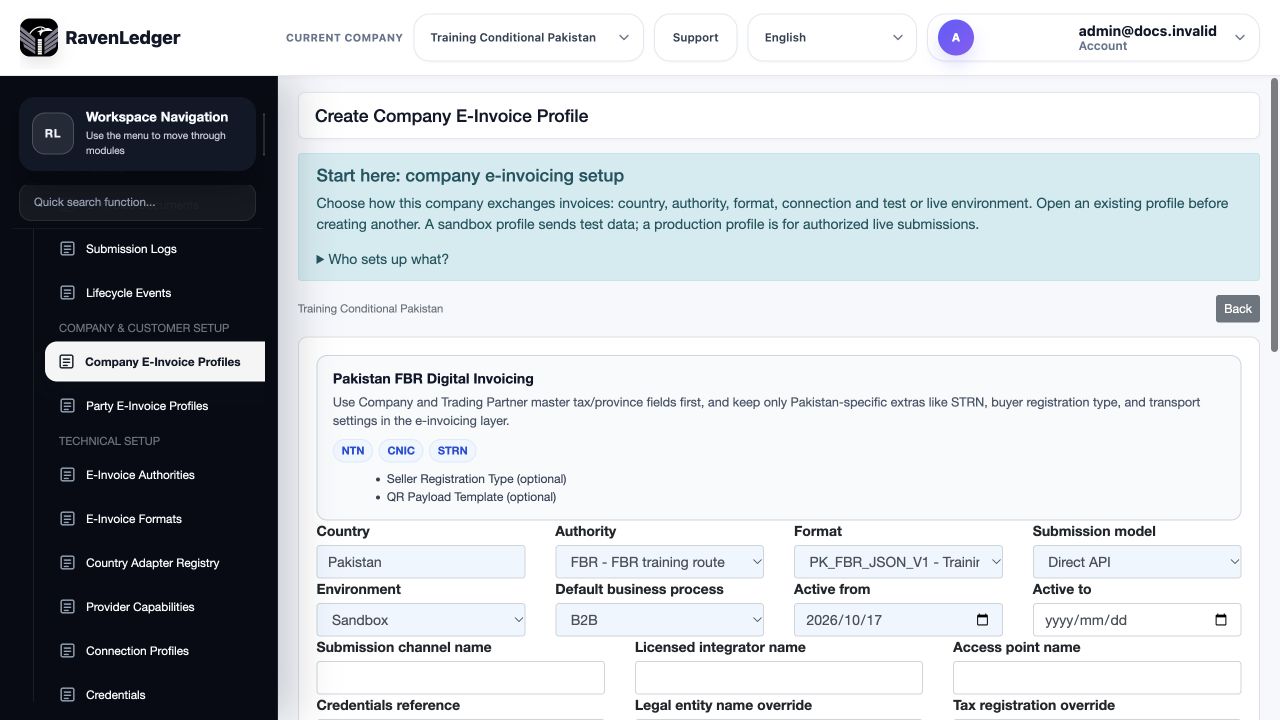
Training example: the unsaved Pakistan profile uses Sandbox. Blank credentials and seller identifiers mean this is not a complete submission-ready profile. Direct API describes the selected transport, not a successful connection or accepted invoice.
| Visible field | What to enter or select | Why it matters |
|---|---|---|
| Country, Authority and Format | Confirm the company's Pakistan route and the approved authority/format combination. | A format name alone does not establish compatibility or registration. |
| Submission model and Environment | Use the approved transport and explicitly confirm Sandbox or Production. | Never change to Production merely to remove a validation warning. |
| Default business process | Select the process applicable to this company's documents, such as the training B2B example. | It supplies a default; the actual transaction and buyer must still be appropriate. |
| Active from / Active to | Enter the intended validity dates; leave the end date blank only when appropriate. | Check profile validity on the transaction date. |
| Submission channel / Licensed integrator / Access point | Use the approved route details where applicable. | These labels are not substitutes for the configured connection and credentials. |
| Credentials reference | Enter the approved reference used by the configured route, not the secret itself. | Provider/connection/signing prerequisites are maintained through their relevant setup records, not additional selectors on this profile form. |
| Legal entity name override / Tax registration override | Use only an approved difference from the base company details. | An override does not change the Company's country or replace its underlying registration. |
| Active / Notes | Set availability deliberately and record a short, non-sensitive business explanation. | Active does not mean connection-ready or authority-accepted. |
| Advanced Profile Attributes (JSON) | Leave unchanged unless an authorised administrator has a documented requirement. | Prefer the named country controls; do not paste secrets or speculative JSON to bypass validation. |
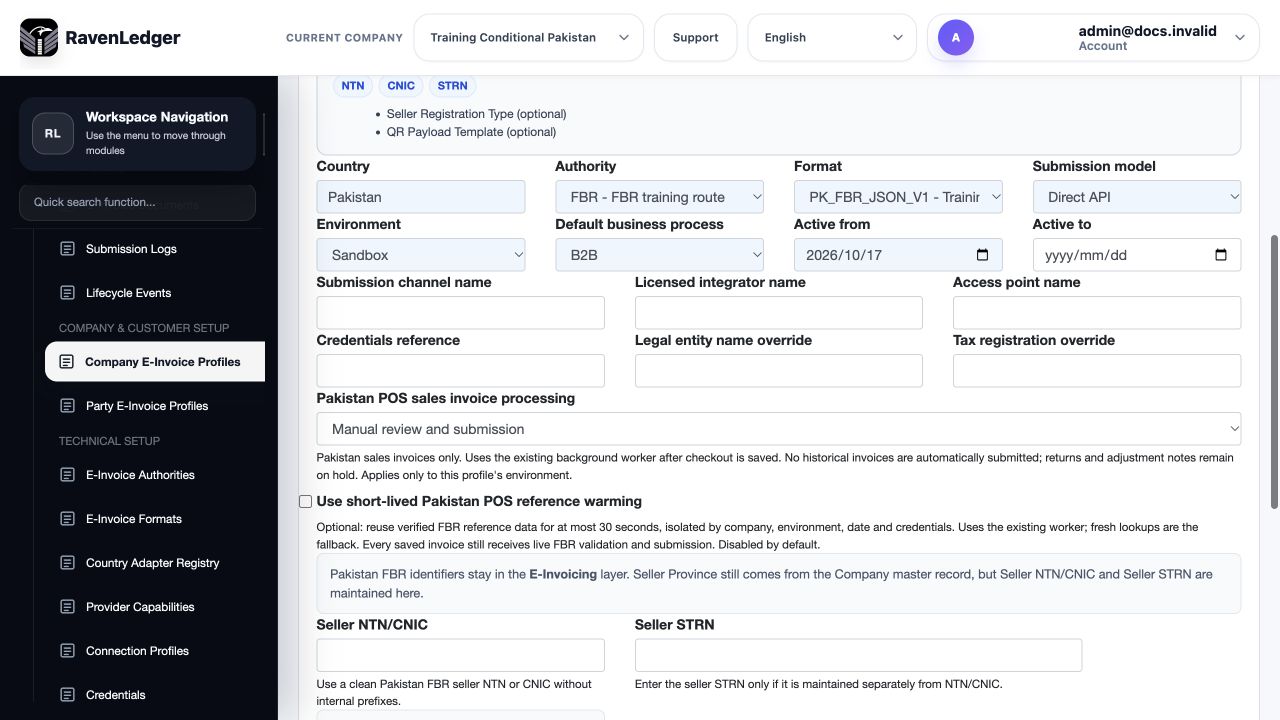
Training example: manual review is selected, background warming is off, and seller identifiers are blank. Enter only the actual registered identifiers approved for the company. Seller NTN/CNIC and Seller STRN are distinct fields, not interchangeable reference numbers.
Pakistan POS sales invoice processing can remain manual or use the explicit automatic-after-checkout option when authorised and configured. Automatic processing is for its supported POS sale route; it is not blanket automation for ERP invoices, vendor documents or restricted customer notes. Background warming is a separate setting, not proof that checkout, the worker or FBR has completed. Check the saved source's processing state and final authority response before treating a provisional receipt as final.
Set up the Kenya company profile
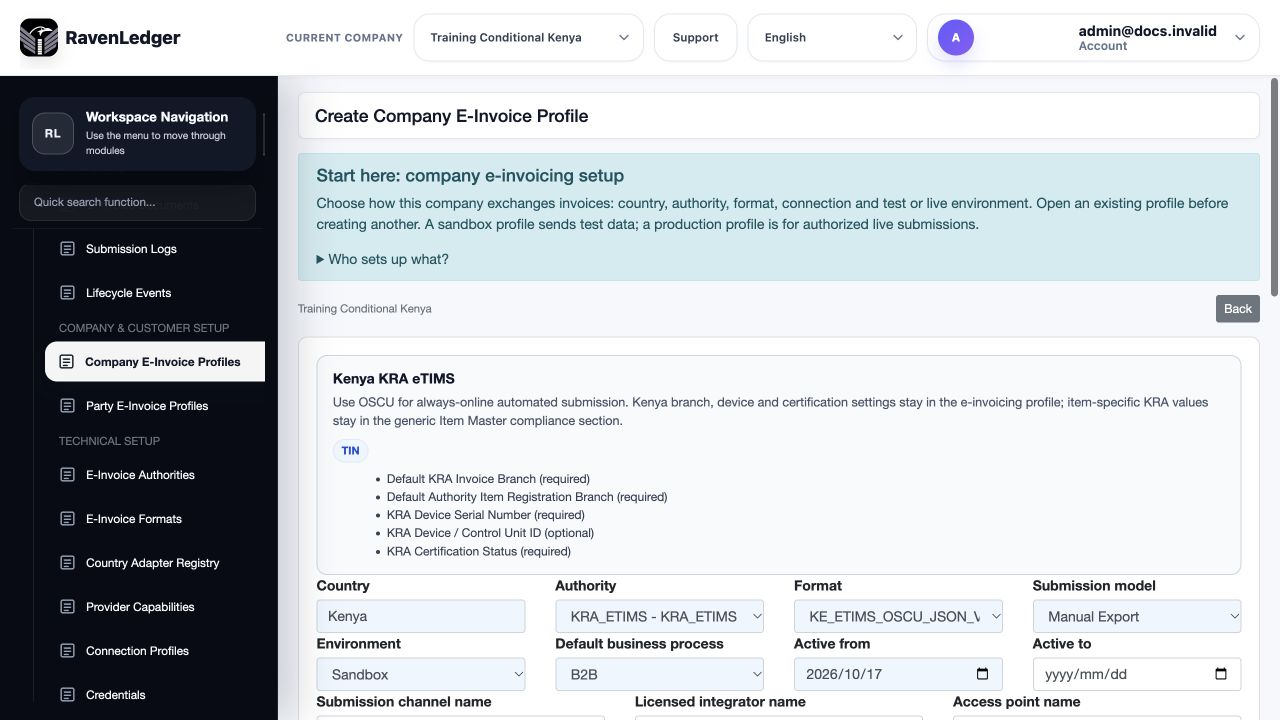
Training example: this unsaved Kenya profile uses Manual Export and Sandbox. Export prepares the supported file; it does not prove portal compatibility, delivery or KRA acceptance. Blank seller/device credentials must be completed through the approved onboarding process before live use.
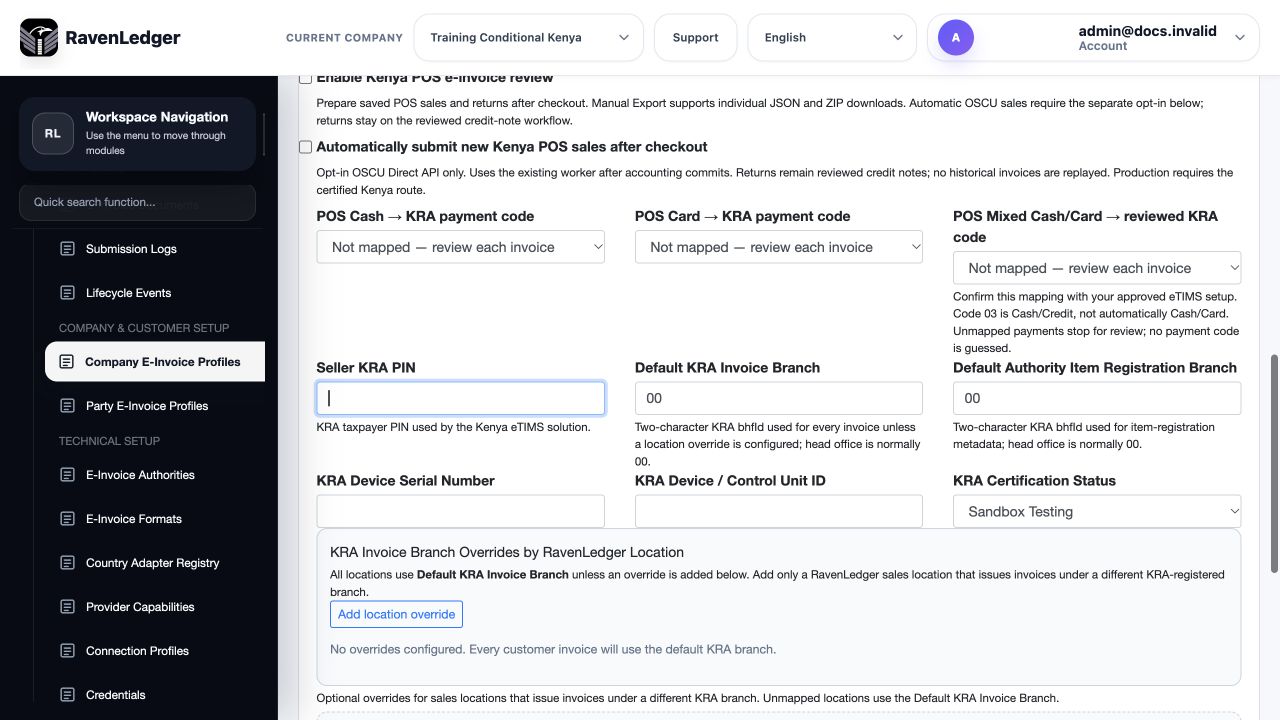
| Visible field or group | How to use it | Implication |
|---|---|---|
| Seller KRA PIN | Use the company's actual registered seller identity. | Do not copy a training value or another company's PIN. |
| Default KRA Invoice Branch | Select the registered invoicing branch. | The unsaved 00 example is not a universal branch instruction. |
| Default Authority Item Registration Branch | Use the branch approved for item registration. | Item-registration and invoice-branch roles are different even when their codes match. |
| KRA Device Serial Number / Device or Control Unit ID | Use the assigned device details where required. | A made-up device identifier does not make the route ready. |
| KRA Certification Status | Record the genuine onboarding state. | Sandbox Testing in the example is not certified production operation. |
| Kenya POS opt-in and automatic processing | Enable only the approved, supported route after setup. | Both are off in the example; Kenya settings do not enable Pakistan POS processing. |
| Payment-method mappings | Map each supported method according to the actual configured authority meanings. | Do not infer a code from its number or treat Cash/Credit as Cash/Card. Unmapped methods need resolution before use. |
| Location overrides | Add only approved location-specific branch/device differences where offered. | Confirm the effective location route instead of assuming the company default always applies. |
Use electronic invoicing for document processing and history. These profile settings do not replace the source invoice's validation, permitted correction path or genuine authority response.
Choose item tracking and expiry controls
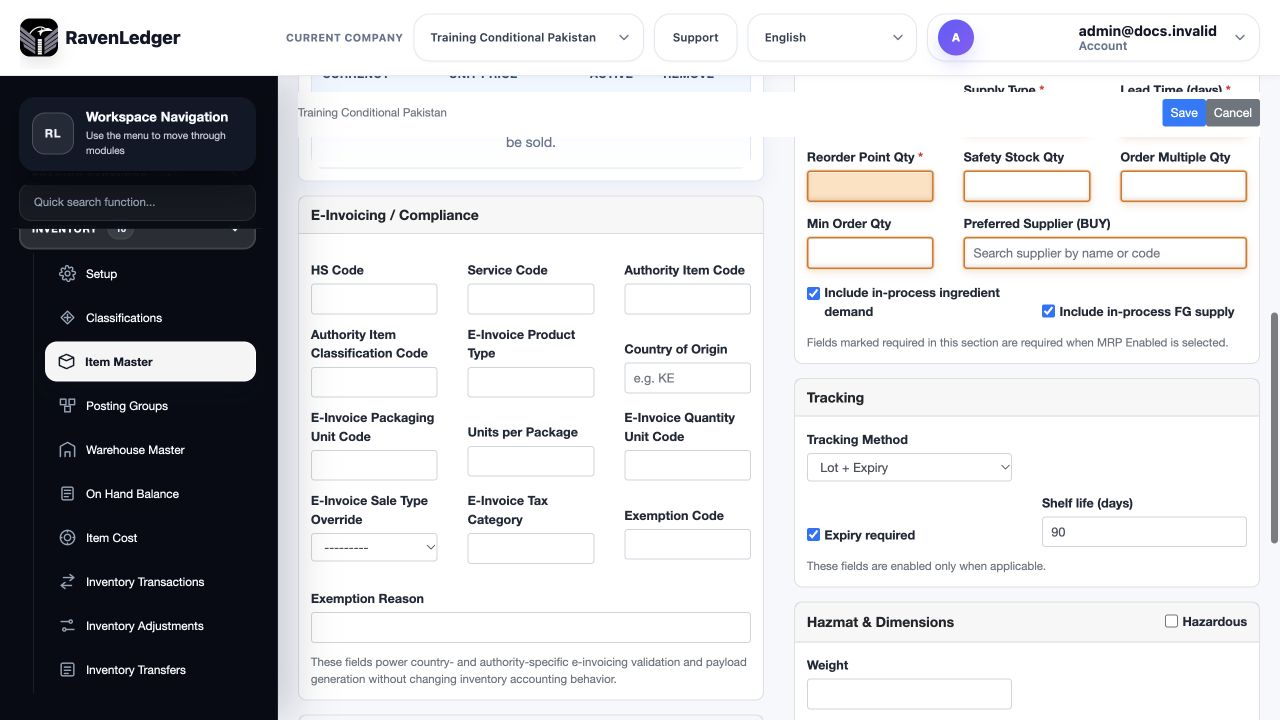
Open Inventory > Item Master and choose the item's nature before selecting Tracking Method. Complete the item's UOM, posting and other required setup separately; the following unsaved examples isolate the tracking choices and are not complete item records.
Training example: Lot + Expiry displays Expiry required and Shelf life (days). The fictional 90-day shelf life is a planning/default policy, not the actual expiry date of every received lot. Record the real lot identity and expiry in transaction allocations and check the source evidence.
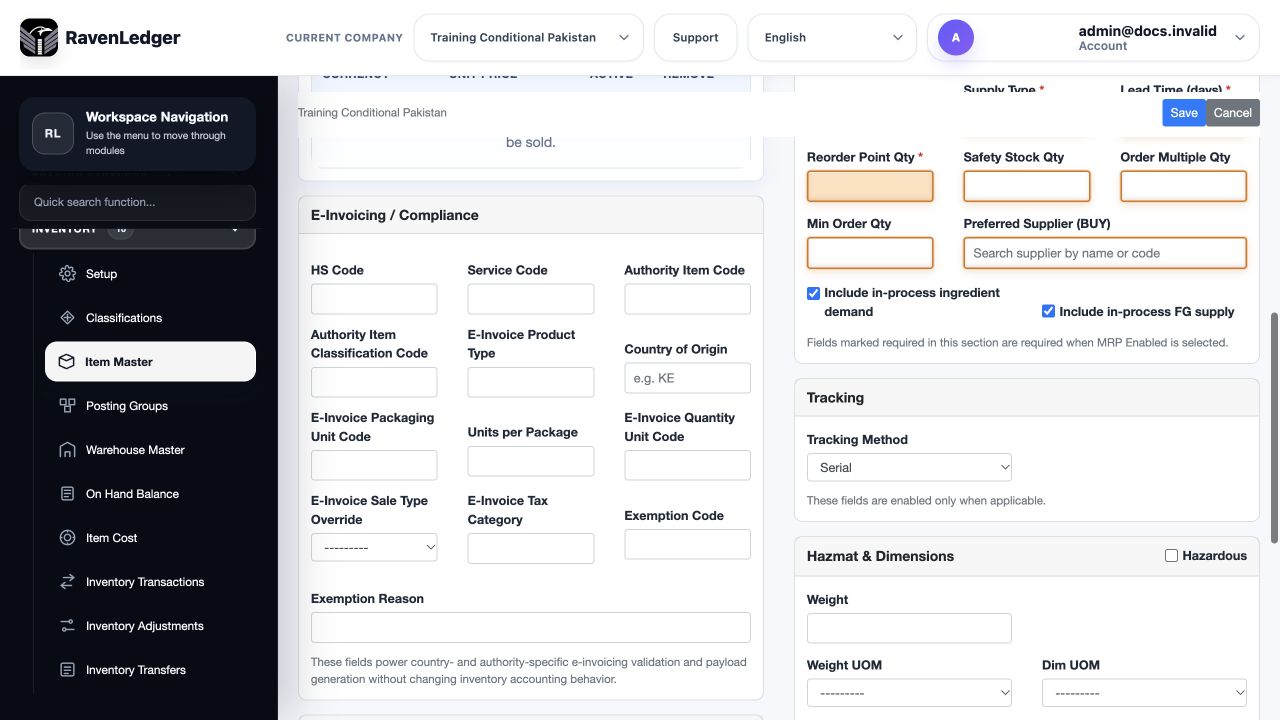
Serial identifies individual units. In this screen the lot-expiry controls are not displayed for Serial. Do not invent a shared lot or reuse a serial to bypass allocation requirements; follow the transaction's supported serial quantities.
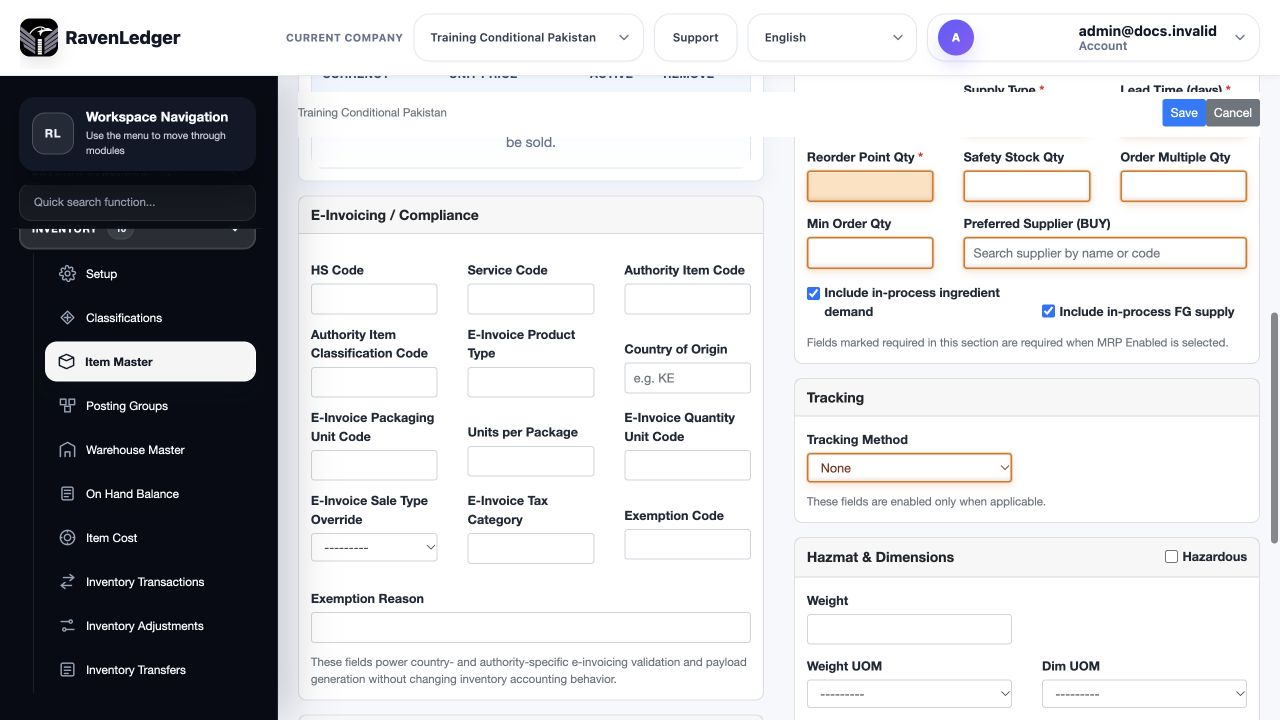
For a non-inventory item the screen fixes Tracking Method to None and hides the expiry controls. This does not remove commercial quantity, tax, fiscal-classification or posting requirements. Do not add warehouse stock allocations to simulate service delivery. Use Items and prices for the remaining item setup and inventory movements for stock transactions.
Separate item tax exemptions from fiscal classifications
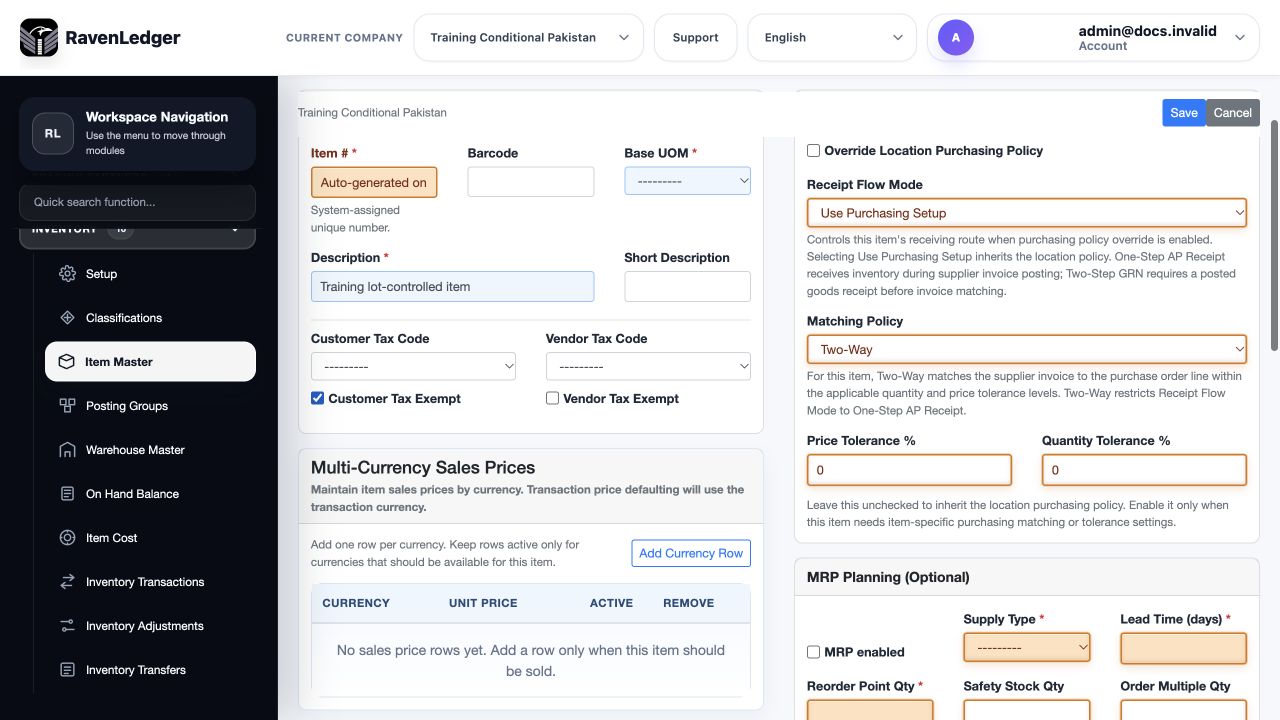
Training example: Customer Tax Exempt is checked, Vendor Tax Exempt is not, and no customer tax code is selected. Customer and vendor defaults are separate; one side's exemption does not establish the other side's treatment or a legal entitlement.
The E-Invoicing / Compliance section separately contains HS Code, Service Code, Authority Item Code, Authority Item Classification Code, E-Invoice Product Type, Country of Origin, packaging/quantity unit codes, Units per Package, Sale Type Override, Tax Category, Exemption Code and Exemption Reason. Complete only the applicable values using approved classifications. A Customer Tax Exempt checkbox does not by itself supply a country-specific exemption code, classify the fiscal sale type or establish the legal reason. Review the resulting invoice line and tax breakdown rather than assuming all defaults were applied.
Check bin-controlled warehouses
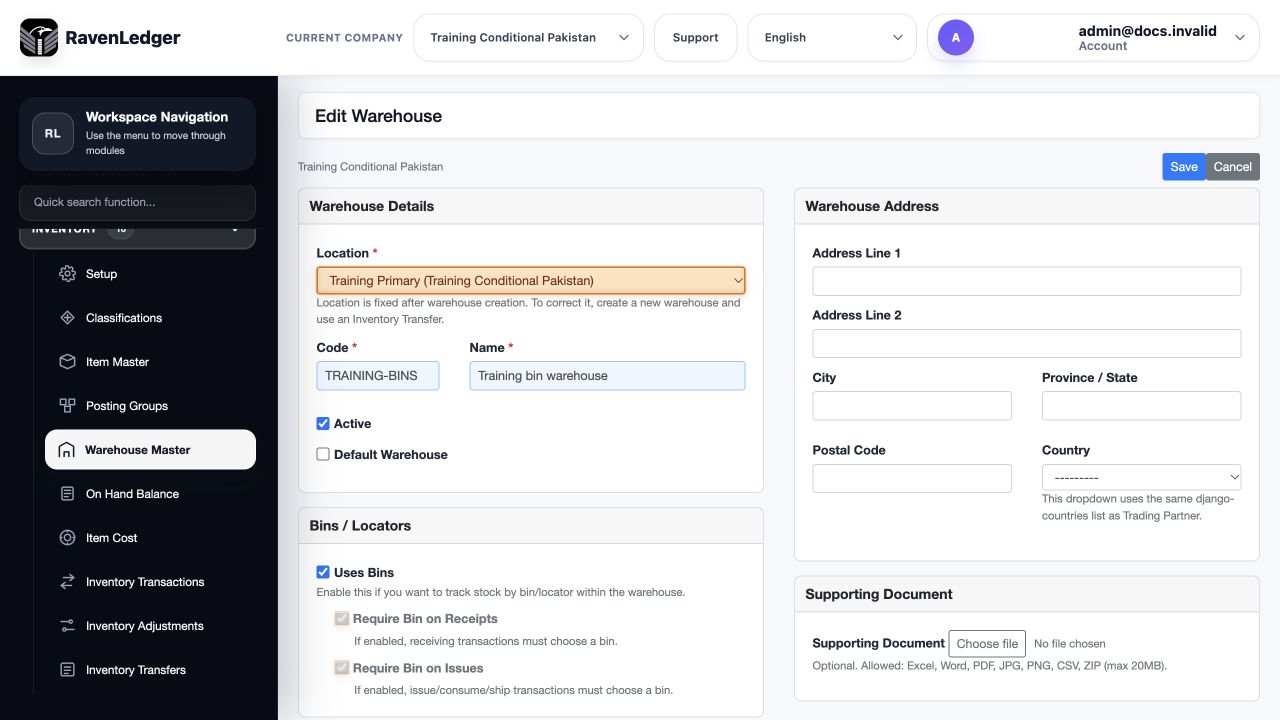
Training example: Uses Bins is checked. Require Bin on Receipts and Require Bin on Issues are shown as checked, disabled indicators on this released edit screen, not editable switches in this view. Confirm the applicable receiving/issuing policy and actual allocation requirements before a movement. A checked warehouse flag does not create bin records or opening stock.
Location is fixed after warehouse creation in this form. Use the displayed new-warehouse and Inventory Transfer route for a location correction, subject to the warehouse guide's safety caution. Do not assume an address edit moves inventory or clears stock balances. Reopen the record after an authorised edit and verify preserved settings before recording stock.
Choose withholding recognition at invoice or application
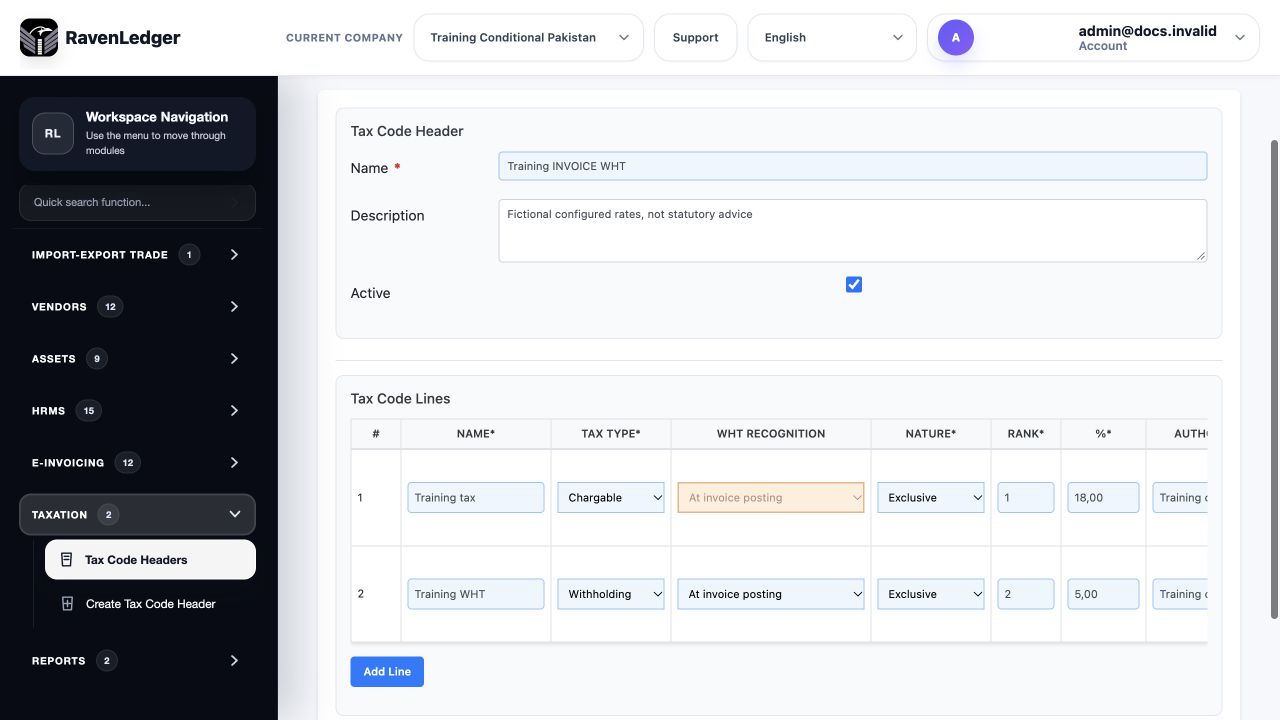
Open Taxation > Tax Code Headers and inspect the individual tax lines. These two customer-side examples use fictional 18% chargeable tax and 5% withholding solely to show controls; they are not Pakistan statutory rates or a recommendation to configure these percentages.
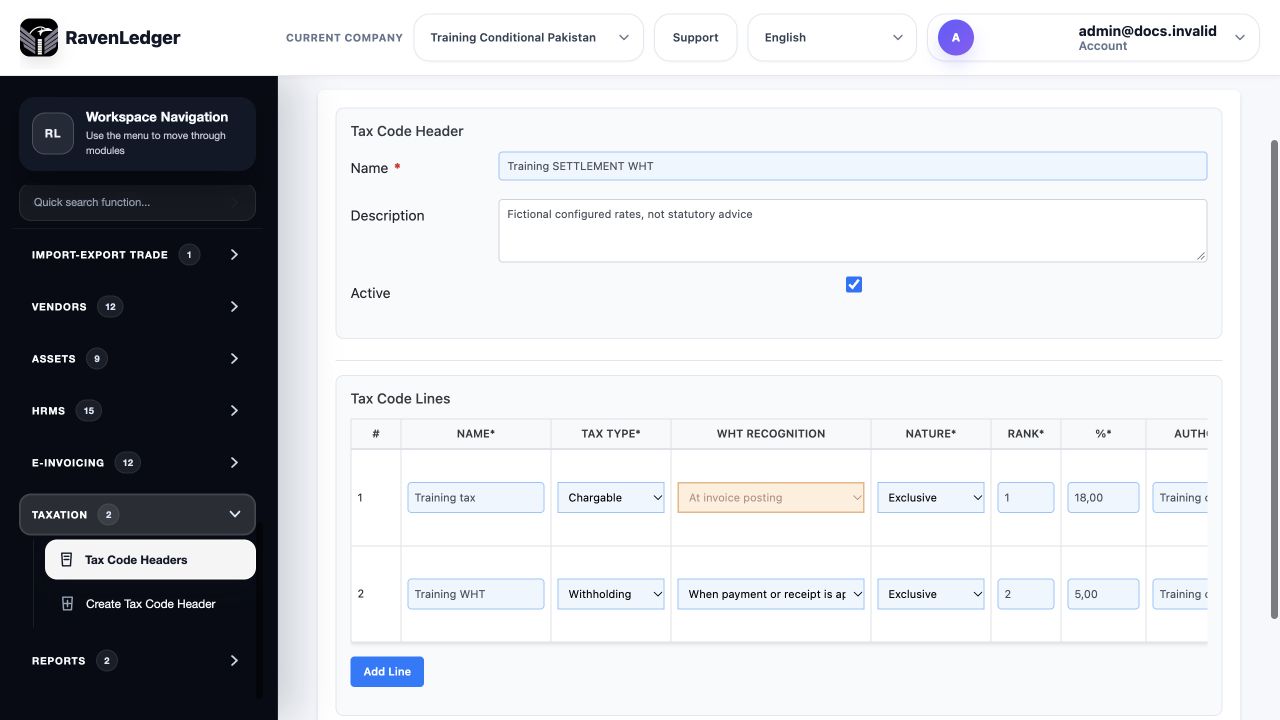
| Control | Meaning | What to check |
|---|---|---|
| Tax Type | Chargeable tax and Withholding have different accounting roles. | The application label spells chargeable as Chargable. Select by the intended meaning, not row order. |
| WHT Recognition | At invoice posting recognises applicable WHT with invoice posting; When payment or receipt is applied defers recognition to the supported settlement application. | This is the WHT line's timing. The chargeable line's disabled timing control is not an editable withholding setting. |
| Nature, Rank and Percentage | Inclusive/exclusive nature, calculation ordering and configured rate affect the breakdown. | Use approved rates and calculation bases; the example's figures are fictional. |
| Authority and Chart of Account | Identify the relevant authority and posting destination for that line. | Scroll the wide table sideways to inspect the account column. These customer examples use an output-tax liability and a separate WHT receivable asset; vendor input tax/WHT payable need their own appropriate mapping. |
| Applied To and Exclude Base | Influence which amounts form the calculation base. | An available option is not necessarily selected. Training tax is available but not selected under the example's WHT Applied To; Exclude Base is unchecked. Do not infer a tax-on-tax selection from the screenshot's left-hand columns. |
| Header/line Active | Controls availability of the configured code and its lines. | An active code still needs correct company, calculation and posting setup. |
Before applying a receipt or payment, review the saved invoice's WHT timing, prior applications and remaining amount. A cash deposit date, an invoice balance and a tax recognition date are not automatically the same event. For a cross-currency application compare document, receipt/payment and functional-currency amounts separately, including realised FX and rounding; do not use the WHT amount as a plug for an exchange difference. See tax and cross-currency applications for the worked procedures and taxation for tax-code setup.
Pakistan document and correction states
Save the source invoice before fiscal actions and resolve unsaved changes first. Review validation, classification/treatment confirmation, saved document status, submission history and authority reference. A queued background submission, successful local validation or generated payload does not establish FBR acceptance. Preserve the returned accepted reference and any protected original.
For applicable correction screens, Original FBR document links each adjustment line to the original accepted document lines. Where the reference is derived from credit applications, review the relationship rather than trying to overwrite it. A permitted reference-only link does not itself create a financial credit application or refund. Selected lines must belong to the appropriate original document. The relationship can lock after submission.
Some Pakistan customer-note direct actions and POS-return fiscal routes are restricted in this application release. Follow the restriction displayed by the source record; do not call another action, import a fabricated response or repeatedly retry to bypass it. A POS provisional receipt is not the final accepted fiscal receipt. Keep financial return/refund evidence separate from authority correction status.
Kenya export and response states
Check that the company route is Kenya with the intended KRA/eTIMS authority and environment. An exported payload is a file prepared for the supported external process, not proof of acceptance. Review the actual authority response and the document's current status/reference. Where response import is offered, use the genuine supported response file/text, not a manually invented success value.
The available treatment and correction actions depend on the document type. Do not assume a debit-note or a POS return has the same fiscal workflow as a new sale. Keep accepted originals intact and follow the displayed restriction for unsupported routes. Never reuse one invoice's authority reference for another invoice.
Fiscal controls and exception handling
| Control or value | How to use it | Meaning and caution |
|---|---|---|
| Status, Validation and Submission | Read together with history and source state | Local validation and network submission are separate stages |
| UUID / IRN, Submission Reference, Authority Reference | Compare with the original response and source invoice | These identify distinct stages; a local UUID alone does not prove acceptance |
| Provider Status and Last Submitted At | Check freshness and last attempt | A stale response is not a new successful submission |
| Authority reason and remarks | Use the applicable configured reason and truthful explanation | Do not guess a legal reason from a generic example |
| Treatment confirmation reason | Explain the approved line classification where requested | Confirmation does not change tax law or make an unsupported route valid |
| Authority / Provider Response | Import the real response only when permitted | Never paste credentials or fabricated acceptance evidence |
| Refresh and history | Check the saved outcome after interruption | Do not create a second invoice solely because the first response was delayed |
Vendor transactions remain accounting records and do not use customer fiscal submission actions in this release. An absent vendor fiscal panel is not a reason to submit a vendor invoice as a customer sale. Country obligations and registrations must be confirmed by the responsible country accountant using current authority requirements.
Reconcile corrections and access
After any correction, compare the source status, stock quantity/value, customer/vendor open balance, tax history, posted journal and report totals. A fiscal correction alone does not move physical goods or refund money. A financial credit alone does not establish authority acceptance. Preserve the original references across these records.
If a lookup or action is unavailable, confirm company, location, role, source state and the active country profile. Ask the Tenant Administrator for the specific duty rather than sharing another user's login. Limit driver/contact/employee data to the business purpose and restrict exported evidence.
Related guides
Electronic invoicing, Stocked sales, Inventory movements, Vendor invoices and POS checkout.