
Configure POS terminals and control checkout
Sessions tenders inventory receipts returns and close review
Configure a point-of-sale terminal and understand its responsibilities before cashier use. Use checkout returns and session close for the transaction controls and worked tender example. A terminal is the sales-point setup, a session groups cashier activity, and a ticket is one sale or return.
Prepare the terminal before the first session
An authorised POS administrator needs the approved company/location, warehouse and item setup, walk-in customer, cash/card accounting destinations and receipt-printing design. A cashier needs the permitted terminal/session and should not change posting setup to overcome a checkout exception.
- In POS, open POS Terminals. Identify the intended terminal and review its company, location, warehouse, customer and cash/card destinations using the fields below.
- Check mixed-tender, tracking and receipt settings against the approved design. Receipt printing and any local printer agent are separate from card authorisation and fiscal authority connections.
- Save only the intended configuration and reopen the terminal to compare its saved values. A terminal master does not create stock, cash in a drawer or a completed sale.
- Review the relevant POS Sessions context and opening-cash responsibility. Then use POS Checkout and the checkout guide to record activity under the correct cashier/session.
- Check existing POS Tickets after a delayed save and compare POS Daily Report/POS Detail Report, cash, card settlement and stock/GL evidence before closing the session.
Do not print a second sale as a recovery for a missing receipt. First find the existing ticket and inspect its accounting and fiscal state. COGS means cost of goods sold; it is separate from ticket revenue and tender received.
Separate terminal session and ticket
A terminal is the configured sales point. A session groups cashier activity. A ticket is the individual sale or return. Opening a session is not a sale, and a printed receipt does not by itself prove accounting completion or fiscal acceptance.
Prepare the terminal
In POS Terminals, confirm current company, location, terminal identity, warehouse, walk-in customer, cash/card bank destinations and active state. Eligible bank choices depend on location and functional-currency design. Review mixed-payment and lot allocation policy before use; a cashier should not change accounting defaults merely to complete a sale.
Control receipt printing
Receipt Print Mode, Auto Print on Finalize and approved local-agent/printer settings control output. Use trusted printing infrastructure. A local print-agent address is not a fiscal authority connection. Never put passwords or access tokens in the URL, receipt note or printer name.
Field explanations and training references
Each reference describes the field or control, entry rule, example and practical implication. Illustrations use blank or fictional training values. Conditional fields and actions depend on your selected policy, country, record state and permissions; choose actual application lookup records rather than copying text or hidden identities.
POS Terminal field reference
Figure 1 POS Terminal
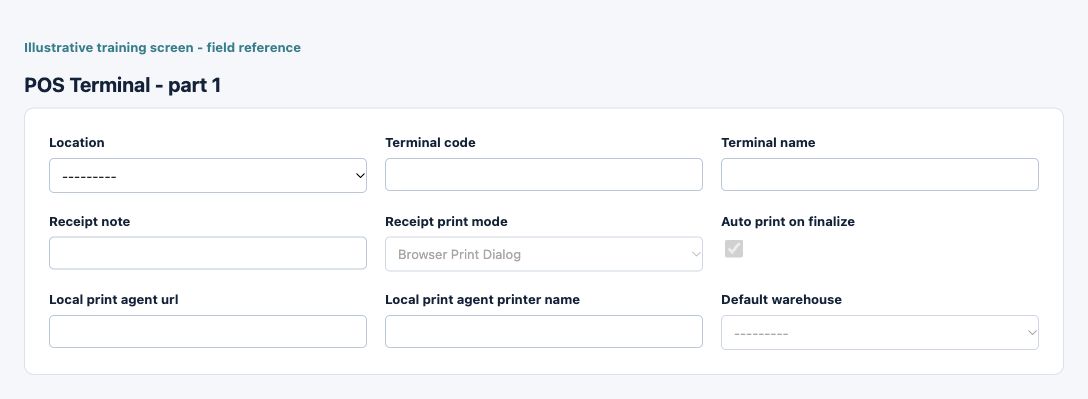
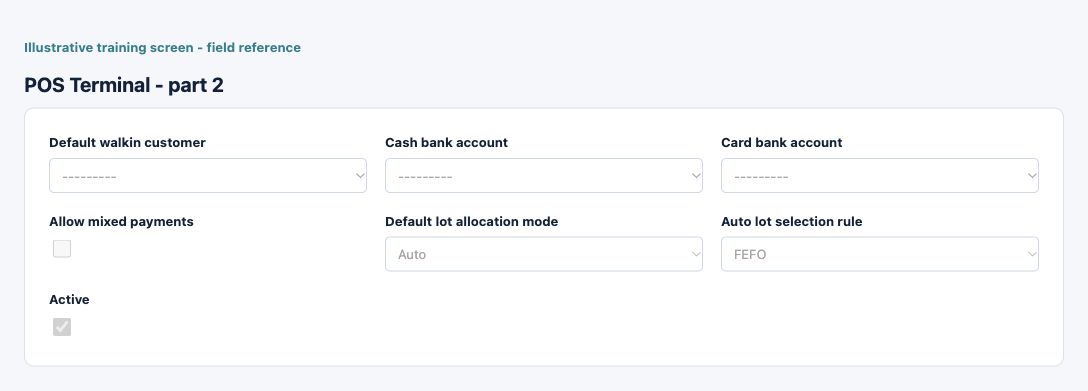
| Field and screenshot | Entry rule and example | Purpose and implication |
|---|---|---|
| Location - Figure 1 | Required entry. Example: Main Office | Select the current-company operating location or permitted locations. This determines operational scope; a shared name does not establish access to another location. Caution: Confirm the saved value and affected workflow before relying on the result. |
| Terminal code - Figure 1 | Required entry. Maximum 32 characters. Example: POS-TRAIN | Business code identifying the configuration or master record. Use a stable naming scheme and check existing records before adding another. Caution: Confirm the saved value and affected workflow before relying on the result. |
| Terminal name - Figure 1 | Required entry. Maximum 128 characters. Example: Training Counter | Business description used to recognise this record in lists and selections; it is not a posting account or an approval. Caution: Confirm the saved value and affected workflow before relying on the result. |
| Receipt note - Figure 1 | Optional or policy-dependent entry. Maximum 120 characters. Example: Thank you for your business | Business note printed on POS receipts. It cannot turn a provisional accounting receipt into an authority-accepted fiscal document. Optional short note printed on POS receipts (max 120 characters). Caution: Confirm the saved value and affected workflow before relying on the result. |
| Receipt print mode - Figure 1 | Required entry. Choices: Preview Only, Browser Print Dialog, Local Print Agent. Example: Preview Only | Receipt output mode or automatic printing preference. Printing is separate from accounting completion and fiscal acceptance. How this POS terminal should print receipts after checkout. Caution: Confirm the saved value and affected workflow before relying on the result. |
| Auto print on finalize - Figure 1 | Checkbox policy setting; review the saved on/off state. Example: The approved on/off policy | Receipt output mode or automatic printing preference. Printing is separate from accounting completion and fiscal acceptance. If enabled, finalize checkout automatically opens or prints the POS receipt using the selected mode. Caution: Confirm the saved value and affected workflow before relying on the result. |
| Local print agent url - Figure 1 | Optional or policy-dependent entry. Maximum 255 characters. Example: The approved business value or selected record | Approved local print-agent endpoint or printer name. Configure only trusted printing infrastructure; never place secrets in a URL or send documents to an unapproved destination. Local print agent URL used for silent receipt printing when this terminal is set to Local Print Agent mode. Caution: Confirm the saved value and affected workflow before relying on the result. |
| Local print agent printer name - Figure 1 | Optional or policy-dependent entry. Maximum 120 characters. Example: The approved business value or selected record | Approved local print-agent endpoint or printer name. Configure only trusted printing infrastructure; never place secrets in a URL or send documents to an unapproved destination. Optional receipt printer name sent to the local print agent. Caution: Confirm the saved value and affected workflow before relying on the result. |
| Default warehouse - Figure 1 | Required entry. Example: The approved business value or selected record | Warehouse default for the relevant production or terminal process. A default does not move stock or override location, bin and tracking requirements. Caution: Confirm the saved value and affected workflow before relying on the result. |
| Default walkin customer - Figure 1 | Required entry. Example: The approved business value or selected record | Default customer for ordinary anonymous retail sales. It is not a substitute for required buyer identity on a regulated or named-customer transaction. Shared walk-in customer profile for anonymous POS sales. Caution: Confirm the saved value and affected workflow before relying on the result. |
| Cash bank account - Figure 1 | Optional or policy-dependent entry. Example: Approved active company posting account | Company cash/card accounting destination for terminal tenders. It does not perform card acquiring or a bank transfer; reconcile actual takings and settlements. Bank/Cash account used when POS payment mode is CASH. Caution: Protect sensitive information and use independently verified authorised evidence. |
| Card bank account - Figure 1 | Optional or policy-dependent entry. Example: Approved active company posting account | Company cash/card accounting destination for terminal tenders. It does not perform card acquiring or a bank transfer; reconcile actual takings and settlements. Bank account used when POS payment mode is CARD/credit. Caution: Protect sensitive information and use independently verified authorised evidence. |
| Allow mixed payments - Figure 1 | Checkbox policy setting; review the saved on/off state. Example: The approved on/off policy | Permits a cash/card split at the terminal. Both bank mappings and country fiscal payment treatment must be reviewed. If enabled, cashier can split POS settlement between cash and card in one checkout. Caution: Confirm the saved value and affected workflow before relying on the result. |
| Default lot allocation mode - Figure 1 | Required entry. Choices: Auto, Manual. Example: Auto | Default allocation mode and lot-selection rule used at checkout. Availability, expiry, serial and bin rules still apply. Default lot allocation mode for LOT tracked items on this terminal. Caution: Confirm the saved value and affected workflow before relying on the result. |
| Auto lot selection rule - Figure 1 | Required entry. Choices: FIFO, LIFO, FEFO. Example: FIFO | Default allocation mode and lot-selection rule used at checkout. Availability, expiry, serial and bin rules still apply. Auto lot picking rule for POS (FIFO/LIFO/FEFO). Caution: Confirm the saved value and affected workflow before relying on the result. |
| Active - Figure 1 | Checkbox policy setting; review the saved on/off state. Example: The approved on/off policy | Controls whether this configuration remains available for relevant use. Turning it off does not reverse earlier transactions or erase history. Caution: Confirm the saved value and affected workflow before relying on the result. |
Review session context
Confirm the intended terminal, current cashier and session before recording activity. Use the POS Sessions list to review session identity and state. Follow your organisation's opening cash and custody controls; do not reuse another cashier's session to bypass a restriction.
Review item selection and quantity
Select the actual item/barcode and check quantity, price, discount, applicable tax and stock allocation. Confirm warehouse, bin and lot/serial identity where required. An automatic lot rule is not permission to sell expired or unavailable stock, and a walk-in customer default does not satisfy a requirement for a named buyer.
Review tender before finalising
Keep gross sale, withholding where applicable, net payable, tendered cash/card and change distinct. Mixed tender requires the approved split and both accounting destinations. Do not represent a card-accounting record as proof of an authorised card transaction or settlement received from the acquirer.
Check saved ticket and fiscal status
After a delay or interruption, inspect the existing POS ticket and its accounting/fiscal state before starting another sale. Provisional output must remain distinguishable from an accepted fiscal receipt. Country-specific preparation, validation, export, background processing and authority acceptance are separate stages.
Use returns through the supported process
A return has commercial, inventory, payment/refund and potentially fiscal-note implications. Identify the original sale and eligible return balance; check item quantity, tax and tracking. Do not use a new negative ordinary sale to imitate a supported return or assume a refund record executes a bank/card refund.
Reconcile the session
Compare POS Daily/Detail reports, saved tickets, tender totals, actual cash, card settlement, inventory/COGS and relevant posted ledger destinations on a consistent company/date/session basis. A difference can arise from timing, change, refunds, failed posting or card fees; investigate rather than overwriting the counted balance.
Close safely and preserve evidence
Follow the organisation's cashier/supervisor review before closing. Retain approved counts and exception explanations. Closing a session is not fiscal acceptance of every ticket or reconciliation of every bank movement. Keep customer identities and payment information out of unnecessary exported or printed copies.
Resolve a terminal or ticket problem
| Situation | What to do |
|---|---|
| Terminal or item is unavailable | Check company/location, assigned cashier/session, terminal Active, item POS eligibility and available tracked stock. Ask the authorised supervisor to resolve setup. |
| Sale response or receipt is missing | Find the existing POS Ticket and inspect its status before another checkout. Printing and accounting/fiscal completion are separate checks. |
| Cash or card totals differ | Compare opening cash, tender retained, change, returns/refunds, cash counts and actual card settlement; do not change the ticket merely to force a session balance. |
Continue with the related task
Checkout returns and session close, conditional stock/country controls, cash and bank and electronic invoicing.
Data-loading prerequisites and limits for Point of sale
Use Inventory Item Master Bulk Import or Bulk Update to prepare eligible POS items and currency prices. POS Enabled and item eligibility still apply. Those files do not create checkout tickets, tenders, completed sales or fiscal acceptance.
Continue with the Inventory and costing bulk guidance.