
Create a company and its starter chart
Company details, primary location and your accounting foundation
Create a company, its first operating location and a ready-made chart of accounts in one setup flow. Choose a starter chart that matches the business, review the account properties, then save the company.
The business-model choice is used once to create the accounts. It is not saved as a company profile field and does not appear in Company View or Edit. The resulting accounts and setup records are saved and can be reviewed afterward.
Before you begin
Use Create New Company for a new accounting entity. An additional branch of the same entity normally belongs under Locations rather than in a second company. Confirm the intended company and location structure with your administrator before entering data.
- Sign in to the correct tenant. A Tenant Admin or user with the add-company permission can open the creation form. Access to the resulting company, locations and accounting pages is checked separately.
- Confirm the company name, legal and tax identifiers, address, first location and timezone. Do not invent registration numbers for missing information.
- Ask your accountant to confirm the functional currency before saving. RavenLedger prevents changing it after company creation.
- Choose the business model that best represents the operations. A starter chart prepares account masters; it does not enable every module, complete tax setup or certify accounting compliance.
- Prepare a company logo or location attachment only if needed. Optional uploads can be omitted for the first setup.
Open the company setup form
From the top-bar company selector, choose Switch Company to open Select or Create a Company. Choose Create New Company. The page title is Create Company and the sections appear in this order:
- Company Details identifies the accounting entity and its functional currency.
- Primary Location identifies its first operational location.
- Chart of Accounts prepares the starter reporting and posting structure.
If Create New Company is unavailable, ask your administrator to review add-company access. Do not use another user's account or attempt to bypass the access check.
Enter the company details
Enter Company name, choose Functional currency, and complete the required address fields and Timezone. Search the currency by code or description and select a result; search the timezone by city, zone or UTC offset and select a result.
For a fictional South African services company, a training example might use Raven Demo Services, ZAR, Johannesburg, Gauteng, South Africa and Africa/Johannesburg. This is an illustration, not a recommendation of functional currency for every South African business.
Leave Company Number to the system. Enter registration numbers exactly as approved by the business, preserve meaningful leading zeros, and use the optional legacy number only to reference an earlier system. Leave Company Active selected if the company should be available for normal selection.
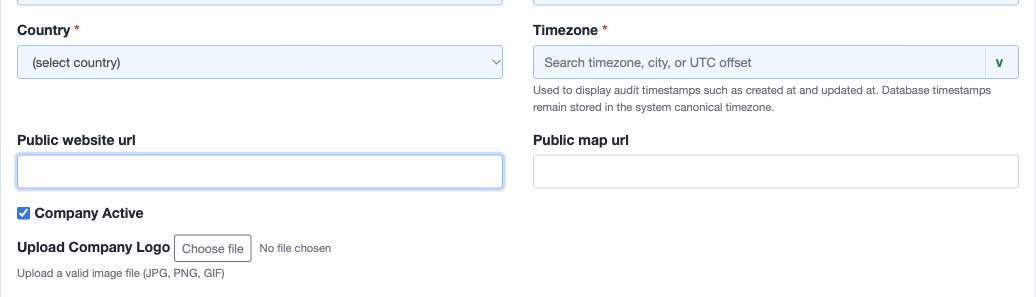
Timezone controls the display of audit timestamps. It does not change the stored canonical timestamps. Public website and map links should be suitable for their intended audience; do not include private access tokens or passwords in a URL.
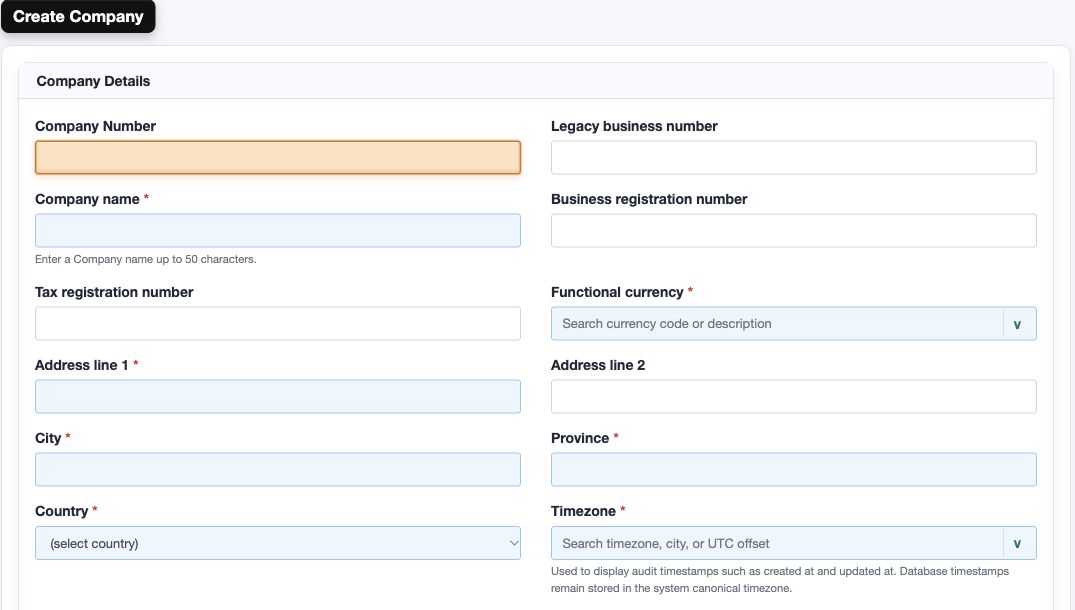
Figure 1 Company details upper
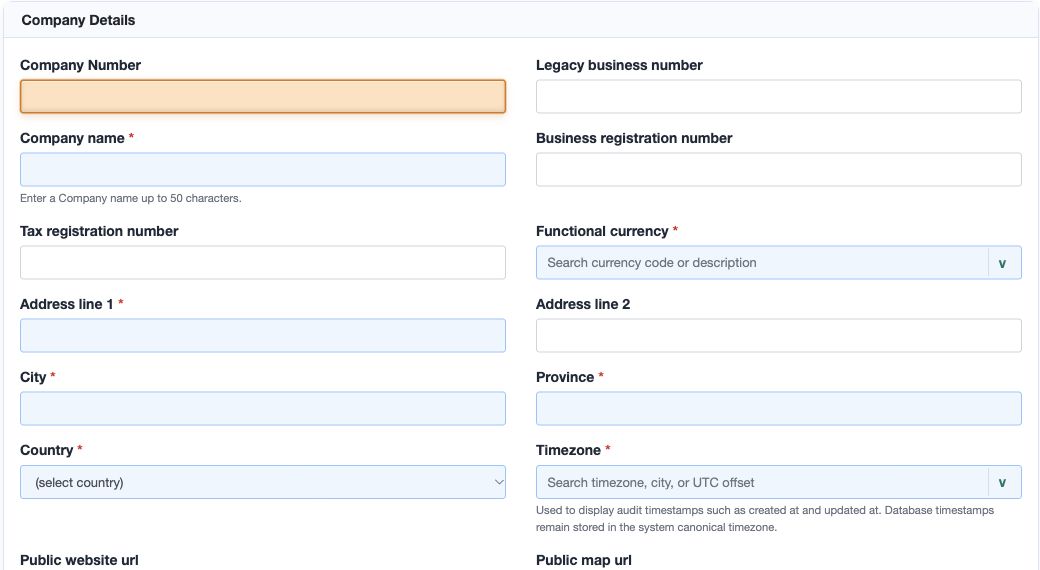
Figure 2 Company details lower
Enter the primary location
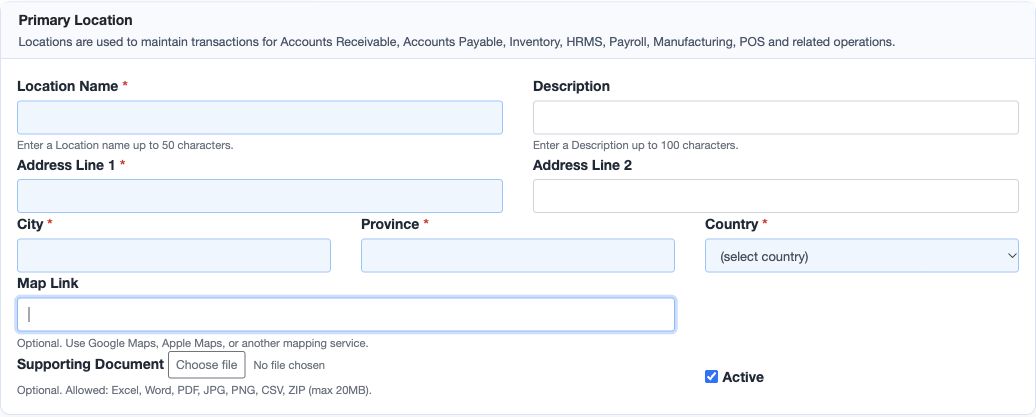
Complete Location Name, Address Line 1, City, Province and Country. Use an operational name such as Main Office or Central Store. A location name must be unique within its company; the application also checks case-insensitive duplicates.
Company and location addresses are separate inputs. Complete the location address even when it is the same as the company address. Description, Address Line 2, Map Link and Supporting Document are optional. Leave Active selected if the location should be operational.
The system assigns a location number within the company. Locations provide transaction context for receivables, payables, inventory, HR/payroll, manufacturing, POS and related operations. Creating a location alone does not grant a user permission to those modules or finish their configuration.
Figure 3 Primary location
Choose and inspect a starter chart
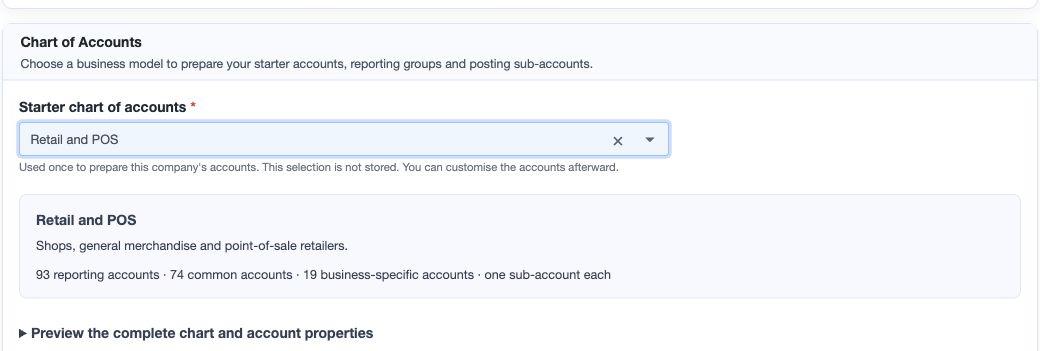
In Chart of Accounts, use Starter chart of accounts to search for a business model. Search by an activity such as service, retail, manufacturing, clinic or rental. Select an actual result; typing a description alone does not select a model.
- Enter a search term and choose the matching model. For keyboard selection, use the arrow keys to highlight a result, then press Enter. Escape closes the list.
- Read the selected model's description and account counts. Every model includes the 74 common accounts plus its business-specific accounts.
- Open Preview the complete chart and account properties.
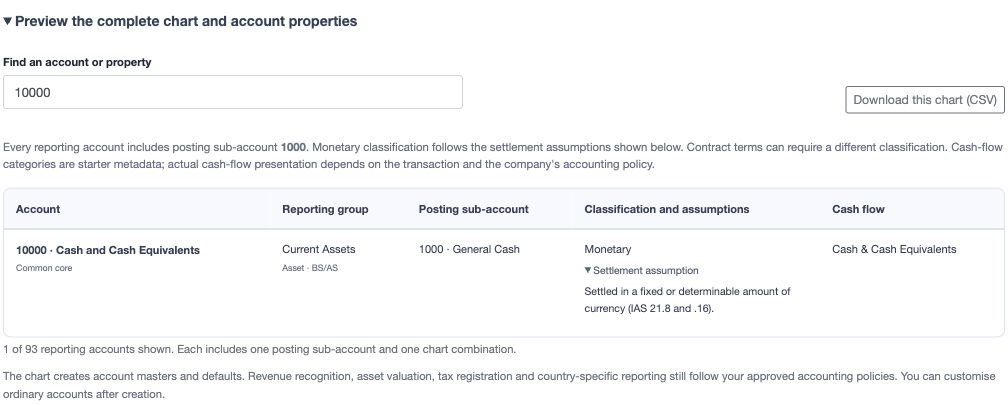
- Use Find an account or property to search account names, numbers, classifications, groups or assumptions.
- Expand Settlement assumption where a contract could change the monetary classification.
- Optionally choose Download this chart (CSV) to keep a review copy before saving. The export contains the full selected chart, not only the filtered rows. Downloading it does not create accounts or import anything.
Use Clear business model if you need to choose again. Editing the search text clears the previous selection and preview. You must select a valid model again before saving. Without JavaScript, use the native mandatory selection list; the interactive preview and CSV download are unavailable.
Figure 4 Starter selection and form actions
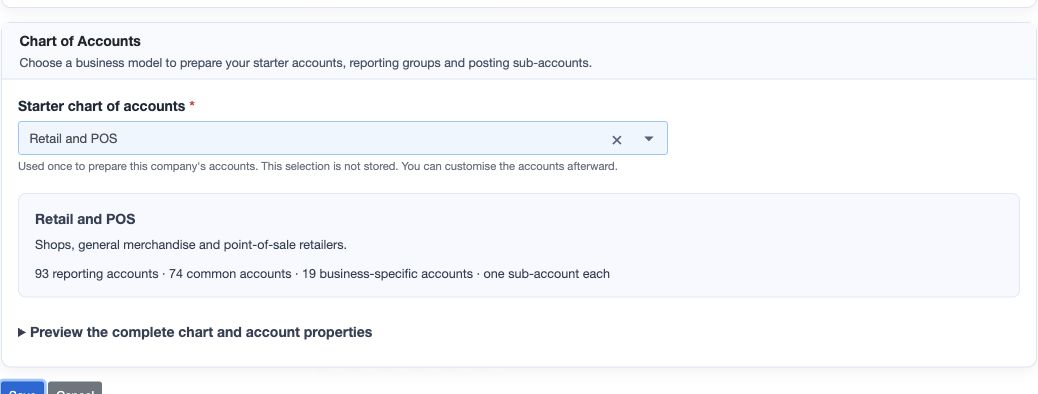
Figure 5 Account properties and settlement assumption
Choose the closest supported model, then review and customise ordinary accounts after creation. General and mixed operations covers combined goods trading and services. It is not a substitute for specialist review where no model fits, and a similar chart does not establish support for a regulated industry.
Understand the generated account structure
For each selected reporting account, the starter creates one reporting sub-account numbered 1000 and one active Chart of Account combination linking the company, reporting account and sub-account. For example, reporting account 10000 - Cash and Cash Equivalents has sub-account 1000 - General Cash.
The same sub-account number is reused under different reporting accounts. It does not mean that all accounts point to one shared posting record. The starter number 1000 is a starting structure, not a restriction on later permitted account maintenance.
The Retail and POS chart contains 93 reporting accounts: 74 common and 19 business-specific. It therefore starts with 93 reporting sub-accounts and 93 chart combinations. Counts vary by model; selecting a model prepares masters, not balances.
| Preview property | What to check |
|---|---|
| Account number and name | The reporting purpose, not merely a familiar description. |
| Reporting group and account type | The intended asset, liability, equity, income or expense presentation. |
| Category and subcategory | The system's balance-sheet or profit-and-loss mapping; see the reference below. |
| Posting sub-account | The 1000 sub-account and its purpose under this reporting account. |
| Monetary classification | The settlement assumption, especially cash refunds versus goods or services. |
| Cash-flow category | Starter metadata; the transaction and accounting policy still determine final presentation. |
| System maintained | Protected accounts that must not be edited, replaced or deactivated through ordinary maintenance. |
Reporting groups and codes
| Reporting group | Category | Subcategory | Account type |
|---|---|---|---|
| Current Assets | BS | AS | Asset |
| Non-Current Assets | BS | AS | Asset |
| Current Liabilities | BS | LI | Liability |
| Non-Current Liabilities | BS | LI | Liability |
| Owner's Equity | BS | EQ | Equity |
| Revenue | PL | IN | Income |
| Cost of Goods Sold | PL | EX | Expense |
| Operating Expenses | PL | EX | Expense |
| Non-Operating Expenses | PL | EX | Expense |
BS means balance sheet; PL means profit and loss. These are RavenLedger starter mappings, not a complete financial-statement presentation checklist. Current/non-current presentation and specialist property, grant, biological-asset or contract accounting require policy review.
Monetary classification and protected accounts
For foreign-currency accounting, a monetary balance is based on a right to receive or an obligation to pay a determinable currency amount. Goods/service prepayments without a cash-refund entitlement differ from refundable cash deposits. The distinction follows the settlement terms, not the word deposit or advance in the account name. See IAS 21, paragraph 16.
The starter separates Supplier Prepayments from Refundable Supplier Advances, and Deferred Revenue - Goods and Services from Refundable Customer Deposits. Have your accountant check the contract before deciding which account to use. Non-monetary foreign-currency advance consideration also has specific recognition-date guidance under IFRIC 22.
In RavenLedger's two-value field, income, expense and equity accounts use NON_MONETARY as the exclusion value for monetary balance revaluation. This system convention is not a statement that every revenue or expense transaction is a non-monetary asset.
The starter marks 20900 - Payroll Clearing and 39000 - Retained Earnings - Calculated, and their 1000 sub-accounts, as system maintained. Keep them intact. Retained earnings is system calculated; creating its account is not an opening-balance posting. Other accounts can still be bound to module defaults even when they are not marked system maintained, so review those bindings before changing them.
Creation controls and expected records
Save submits all three sections: company details, primary location and the selected chart. Cancel returns to Select or Create a Company without creating a company from the unsaved form. Review Functional currency carefully: it is locked after creation.
On successful creation, the application returns to the company list with the message Company, primary location and starter chart of accounts created successfully. The create flow saves the company, primary location and required starter setup within one database transaction. A handled setup failure rolls those database records back; it does not leave a partial starter company to repair manually.
Before beginning live transactions, review:
- Find the new company on Select or Create a Company. Use View to confirm its details and generated company number.
- Choose Select for the intended active company. Check CURRENT COMPANY in the top bar before opening module pages. Creation returns to the list; do not assume the new company became the working company automatically.
- Open Locations and confirm the first location's name, address and active state. Access depends on the relevant company/location permissions.
- In General Ledger, review Reporting Account, Reporting Sub Account and Chart of Account. Compare the initial account counts and sample properties with the selected preview or CSV before adding custom accounts.
- Confirm the protected accounts and module defaults with your accountant. Setup defaults include GL, assets and HR, purchasing accounts for the location, and manufacturing defaults where applicable; additional operational configuration is still needed.
- Confirm that no opening balances or business transactions were introduced by the account-generation step. Enter and reconcile opening balances through the approved migration process, not by changing account-master descriptions.
The chart preview describes account masters, not posted sales, purchases, payroll or inventory balances.
Correct a mistake safely
Before saving, change the field or select another model. The preview updates without creating account records. After saving, use Edit for permitted company details and the separate location maintenance flow for location changes. The primary-location creation block and starter choice do not reappear in Company Edit.
Functional currency is locked after creation. If it is wrong, stop before recording transactions and ask your administrator/accountant to agree a supported correction plan. Do not attempt a database change or treat a new starter choice as a currency conversion.
There is no saved business-model option to switch later. Review and maintain ordinary accounts through the accounting setup screens, preserving protected accounts and module mappings. Copy is a separate company-copy workflow, not a way to reselect a starter chart or rewrite an existing company's accounts. Do not delete a company or posted history as a routine correction.
If the connection fails after Save, check the company list before trying again. A response timeout alone does not prove that the transaction failed. If the page reports an initialization error, keep the error text and contact your administrator if retrying corrected details does not resolve it. Optional uploads use external storage; ask support to investigate any inconsistent attachment result rather than assuming database rollback removed a stored file.
Resolve common setup problems
| Symptom | Safe action |
|---|---|
| Create New Company is missing or access is denied | Confirm the correct tenant and ask the administrator to review add-company permission. |
| A required field is marked invalid | Complete the field and choose actual currency, timezone and starter results; typed search text alone may not be a selection. |
| No business models found | Clear the search and try a broader activity. Do not enter an invented model value. |
| Preview disappears after editing the model text | The prior selection was cleared. Select a result again. |
| Company name already exists | Check the company list and use a genuinely distinct approved company name; do not create a duplicate to bypass validation. |
| Location name already exists | Review the intended company/location structure; names are unique within the company, including the case-insensitive application check. |
| Logo or attachment is rejected | Check the allowed type and actual content. Location attachments have a 20 MB limit; do not rename an unsupported file to bypass validation. |
| Company creation could not complete | The handled initialization error states that no company or accounts were saved. Review details; persistent failures require administrator review of required reference/setup data. |
| New company cannot be selected | Check Company Active, permissions and any operation-in-progress state with the administrator. |
| Functional currency change is rejected | This is an intentional creation-time lock. Escalate before posting further transactions. |
Company field reference
Required means the form needs a value; a field that is technically optional may still be required by your business or country. The examples below are fictional. Limits distinguish company fields from location fields.
Each entry states the rule/default, a safe example, its purpose and downstream effect, and a caution. Figures 1 and 2 together show every company field; match the exact label on your form.
| Field and screenshot | Entry rule and example | Purpose and implication |
|---|---|---|
| Company Number - Figure 1 | System controlled; disabled. Leave blank. The system assigns the number when the new company is saved. Example: A system-generated integer, not an imported company number. | Identifies the company in the company list and related records. Saving creates the new internal company number; a legacy number does not replace it. Caution: Do not enter, reuse or attempt to change this value through the database. |
| Legacy business number - Figure 1 | Optional; initially blank. Text up to 255 characters; retain meaningful leading zeros. Example: OLD-001, if that is an approved reference from the prior system. | Stores the earlier system's business reference for matching and migration review. Adds a reference to the company master; it does not set the new company number or import balances. Caution: Do not use it to imply that a company or its historical transactions has already been migrated. |
| Company name - Figure 1 | Required. Up to 50 characters; the name must be unique in the tenant's company table. Example: Raven Demo Services. | Names the accounting entity users will recognise. Identifies the entity in company selection and wherever company details are displayed. Caution: Check the legal/entity structure first; a branch is not automatically a separate accounting company. |
| Business registration number - Figure 1 | Optional in the form. Text up to 255 characters, using the business's approved legal identifier. Example: Use the real authorised identifier; no invented sample registration number. | Records the legal registration reference on the company master. Makes the identifier available as company information; it does not verify legal registration with an authority. Caution: A technically optional field may be mandatory for your business documents or jurisdiction. |
| Tax registration number - Figure 1 | Optional in the form. Text up to 255 characters. Preserve the approved format and leading zeros. Example: The company's authorised tax identifier. | Records the company's tax registration reference. Stores identification only; it does not select tax rates, establish tax eligibility or activate an e-invoice connection. Caution: Confirm the country-specific requirement; do not confuse this with a customer's or supplier's tax number. |
| Functional currency - Figure 1 | Required selection. Search an available currency code or description and select a result. Example: ZAR only when approved as this company's functional currency. | Sets the company's accounting measurement currency. Drives functional-currency accounting amounts and foreign-currency conversion; the application locks this choice after creation. Caution: Have your accountant confirm it before Save. Country, bank currency and invoice currency are not interchangeable with functional currency. |
| Address line 1 - Figure 1 | Required. Text up to 255 characters. Example: 10 Example Road (fictional). | Stores the main company address line. Changes the company's contact/address master data; it does not populate the separately entered primary-location address automatically. Caution: Use the approved company address rather than assuming every operating location shares it. |
| Address line 2 - Figure 1 | Optional; initially blank. Text up to 255 characters. Example: Suite 2 (fictional). | Adds building, suite or other company-address detail. Completes the company address without changing its accounting or location structure. Caution: Do not put unrelated tax instructions, passwords or private access codes in address fields. |
| City - Figure 1 | Required. Text up to 255 characters on the company form. Example: Johannesburg. | Records the city in the company's address. Updates address information; it does not select a timezone, currency or operating location. Caution: The separate location City field has a shorter 100-character limit. |
| Province - Figure 1 | Required. Text up to 255 characters on the company form. Example: Gauteng. | Records the company's province, state or region. Completes the company address; it does not configure regional tax rules. Caution: Use the locally appropriate administrative region and review tax configuration separately. |
| Country - Figure 1 | Required selection. Choose a listed country. Example: South Africa for the fictional example. | Identifies the company's country in its master details. Provides company country context to country-aware features; further fiscal profiles and configuration may still be required. Caution: It does not automatically register the company, connect an authority, set functional currency or complete tax setup. |
| Timezone - Figure 1 | Required selection; blank on new unbound form. Search a valid listed timezone by zone, city or UTC offset and select it. Example: Africa/Johannesburg. | Sets the timezone used for company audit timestamp display. Changes how audit times are presented; canonical stored timestamps remain unchanged. Caution: A timezone is not a posting date or an accounting-period control. Choose the correct zone rather than a convenient clock offset. |
| Public website url - Figure 2 | Optional; initially blank. A valid URL, up to 200 characters. Example: https://example.com. | Stores a public website link for company contact information. Makes that link available where company contact details are used; it does not publish or deploy a website. Caution: Use an appropriate public destination. Never include passwords, tokens or internal-only links. |
| Public map url - Figure 2 | Optional; initially blank. A valid URL, up to 200 characters. Example: An approved public mapping-service link to the company address. | Stores a company map/contact link. Adds a link, not a geocoded address or a replacement for the location's separate Map Link. Caution: Verify the destination and intended audience; private location/access information should not be placed in a public link. |
| Company Active - Figure 2 | Checkbox; initially selected. Leave selected for a company intended for normal work. Example: Selected for the new operational company. | Controls whether the company is active. Inactive companies cannot be selected for normal work; the model also records/clears its inactive date when status changes. Caution: Deactivation is not deletion and does not remove history. It is not a substitute for access-permission management. |
| Upload Company Logo - Figure 2 | Optional upload. Actual JPG/JPEG, PNG or GIF with a matching accepted extension and MIME type. This form states no additional logo-specific size limit. Example: The company's approved logo file, or omit the upload initially. | Stores the company's document/branding image. Links a supporting-document logo to the saved company; this is distinct from the RavenLedger product logo in this guide. Caution: Uploading does not alter the application's global logo. Verify rights/content and use only an appropriate company image. |
Primary location field reference
Figure 3 shows all ten fields. These values belong to the location, not the parent company's address or permissions.
| Field and screenshot | Entry rule and example | Purpose and implication |
|---|---|---|
| Location Name - Figure 3 | Required. Up to 50 characters; unique within the company, including the case-insensitive application check. Example: Main Office. | Names the first operating location. Creates a location belonging to the new company, with its own system-assigned location number. Caution: Confirm branch/store structure. Creating it does not automatically grant users location or module permissions. |
| Description - Figure 3 | Optional; initially blank. Text up to 100 characters. Example: Administration and services. | Explains the location's operational use. Adds descriptive master data; it does not change account defaults or transaction type. Caution: Keep it useful for identifying the site and avoid confidential instructions or access codes. |
| Address Line 1 - Figure 3 | Required. Text up to 255 characters; entered separately from the company address. Example: 10 Example Road (fictional). | Records the operating location's primary address line. Stores this site's address, even if identical to the company's address. Caution: Do not leave it blank on the assumption that company details will be copied automatically. |
| Address Line 2 - Figure 3 | Optional; initially blank. Text up to 255 characters. Example: Ground floor (fictional). | Adds site-specific address detail. Completes the location address without creating another location or account. Caution: Do not expose security codes or other private site-access information. |
| City - Figure 3 | Required. Text up to 100 characters. Example: Johannesburg. | Records this location's city. Updates the location address, independently of the company city. Caution: Changing the city does not move existing transactions to another company or location. |
| Province - Figure 3 | Required. Text up to 100 characters. Example: Gauteng. | Records this location's province, state or region. Updates this site's address; it does not configure regional tax treatment. Caution: The location's value can differ from the company address; verify it rather than assuming it. |
| Country - Figure 3 | Required selection. Choose a listed country for this location. Example: South Africa for the fictional example. | Identifies the site's country. Stores location-country master data separately from company-country data. Caution: A country choice alone does not establish support for a cross-border operational or fiscal arrangement. |
| Map Link - Figure 3 | Optional; initially blank. Valid URL up to 200 characters; Google Maps, Apple Maps or another mapping service may be used. Example: An approved public link to Main Office. | Provides a map link for this particular location. Adds a location-specific link, not a replacement for the typed address or the company's map link. Caution: Confirm the pin and intended audience; do not include private access tokens. |
| Supporting Document - Figure 3 | Optional upload. Excel, Word, PDF, JPG/JPEG, PNG, CSV or ZIP; maximum 20 MB. Extension, MIME/content and size are validated. Example: An approved site reference document, or omit it initially. | Attaches supporting evidence to the saved primary location. Creates a linked supporting document, not an import of the file's contents into accounts or transactions. Caution: Check privacy and file contents. External storage and database records are separate concerns during error recovery. |
| Active - Figure 3 | Checkbox; initially selected. Leave selected for the operational primary location. Example: Selected for Main Office. | Records whether this operating location is active. Provides the site's active/inactive status for operational selection and validation where enforced. Caution: It does not grant access, close accounting periods or delete existing transactions. Review module behavior before changing an established site's status. |
Starter chart control reference
| Field and screenshot | Entry rule and example | Purpose and implication |
|---|---|---|
| Starter chart of accounts - Figure 4 | Required create-only selection; initially blank. Choose an actual result from 33 supported business models. Typed search text alone is not a selection. Example: Retail and POS produces 93 reporting accounts at this catalogue version. | Selects the common and business-specific account definitions used during this creation. On Save, creates the reporting accounts, 1000 sub-accounts, chart combinations and required defaults. The business-model choice itself is not saved as a company field. Caution: It cannot be reselected in Company Edit to replace an existing chart. Review assumptions and protected accounts before saving. |
| Control | Purpose and effect |
|---|---|
| Starter chart of accounts | Mandatory create-only selection. Used once; not a saved company attribute. |
| Show business models | Opens the searchable list of 33 supported choices. |
| Clear business model | Removes the selected value; a new choice is needed before Save. |
| Preview the complete chart and account properties | Opens the proposed accounts before company creation. |
| Find an account or property | Filters the preview only; it does not remove accounts from the selected chart. |
| Settlement assumption | Explains the basis for each monetary classification. |
| Download this chart (CSV) | Downloads the whole selected catalogue for review. It does not save the company, record the business type or run an import. |
The selection, clear/toggle controls and Save/Cancel appear in Figure 4. Account search, CSV and Settlement assumption appear in Figure 5. Save attempts the full create transaction; Cancel leaves the unsaved creation flow. Neither the account filter nor CSV download changes the chosen account pack.
Available business models
All choices include 74 common reporting accounts. The totals below are from the v1.1.537 starter catalogue, version 2026.10.1. Each reporting account begins with one 1000 sub-account and one chart combination. A model is a chart starting point, not a guarantee of full industry functionality.
| Business model | Total / added | Designed for |
|---|---|---|
| Professional and business services | 84 / 10 | Consulting, accounting, legal, engineering and advisory services. |
| Software, SaaS and IT services | 92 / 18 | Software subscriptions, development, hosting and implementation. |
| Marketing, media and creative production | 91 / 17 | Agencies, content studios, advertising and production. |
| Cleaning and facilities management | 88 / 14 | Cleaning contractors, facilities operations and waste services. |
| Security and guarding services | 88 / 14 | Guarding, monitoring and managed security operations. |
| Recruitment and staffing | 88 / 14 | Recruitment agencies, placement and temporary staffing. |
| Retail and POS | 93 / 19 | Shops, general merchandise and point-of-sale retailers. |
| E-commerce and online marketplaces | 93 / 19 | Online merchants selling as principal; agent commissions need separate review. |
| Wholesale and distribution | 93 / 19 | Bulk trading, warehousing and distribution. |
| Import and export trading | 93 / 19 | International trading with inventory in transit and supplier rebates. |
| Manufacturing and assembly | 103 / 29 | Materials, manufacturing WIP, finished goods and production variances. |
| Food and beverage manufacturing | 114 / 40 | Food processing with ingredient, packaging and manufacturing accounts. |
| Agriculture, farming and livestock | 98 / 24 | Farm inputs, produce and biological assets; measurement requires policy review. |
| Construction and contracting | 90 / 16 | Site materials, contract assets, retentions and project costs. |
| Property development | 101 / 27 | Development contracts and property assets; distinguish property held for sale from investment property. |
| Property rental and management | 85 / 11 | Investment property, rentals, service charges and refundable tenant deposits. |
| Equipment and vehicle rental | 80 / 6 | Operating rental fleets and equipment servicing. |
| Restaurants, cafes and catering | 91 / 17 | Food, beverages, tips, kitchen costs and delivery platforms. |
| Hotels and accommodation | 99 / 25 | Rooms, guest services, food and beverage, booking commissions. |
| Travel agencies and tour operators | 91 / 17 | Separate agency commissions, principal tours and client funds payable. |
| Events and entertainment | 90 / 16 | Events, sponsorship, admissions and production costs. |
| Transport, logistics and courier | 89 / 15 | Freight, deliveries, vehicles, driver advances and fuel. |
| Automotive sales and repair | 95 / 21 | Parts, vehicle sales, workshop labor and repairs. |
| Repair, maintenance and technical workshops | 105 / 31 | Service work combined with spare-parts trading. |
| Healthcare, clinics and diagnostics | 83 / 9 | Medical services, insurer receivables and medical supplies. |
| Pharmacy and medical retail | 99 / 25 | Medicine stock, prescription sales, expiry and cold-chain costs. |
| Education and training | 83 / 9 | Tuition, advance fees, teaching costs and accreditation. |
| Beauty, salon and personal care | 98 / 24 | Treatments, practitioner commissions and retail products. |
| Fitness, sports and membership clubs | 88 / 14 | Memberships, coaching, classes and facility costs. |
| Nonprofit, charities and associations | 89 / 15 | Grants, donations, restricted funds and program costs; local framework review required. |
| Telecommunications and internet services | 90 / 16 | Connectivity, network infrastructure and interconnect costs. |
| Energy supply and renewable installations | 90 / 16 | Energy sales, generation assets and grid costs. |
| General and mixed operations | 97 / 23 | Combined goods trading and service delivery. |
What to configure next
Before recording live transactions, have the responsible users confirm access, fiscal periods, opening balances, bank accounts, tax codes, customer/vendor defaults, stock and warehouse settings where applicable, and any required e-invoice profile. Additional locations and their permissions should be set up through the location workflow.
Continue with the relevant module's verified task guide when available. Do not assume this setup chapter is a sales, purchasing, payroll or fiscal-submission procedure.
Edition and references
Documentation edition 0.19.0 for RavenLedger v1.1.537. Catalogue version 2026.10.1.
Accounting references are the IFRS Foundation's IAS 21 (2024 issued text, paragraph 16) and IFRIC 22 standard overview linked above. Confirm applicable requirements with your accountant; this chapter does not replace the standards or local advice.
Application screen examples
Compare these unsaved application screens with the field references above. The first shows company details; the second shows a selected starter chart before company creation.
Data-loading prerequisites and limits for Company and locations
Create Company and secondary-location maintenance use their own forms. The starter business-model choice prepares accounts once; it is not a saved module switch or a bulk company/location import. Prepare the company, currency and locations before loading business records.
Continue with the Imports documents and common controls bulk guidance.