
Run standard reports and design user reports
Parameters queues protected exports filters totals and publication
Choose a report that answers a business question, set its parameters and retrieve the correct completed output. A report is normally a view of records, not a payment, posting or approval. Some registered operational jobs can change data; read the job's purpose before running it. This guide is for users with the relevant reporting and company/location access.
Run and check one standard report
Know the company, question, date basis, currency and required level of detail before starting. Use individual report parameters to choose applicable filters rather than guessing from a report title.
- Confirm Current Company and open Reporting Center. Select the business module and search the report by its displayed title.
- Read the report purpose. Do not use AR Auto-Apply Unapplied Receipts as a read-only balance report: its non-preview run can allocate receipts. See its specific action warning.
- Complete the required parameters. Select real lookup results, the appropriate date range or as-of cutoff and the intended permitted locations. Review whether a blank optional filter means all eligible records.
- Choose the supported output format and Run once. In job history, compare Report, Parameters, Format and Run at with the request you intended.
- Wait for the matching job to complete, then Download its file. Check the output heading, parameters, currency and representative source records before using totals or sharing it.
An empty output is a result for the selected population, not proof that the whole company has no balance. Queued or failed jobs have no completed output to rely on; inspect the existing job and error before requesting another run.
Start with the business question
Reporting Center runs eligible standard and published user-defined reports. Decide whether you need transactions, current balances, an as-of snapshot, outstanding items or a summary before choosing a report. Similar titles do not guarantee the same currency, cutoff or grain.
Choose company module and report
Confirm Current Company. Use the module selection and report search to locate a permitted report by title/type/module. Availability depends on reporting, company and location access. An absent report is not permission to change another user's role or use an unauthorised direct link.
Review parameters and location scope
Fill the selected report's required date, as-of, account, customer/vendor, item, status, currency or location inputs as applicable. Date ranges differ from as-of cutoffs; a current stock summary is not historical valuation. Choose actual lookup records. Empty location choices can mean all permitted locations in supported report paths, not necessarily no locations.
Field explanations and training references
Each reference describes the field or control, entry rule, example and practical implication. Illustrations use blank or fictional training values. Conditional fields and actions depend on your selected policy, country, record state and permissions; choose actual application lookup records rather than copying text or hidden identities.
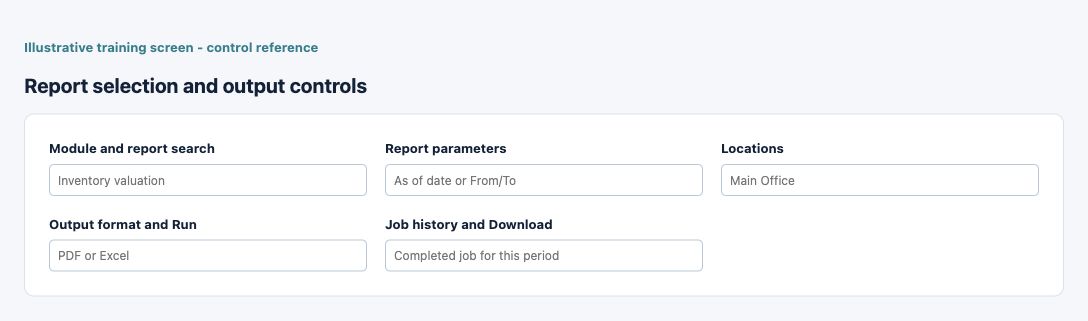
Report selection and output controls field reference
Figure 1 Report selection and output controls
| Field and screenshot | Entry rule and example | Purpose and implication |
|---|---|---|
| Module and report search - Figure 1 | Choose a permitted report. Example: Inventory valuation | Locates eligible reports by business context; availability follows access. Caution: Check the selected record, scope and current state before a consequential action. |
| Report parameters - Figure 1 | Complete the fields for this report. Example: As of date or From/To | Controls the result basis; current and historical measures differ. Caution: Check the selected record, scope and current state before a consequential action. |
| Locations - Figure 1 | Select the intended permitted scope. Example: Main Office | An empty selection can mean all allowed locations in supported paths. Caution: Check the selected record, scope and current state before a consequential action. |
| Output format and Run - Figure 1 | Choose the supported output and submit. Example: PDF or Excel | Creates a report job, not an accounting entry. Caution: Check the selected record, scope and current state before a consequential action. |
| Job history and Download - Figure 1 | Check status and applied parameters. Example: Completed job for this period | Retrieves the output of the identified run, not another historical file. Caution: Check the selected record, scope and current state before a consequential action. |
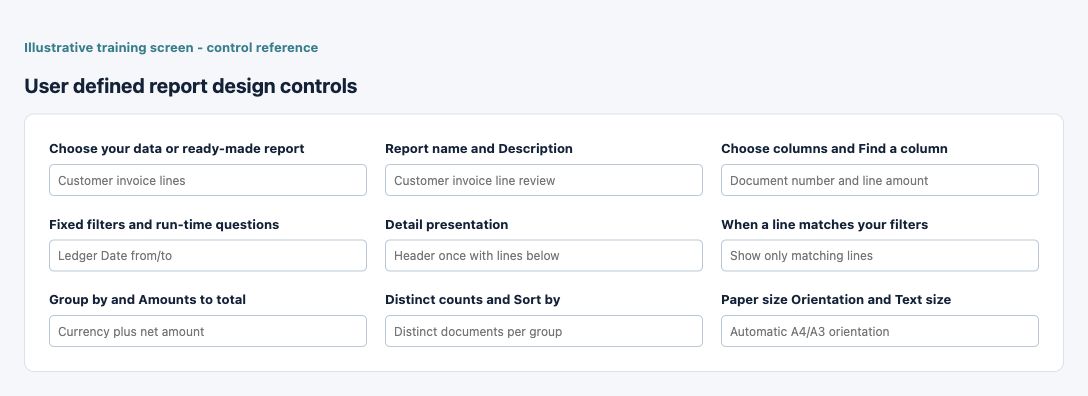
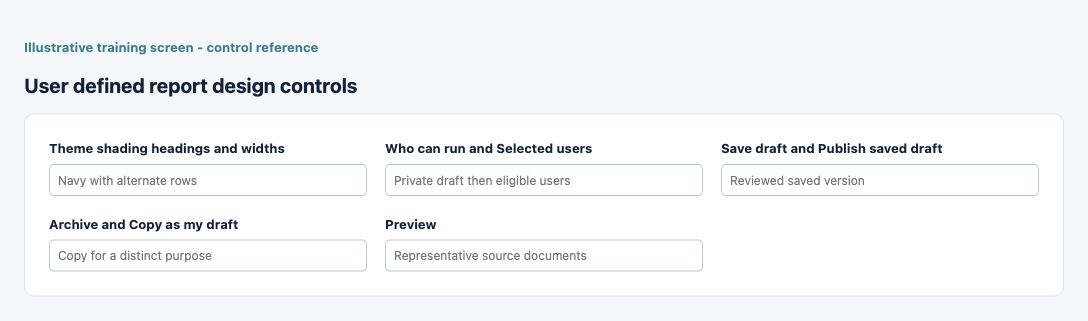
User defined report design controls field reference
Figure 2 User defined report design controls
| Field and screenshot | Entry rule and example | Purpose and implication |
|---|---|---|
| Choose your data or ready-made report - Figure 2 | Select an authorised dataset or copy. Example: Customer invoice lines | Establishes row grain and starting columns without changing original reports. Caution: Check the selected record, scope and current state before a consequential action. |
| Report name and Description - Figure 2 | Name the saved report meaningfully. Example: Customer invoice line review | Identifies the report definition; names do not alter source data. Caution: Check the selected record, scope and current state before a consequential action. |
| Choose columns and Find a column - Figure 2 | Select supported fields, up to 24. Example: Document number and line amount | Controls detail output; do not repeat and total header amounts on every line. Caution: Check the selected record, scope and current state before a consequential action. |
| Fixed filters and run-time questions - Figure 2 | Review every AND condition. Example: Ledger Date from/to | Restricts rows and allows supported parameters; never widens user access. Caution: Check the selected record, scope and current state before a consequential action. |
| Detail presentation - Figure 2 | Choose flat or document sections. Example: Header once with lines below | Changes presentation of the selected detail, not accounting balances. Caution: Check the selected record, scope and current state before a consequential action. |
| When a line matches your filters - Figure 2 | Choose matching lines or authorised document lines. Example: Show only matching lines | Determines detail inclusion; full document and matched-line totals can differ. Caution: Check the selected record, scope and current state before a consequential action. |
| Group by and Amounts to total - Figure 2 | Choose the summary dimensions and additive measures. Example: Currency plus net amount | Replaces detail with summary and preserves required grouping safeguards. Caution: Check the selected record, scope and current state before a consequential action. |
| Distinct counts and Sort by - Figure 2 | Choose the count grain and order. Example: Distinct documents per group | Counts lines/documents differently; overlapping group counts must not be blindly added. Caution: Check the selected record, scope and current state before a consequential action. |
| Paper size Orientation and Text size - Figure 2 | Choose readable output layout. Example: Automatic A4/A3 orientation | Changes physical layout, not the dataset or amount precision. Caution: Check the selected record, scope and current state before a consequential action. |
| Theme shading headings and widths - Figure 2 | Choose presentation settings. Example: Navy with alternate rows | Cosmetic changes preserve underlying source field meaning. Caution: Check the selected record, scope and current state before a consequential action. |
| Who can run and Selected users - Figure 2 | Choose the tenant audience. Example: Private draft then eligible users | Sharing remains constrained by each running user's own permissions. Caution: Check the selected record, scope and current state before a consequential action. |
| Save draft and Publish saved draft - Figure 2 | Keep editing and publication separate. Example: Reviewed saved version | A saved draft does not replace the published version until published again. Caution: Check the selected record, scope and current state before a consequential action. |
| Archive and Copy as my draft - Figure 2 | Use the supported lifecycle action. Example: Copy for a distinct purpose | Archiving and copying are not edits to the original source transactions. Caution: Check the selected record, scope and current state before a consequential action. |
| Preview - Figure 2 | Inspect a small saved-design sample. Example: Representative source documents | A limited preview is not the final PDF/Excel or a complete large extract. Caution: Check the selected record, scope and current state before a consequential action. |
Run and follow the report job
Choose the supported output format and run the report. Inspect job history for Run at, Report, Parameters, Format, Status and Download. Queued/processing is not ready output. Download the completed job corresponding to the intended company and filters; a file retained from an earlier job may be stale.
Choose detail or summary deliberately
A line dataset has one row per eligible line; a header dataset represents documents. Never sum repeated document totals across line rows. Summaries replace detail columns, and required currency/status/item/UOM groupings protect interpretation. Rates, percentages, document numbers and ranks are not additive amounts.
Create a user-defined report
User-Defined Reports supports choosing an authorised data source or copying a ready-made report into a draft. Review business module, dataset grain, report name/description, selected columns, fixed filters and run-time questions. The source and every condition remain subject to the running user's access.
Control line filtering and totals
All conditions combine with AND. For document-line sources, Show only matching lines and Show all authorized lines of that document intentionally produce different detail. A matching-line total can differ from the full stored document total. Distinct documents counts each document once per group; adding counts across overlapping groups can overstate totals.
Review layout and output limits
Choose paper, orientation, text size, theme, row shading, headings and relative column widths for readability. Cosmetic headings do not change source meaning. Detail and wide output may use labelled sections; inspect row identifiers when comparing split columns. A small design preview is not the final PDF/Excel layout or a complete large-dataset extract.
Separate saving publishing and sharing
Save draft does not publish. Publishing makes the saved version available to its chosen audience subject to their own company/location/reporting access. Editing a draft does not replace the published version until republished. Archive removes availability through the supported lifecycle; copying creates a separate draft rather than editing another owner's report.
Validate and protect exports
Compare a small sample back to source documents and reconcile additive totals to the relevant ledger/subledger/report basis. Preserve applied-parameter metadata. Protect payroll, banking and personal data in downloaded files; changing a column title or exporting a report does not remove confidentiality obligations.
Resolve output and interpretation problems
| Situation | What to do |
|---|---|
| Expected rows are missing | Check company/location access, date basis, status filters, Top-N and saved job parameters. An empty report does not establish a company-wide zero balance. |
| A total is overstated | Check line versus header grain, repeated document totals, currency grouping and whether only matching lines were requested. Do not add rates or percentages as amounts. |
| A download is unavailable or stale | Inspect the identified job status and run time. Use the completed output for the intended parameters, not an older local file with a similar name. |
Continue with the related task
Individual report parameters, Balance Sheet Review, bank reconciliation and workflow handbook.