
Configure inventory classifications, posting groups and policies
Account mappings, company inventory settings and bin prerequisites
Prepare the item classifications, accounting mappings and company inventory policy before using stock documents. These settings describe how items are organised and which accounts or defaults consuming processes can use. They do not create stock, record a receipt, move goods or post an opening balance.
This reference is for authorised inventory users, accountants and Tenant Administrators within their own subscription workspace. Confirm Current Company before opening setup. Obtain the responsible accountant's approval for account mappings and the operations owner's agreement on warehouse, bin and negative-stock policy.
Understand the setup relationships
| Setup | What it provides | What it does not replace |
|---|---|---|
| Classification | Brand, Category and optional Sub Category for item organisation | Posting accounts, tax codes or fiscal product classification |
| Posting Group | Inventory asset/COGS mappings or a non-inventory charge mapping | Customer revenue, tax, bank or every module-specific posting rule |
| Item Master | Item nature, base UOM, posting-group selection and operational flags | Stock quantities, allocation or a completed purchase/sale |
| Warehouse | Location ownership, default and bin requirements | A stock balance or automatic permission to every location |
| Inventory Setup | Company costing display, warehouse fallback and negative-stock policy | Physical counts, opening balances or a change to historic transactions |
An Inventory item needs an Inventory posting group. A Non-inventory item needs a Non-inventory (Charge) group. Classification is descriptive and is not the same as the posting group or an e-invoice authority classification.
Find the setup screens
In the application sidebar, open Inventory. Its setup links include Setup, Classifications, Item Master, Posting Groups and Warehouse Master, subject to access. View permission does not authorise changing accounts or policy.
Classifications provides Add Classification and row-level View, Audit and Edit actions when permitted. Posting Groups provides Add Posting Group, a row selector and actions for the selected record. Setup displays the company's existing policy or offers Create Setup when no record exists. Review an existing record before proposing another setup.
Review classification descriptions
Use an agreed naming scheme for Brand, Category and Sub Category. For example, Demo Brand / Components / Fasteners is one classification record. Item masters select that record; typing a category on this screen does not create an item or classify all existing items automatically.
Search the existing list before adding a classification. Its Search matches Brand, Category and Sub Category. Reset removes the search filter; it does not clear saved classifications. Sub Category may be blank, so do not rely on a blank field to prevent duplicate business descriptions.
Review posting group design
For a stocked item, Type: Inventory requires both Inventory Asset Account and COGS Account. For an eligible non-stock charge, Type: Non-inventory (Charge) requires Charge / Expense Account. Changing the type clears the incompatible mappings; it is not a conversion of existing stock into an expense.
Review the complete company-account-sub-account combination, active status and accounting purpose for every mapping. Use the current company's approved Asset and Expense destinations as appropriate. A suggestion, a similar account name or a form accepting a selection is not accounting approval.
Keep protected system groups, including SYS_FA_CWIP and SYS_PAYROLL_CLEAR, intact. Do not rename, repurpose, reclassify or deactivate them to resolve a setup error. Changing an ordinary group already used by items requires review of those items, linked processes and historical reporting; changing a mapping does not reverse earlier journals.
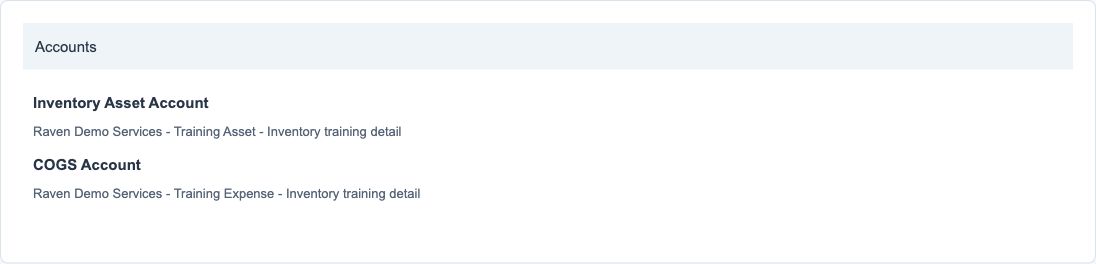
Figures 3 and 4 show selected account descriptions. In the application, choose an actual account-search result; typed text alone may not select an account. If a selector fails to load, stop and obtain help rather than altering hidden identifiers.
Form fields and screen references
The references cover the twelve business form controls and the fixed Costing Method display. Company is supplied by the current context and is not a separate choice on these forms. Figures use fictional training values; conditional account sections depend on the selected Type.
Classification field reference
Figure 1 Classification

| Field and screenshot | Entry rule and example | Purpose and implication |
|---|---|---|
| Brand - Figure 1 | Required text, maximum 100 characters. Example: Demo Brand | Groups items by their brand description for organisation and selection. Caution: Reuse the agreed spelling; this is not a tax classification or posting account. |
| Category - Figure 1 | Required text, maximum 100 characters. Example: Components | Adds the business category within this classification record. Caution: A category name does not configure the inventory accounting mappings. |
| Sub Category - Figure 1 | Optional text, maximum 100 characters. Example: Fasteners | Provides a further descriptive subdivision when the business needs it. Caution: Search existing classifications before adding a record, including where Sub Category is blank. |
Posting group identity field reference
Figure 2 Posting group identity

| Field and screenshot | Entry rule and example | Purpose and implication |
|---|---|---|
| Code - Figure 2 | Required text, maximum 32 characters; unique within the company. Example: DOC-STOCK | Identifies the posting group selected on item masters. Caution: Agree a consistent code; never rename a system group or repurpose a used group as a different accounting design. |
| Name - Figure 2 | Required text, maximum 128 characters. Example: Training stocked goods | Describes the accounting purpose of the group for selection and review. Caution: A familiar name is not proof that its underlying accounts are correct. |
| Type - Figure 2 | Required selection: Inventory or Non-inventory (Charge). New groups default to Inventory. Example: Inventory | Determines which account mappings are applicable and which item nature can use the group. Caution: Changing Type clears incompatible account selections. Do not change the type of a used group without an approved accounting plan. |
| Active - Figure 2 | Checkbox; checked by default for a new group. Example: Checked | Makes the group eligible for active item posting-group choices. Caution: Deactivation does not reverse stock movements or journals and can affect future item choices. |
Inventory account mappings field reference
Figure 3 Inventory account mappings
| Field and screenshot | Entry rule and example | Purpose and implication |
|---|---|---|
| Inventory Asset Account - Figure 3 | Required for Type Inventory; choose the approved account result. Example: The approved inventory asset posting combination | Supplies the inventory-asset mapping for consuming stock accounting processes. Caution: Confirm the full current-company account/sub-account, active status and Asset classification. Do not use another company's account or rely on its name alone. |
| COGS Account - Figure 3 | Required for Type Inventory; choose the approved account result. Example: The approved cost-of-goods-sold posting combination | Supplies the cost-of-goods-sold mapping used by applicable consuming stock processes. Caution: Confirm company, active status and the approved Expense classification; this field is not the sales revenue account. |
Non inventory charge account field reference
Figure 4 Non inventory charge account

| Field and screenshot | Entry rule and example | Purpose and implication |
|---|---|---|
| Charge / Expense Account - Figure 4 | Required for Type Non-inventory (Charge); the inventory asset and COGS mappings are not applicable. Example: The approved purchased-service expense posting combination | Supplies the expense/charge mapping for applicable non-stock purchasing processes. Caution: Use the current company's approved active account. This does not by itself configure customer revenue, tax or every transaction's counterpart. |
Inventory policy field reference
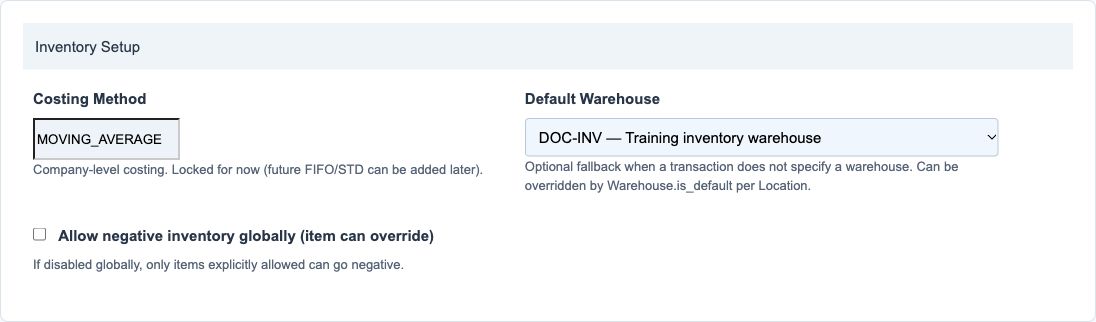
Figure 5 Inventory policy
| Field and screenshot | Entry rule and example | Purpose and implication |
|---|---|---|
| Costing Method - Figure 5 | Read-only MOVING_AVERAGE display; not an editable form field. Example: MOVING_AVERAGE | Identifies the supported company-level inventory costing method. Caution: FIFO and standard costing are not selectable here. A policy record does not create opening quantities or calculate a stock balance by itself. |
| Default Warehouse - Figure 5 | Optional active warehouse from the selected company. Example: DOC-INV - Training inventory warehouse | Provides a company fallback where a consuming workflow uses that default. Location-specific warehouse defaults can take precedence. Caution: Check the actual document warehouse and location. A fallback is not a user access grant, stock transfer or universal override of transaction choices. |
| Allow negative inventory globally (item can override) - Figure 5 | Checkbox; off by default. Item-level permission is separate. Example: Unchecked under a no-negative-stock policy | Enables the company-wide negative-stock policy in applicable allocation, adjustment and transfer paths. Global off still permits an item explicitly allowed to go negative. Caution: Global on is not narrowed by leaving an item's flag off in these paths. Negative permission does not bypass tracking, bin, serial, date or other validation rules. |
Understand negative inventory policy
The global switch and the item's Allow negative inventory setting are separate. In the allocation, adjustment and transfer policy paths, either enabled flag permits the negative-stock policy. An item flag left off does not cancel a global allowance.
| Global setting | Item setting | Negative-stock policy in these paths |
|---|---|---|
| Off | Off | Not permitted by these flags |
| Off | On | Permitted by the item flag |
| On | Off | Permitted by the global flag |
| On | On | Permitted by both flags |
This permission does not guarantee that an issue can be completed. Lot/serial tracking, expiry, warehouse/bin requirements, dates, document state and other validations still apply. Do not enable negative inventory merely to bypass a shortage; resolve the quantity, timing or allocation under the approved process.
Distinguish warehouse defaults
An explicit document warehouse, a location's Default Warehouse flag and the company fallback are different settings. Check the actual location and warehouse on every consuming document. A company fallback may belong to a different location from the transaction and is not permission to use it there.
Changing a default does not move stock, change earlier documents or create missing bin records. Existing warehouse edits also have the preservation caution described in the warehouse guide. Coordinate changes with document entry and verify the saved policy before relying on defaults.
Prepare bin selection safely
Bins, also called locators on some screens, subdivide a warehouse. Their hierarchy is Company → Location → Warehouse → Bin. A bin code identifies a place within its warehouse; the same code in another warehouse is not the same storage location.
| Before allocation | Example | Why it matters |
|---|---|---|
| Confirm the company, location and warehouse | Raven Demo Services / Main Office / DOC-INV | Similar warehouse names do not establish ownership or access |
| Use the approved active bin identity | R01-L01 | Bin codes are trimmed and uppercased; uniqueness is within the warehouse |
| Check Uses Bins and receipt/issue requirements | Bins enabled | Required bin allocation is not satisfied by selecting only the warehouse |
| Distinguish bins from lots and serials | R01-L01 is a place, not a product batch | A valid bin does not replace required lot, expiry or serial identity |
The warehouse setup form does not create bin masters. If the required bin is unavailable, stop and ask the authorised inventory administrator to arrange it through the supported process. Do not guess an extra menu, enter an invented bin code or assume every transaction creates missing bins automatically.
Search lists and understand actions
| Screen or action | Meaning | Caution |
|---|---|---|
| Classifications Search | Filters Brand, Category and Sub Category | Search existing descriptions before adding another record |
| Posting Groups Search | Filters Code or Name | Confirm Type and Active as well as the displayed name |
| Posting Groups Sel | Chooses the row targeted by View, Audit or Edit | Check the selected-group label before acting |
| Inventory Setup list | Shows Company, Costing Method, Default Warehouse and Allow Negative (Global) | These displays describe policy, not stock on hand |
| Save | Submits the current master/settings change | Reopen and compare the intended values; do not use it to correct stock balances |
| Cancel | Leaves the unsaved form | Does not reverse an earlier save or stock transaction |
| Audit | Shows available record attribution/history | It is not a stock movement report, accounting journal or permission grant |
Check setup before using stock documents
Confirm the selected company's chart/sub-accounts, active account mappings, matching item nature and posting group, base UOM, relevant tax defaults, location, warehouse and bin availability. Review the negative-stock design and fixed moving-average costing display with the responsible owners.
Use approved opening and transaction procedures for receipts, issues, transfers and valuations. Reconcile item quantities, warehouse/bin detail, inventory value and the relevant ledger accounts on a consistent date/company/currency basis. A saved master record alone does not establish a completed or reconciled stock transaction.
Resolve setup problems
| What you see | Safe response |
|---|---|
| No permitted setup link | Confirm duties, company context and the specific function permission with the Tenant Administrator |
| Missing inventory asset or COGS | Check Type and select both approved accounts for Inventory |
| Missing charge account | Select the approved charge account for Non-inventory (Charge) |
| Wrong account remains suggested or accepted | Verify company, active status and account type independently; stop if the design is unclear |
| Changing Type removes account selections | The fields are no longer applicable; do not use a type change as a historical correction |
| Default Warehouse is absent | Check its company, active status and the selected context; do not create a duplicate warehouse to bypass a mismatch |
| FIFO or standard costing cannot be selected | Costing Method is fixed to MOVING_AVERAGE in this screen |
| A shortage is rejected despite policy flags | Review actual stock, tracking, bins, dates and document rules; do not bypass controls |
| Required bin is unavailable | Confirm its warehouse/location and active identity with the authorised inventory administrator before allocating |