
Set up customers and vendors
Partner roles, addresses, credit, accounts and separate tax defaults
Use one Trading Partner record for a business that buys from you, supplies you, or does both. The selected role determines which accounts and payment terms are needed. Establish the identity, location associations and approved defaults before recording invoices, receipts or payments.
This chapter is for authorised users and Tenant Administrators in their own subscription workspace. A tenant is the subscription/account workspace, not the administrator. It does not cover platform administration or tenant database management.
Prepare the partner record
Confirm Current Company and that its GL Setup exists. Have the approved receivable, revenue and vendor liability posting combinations ready, along with any applicable active tax headers and accessible company locations. Obtain the correct identity and billing/shipping details from the business. Use fictional contact details only in training.
Search the existing Trading Partners list before adding a record. Prefer one Both record when the same entity is a customer and vendor. The form rejects a duplicate email used by another active, non-authority partner in the same company; a shared mailbox is therefore a business-design question, not something to work around by inventing email addresses.
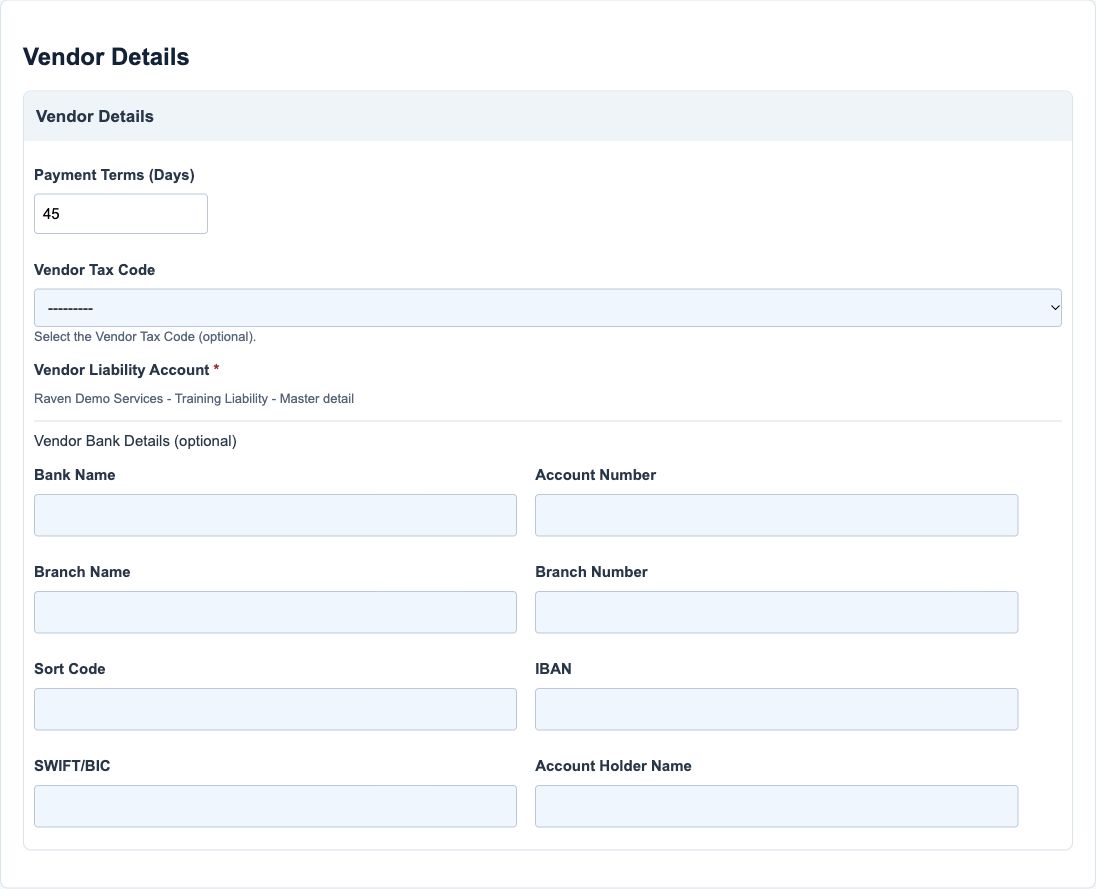
The examples use a Both partner, credit limit 1000.00, customer terms 30 days and vendor terms 45 days. These are training assumptions, not credit or payment recommendations. Banking fields remain blank in the screenshots.
Create and verify a customer or vendor
- Open Trading Partners and its create action when your permissions allow it. Confirm the company context before typing.
- Enter the identity, contact details and addresses. Choose Customer, Vendor or both checkboxes.
- For a customer, set the credit limit and payment terms, then choose the actual receivable and revenue account suggestions. Review the credit-check switches separately from the limit.
- For a vendor, set payment terms and select the approved liability account. Add verified banking references only when required by your authorised payment process.
- Review customer and vendor tax defaults independently. Leave Tax Authority off for an ordinary trading business. Select the intended accessible locations.
- Add an optional authorised supporting document, review Active and save. Reopen the saved record and compare the generated partner number, role, accounts, locations and defaults with the intended values.
Saving a partner does not create an invoice, opening balance, customer receipt or bank payment. A Customer/Vendor role is also not an application-user account or portal invitation. Portal onboarding and communication require their own verified workflow.
Credit terms and account defaults
Credit Limit and Enable Credit Check are distinct controls. Including open sales orders changes the exposure considered by applicable credit-control paths; it does not imply all drafts, cancelled orders or every document type are included. Review exceptions and approvals in the relevant sales workflow.
Credit limits with extra decimals are truncated down to the company GL precision. At two decimals, 1.129 becomes 1.12. Enter the approved final amount deliberately and inspect the saved value; do not rely on visual rounding.
Choose actual account suggestions and verify their company, type and sub-account. Partner defaults are not the whole posting design: item posting groups, line choices, module configuration and tax rules can also affect a document. Review the resulting accounts before posting.
Tax authority and banking controls
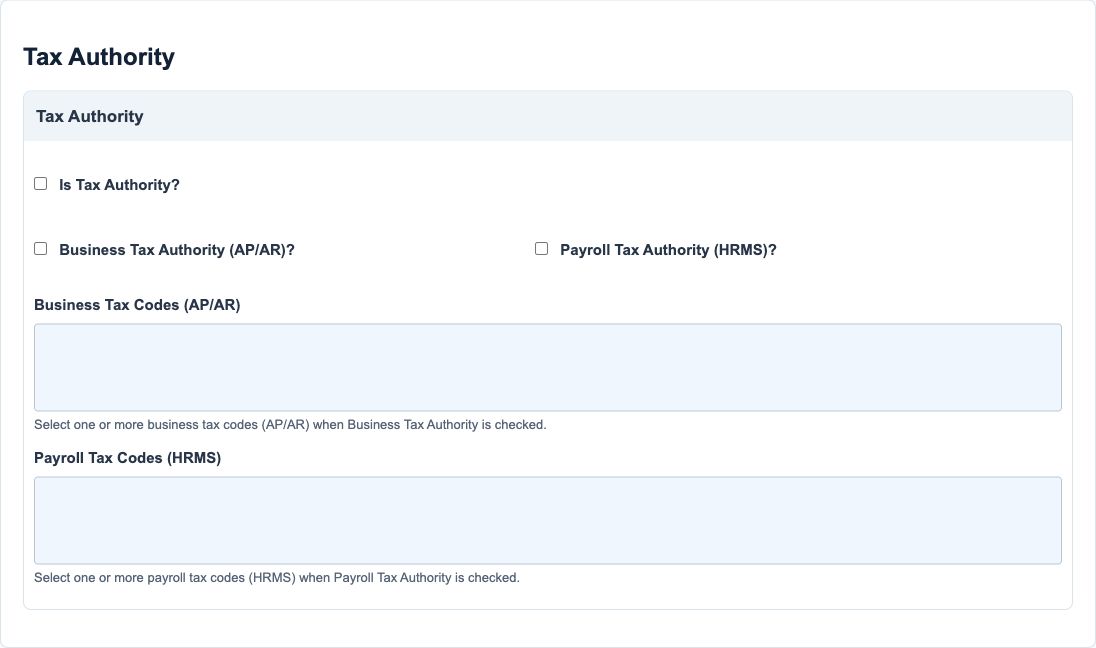
Only designate a party as a Tax Authority for an approved tax-payee design. At least one Business or Payroll scope and the corresponding code selections are required. A business tax-code line can have only one collecting authority within a company. Figure 3 shows empty code lists, not a completed authority configuration.
Customer Tax Code and Vendor Tax Code are transaction defaults, not tax-authority assignments. Their legal treatment and country-specific e-invoice requirements need reviewed tax configuration; entering a registration or code does not contact an authority or prove acceptance.
Banking references are optional sensitive master data. Independently verify new or changed instructions through your organisation's approved process before relying on them. A successful save is not bank-account ownership, IBAN/SWIFT validation or payment authorisation. Do not place real bank details in screenshots or training examples.
Generated displays and supporting documents
The partner number is generated on save, not entered as a new identifier. Employee/linked-employee displays reflect the employee relationship where one exists; they are not ordinary partner role checkboxes and do not grant HR access.
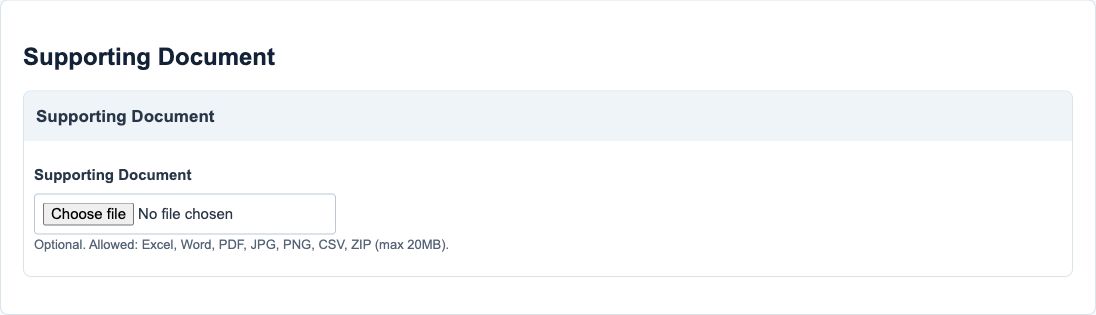
Supporting Document accepts the listed file families up to 20MB. Existing-document download and delete-on-save controls appear only when a document exists. Obtain authority before replacing or removing a document. A permitted extension does not certify file safety or justify collecting unnecessary personal information.
Form fields and screenshot references
The following references explain all 45 instantiated form fields, including hidden company/account identities. Figure references for hidden values identify their related section, not a visible editable ID. Requiredness can depend on the selected role or authority scope even when the base field permits blank.
Partner identity field reference
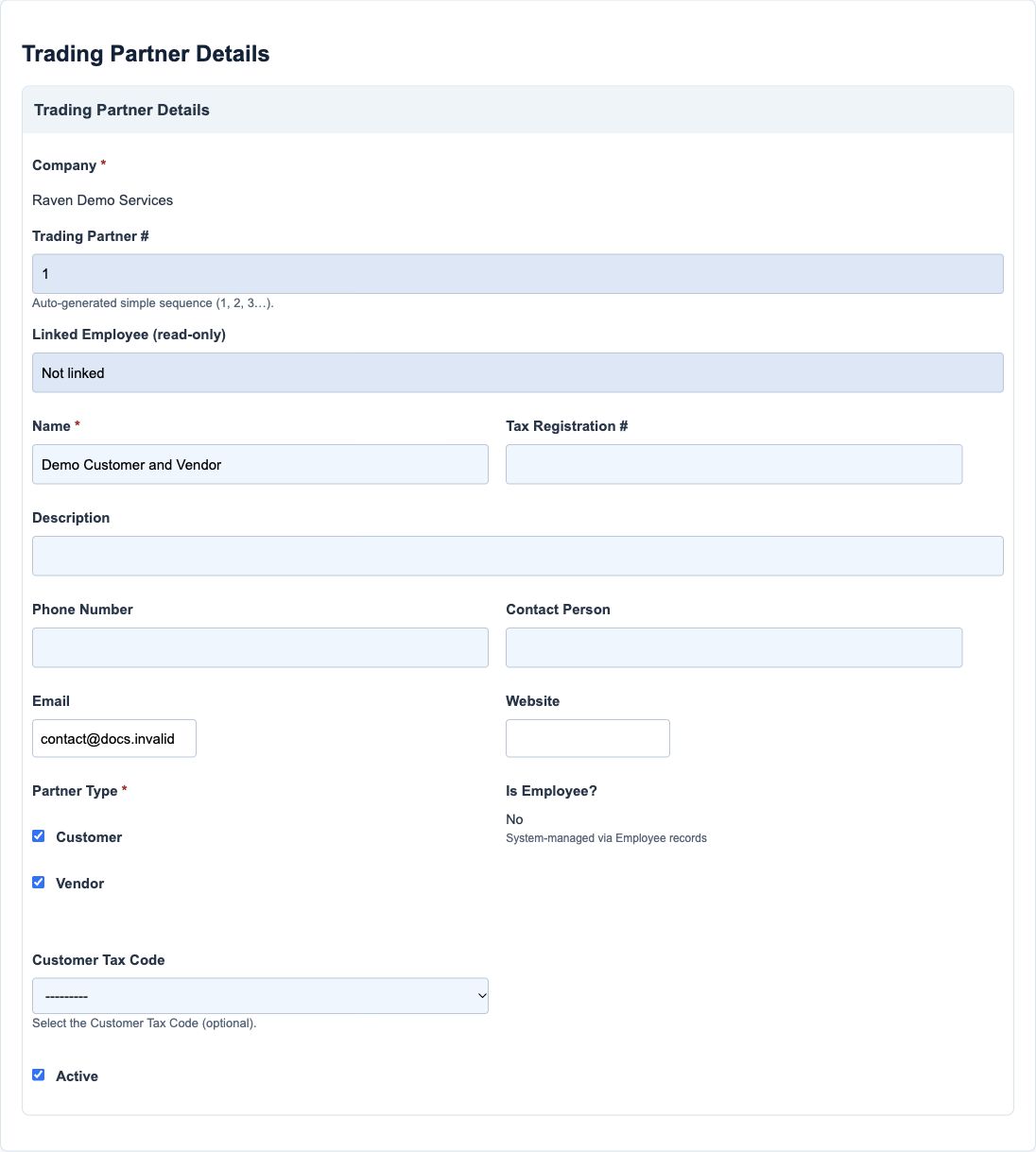
Figure 1 Partner identity
| Field and screenshot | Entry rule and example | Purpose and implication |
|---|---|---|
| Company - Figure 1; related section only, hidden/managed value is not a visible input | Required base field. Context supplied by the form, not a visible company selector. Example: Current company | Associates this partner master with the company being maintained. Caution: Confirm Current Company before opening the form; hidden identity is not a user choice. |
| Name - Figure 1 | Required base field. Maximum 100 characters. Example: Demo Customer and Vendor | Identifies the legal or trading party on documents and searches. Caution: Search existing partners before adding another record for the same entity. |
| Description - Figure 1 | Base field permits blank/unchecked; conditional rules still apply. Maximum 100 characters. Example: Wholesale customer and component supplier | Adds business context that helps staff identify the correct party. Caution: Avoid confidential notes that do not belong on shared business screens. |
| Email - Figure 1 | Base field permits blank/unchecked; conditional rules still apply. Maximum 254 characters. Normalised to lowercase; duplicate active non-authority partner email is rejected within the company. Example: contact@docs.invalid | Stores the partner contact identity used by consuming communication and portal paths. Caution: Verify the intended recipient before separate sending or portal operations. |
| Website - Figure 1 | Base field permits blank/unchecked; conditional rules still apply. Maximum 200 characters. Example: https://example.invalid | Provides the partner's business website reference. Caution: A stored website is not a verification of the partner's identity. |
| Tax Registration Number - Figure 1 | Base field permits blank/unchecked; conditional rules still apply. Maximum 50 characters. Example: Approved registration from the partner | Supplies a registration reference for consuming tax and invoice processes. Caution: Do not invent a registration or assume syntax acceptance is authority verification. |
| Phone Number - Figure 1 | Base field permits blank/unchecked; conditional rules still apply. Maximum 30 characters. Example: Verified business contact number | Provides a contact number for the partner record. Caution: Keep it current and obtain the organisation's authorised contact details. |
| Contact Person - Figure 1 | Base field permits blank/unchecked; conditional rules still apply. Maximum 50 characters. Example: Training contact | Names the business contact associated with the partner. Caution: A named contact is not an application user or approval permission. |
| Partner Type - Figure 1 | Required base field. At least one role is required; both checkboxes save as Both. Choices: Customer, Vendor. Example: Customer and Vendor checked | Selects customer, vendor or Both behaviour and its dependent account/terms requirements. Caution: Use Both for one entity serving both roles instead of duplicating an active email. |
| Customer Tax Code - Figure 1 | Base field permits blank/unchecked; conditional rules still apply. Active same-company tax header choices. Example: Approved active sales tax header, or blank | Provides a customer-side tax default for consuming sales entry. Caution: A default is not proof of the legally correct tax treatment of every line. |
| Active - Figure 1 | Checkbox; the new-field default is True. Example: Checked | Marks the partner available for consuming active-partner selectors. Caution: Deactivation does not erase balances, history or obligations. |
Customer defaults and credit field reference
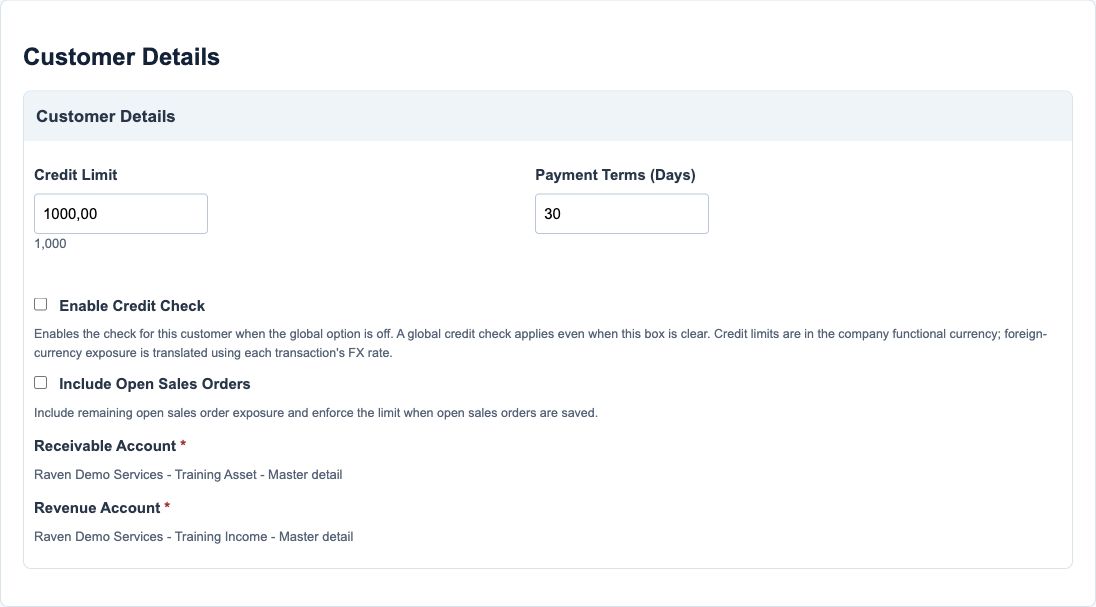
Figure 2 Customer defaults and credit
| Field and screenshot | Entry rule and example | Purpose and implication |
|---|---|---|
| Customer Credit Limit - Figure 2 | Base field permits blank/unchecked; conditional rules still apply. Required for Customer/Both; nonnegative. Extra decimals are truncated down to GL precision, not rounded up. Example: 1000.00 | Sets the customer exposure limit used with enabled credit checking. Caution: Do not treat zero or a blank as a universally unlimited facility. |
| Enable Credit Check - Figure 2 | Checkbox; the new-field default is False. Example: Off until policy is approved | Enables the customer's credit-check policy in consuming credit-control paths. Caution: The limit and the switch are different controls; review approval and overrides separately. |
| Include Open Sales Orders - Figure 2 | Checkbox; the new-field default is False. Example: Off for the basic example | Includes eligible open sales-order exposure when the credit-check path uses this setting. Caution: It does not mean every draft or cancelled order contributes exposure. |
| Customer Payment Terms (Days) - Figure 2 | Base field permits blank/unchecked; conditional rules still apply. Required for Customer/Both. Example: 30 | Supplies the customer's payment-terms default for consuming sales documents. Caution: Review actual due dates on each document; this master does not create an invoice. |
| Receivable Account - Figure 2; related section only, hidden/managed value is not a visible input | Base field permits blank/unchecked; conditional rules still apply. Required for Customer/Both; select an actual account suggestion. Example: Approved customer receivable combination | Defines the partner's receivable posting default for applicable customer transactions. Caution: Confirm company, account type and sub-account; the lookup alone is not an accounting review. |
| Revenue Account - Figure 2; related section only, hidden/managed value is not a visible input | Base field permits blank/unchecked; conditional rules still apply. Required for Customer/Both; select an actual account suggestion. Example: Approved service or sales revenue combination | Provides a customer revenue default where the transaction path uses partner revenue. Caution: Item posting groups or line overrides can matter; verify the resulting document accounts. |
Tax authority relationships field reference
Figure 3 Tax authority relationships
| Field and screenshot | Entry rule and example | Purpose and implication |
|---|---|---|
| Is Tax Authority? - Figure 3 | Checkbox; unchecked for a new record. An authority needs at least one Business or Payroll scope. Example: Off for an ordinary business partner | Marks the party as a tax-authority payee rather than an ordinary commercial partner. Caution: Do not use this flag merely because the partner is tax registered. |
| Business Tax Authority (AP/AR)? - Figure 3 | Checkbox; unchecked for a new record. Requires at least one Business Tax Code when enabled under Tax Authority. Example: Off for the ordinary example | Selects the authority's AP/AR business-tax scope. Caution: Turning a scope off clears its associated code selections during form cleaning. |
| Payroll Tax Authority (HRMS)? - Figure 3 | Checkbox; unchecked for a new record. Requires at least one Payroll Tax Code when enabled under Tax Authority. Example: Off for the ordinary example | Selects the authority's HRMS payroll-tax scope. Caution: This is a tax-payee relationship, not permission to view payroll information. |
| Business Tax Codes (AP/AR) - Figure 3 | Base field permits blank/unchecked; conditional rules still apply. Conditional on Business Tax Authority; same-company active choices. Example: Approved business tax-code lines | Associates specific AP/AR tax lines with their collecting authority. Caution: A business tax-code line can be assigned to only one such authority per company. |
| Payroll Tax Codes (HRMS) - Figure 3 | Base field permits blank/unchecked; conditional rules still apply. Conditional on Payroll Tax Authority; same-company active choices. Example: Approved payroll tax codes | Associates payroll tax codes with the payroll authority. Caution: Payroll setup and settlement need their own authorised review. |
Billing and shipping addresses field reference
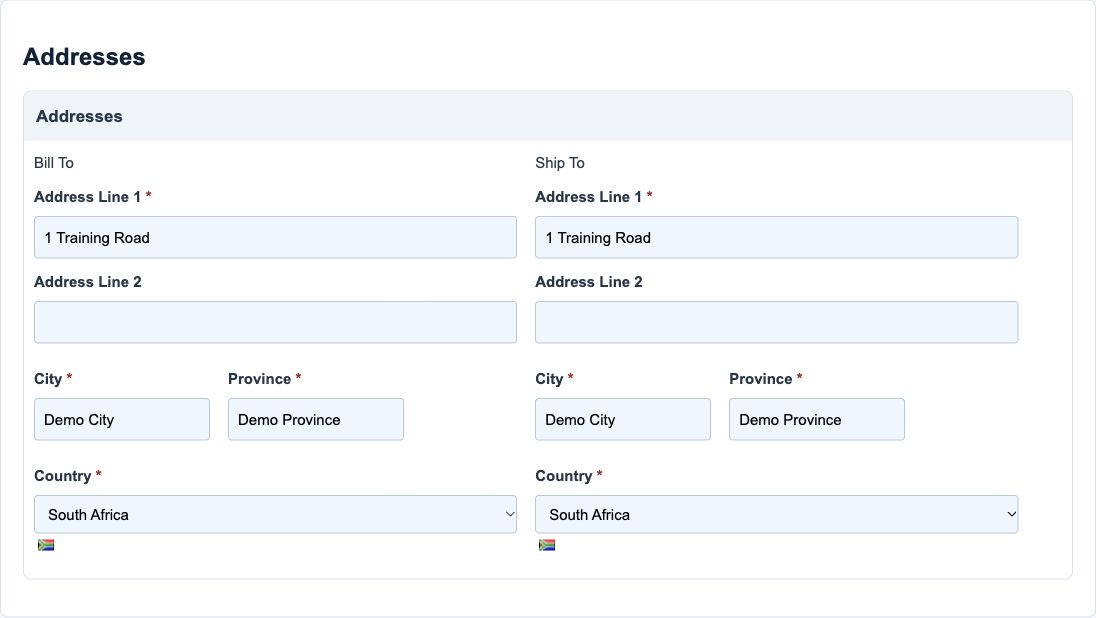
Figure 4 Billing and shipping addresses
| Field and screenshot | Entry rule and example | Purpose and implication |
|---|---|---|
| Bill Address Line 1 - Figure 4 | Required base field. Maximum 255 characters. Required address component in this form. Example: 1 Training Road | Records the address line 1 component of the billing address used by consuming documents. Caution: Confirm the billing address independently; matching another address is not automatically correct. |
| Bill Address Line 2 - Figure 4 | Base field permits blank/unchecked; conditional rules still apply. Maximum 255 characters. Address Line 2 is optional; the other address components are required by this form. Example: Unit 2, if applicable | Records the address line 2 component of the billing address used by consuming documents. Caution: Confirm the billing address independently; matching another address is not automatically correct. |
| Bill City - Figure 4 | Required base field. Maximum 100 characters. Required address component in this form. Example: Demo City | Records the city component of the billing address used by consuming documents. Caution: Confirm the billing address independently; matching another address is not automatically correct. |
| Bill Province - Figure 4 | Required base field. Maximum 100 characters. Required address component in this form. Example: Demo Province | Records the province component of the billing address used by consuming documents. Caution: Confirm the billing address independently; matching another address is not automatically correct. |
| Bill Country - Figure 4 | Required base field. Required address component in this form. Example: South Africa | Records the country component of the billing address used by consuming documents. Caution: Confirm the billing address independently; matching another address is not automatically correct. |
| Ship Address Line 1 - Figure 4 | Required base field. Maximum 255 characters. Required address component in this form. Example: 1 Training Road | Records the address line 1 component of the shipping address used by consuming documents. Caution: Confirm the shipping address independently; matching another address is not automatically correct. |
| Ship Address Line 2 - Figure 4 | Base field permits blank/unchecked; conditional rules still apply. Maximum 255 characters. Address Line 2 is optional; the other address components are required by this form. Example: Unit 2, if applicable | Records the address line 2 component of the shipping address used by consuming documents. Caution: Confirm the shipping address independently; matching another address is not automatically correct. |
| Ship City - Figure 4 | Required base field. Maximum 100 characters. Required address component in this form. Example: Demo City | Records the city component of the shipping address used by consuming documents. Caution: Confirm the shipping address independently; matching another address is not automatically correct. |
| Ship Province - Figure 4 | Required base field. Maximum 100 characters. Required address component in this form. Example: Demo Province | Records the province component of the shipping address used by consuming documents. Caution: Confirm the shipping address independently; matching another address is not automatically correct. |
| Ship Country - Figure 4 | Required base field. Required address component in this form. Example: South Africa | Records the country component of the shipping address used by consuming documents. Caution: Confirm the shipping address independently; matching another address is not automatically correct. |
Vendor defaults and banking field reference
Figure 5 Vendor defaults and banking
| Field and screenshot | Entry rule and example | Purpose and implication |
|---|---|---|
| Vendor Payment Terms (Days) - Figure 5 | Base field permits blank/unchecked; conditional rules still apply. Required for Vendor/Both. Example: 45 | Supplies the vendor payment-terms default for consuming purchasing documents. Caution: A terms value is not authorisation to release a payment. |
| Vendor Liability Account - Figure 5; related section only, hidden/managed value is not a visible input | Base field permits blank/unchecked; conditional rules still apply. Required for Vendor/Both; select an actual account suggestion. Example: Approved vendor payable combination | Provides the vendor liability default for applicable purchasing transactions. Caution: Do not select a receivable, expense or unrelated company's account. |
| Vendor Tax Code - Figure 5 | Base field permits blank/unchecked; conditional rules still apply. Active same-company tax header choices. Example: Approved active purchase tax header, or blank | Provides a vendor-side tax default for consuming purchase entry. Caution: Do not copy the customer tax choice without reviewing purchasing treatment. |
| Vendor Bank Name - Figure 5 | Base field permits blank/unchecked; conditional rules still apply. Maximum 128 characters. Optional banking reference; protect access and do not infer bank validation from a successful save. Example: Verified vendor instruction; blank in training | Records the vendor bank name as a reference for authorised payment preparation. Caution: Independently verify new or changed banking instructions; storing this field does not verify ownership or initiate a payment. |
| Vendor Bank Account Number - Figure 5 | Base field permits blank/unchecked; conditional rules still apply. Maximum 64 characters. Optional banking reference; protect access and do not infer bank validation from a successful save. Example: Verified vendor instruction; blank in training | Records the vendor bank account number as a reference for authorised payment preparation. Caution: Independently verify new or changed banking instructions; storing this field does not verify ownership or initiate a payment. |
| Vendor Branch Name - Figure 5 | Base field permits blank/unchecked; conditional rules still apply. Maximum 128 characters. Optional banking reference; protect access and do not infer bank validation from a successful save. Example: Verified vendor instruction; blank in training | Records the vendor branch name as a reference for authorised payment preparation. Caution: Independently verify new or changed banking instructions; storing this field does not verify ownership or initiate a payment. |
| Vendor Branch Number - Figure 5 | Base field permits blank/unchecked; conditional rules still apply. Maximum 32 characters. Optional banking reference; protect access and do not infer bank validation from a successful save. Example: Verified vendor instruction; blank in training | Records the vendor branch number as a reference for authorised payment preparation. Caution: Independently verify new or changed banking instructions; storing this field does not verify ownership or initiate a payment. |
| Vendor Sort Code - Figure 5 | Base field permits blank/unchecked; conditional rules still apply. Maximum 32 characters. Optional banking reference; protect access and do not infer bank validation from a successful save. Example: Verified vendor instruction; blank in training | Records the vendor sort code as a reference for authorised payment preparation. Caution: Independently verify new or changed banking instructions; storing this field does not verify ownership or initiate a payment. |
| Vendor IBAN - Figure 5 | Base field permits blank/unchecked; conditional rules still apply. Maximum 64 characters. Optional banking reference; protect access and do not infer bank validation from a successful save. Example: Verified vendor instruction; blank in training | Records the vendor iban as a reference for authorised payment preparation. Caution: Independently verify new or changed banking instructions; storing this field does not verify ownership or initiate a payment. |
| Vendor SWIFT/BIC - Figure 5 | Base field permits blank/unchecked; conditional rules still apply. Maximum 11 characters. Optional banking reference; protect access and do not infer bank validation from a successful save. Example: Verified vendor instruction; blank in training | Records the vendor swift bic as a reference for authorised payment preparation. Caution: Independently verify new or changed banking instructions; storing this field does not verify ownership or initiate a payment. |
| Account Holder Name - Figure 5 | Base field permits blank/unchecked; conditional rules still apply. Maximum 128 characters. Optional banking reference; protect access and do not infer bank validation from a successful save. Example: Verified vendor instruction; blank in training | Records the vendor account holder name as a reference for authorised payment preparation. Caution: Independently verify new or changed banking instructions; storing this field does not verify ownership or initiate a payment. |
Location association field reference
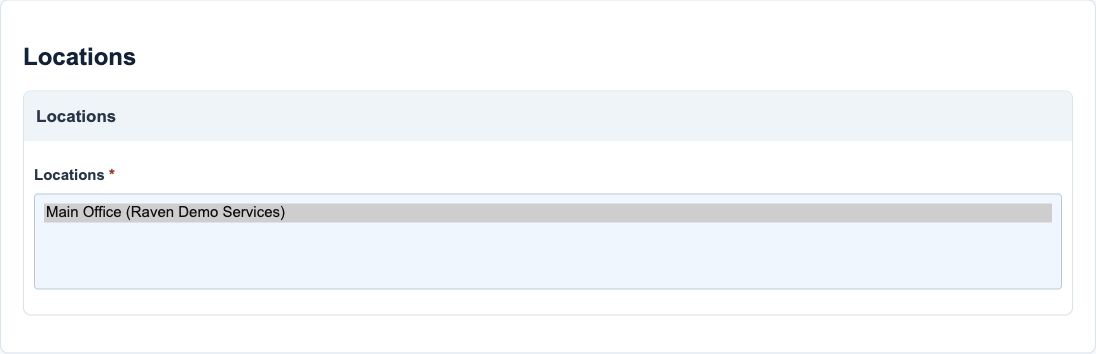
Figure 6 Location association
| Field and screenshot | Entry rule and example | Purpose and implication |
|---|---|---|
| Locations - Figure 6 | Required base field. Required when the user has accessible active locations; otherwise the field can be hidden. Example: Main Office | Assigns the partner to selected accessible company locations. Caution: This is master-data association, not a grant of user access to those locations. |
Supporting documents field reference
Figure 7 Supporting documents
| Field and screenshot | Entry rule and example | Purpose and implication |
|---|---|---|
| Supporting Document - Figure 7 | Base field permits blank/unchecked; conditional rules still apply. Allowed Excel, Word, PDF, JPG/JPEG, PNG, CSV or ZIP; maximum 20MB. Example: Optional approved PDF | Adds optional supporting evidence through the separate document-save path. Caution: Do not upload sensitive banking or identity evidence without the appropriate authority. |
Actions and corrections
| Action or situation | Meaning | Safe response |
|---|---|---|
| Save | Creates or updates the master and selected associations | Reopen the record and verify values before using it on a document |
| Cancel | Leaves unsaved entry | It does not cancel any existing invoice or payment |
| Role change | Changes which customer/vendor prerequisites apply | Review existing commercial use before removing a role |
| Deactivate | Changes future availability in consuming active selectors | Reconcile existing balances and obligations; history remains |
| Existing document removal | Requests removal through the conditional document control on save | Obtain authority, confirm the exact document and preserve required evidence |
| List search, exports and audit links | Help find/review records when available | Protect exported personal and banking data; an export is not a backup or an import template |
Bulk trading-partner imports for Trading partners and trade references
Use the correct bulk action for this module. The following templates are different business operations, not interchangeable create/update files.
| Action and exact template columns | Prepare the file | Check the saved result |
|---|---|---|
| Trading Partners - Trading Partners, Bulk Upload | Creates partners; repeating an existing name does not update it and duplicate names can be created. Prepare Customer/Vendor/Both, addresses, separate tax/default accounts and approved bank details. | Compare created partner numbers and roles, not names alone. Confirm receivable/liability mappings, currency, credit and tax defaults. Use partner setup. |
Follow this module bulk procedure
- Open Trading Partners in the correct company and choose Bulk Upload. Prepare Customer, Vendor or Both roles, addresses, currencies, separate tax choices and approved receivable/liability defaults.
- Download the current Trading Partners template and replace sample rows. Check names against existing partner numbers and confirm whether new records are genuinely required.
- Treat this route as CREATE, not update-by-name. Repeating an existing name can create another partner with the same name; a new filename or copied external key does not make replay safe.
- Validate and inspect roles, addresses, bank details and account/tax/default resolution. Commit the approved new records once, then record the created partner numbers.
- Reopen representative partners and confirm Customer/Vendor/Both behaviour, separate tax/default accounts and credit/currency choices. For an existing partner change, use the authorised normal maintenance form, not another create import.
Validate, commit and recover safely
For a supported workbook import, use the shared import steps and job recovery. A validated preview is not a saved transaction. Use Show status before retrying; cancelling a job does not reverse committed records. Keep the approved file, job reference and reconciled results securely.