
Ask RavenView and manage personal shortcuts
Read-only assistance questions exports and personal navigation
Use RavenView for read-only questions and page assistance, and use Shortcuts to reopen frequently used application functions. Neither tool replaces the source document, an authorised approval or a completed posting. This guide describes controls relevant to users and Tenant Administrators, not platform administration.
Confirm company and permitted access
Select the intended company before opening RavenView. Its company label identifies the question's business context. Availability and data scope depend on your assigned access; an empty result can reflect scope, dates or missing records rather than a zero company-wide balance.
Ask only about information needed for your duty. Do not paste passwords, OTPs, signing keys, full card details or unnecessary employee/customer identity data into questions or feedback. Read-only assistance is not a promise that no conversation history or feedback is retained.
Ask a useful question
- Open RavenView where available and confirm the Company label.
- Type a specific question in the question box or choose a suggested question. A suggestion fills the question box; review its wording and dates before Ask.
- Name the business record or measure and the date basis. For example, ask for open purchase orders for October 2026, or the trial balance as of 30 September 2026. A current stock question and a historical valuation question are different requests.
- Choose Ask once and wait for the response. Read the answer together with any supporting table, measure definition, period, currency, scope and available source/action link.
- If a result is ambiguous, ask a precise follow-up, such as the same period by permitted location. Recheck the stated scope before using the answer in a decision or export.
- For accounting action, open the appropriate source function and follow its guide. Do not treat a written explanation or navigation link as Save, approval, posting or payment.
An example question is a way to express a task, not a guarantee that every natural-language phrasing or report variation is supported. If the response cannot establish the requested basis, use the appropriate standard report and its explicit parameters.
Question and conversation controls
Enter the question in the area below the conversation. The history and recent-question count appear above it; the empty screen below has no answer to export.
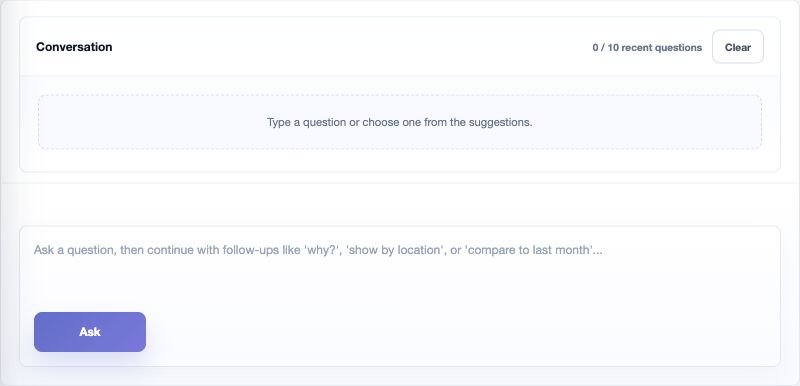
| Control or display | How to use it | Meaning and implication |
|---|---|---|
| Company | Read before asking | Current business context, not all companies in the subscription |
| Question box | Enter a clear question; keep private secrets out | Supplies the request; it does not populate or save a transaction form |
| Suggested question | Select, review the filled wording, then Ask | A starting question; it may need your actual date or record context |
| Ask | Submit the intended question once | Requests a response, not a posting or bank instruction |
| Conversation | Read the recent question/answer sequence | Context for follow-ups, not an immutable accounting audit trail |
| Recent-question count | Shows up to 10 recent questions in the displayed conversation | This display limit does not establish deletion of every retained record elsewhere |
| Clear | Clear the current displayed conversation context | Does not reverse business records, delete source data or guarantee erasure of logs/feedback |
| Answer and supporting table | Check measure, units, dates and scope | A narrative or table can omit records outside your access or chosen basis |
| Was this answer useful? Yes / No | Give feedback on the selected answer | Feedback does not approve its accounting conclusion or change the source transaction |
Check measures and source records
Before relying on an answer, distinguish transaction amount, functional amount, outstanding balance, gross sale, net cash and inventory value. Check whether the answer is a balance at a date, movement over a period or current state. Do not add multiple currencies, UOMs, percentages or repeated header totals into one amount.
Where a source link or Take me there action is offered, confirm company and record identity on the destination. Navigation is not evidence that a transaction was corrected. If a comparison uses public reference information, keep that separate from your company's actual posted data and review the cited context and dates.
For example, an invoice total of USD 1,000 and an open balance of USD 400 can both be correct after an applied receipt of USD 600. Ask which measure is being shown before treating the difference as an error. Obtain the customer's actual document/application statement before taking collection or correction action.
Export an answer carefully
Download PDF, Export CSV or Export Excel can appear for a supported result. Use only the output available for that answer. Inspect the exported title, period, company, columns and totals before sharing. An output is a snapshot, not a live view that updates with later transactions.
Downloaded information retains its payroll, banking, commercial or personal sensitivity. Exporting does not grant the recipient application permissions or remove confidentiality obligations. A report generated from a short answer is not a substitute for a complete financial close schedule.
Use assistance on an application page
Where enabled, choose Ask RavenView to open the page helper. Enter a question about the page or your authorised data and choose Ask. Check the response before following an offered navigation action. The helper is not a transaction-save button and does not approve hidden or unsaved form values.
| Helper control | Meaning | Safe use |
|---|---|---|
| Ask RavenView | Opens the helper panel when available | Keep the correct company and task context |
| Page question input | A short question, maximum 1,200 characters | Describe the issue without secrets or unnecessary private values |
| Ask | Requests page/data assistance | Does not submit the underlying business form |
| Close RavenView | Closes the helper panel | Does not cancel or save the underlying form |
| Yes / No | Feedback about the selected response | Not approval of the source document |
| Hide Ask RavenView on application pages | Hides that helper through the supported preference | Does not revoke permissions or delete the conversation/business records |
Save personal application shortcuts
- In the application sidebar, open Shortcuts and choose Manage shortcuts.
- Use Find a function to narrow Available functions. Choose the plus control for the permitted main function you want to retain.
- Check Saved shortcuts and its count. Up to 12 shortcuts can be saved for your user; the list is not a company-wide menu configuration.
- Close the manager and use the saved shortcut to open the function. Recheck Current Company and the destination form's location before working.
- To remove a saved shortcut, reopen Manage shortcuts and use its minus/remove control. This removes the navigation preference, not the master record or transaction history.
Adding the same function again does not create a second business record. Only eligible main application functions are supported, not external websites, individual-record links, query-string bookmarks or consequential actions. Finish or deliberately cancel unsaved work before following a shortcut.
Shortcut fields and feedback
| Control or display | Meaning | Implication |
|---|---|---|
| Manage shortcuts / Choose shortcuts | Opens personal navigation preferences | Not user-role or company-access administration |
| Saved shortcuts and count | Your retained eligible functions, maximum 12 | Removing one frees a shortcut slot, not a subscription entitlement |
| Available functions | Eligible functions collected from the sidebar | A shortcut cannot grant access removed by the Tenant Administrator |
| Find a function | Filters the available-function list | Does not search transactions or this documentation library |
| Plus / minus control | Add/remove the selected personal shortcut | Does not create/delete the underlying company's business data |
| Status message | Reports add/remove success, unavailable access or the limit | Check the resulting saved list; repeated clicks are not a permission workaround |
| Close manager | Leaves shortcut management | Does not save an unsaved business form elsewhere |
If a shortcut disappears after an access change, ask your Tenant Administrator to review the assigned duty. Do not use an old bookmarked URL or another user's session to bypass the restriction.
Resolve confusing or unavailable results
| Situation | First check | Next action |
|---|---|---|
| RavenView is unavailable | Assigned function access and Current Company | Contact the Tenant Administrator; a shortcut cannot grant the missing access |
| A balance differs from a report | Company, permitted locations, cutoff, currency, measure and posting state | Compare the same basis with the source report and documents |
| A follow-up uses the wrong context | Current question and displayed period/scope | State the complete question explicitly; clear conversation context if appropriate |
| A question fails | Displayed message/reference and whether a response was retained | Retry the read-only question once if appropriate; provide the reference to support without credentials |
| Shortcut limit reached | Your saved list of up to 12 functions | Remove an unneeded shortcut, then add the intended one |
| An export looks incomplete | Columns, scope, dates and the answer's result size | Use the full standard report when the task requires a complete extract |
Related guides
Workflow handbook, company navigation, user administration, Reporting Center and report parameters.