
Set up item masters and sales prices
Item nature, posting, currency prices, tracking and planning
An item master defines what the business buys, sells or produces, its base unit and how consuming processes handle posting, pricing, tracking and planning. Create the master before entering stock receipts, sales or production. Creating an item does not establish stock on hand or inventory value.
This guide is for authorised operational users, accountants and Tenant Administrators within their subscription workspace. The tenant is the subscription/account workspace. Platform operations and tenant database management are outside the guide.
Prepare the item design
Confirm Current Company, GL precision, commercial price precision and relevant locations. Have approved units of measure, classifications and active inventory/non-inventory posting groups ready. Review the group's underlying accounts before selecting it.
Choose Inventory for a stocked item and Non-inventory for an eligible charge/service item. Decide base UOM, buy/sell/produce eligibility, tracking and negative-stock policy before first use. A package code, authority quantity unit or physical dimension does not automatically create a stock-unit conversion.
The training example is an inventory component in EA (Each), available for purchase and sale, with no tracking or hazardous-material classification. Its active USD selling price is 25.125000, using commercial price precision six and GL amount precision two. This is not an inventory cost, market quotation or tax recommendation.
Create and verify an item
- Open the item master create action in the inventory area when permitted and confirm the company.
- Enter Description and the approved base UOM. Check the item nature and choose a matching active posting group; review classification if used.
- Choose buy/sell/produce and POS flags deliberately. For a sellable item, add at least one active currency sales-price row and verify its currency and unit price.
- Review the item-level customer/vendor tax defaults. Complete e-invoice references only under the relevant supported country's reviewed design.
- Decide tracking and any hazardous/dimension information. Enable purchasing overrides or MRP only when their dependent policy and planning values are ready.
- Add optional approved evidence, save and reopen the item. Confirm the generated item number, nature, UOM, posting group, eligibility, price rows and tracking values before using it on transactions.
If a selector or price-row control fails to load, stop and ask authorised support to review it; do not alter hidden IDs. Setup success is not an inventory allocation, journal posting, fiscal submission or costing reconciliation.
Currency prices and derived default price
Price rows belong to the item and currency. A currency may appear only once per item, and a sellable item must retain at least one active price row. Add/remove actions and the row's Active flag are different: removal marks a row for deletion when the parent item is saved; deactivation retains a row but removes it from active defaulting.
The view derives the hidden Default Sales Price from price rows and synchronises its primary/default row. When no eligible default is already selected, the reviewed synchronisation prefers an active functional-currency row, otherwise an available active row. Verify the result after save rather than treating the hidden default flag as a user-entered second price.
Commercial price precision can differ from GL quantity/amount precision. In the example the unit price retains six decimals; accounting extensions still follow the consuming transaction's GL-rounding path. A sales price is not a stock acquisition cost or a guarantee of the price ultimately approved on every document.
Price-row identity, parent item and default selection are managed by the application. Maintain the visible currency, price and Active values; do not alter hidden record identities.
Tracking and structural changes
| Design | Required combination | Important consequence |
|---|---|---|
| None | Expiry off and Shelf Life empty | No lot/serial identity is configured by this choice |
| Lot | Expiry off and Shelf Life empty | Lot identity is separate from expiry tracking |
| Serial | Expiry off and Shelf Life empty | Serial allocation requires a separate transaction walkthrough |
| Lot + Expiry | Expiry on and positive Shelf Life | Actual lot/expiry allocation must still be captured on consuming operations |
| Non-inventory | Tracking None, no expiry/shelf life, cannot be produced | A charge item does not become stock by selecting a warehouse later |
After inventory use, the form locks eight structural fields: nature, base UOM, tracking method, expiry flag, shelf life, sale eligibility, purchase eligibility and negative-inventory policy. Production eligibility also locks when used as a finished good in a batch. These are not merely disabled-looking controls to work around; review a new-item/correction plan when the design is wrong.
Posting-group changes and effects on existing balances need accounting review; do not assume every consequential setting has the same lock.
Purchasing planning and compliance
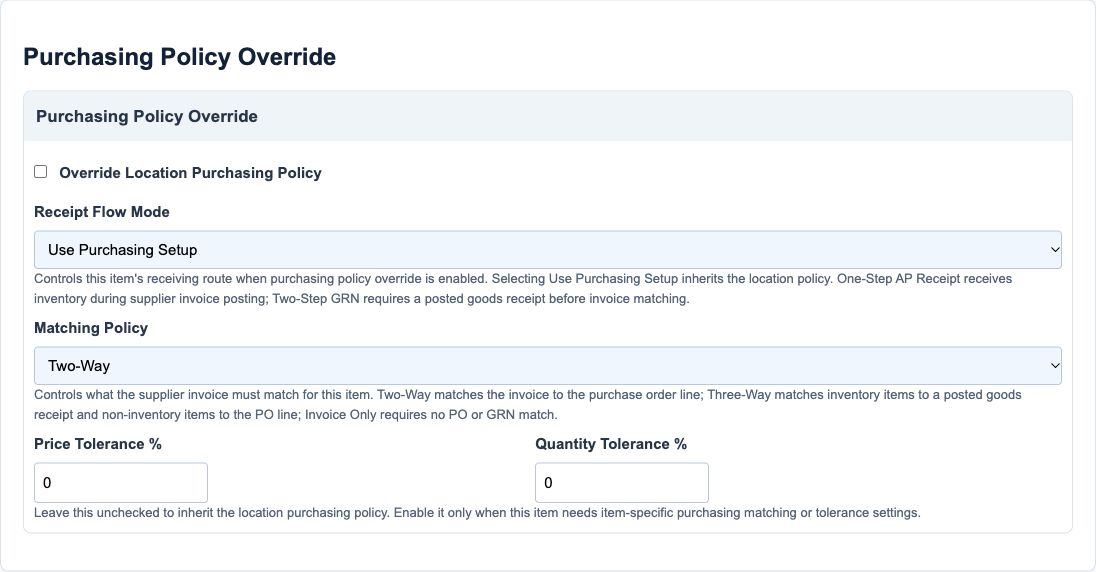
With Override Location Purchasing Policy off, review the effective inherited location/purchasing setup. When enabling an override, use compatible matching/receipt flow and nonnegative price/quantity tolerances. Invoice Only or Two-Way requires One-Step AP Receipt in the reviewed validation; Three-Way requires Two-Step GRN. Do not weaken matching or increase tolerances just to clear an exception.
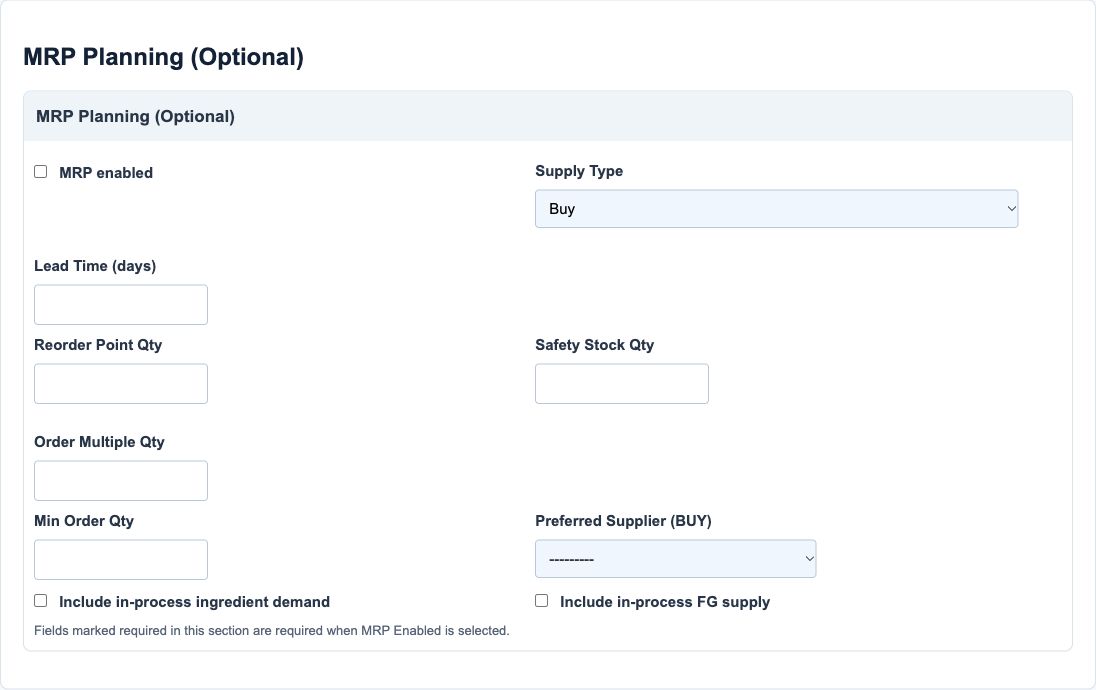
MRP is material requirements planning. Enabled planning requires a supply type, lead time and reorder point; safety stock must not exceed the reorder point. Multiples and minimums use the item's base quantity unit and GL quantity precision. Preferred Supplier choices are active same-company Vendor/Both partners. Planning values and in-process flags are assumptions, not actual available stock or purchase/production approval.
The e-invoice section explains what each reference stores, not which code is legally correct for a product or country. The origin cleaner checks a two-letter alphabetic shape and uppercases it; it is not full ISO-membership or origin verification. Packaging/UOM and exemption references do not independently establish conversion or tax entitlement. Country-specific validation and authority acceptance remain separate.
Form fields and screenshot references
The following register explains all 59 item-master fields and seven actual inline price-row fields. Hidden company/default/price identities are identified as managed values, not editable controls. Blank examples in conditional sections are not a valid populated compliance or MRP configuration.
Item identity and tax defaults field reference
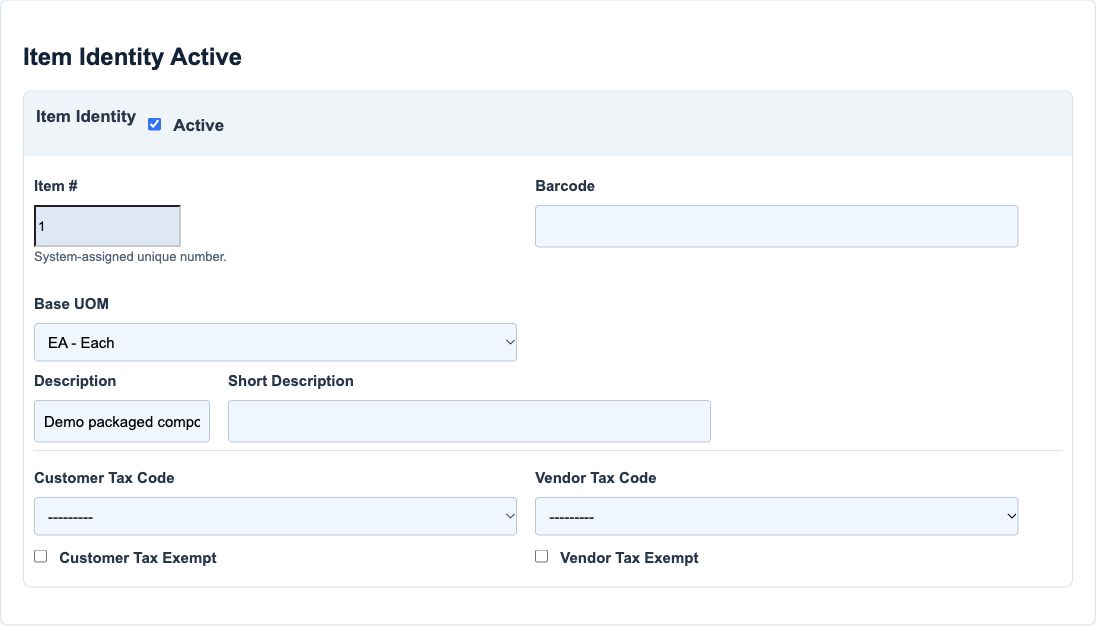
Figure 1 Item identity and tax defaults
| Field and screenshot | Entry rule and example | Purpose and implication |
|---|---|---|
| Company - Figure 1; related section only, hidden/managed value is not a visible input | Required base field. Context identity, not an independent visible choice. Example: Current company | Associates the item master with the selected company. Caution: Verify company context; the hidden form value is not a company-switch control. |
| Description - Figure 1 | Required base field. Maximum 100 characters. Example: Demo packaged component | Names the item on searches and consuming documents. Caution: Use a stable description that distinguishes similar products. |
| Short description - Figure 1 | Base field permits blank/unchecked; conditional rules still apply. Maximum 64 characters. Example: Demo component | Provides a shorter business label for consuming displays. Caution: Do not replace the full identity with an ambiguous abbreviation. |
| Active - Figure 1 | Checkbox; the new-field default is True. Example: Checked | Makes the item available where consuming paths filter active items. Caution: Deactivation does not reverse stock or remove transaction history. |
| Base UOM - Figure 1 | Base field permits blank/unchecked; conditional rules still apply. Required base-unit choice. Example: EA - Each | Defines the base unit in which item quantities are understood. Caution: It is locked after use; a code change is not a quantity conversion. |
| Barcode - Figure 1 | Base field permits blank/unchecked; conditional rules still apply. Maximum 64 characters. Example: Synthetic internal product identifier | Provides a barcode/reference used by applicable item searches. Caution: Do not assume barcode uniqueness or authority registration is guaranteed. |
| Customer tax code - Figure 1 | Base field permits blank/unchecked; conditional rules still apply. Same-company active choices; mutually exclusive with customer exemption. Example: Approved active sales tax header | Supplies an item-level customer tax default in consuming sales paths. Caution: Do not select both a customer tax header and Customer Tax Exempt. |
| Customer tax exempt - Figure 1 | Checkbox; the new-field default is False. Cannot coexist with Customer Tax Code. Example: Off unless approved | Explicitly marks customer-side item tax exemption for defaulting. Caution: A checkbox does not establish legal entitlement to an exemption. |
| Vendor tax code - Figure 1 | Base field permits blank/unchecked; conditional rules still apply. Cannot coexist with Vendor Tax Exempt; same-company active choices. Example: Approved active purchase tax header | Supplies an item-level vendor tax default in consuming purchasing paths. Caution: Review purchase treatment independently of the sales default. |
| Vendor tax exempt - Figure 1 | Checkbox; the new-field default is False. Cannot coexist with Vendor Tax Code. Example: Off unless approved | Explicitly marks vendor-side item tax exemption for defaulting. Caution: Keep the approved exemption basis outside this example. |
Currency sales price rows field reference
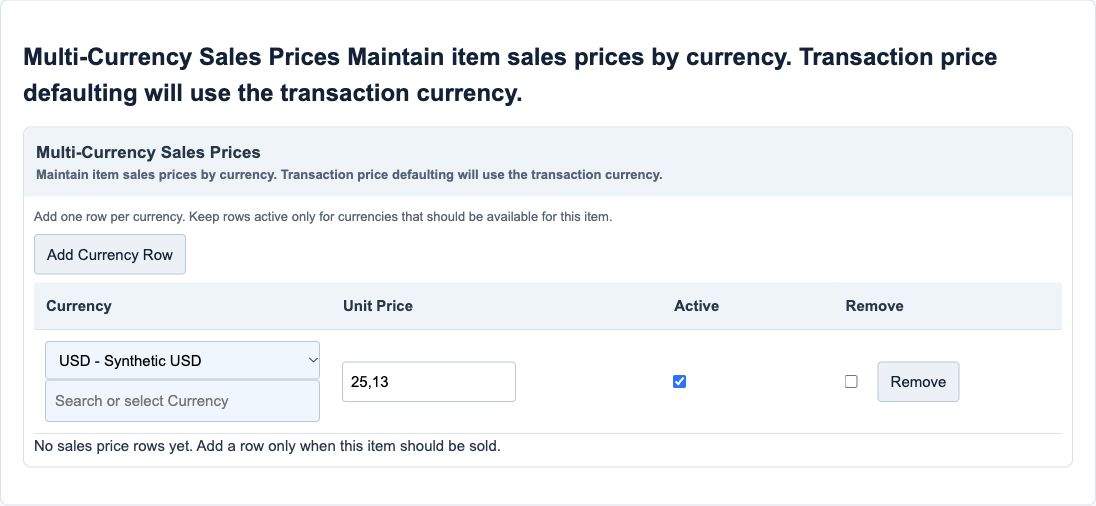
Figure 2 Currency sales price rows
| Field and screenshot | Entry rule and example | Purpose and implication |
|---|---|---|
| Default sales price - Figure 2; related section only, hidden/managed value is not a visible input | Base field permits blank/unchecked; conditional rules still apply. Derived by the create/update view from currency price rows; see Figure 2. Example: Derived from the selected active price row | Maintains the compatibility/default price used by consuming fallback paths. Caution: This hidden amount is not an additional independent selling-price field. |
| Currency - Figure 2 | Base field permits blank/unchecked; conditional rules still apply. One row per currency per item; select a real supported currency. Example: USD | Identifies the currency of this sales-price row. Caution: Do not use a functional-currency price as if it were a foreign-currency quotation. |
| Unit price - Figure 2 | Base field permits blank/unchecked; conditional rules still apply. Nonnegative; commercial unit-price precision applies, six decimals in the example. Example: 25.125000 | Provides the item's selling-price default for this transaction currency. Caution: This is not inventory cost or an instruction to recalculate old invoices. |
| Is default - Figure 2; related section only, hidden/managed value is not a visible input | Base field permits blank/unchecked; conditional rules still apply. Hidden internal row flag; view synchronisation selects an eligible active default. Example: System-selected primary row | Marks the row used by compatibility/default-price fallback paths. Caution: Do not edit the hidden flag; review the saved price list and default amount. |
| Active - Figure 2 | Checkbox; the new-field default is True. Default row cannot remain the active default when deactivated. Example: Checked | Makes the price row eligible for active-price defaulting. Caution: A sellable item must retain at least one active price row. |
| Price row identity - Figure 2; related section only, hidden/managed value is not a visible input | Required base field. Hidden managed identifier, not a price-entry field. Example: Existing row identity | Identifies the price record when editing a saved item. Caution: Do not type, copy or alter this hidden record identity. |
| Delete - Figure 2 | Row-removal flag controlled by the Remove action. Controlled by the row Remove action; deleting is distinct from deactivating. Example: Remove only an unwanted price row | Marks a price row for removal on the parent form's save. Caution: Review before saving; do not remove the last active price of a sellable item. |
| Item - Figure 2; related section only, hidden/managed value is not a visible input | Base field permits blank/unchecked; conditional rules still apply. Hidden parent identity managed by the formset and view. Example: Current parent item | Binds the inline price to its item master. Caution: Do not attempt to move a price row by changing hidden form data. |
E invoicing references field reference
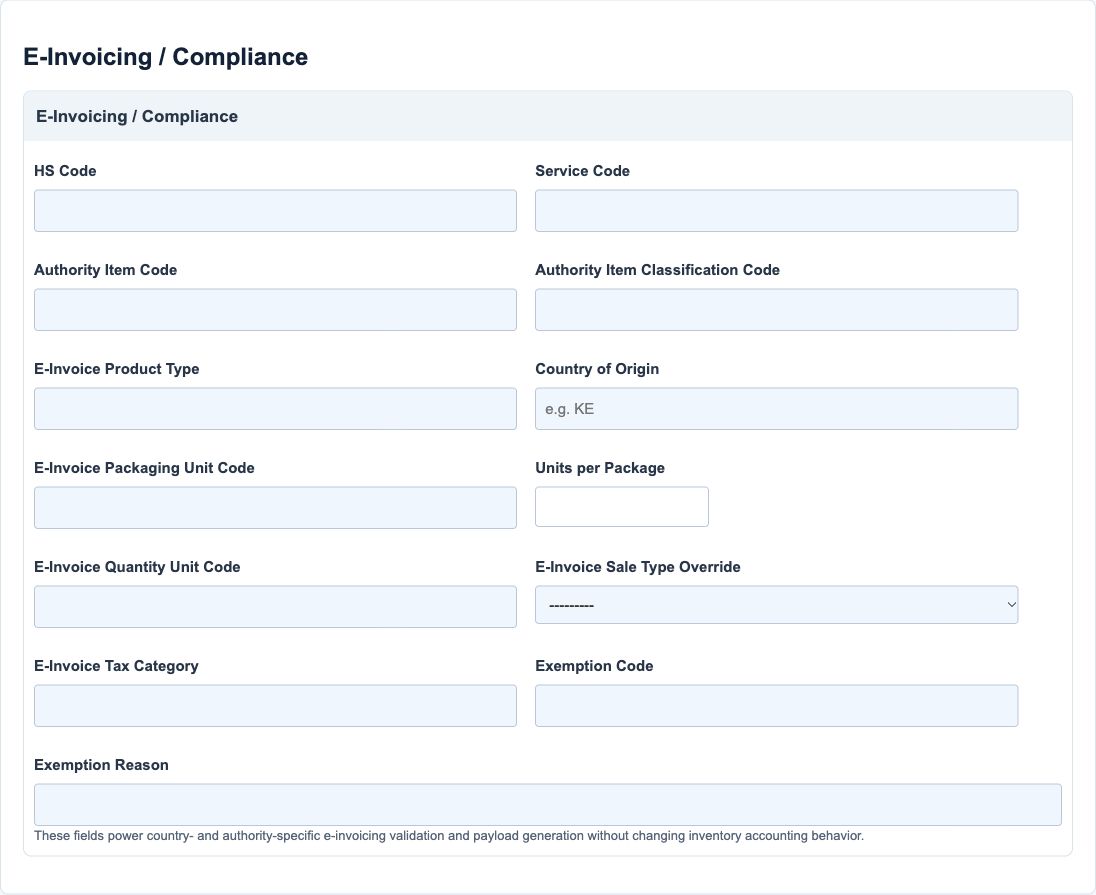
Figure 3 E invoicing references
| Field and screenshot | Entry rule and example | Purpose and implication |
|---|---|---|
| HS Code - Figure 3 | Base field permits blank/unchecked; conditional rules still apply. Maximum 50 characters. Example: Approved commodity classification | Supplies an HS classification reference for consuming fiscal payloads. Caution: Do not derive a tariff classification from an item name alone. |
| Service Code - Figure 3 | Base field permits blank/unchecked; conditional rules still apply. Maximum 50 characters. Example: Approved service classification | Supplies a service-code reference where a country integration requires it. Caution: A value valid for one authority may not be valid for another. |
| Authority Item Code - Figure 3 | Base field permits blank/unchecked; conditional rules still apply. Maximum 50 characters. Example: Authority-approved item code | Supplies the authority item identity where supported by a fiscal path. Caution: An item number and an authority item code are different identifiers. |
| Authority Item Classification Code - Figure 3 | Base field permits blank/unchecked; conditional rules still apply. Maximum 50 characters. Example: Authority-approved classification | Supplies the item classification code for consuming e-invoice integrations. Caution: A stored code is not evidence that an authority accepted it. |
| E-Invoice Product Type - Figure 3 | Base field permits blank/unchecked; conditional rules still apply. Maximum 20 characters. Example: Approved product type | Supplies a country/integration-specific product-type value. Caution: Confirm the supported country's code list rather than guessing. |
| Country of Origin - Figure 3 | Base field permits blank/unchecked; conditional rules still apply. Maximum 2 characters. Uppercased; the form checks two alphabetic characters, not membership of a complete ISO register. Example: ZA, if supported by evidence | Records the product-origin reference for consuming fiscal payloads. Caution: Two-letter shape validation does not prove the stated origin. |
| E-Invoice Packaging Unit Code - Figure 3 | Base field permits blank/unchecked; conditional rules still apply. Maximum 16 characters. Example: Approved packaging code | Provides the authority packaging-unit reference. Caution: Packaging code is not the base stock UOM. |
| Units per Package - Figure 3 | Base field permits blank/unchecked; conditional rules still apply. Must be greater than zero when supplied. Example: 12 | Describes the packaged quantity for consuming fiscal information. Caution: This metadata does not automatically convert stock quantities or pack prices. |
| E-Invoice Tax Category - Figure 3 | Base field permits blank/unchecked; conditional rules still apply. Maximum 50 characters. Example: Approved authority tax category | Supplies the authority-specific tax-category reference. Caution: Do not use this field to bypass the item's transaction tax review. |
| Exemption Code - Figure 3 | Base field permits blank/unchecked; conditional rules still apply. Maximum 50 characters. Example: Approved exemption reference | Records an authority exemption code for supported payloads. Caution: A code alone does not establish eligibility for tax exemption. |
| Exemption Reason - Figure 3 | Base field permits blank/unchecked; conditional rules still apply. Maximum 255 characters. Example: Approved exemption explanation | Explains the exemption basis for consuming fiscal data. Caution: Keep the explanation consistent with the approved code and treatment. |
| E-Invoice Quantity Unit Code - Figure 3 | Base field permits blank/unchecked; conditional rules still apply. Maximum 16 characters. Example: Approved authority quantity-unit code | Provides a fiscal quantity-unit reference separate from the base UOM. Caution: Do not assume an authority UOM code creates a unit conversion. |
| E-Invoice Sale Type Override - Figure 3 | Base field permits blank/unchecked; conditional rules still apply. Choices: Goods, Services, Exempt, Zero Rated. Example: Blank unless a reviewed override is needed | Overrides the default fiscal sale type in consuming integration paths. Caution: Use only the supported country's reviewed mapping, not a universal tax rule. |
Nature and posting field reference
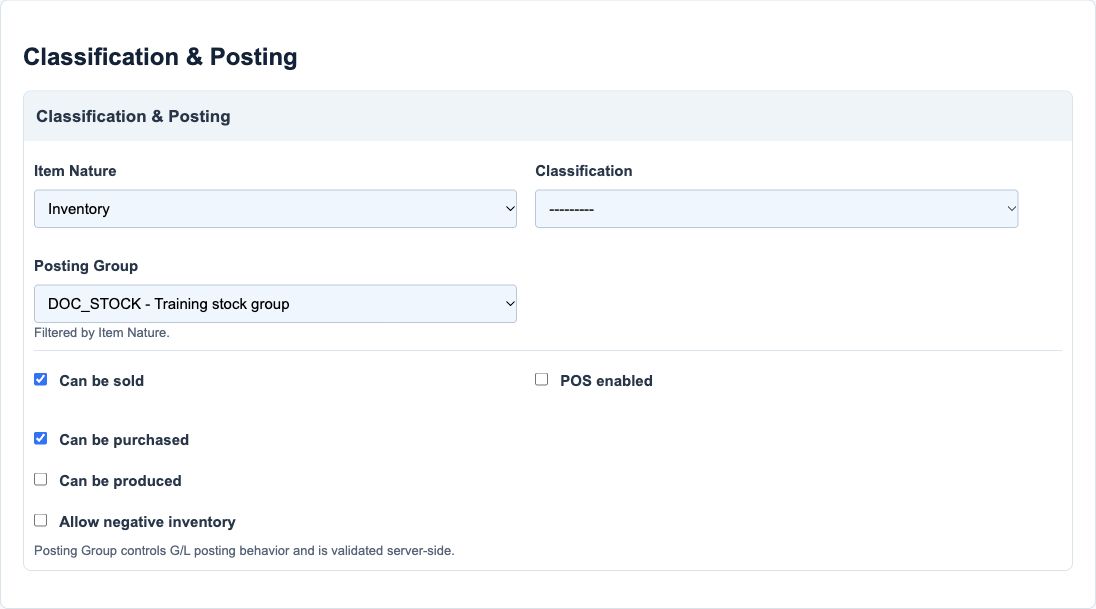
Figure 4 Nature and posting
| Field and screenshot | Entry rule and example | Purpose and implication |
|---|---|---|
| Item Nature - Figure 4 | Required base field. Required. Non-inventory cannot carry lot/serial/expiry tracking or be produced. Choices: Inventory, Non-inventory. Example: Inventory | Distinguishes stocked Inventory from Non-inventory charges and filters posting groups. Caution: Decide before first use; nature is locked after inventory use. |
| Classification - Figure 4 | Base field permits blank/unchecked; conditional rules still apply. Choices are company-scoped; classification setup is a separate prerequisite. Example: Approved company classification | Groups the item for categorisation and consuming filters. Caution: Classification is not the same as the GL posting group. |
| Posting Group - Figure 4 | Base field permits blank/unchecked; conditional rules still apply. Required active same-company group matching nature; system SYS_ groups excluded from normal selection. Example: Training stock group | Links item nature to the inventory, COGS/sales or charge posting design. Caution: Check the group's accounts before use; a valid choice is not a complete posting test. |
| Pos enabled - Figure 4 | Checkbox; the new-field default is False. Requires Can be sold and a positive derived default sales price. Example: Off for the stock-master example | Makes the item eligible for applicable POS selection/defaulting. Caution: Enabling it does not create a terminal, price approval or fiscal acceptance. |
| Can be sold - Figure 4 | Checkbox; the new-field default is True. At least one active currency sales-price row is required when enabled. Example: Checked | Allows the item in consuming sales paths and requires active price setup. Caution: Plan before first use; the flag locks after inventory use. |
| Can be purchased - Figure 4 | Checkbox; the new-field default is True. Locks after inventory use. Example: Checked | Allows the item in consuming purchasing paths. Caution: Changing this is not a cancellation of outstanding purchase documents. |
| Can be produced - Figure 4 | Checkbox; the new-field default is False. Only Inventory items; cannot change after use as a finished good in a batch. Example: Off unless used as a finished good | Allows eligible inventory items to participate as produced items. Caution: A checked flag does not create a formula, batch or production receipt. |
| Allow negative inventory - Figure 4 | Checkbox; the new-field default is False. Locked after inventory use; complete posting controls still apply. Example: Off | Selects the item's negative-stock policy in consuming inventory controls. Caution: Negative stock can affect costing and availability; do not enable it just to bypass a shortage. |
Purchasing policy overrides field reference
Figure 5 Purchasing policy overrides
| Field and screenshot | Entry rule and example | Purpose and implication |
|---|---|---|
| Override Location Purchasing Policy - Figure 5 | Checkbox; the new-field default is False. When enabled, matching, receipt flow and both tolerances must form a valid policy. Example: Off to follow the normal policy | Enables item-specific matching and tolerance controls. Caution: Review the effective item, location and purchasing setup together. |
| Matching Policy - Figure 5 | Base field permits blank/unchecked; conditional rules still apply. Invoice Only/Two-Way require One-Step AP Receipt; Three-Way requires Two-Step GRN under override validation. Choices: Two-Way, Three-Way, Invoice Only. Example: Two-Way, if an override is approved | Selects Two-Way, Three-Way or Invoice Only matching at item level. Caution: Do not weaken matching merely to clear an invoice error. |
| Price Tolerance % - Figure 5 | Base field permits blank/unchecked; conditional rules still apply. Required and nonnegative when override is enabled; uses GL precision. Example: 0.00 for strict matching | Sets the allowed item-level price variance percentage under the override. Caution: A tolerance is an approval/control design, not a price markup. |
| Quantity Tolerance % - Figure 5 | Base field permits blank/unchecked; conditional rules still apply. Required and nonnegative when override is enabled; uses GL precision. Example: 0.00 for strict matching | Sets the allowed item-level quantity variance percentage under the override. Caution: It does not change stock units or an order's approved quantity. |
| Receipt Flow Mode - Figure 5 | Base field permits blank/unchecked; conditional rules still apply. Must be compatible with an enabled matching override. Choices: Use Purchasing Setup, One-Step AP Receipt, Two-Step GRN. Example: Use Purchasing Setup | Chooses inherited, One-Step AP Receipt or Two-Step GRN flow. Caution: A receipt-flow choice is not evidence that a receipt was posted. |
MRP planning field reference
Figure 6 MRP planning
| Field and screenshot | Entry rule and example | Purpose and implication |
|---|---|---|
| MRP Enabled - Figure 6 | Checkbox; the new-field default is False. When enabled, supply type, lead time and reorder point are required. Example: Off for the basic example | Includes the item in applicable material-requirements planning logic. Caution: Planning suggestions are not purchase or production authorisations. |
| Supply Type - Figure 6 | Base field permits blank/unchecked; conditional rules still apply. Choices: Buy, Make. Example: Buy | Selects Buy or Make planning strategy. Caution: A Make choice does not create a formula or a production batch. |
| Lead Time (days) - Figure 6 | Base field permits blank/unchecked; conditional rules still apply. Nonnegative; required when MRP is enabled. Example: 5 | Sets planning lead time in days. Caution: Use a realistic approved planning assumption and review changes. |
| Reorder Point Qty - Figure 6 | Base field permits blank/unchecked; conditional rules still apply. Nonnegative and required when MRP is enabled; uses GL quantity precision. Example: 100.00 | Sets the reorder threshold quantity used by planning. Caution: Interpret the number in the item's base unit, not package metadata. |
| Safety Stock Qty - Figure 6 | Base field permits blank/unchecked; conditional rules still apply. Nonnegative and no greater than Reorder Point when MRP is enabled. Example: 20.00 | Defines the planning safety-stock quantity. Caution: It is a planning parameter, not actual stock on hand. |
| Order Multiple Qty - Figure 6 | Base field permits blank/unchecked; conditional rules still apply. Must be greater than zero when supplied under enabled MRP. Example: 10.00 | Defines the planning order-quantity multiple when supplied. Caution: Check feasibility with the supplier or production policy. |
| Min Order Qty - Figure 6 | Base field permits blank/unchecked; conditional rules still apply. Nonnegative when supplied under enabled MRP. Example: 10.00 | Defines the minimum planning order quantity. Caution: A minimum is not the stock opening balance. |
| Include In-Process Ingredient Demand - Figure 6 | Checkbox; the new-field default is True. Example: According to approved planning policy | Includes eligible in-process ingredient demand in planning. Caution: Review work-in-process assumptions before relying on a recommendation. |
| Include In-Process FG Supply - Figure 6 | Checkbox; the new-field default is True. Example: According to approved planning policy | Includes eligible in-process finished-goods supply in planning. Caution: Planned supply is not completed or available warehouse stock. |
| Preferred Supplier - Figure 6 | Base field permits blank/unchecked; conditional rules still apply. Active same-company Vendor/Both choices; selection requiredness depends on the planning design, not a universal mandatory rule. Example: Demo Customer and Vendor | Provides a preferred supply source for planning defaults. Caution: A preferred source is not a purchase commitment or approved quote. |
Inventory tracking field reference
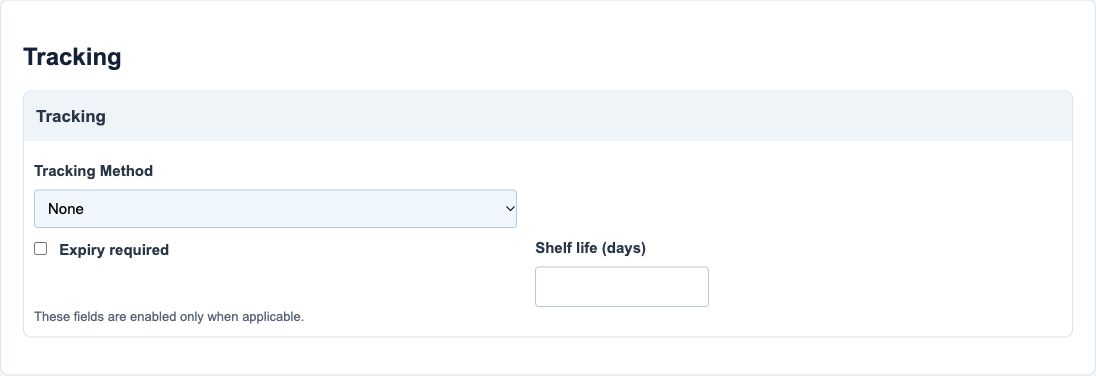
Figure 7 Inventory tracking
| Field and screenshot | Entry rule and example | Purpose and implication |
|---|---|---|
| Tracking method - Figure 7 | Required base field. Locked after inventory use; Non-inventory normalises to None. Choices: None, Lot, Serial, Lot + Expiry. Example: None for the basic example | Determines whether stock identity uses None, Lot, Serial or Lot + Expiry. Caution: Choose before use; tracked receipts/issues need additional allocation data. |
| Shelf life days - Figure 7 | Base field permits blank/unchecked; conditional rules still apply. Positive and required for Lot + Expiry; empty for None, Lot or Serial. Example: 90 for an approved Lot + Expiry design | Supplies shelf-life days used with expiry-tracked inventory. Caution: A configured duration does not prove an actual lot's expiry date. |
| Expiry required - Figure 7 | Checkbox; the new-field default is False. Required for Lot + Expiry and disallowed for the other tracking modes. Example: Checked only with Lot + Expiry | Requires expiry handling with the Lot + Expiry tracking design. Caution: Do not enable expiry for an untracked, serial-only or non-inventory item. |
Hazards and dimensions field reference
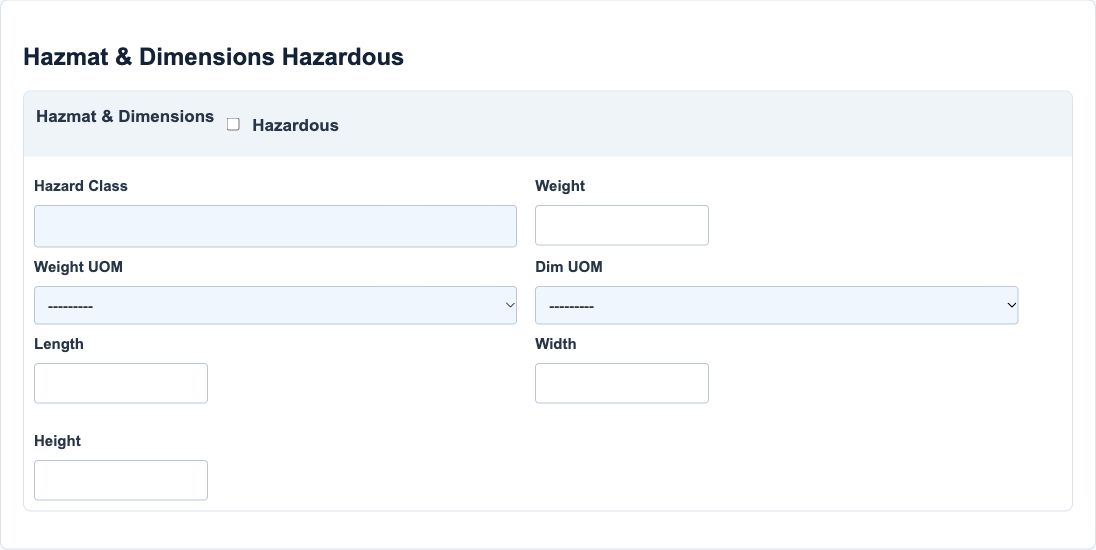
Figure 8 Hazards and dimensions
| Field and screenshot | Entry rule and example | Purpose and implication |
|---|---|---|
| Is hazardous - Figure 8 | Checkbox; the new-field default is False. When enabled, Hazard Class is required. Example: Off for the basic example | Marks the item as hazardous in its master information. Caution: This does not certify dangerous-goods storage or shipping compliance. |
| Hazard class - Figure 8 | Base field permits blank/unchecked; conditional rules still apply. Maximum 64 characters. Required when Hazardous is on; must be empty when off. Example: Approved hazard classification | Records the hazardous-material class for the item. Caution: Use competent safety classification, not a guessed label. |
| Weight - Figure 8 | Base field permits blank/unchecked; conditional rules still apply. Example: Approved measured weight | Describes the item's weight reference for consuming processes. Caution: A weight value without the correct unit can be misleading. |
| Weight uom - Figure 8 | Base field permits blank/unchecked; conditional rules still apply. Example: Approved weight unit | Identifies the unit associated with Weight. Caution: Review unit suitability; the visible list is not a certification of unit compatibility. |
| Length - Figure 8 | Base field permits blank/unchecked; conditional rules still apply. Example: Approved measured dimension | Describes item length in the selected Dimension UOM. Caution: Keep the measurement convention consistent; it does not convert the stock base unit. |
| Width - Figure 8 | Base field permits blank/unchecked; conditional rules still apply. Example: Approved measured dimension | Describes item width in the selected Dimension UOM. Caution: Keep the measurement convention consistent; it does not convert the stock base unit. |
| Height - Figure 8 | Base field permits blank/unchecked; conditional rules still apply. Example: Approved measured dimension | Describes item height in the selected Dimension UOM. Caution: Keep the measurement convention consistent; it does not convert the stock base unit. |
| Dimension uom - Figure 8 | Base field permits blank/unchecked; conditional rules still apply. Example: Approved length unit | Identifies the unit used for Length, Width and Height. Caution: Use a consistent dimension convention; it is not the base stock unit. |
Supporting documents field reference
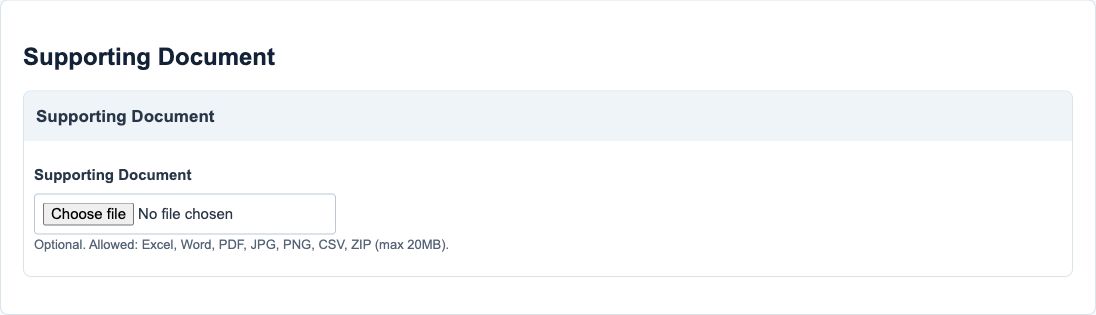
Figure 9 Supporting documents
| Field and screenshot | Entry rule and example | Purpose and implication |
|---|---|---|
| Supporting Document - Figure 9 | Base field permits blank/unchecked; conditional rules still apply. Allowed Excel, Word, PDF, JPG/JPEG, PNG, CSV or ZIP; maximum 20MB. Example: Optional approved item specification | Attaches supporting item evidence through the document-save path. Caution: No real document was uploaded for these illustrations. |
Generated displays and actions
| Display or action | Meaning | Review point |
|---|---|---|
| Item number | Generated company item identity | Do not invent a replacement identity for an item with history |
| Save and Cancel | Save the parent master/price changes or leave unsaved entry | Reopen and compare the saved values; Cancel is not transaction reversal |
| Add Currency and row Remove | Maintain inline sales-price rows | Keep unique currencies and at least one active row for a sellable item; review the price precision caution before editing |
| Supporting document and conditional delete | Attach or remove evidence through the separate save path | Preserve required evidence before authorised removal |
| Costing method | Not a user-editable field in this item form | Review inventory/costing setup separately rather than assuming a selectable method here |
| Active/POS flags | Control eligibility in consuming workflows | They do not create a terminal, stock quantity or authority submission |
Bulk imports and item updates for Inventory and costing
Use the correct bulk action for this module. The following templates are different business operations, not interchangeable create/update files.
| Action and exact template columns | Prepare the file | Check the saved result |
|---|---|---|
| Item Master - Inventory Item Master, Bulk Import | Creates items. Prepare UOM, classification/posting group, inventory/non-inventory nature, tax/tracking and allowed purchase/sales/production use. | Compare new item numbers and defaults using item setup. Item creation does not load stock quantity/value. |
| Item Master Bulk Update - Item Master, Bulk Update | Existing item_number matching and optional currency-price UPSERT/DELETE; follow the dedicated procedure above. | Compare changed fields, active/default prices and unchanged values; no stock movement is created. |
| Inventory Adjustments - Inventory Adjustments | Prepare adjustment reason/direction, dates, item, warehouse/bin, quantity/value and required lot/serial/expiry allocations. | Reconcile quantity, valuation and GL destination by item/location; use inventory movements. Do not duplicate an opening stock load. |
| Inventory Transfers - Inventory Transfers | Prepare source/destination, items/quantities and supported tracking allocations. Keep the whole transfer's related rows together. | Reconcile source decrease and destination increase, valuation and any explicit loss treatment. Use transfer guidance. |
Follow this module bulk procedure
- Decide whether you are creating items, updating existing items, adjusting stock or transferring stock. Open Item Master > Bulk Import for new items, Item Master > Bulk Update for existing details/prices, or the relevant adjustment/transfer list.
- Prepare UOM, classifications, posting groups, warehouses/bins and tracking policy. For an update, download a narrowly filtered current item snapshot and retain a secure unchanged copy; keep original item_number identities.
- For Item Master Bulk Update, retain unrelated current values. Blank handling is field-specific; present blank text/numeric/lookup cells can clear values. Review currency-price UPSERT versus DELETE deliberately; DELETE removes a price row, not the item.
- For stock files, check source/destination, quantity/value, dates and all required lot/serial/expiry allocations. Keep each document's parent and allocation rows together. Validate and inspect changed fields or proposed movements before committing once.
- Reopen saved item/price rows, including active/default status, or reconcile movement quantities, valuation and GL. Item creation/update does not load stock. Do not use a second whole-file import as a correction or duplicate an opening stock load.
Validate, commit and recover safely
For a supported workbook import, use the shared import steps and job recovery. A validated preview is not a saved transaction. Use Show status before retrying; cancelling a job does not reverse committed records. Keep the approved file, job reference and reconciled results securely. For step-by-step existing-item and price changes, use Item Master Bulk Update.