
Use the partner portal within the shared account scope
Email access account selection statements and open transactions
Use the organisation-supplied partner portal to view your permitted customer or supplier account, statements and open transactions. This guide is for external business contacts, not administrators of the RavenLedger application. The portal does not provide invoice entry, payments or access administration, and it is not automatically available to every contact.
Sign in and identify the account
Use the address provided by the organisation you trade with and your authorised contact email. Confirm the organisation before entering information. You do not need an application administrator login to use this portal.
- On Partner login, enter Email address and choose Send login code. Follow the displayed result; a request does not guarantee that your address has an enabled account.
- On Enter login code, check the displayed email, enter your own current six-character Login code and choose Verify code. Use another email returns to the email step; never ask a colleague for their code.
- If an account selector appears, choose the offered authorised relationship. If only one is available, the portal can open it directly. Check company and partner identity on the destination page.
- Open the intended customer or supplier view. On a statement, set From date and To date; on open transactions, set As of date. Review Company and Location, then Apply. Changing Company can submit the filter form immediately, so check the resulting context again.
- Compare the displayed document references, currency and outstanding amounts with your own evidence. Choose Export Excel or Export PDF only for the intended filtered account, then use Logout when finished.
All assigned locations means the locations assigned to this partner relationship, not every branch of the organisation. Report a missing account or unexplained balance to the organisation that provided portal access; do not try to change its accounting records from the portal.
Understand who the portal serves
The partner portal is a scoped external customer/supplier view, not the full RavenLedger application or tenant administration console. Availability depends on the organisation's enabled portal and the contact's permitted trading-partner relationship. It is not automatically available to every subscription contact.
Use the organisation supplied portal address
Use the portal address supplied by the organisation you trade with and confirm its identity before entering contact information. Do not invent another tenant address, follow an unexpected credential request or use an application administrator URL to reach partner records.
Keep email and codes private
Email address identifies the contact for the portal access process. Login code is a six-character one-time-code input. A code belongs to its recipient and current access attempt; do not share it with colleagues, forward it to support or publish it in a screenshot. An email field is not a way to grant yourself another partner relationship.
Field explanations and training references
Each reference describes the field or control, entry rule, example and practical implication. Illustrations use blank or fictional training values. Conditional fields and actions depend on your selected policy, country, record state and permissions; choose actual application lookup records rather than copying text or hidden identities.
Portal email field reference
Figure 1 Portal email
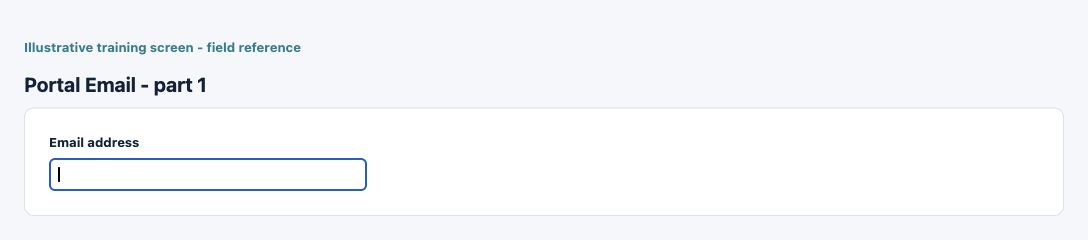
| Field and screenshot | Entry rule and example | Purpose and implication |
|---|---|---|
| Email address - Figure 1 | Required entry. Maximum 320 characters. Example: person@example.invalid | Your contact email for the organisation-supplied partner portal. Requesting a code does not itself grant access to an account or an application-user role. Caution: Confirm the saved value and affected workflow before relying on the result. |
Portal login code field reference
Figure 2 Portal login code
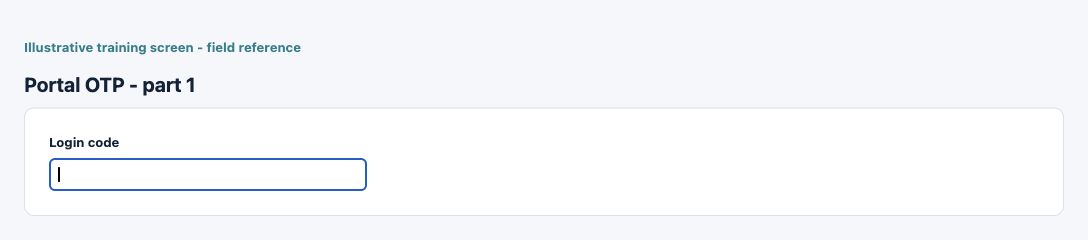
| Field and screenshot | Entry rule and example | Purpose and implication |
|---|---|---|
| Login code - Figure 2 | Required entry. Exactly 6 characters. Example: The private code from your own current login attempt | Six-character login code sent through the portal process. Keep it private; never share codes with another user or include them in support screenshots. Caution: Protect sensitive information and use independently verified authorised evidence. |
Portal account and report context field reference
Figure 3 Portal account and report context
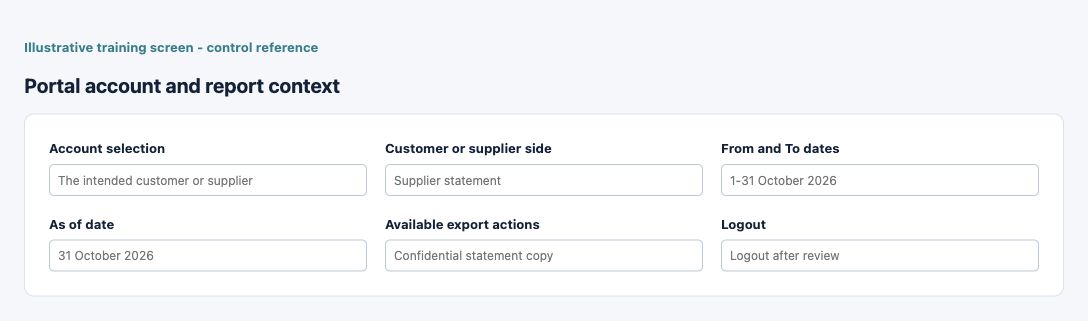
| Field and screenshot | Entry rule and example | Purpose and implication |
|---|---|---|
| Account selection - Figure 3 | Use only the offered authorised account. Example: The intended customer or supplier | Controls business/company/partner scope without granting broader application access. Caution: Check the selected record, scope and current state before a consequential action. |
| Customer or supplier side - Figure 3 | Choose the relevant relationship when offered. Example: Supplier statement | Payables and receivables are separate balances and must not be netted casually. Caution: Check the selected record, scope and current state before a consequential action. |
| From and To dates - Figure 3 | Choose the statement period. Example: 1-31 October 2026 | Defines statement opening/movement/closing context. Caution: Check the selected record, scope and current state before a consequential action. |
| As of date - Figure 3 | Choose the open-item cutoff. Example: 31 October 2026 | Cutoff filtering does not guarantee reconstruction of every historical settlement. Caution: Check the selected record, scope and current state before a consequential action. |
| Available export actions - Figure 3 | Verify the current account/date first. Example: Confidential statement copy | Exports are snapshots and do not settle a balance. Caution: Check the selected record, scope and current state before a consequential action. |
| Logout - Figure 3 | End portal use on a shared device. Example: Logout after review | Does not change an employee application role or subscription ownership. Caution: Check the selected record, scope and current state before a consequential action. |
Read the portal filters and result columns
| Field or display | What to enter or read | Meaning and implication |
|---|---|---|
| Company | Choose the offered company and partner relationship | Changes portal account context and can submit the filter form immediately; it does not grant access to another company |
| Location | Choose one offered branch or All assigned locations | Narrows the statement/open items to the permitted relationship's locations, not the entire organisation |
| From date and To date | Set the statement range, then Apply | These control the statement activity range; they are not the same as an open-items As of date |
| As of date | Set the open-transactions cutoff, then Apply | Check the report's date basis; a current payment need not reconstruct identically at a past cutoff |
| Apply | Refresh the selected filters | On this screen it filters output; it does not apply a payment to an invoice |
| Document, Type and Reference | Read the saved identity and event category | Use these together when querying the organisation; the same amount is not proof of the same document |
| Date and Due date | Read the document date and, on open transactions, payment due date | Due date can explain ageing but is not evidence that payment was made |
| Txn Currency | Read the currency of the transaction amounts | Compare only amounts in the same currency; never add USD and EUR as one cash total |
| Charge or Invoice (Txn), Amount (Txn) | Read the relevant original/document amount in transaction currency | Customer statements use Charge; supplier statements use Invoice; open transactions use Amount |
| Payment/Credit (Txn), Applied (Txn) | Read the recognised payment/credit or application in transaction currency | An application reduces an eligible open item; it does not instruct your bank to make a payment |
| Outstanding (Txn) | Read the remaining document balance in transaction currency | Trace the actual documents/applications if this differs from your own evidence; do not assume all credits are cash |
| Func Currency and (Func) amounts | Read the company's accounting currency and translated amount columns | Functional amounts are separate from transaction units; compare them on the report's stated basis |
| Balance (Func), Running Balance (Func) | Read the displayed functional-currency balance | This is accounting/report context, not an independently verified bank balance |
| Status | Read the document's saved state | A status does not itself establish full payment, bank clearance or authority acceptance |
| Export Excel and Export PDF | Download the current account/filter output | Preserve company, side, date and currency context; a downloaded file is a confidential snapshot |
For a fictional USD invoice of 1,000 with USD 600 applied and no other movements, the outstanding amount is USD 400. If your bank shows 600 paid but the document still shows 1,000 outstanding, ask the organisation to trace the payment and its application. Do not enter another payment or assume the invoice is settled because cash left the bank.
Choose the correct business account
A contact can have more than one permitted account. Review the displayed organisation/company and partner identity before using statements or balances. Account selection is restricted to the offered authorised choices; never alter hidden identifiers or a URL to reach another customer or supplier.
Distinguish customer and supplier sides
Where both sides are available, select the relevant customer/receivable or supplier/payable context. A credit balance on one side is not automatically a payment on the other. Company and party identity remain part of every comparison.
Read the statement period
Statements show the selected account and date range. Confirm opening balance, period transactions/movement and closing balance on the report's currency basis. A statement is an accounting view; it is not proof that a particular bank payment settled or that a fiscal authority accepted an invoice.
Review open transactions
The open-transactions view uses its as-of date and selected context. Compare document number/type, dates, currency, original and outstanding amounts. A current settlement can change an open balance; do not assume an earlier-cutoff report reconstructs every historical payment unless its basis explicitly does so.
Handle exports and queries
Review the account/date context before downloading available statement or open-item output. Keep exports confidential and share discrepancies through the organisation's approved channel with document references, not login codes or unrelated account information.
Resolve access or balance problems safely
If the expected account is not offered, ask the organisation to verify the contact-to-partner relationship. If a balance differs, supply source document/payment references and dates for review. Do not create a second accounting transaction merely because a portal display has not yet reflected an event.
End the session on shared devices
Use the portal logout action when finished and protect downloaded files. Portal access is separate from an employee's application-user role; leaving a portal view does not offboard a RavenLedger application user or change subscription administration.
Resolve portal access and balance questions
| Situation | What to do |
|---|---|
| Code is invalid or expired | Check the displayed email and current attempt, then follow the login page to request a new code if needed. Do not share codes or repeatedly try an older one. |
| Company or account is missing | Ask the organisation that supplied access to check your contact relationship. A portal contact cannot assign themselves application permissions. |
| Statement and open balance differ | Compare customer/supplier side, company, assigned locations, date basis and currency. Supply document/payment references to the organisation; do not net receivables and payables. |
| No rows appear | Check the selected filters and permitted account. No rows is not proof that all transactions have been settled. |
Continue with the related task
For internal organisation users, partner master setup explains the relationship. External contacts should use their organisation-supplied portal help channel, not internal administration screens.
Data-loading prerequisites and limits for Partner portal and gated capabilities
Partner portal visibility and exports depend on external-contact permissions and company context. A portal export is not a master-update workbook. Internal authorised users use the applicable sales, purchasing or partner import routes; do not assume portal access permits bulk maintenance.
Continue with the Trading partners and trade references bulk guidance.