
Process POS checkout, returns and session close
Cashier sessions tracked stock tenders receipt states and reconciliation
Cashier sessions tracked stock tenders receipt states and reconciliation. For authorised operational users and Tenant Administrators working within their subscription workspace.
Prepare the cashier workspace
Use the Point of sale area in the correct company. Confirm your permitted terminal, location, payment modes, active items, prices, tax setup and stock source. The POS setup guide explains terminal configuration. Opening a session is an operational action; it is not a bank opening balance or a cash deposit.
Prepare a ticket for the correct customer
Use an eligible open Session and check its Location and Warehouse. Choose Walkin or an actual Loyalty Customer as appropriate. Scan or select items, then review description, quantity, unit, unit price and tax. Allocate required lot or serial identities. If you change Warehouse, recheck the stock allocations rather than assuming they still apply.
Review tender before confirmation
Choose an allowed Cash, Card or Mixed mode. Review the amount allocated to each tender against the confirmation Net Amount Due. For card payments retain only the permitted reference and record authorisation only after it has genuinely been received. Never enter a card PIN, security code or full card number in the ticket reference.
Field explanations and training references
Each listed control has an entry rule, example, implication and caution. Figures use fictional training values. Available controls depend on the saved state, permissions, country, item tracking and company policy; select actual application records rather than copying the example text.
Sessions and checkout context field reference
Figure 1 Sessions and checkout context
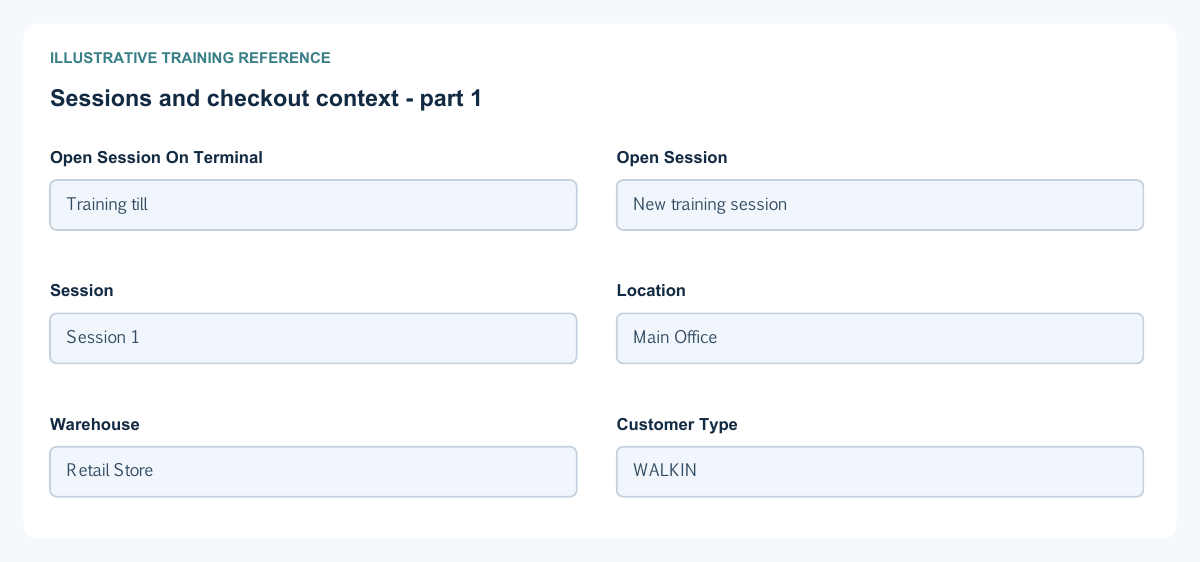
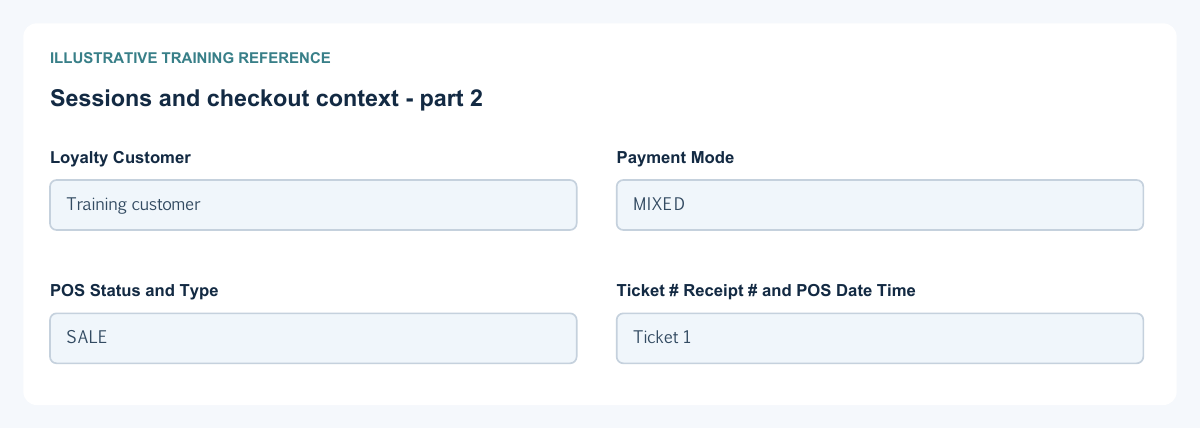
| Field and figure | Entry rule and example | Purpose and implication |
|---|---|---|
| Open Session On Terminal - Figure 1 | Select an authorised active terminal. Example: Training till | Identifies the terminal for a new cashier session. Caution: A terminal is not a company or a warehouse. |
| Open Session - Figure 1 | Open the selected terminal session where permitted. Example: New training session | Creates the operating session used for tickets. Caution: Review existing sessions to avoid opening a duplicate. |
| Session - Figure 1 | Select an eligible open session. Example: Session 1 | Links the ticket to the terminal, cashier and session context. Caution: Do not use another cashier's session to bypass access. |
| Location - Figure 1 | Read-only terminal/session location. Example: Main Office | Identifies the operational site for the ticket. Caution: A displayed location does not grant access to another site. |
| Warehouse - Figure 1 | Select an active eligible warehouse within the terminal location. Example: Retail Store | Sets the checkout stock source; changing it invalidates existing allocations. Caution: Reallocate tracked lines after changing it. |
| Customer Type - Figure 1 | Choose WALKIN or LOYALTY. Example: WALKIN | Determines the ticket's customer treatment. Caution: Do not use the loyalty option without selecting the intended customer. |
| Loyalty Customer - Figure 1 | Required actual customer selection when LOYALTY applies. Example: Training customer | Links the ticket to the correct loyalty/customer identity. Caution: Typed search text is not a selected record. |
| Payment Mode - Figure 1 | Choose an allowed CASH, CARD or MIXED mode. Example: MIXED | Determines which tender inputs are used. Caution: Terminal policy can limit available modes. |
| POS Status and Type - Figure 1 | Read-only saved ticket state and sale/return identity. Example: SALE | Distinguish the workflow and direction. Caution: A return is not a new negative-price sale. |
| Ticket # Receipt # and POS Date Time - Figure 1 | Generated identifiers and time displays. Example: Ticket 1 | Identify the saved transaction and related receipt. Caution: A generated identifier alone does not prove fiscal acceptance or bank settlement. |
Ticket items and stock identity field reference
Figure 2 Ticket items and stock identity
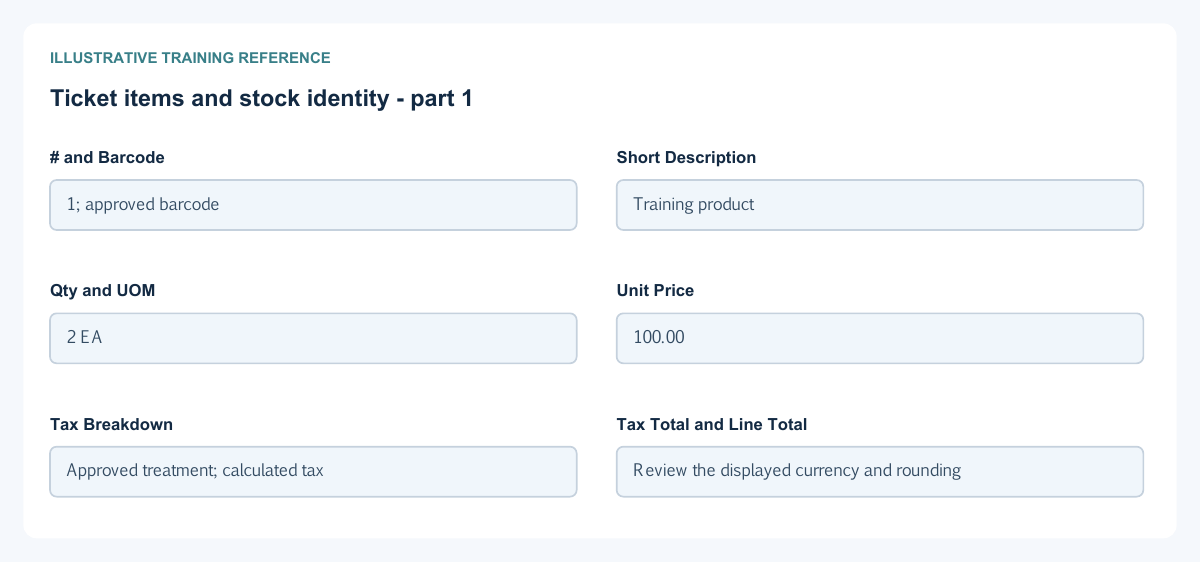
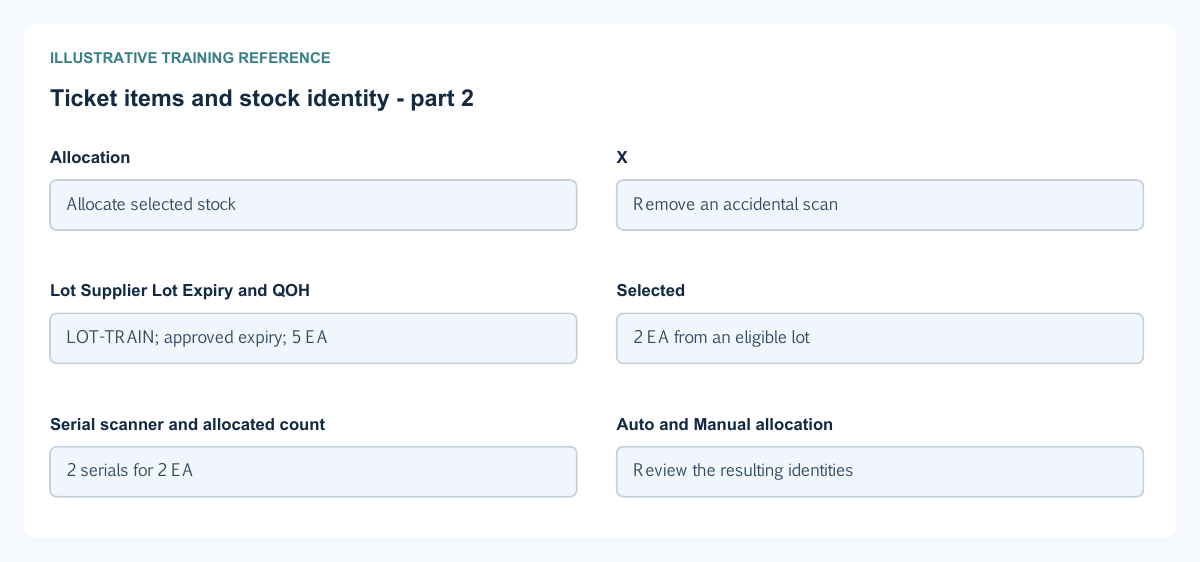
| Field and figure | Entry rule and example | Purpose and implication |
|---|---|---|
| # and Barcode - Figure 2 | Line sequence and item lookup/scan reference. Example: 1; approved barcode | Locate and identify the scanned sale item. Caution: Confirm the resolved item after scanning; duplicate scans can change quantity. |
| Short Description - Figure 2 | Resolved item description. Example: Training product | Helps the cashier recognise the selected product. Caution: A matching description does not prove price or stock identity. |
| Qty and UOM - Figure 2 | Permitted sale quantity and item unit. Example: 2 EA | Define the units sold. Caution: Serial-tracked quantities require matching individual units. |
| Unit Price - Figure 2 | Item/price-derived amount, with override only where allowed. Example: 100.00 | Values one sale unit. Caution: Use authorised price overrides and reasons; original-sale return price is fixed. |
| Tax Breakdown - Figure 2 | Tax Code Line, Rate % and Amount displays. Example: Approved treatment; calculated tax | Explain how the ticket line's tax total is formed. Caution: Do not substitute an invented tax rate to obtain a desired net total. |
| Tax Total and Line Total - Figure 2 | Calculated line amounts. Example: Review the displayed currency and rounding | Show tax and the resulting line value. Caution: Do not add tax again when the displayed price already includes it. |
| Allocation - Figure 2 | Open stock allocation for lines needing tracking. Example: Allocate selected stock | Supplies the lot/serial identities for the checkout line. Caution: Unallocated tracked quantity prevents a valid checkout. |
| X - Figure 2 | Remove a proposed line where permitted. Example: Remove an accidental scan | Changes the unsaved ticket. Caution: It does not reverse a finalised sale or receipt. |
| Lot Supplier Lot Expiry and QOH - Figure 2 | Read-only available-lot details. Example: LOT-TRAIN; approved expiry; 5 EA | Identify eligible stock and quantity on hand for the selected warehouse. Caution: A total warehouse quantity does not make every lot eligible. |
| Selected - Figure 2 | Select the quantity or identities to allocate. Example: 2 EA from an eligible lot | Matches the tracked stock to the ticket quantity. Caution: Avoid over-allocation and duplicate identities. |
| Serial scanner and allocated count - Figure 2 | Scan or select eligible serials and review the count. Example: 2 serials for 2 EA | Identifies the individual units being sold. Caution: A repeated scan is not a second distinct unit. |
| Auto and Manual allocation - Figure 2 | Use only the allocation modes available for this item and terminal. Example: Review the resulting identities | Control how eligible stock identities are proposed. Caution: Automatic allocation still requires review of identity, expiry and quantities. |
Tender and confirmation field reference
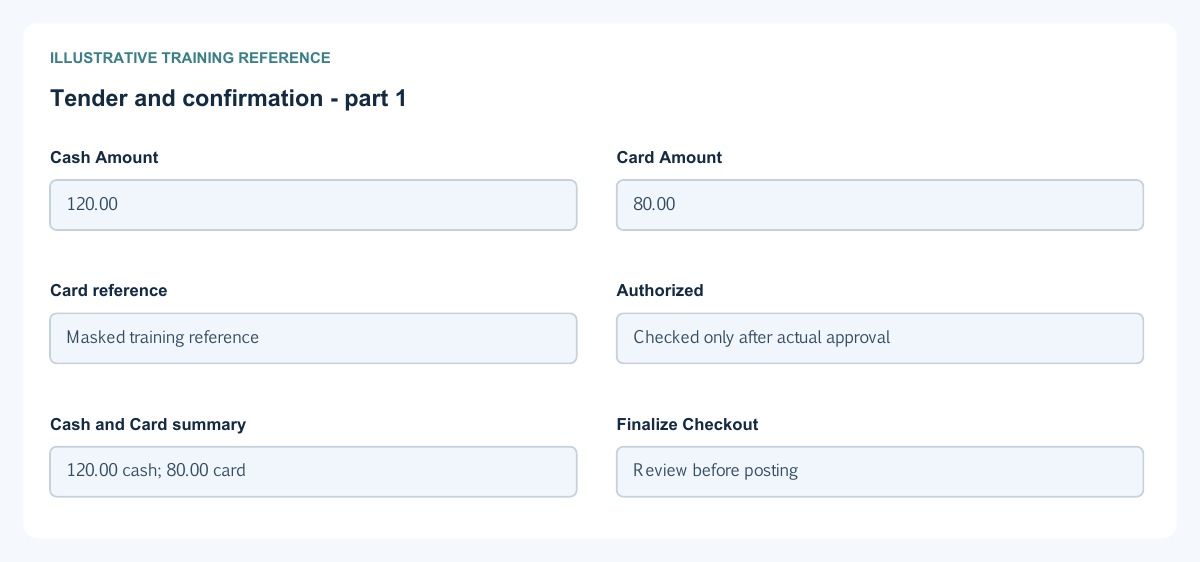
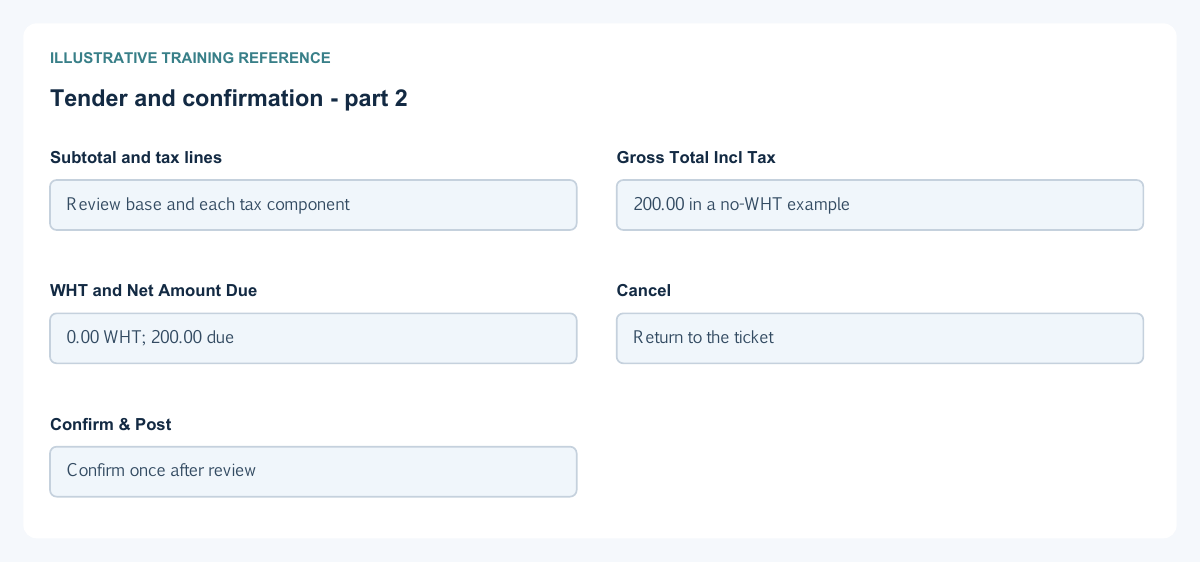
Figure 3 Tender and confirmation
| Field and figure | Entry rule and example | Purpose and implication |
|---|---|---|
| Cash Amount - Figure 3 | Amount assigned to the cash tender where enabled. Example: 120.00 | Contributes to the ticket settlement split. Caution: Check the displayed amount due and supported tender validation; do not assume change calculation. |
| Card Amount - Figure 3 | Amount assigned to the card tender where enabled. Example: 80.00 | Separates card settlement from cash. Caution: This does not itself contact a card processor or prove bank credit. |
| Card reference - Figure 3 | Approved external transaction reference. Example: Masked training reference | Supports matching to the terminal/acquirer evidence. Caution: Never enter a full card number, PIN or security code. |
| Authorized - Figure 3 | Record verified card authorisation where required. Example: Checked only after actual approval | Confirms the cashier's authorisation declaration. Caution: The checkbox is not a bank authorisation request. |
| Cash and Card summary - Figure 3 | Read-only tender split. Example: 120.00 cash; 80.00 card | Shows how the transaction is being settled. Caution: Compare the split with the net amount due before confirming. |
| Finalize Checkout - Figure 3 | Open the final confirmation for an eligible ticket. Example: Review before posting | Separates preparation from the final confirmation. Caution: Do not click repeatedly after a slow response. |
| Subtotal and tax lines - Figure 3 | Calculated confirmation details. Example: Review base and each tax component | Provide the final pricing and tax breakdown. Caution: A preview is not a saved receipt. |
| Gross Total Incl Tax - Figure 3 | Calculated gross ticket amount. Example: 200.00 in a no-WHT example | Includes chargeable tax in the confirmed sale value. Caution: Do not subtract withholding from the tax lines themselves. |
| WHT and Net Amount Due - Figure 3 | Calculated withholding and net tender requirement. Example: 0.00 WHT; 200.00 due | Separate withholding treatment from the amount being settled by the selected tenders. Caution: Review the applicable customer and tax configuration. |
| Cancel - Figure 3 | Dismiss final confirmation before committing. Example: Return to the ticket | Allows review of the proposed checkout. Caution: Cancelling the dialog does not reverse an already saved transaction. |
| Confirm & Post - Figure 3 | Consequential checkout confirmation. Example: Confirm once after review | Requests the saved sale/return, associated accounting and stock processing. Caution: Check the saved outcome and receipt status before printing or retrying. |
Returns receipts and session close field reference
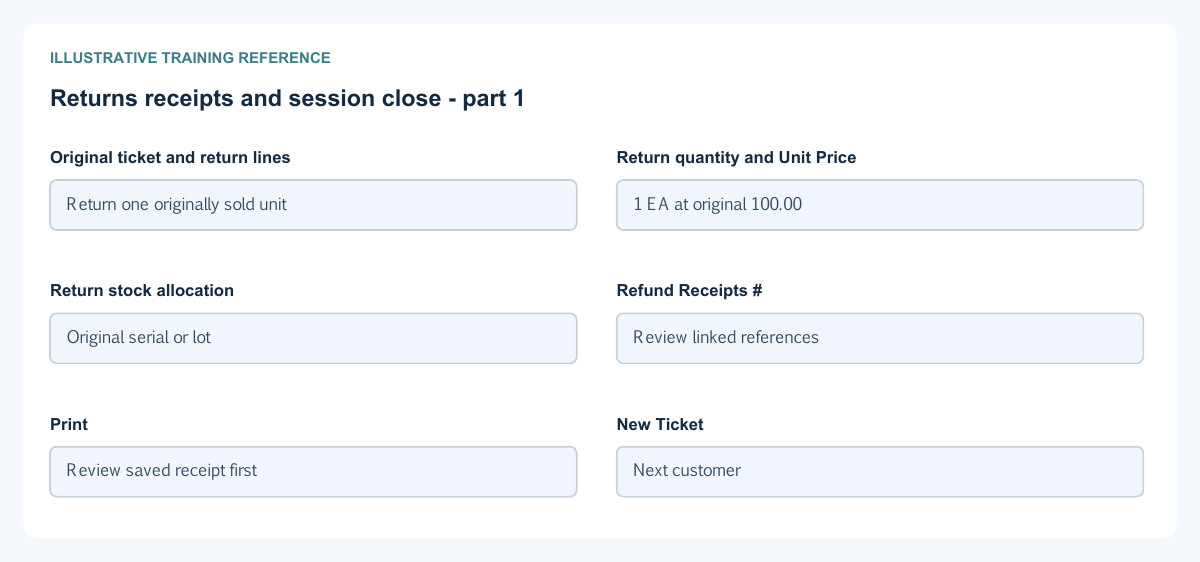
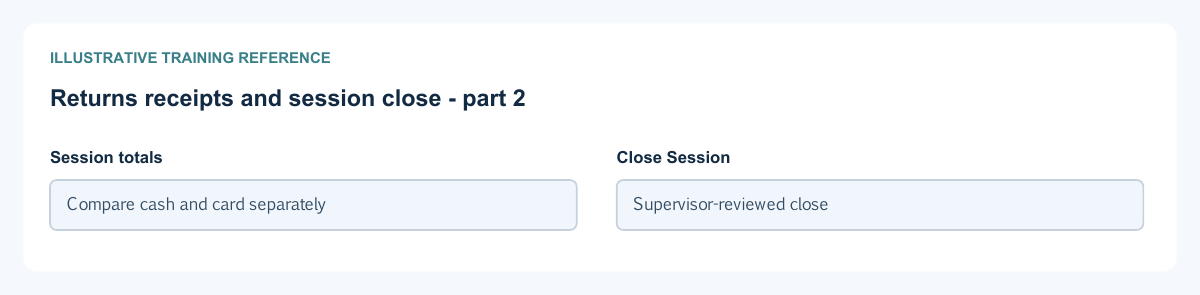
Figure 4 Returns receipts and session close
| Field and figure | Entry rule and example | Purpose and implication |
|---|---|---|
| Original ticket and return lines - Figure 4 | Use the eligible original sale and its return action. Example: Return one originally sold unit | Preserve the original transaction and remaining return capacity. Caution: Do not create an unrelated negative sale to imitate a return. |
| Return quantity and Unit Price - Figure 4 | Return only eligible remaining units at the original-sale price. Example: 1 EA at original 100.00 | Limits the correction to the original transaction basis. Caution: Do not reprice historical returns using today's price list. |
| Return stock allocation - Figure 4 | Original-sale tracked identities are fixed as applicable. Example: Original serial or lot | Maintains traceability of returned stock. Caution: Do not select an unrelated unit just because it has the same item code. |
| Refund Receipts # - Figure 4 | Saved refund receipt references. Example: Review linked references | Identifies the accounting refund records associated with a return. Caution: It does not prove external bank/card settlement or authority acceptance. |
| Print - Figure 4 | Use the available saved receipt output. Example: Review saved receipt first | Produces the customer-facing output allowed by the saved state. Caution: Pakistan final SALE output requires the saved authority acceptance/reference; pending is not accepted. |
| New Ticket - Figure 4 | Start another ticket after reviewing the saved result. Example: Next customer | Clears preparation for a separate transaction. Caution: Do not start over to conceal an unresolved checkout result. |
| Session totals - Figure 4 | Read-only saved sales, returns and tender summary. Example: Compare cash and card separately | Support cashier close and reconciliation. Caution: Gross sales are not cash in the till; returns and tender splits matter. |
| Close Session - Figure 4 | Close the eligible session after resolving outstanding work. Example: Supervisor-reviewed close | Ends the cashier session for further checkout work. Caution: Closing is not a physical cash count, deposit, card settlement or bank reconciliation. |
Confirm once and check the saved result
Finalize Checkout opens a confirmation containing subtotal, tax, gross total, withholding and net amount due. Cancel returns to preparation; Confirm & Post is the consequential action. After it completes, check the saved ticket, receipt references, stock movement and accounting outcome. A slow response is a reason to inspect the saved transaction, not to confirm repeatedly.
Separate receipt printing from fiscal acceptance
Print only the output available for the saved state. A ticket number, a queued submission or an accounting journal is not a tax-authority acceptance. Pakistan final SALE receipts require the saved acceptance/reference; pending or failed processing must not be presented as accepted. The electronic-invoicing guide explains the country-specific boundaries. A return does not automatically contact an authority or settle a card refund.
Return against the original transaction
Use the original sale and the permitted return action. Review remaining return quantity, original price and original tracked stock identities. Reconcile the saved return and its linked refund receipts separately from any actual cash handed over or external card settlement. Do not replace this process with a negative-priced new sale, an unrelated serial or a customer credit application.
Close the session and reconcile tenders
Before Close Session, resolve pending tickets, errors, returns and receipt exceptions. Compare saved cash sales less cash refunds with the cashier records; compare card amounts with terminal/acquirer evidence. Reconcile stock issues and returns to the selected warehouse and accounting to the related journals. Session close does not perform the physical cash count, deposit or bank-statement reconciliation.
Recover from a failed checkout without duplication
Keep the session, ticket, time and displayed error reference. Refresh and inspect the saved ticket and receipt before trying again. Escalate missing or inconsistent stock, journals or fiscal state through your authorised supervisor or support channel. Never print an accepted receipt or collect payment twice to conceal an unresolved status.
Work through a mixed tender and partial return
Assume a fictional sale with net amount due 120 in company currency, no withholding, an approved split of cash 70 and card 50, and no separate change. The two confirmed tenders total 120. If the customer hands over cash 100 for the cash portion of 70, the 30 change is not additional revenue or an extra card tender. Use the form's own due/change calculation and retain genuine card authorisation evidence.
For a later permitted partial return with amount due back 30, review the original sale, remaining returnable quantities, original tax/price and required stock identities. A saved refund receipt and the actual cash/card refund are separate evidence. Do not assume that the original 70/50 split determines an automatic proportional refund or that an external acquirer was contacted.
If the approved refund is cash 30, the simplified session's net retained cash from these events is 70 minus 30 = 40, and its card sale is still 50 before external settlement/fees. If the approved refund is through card instead, cash remains 70 and the card settlement must reflect the authorised refund separately. Never record both routes for the same refund simply to obtain a zero balance.
Reconcile cashier activity before close
| Comparison | Evidence | What a difference can mean |
|---|---|---|
| Net ticket amount due to tenders | Saved sale/return and confirmed tender split | Missing/duplicate tender, withholding treatment, change or incomplete processing |
| Cash movement to physical custody | Opening cash, actual cash received/refunded and authorised non-sale movements | Counting error, unrecorded handover or a failed/duplicate ticket; opening float is not sales revenue |
| Card tender to acquirer settlement | Authorisation, capture/refund and dated settlement/fees | Timing, fees, failed capture or refund still pending; accounting alone is not bank evidence |
| Item sale/return to stock | Item, UOM, warehouse/bin and original lot/serial allocation | Wrong identity, missing stock posting or return not completed |
| POS result to GL and fiscal evidence | Posted journals, receipt/document and applicable authority state | Pending accounting or country processing; printed output is not proof of acceptance |
Use the same company, terminal, session and reporting dates. Have the authorised cashier/supervisor investigate unexplained differences before Close Session. Closing does not itself make a cash deposit, settle a card batch or fix an authority rejection.
Recognise the result you need
The task is not finished merely because Finalize Checkout was clicked. Identify the saved ticket/return, confirm no accidental duplicate, inspect stock and accounting, retain the actual tender/refund evidence and use only the receipt available for the saved fiscal state. On a failed or delayed action, give support the ticket/session reference before repeating the consequential action.
Related user guides
POS setup, inventory setup, taxation, electronic invoicing and cash and bank.