
Create and maintain secondary locations
Create, view and maintain branches without creating another company.
A location is a branch or operating site within the selected company. It shares that company's chart and functional currency. It is not another legal company, tenant or subscription. Creating a location does not create warehouses, bank accounts, tax registrations or access grants for every user.
Prepare the company and access
Select the intended company in the application header before opening Locations. Confirm the branch name, physical address and the duties that will operate there. A Tenant Administrator administers the subscription workspace; an ordinary user needs the applicable location permission and company/location access. Being able to view a branch does not grant permission to create or edit one.
Create a secondary location
- Open Locations and review existing names using Search. Do not create another record merely because the first page does not show it.
- Choose Create and confirm the locked Company. Leave Location Number to the system.
- Enter Location Name, address, city, province and country. Use Description for the branch's purpose. Complete optional Map Link and Supporting Document only when useful.
- Leave Active selected for a branch ready for use. Save once and return to the list.
- Find the saved branch and open its detail. Confirm its number, company and address. Ask the Tenant Administrator to grant the intended users access and configure any required warehouses, bank-location links and purchasing rules separately.
Location fields
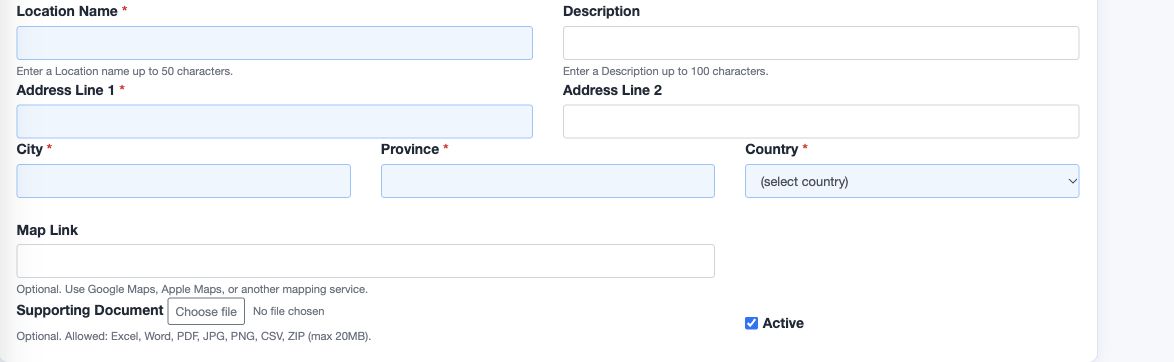
| Field or control | Entry and example | Implication and caution |
|---|---|---|
| Location Number | Generated and locked. | Identifies the saved branch; do not reuse a legacy number by editing hidden values. |
| Company | Selected company context; locked. | All location activity belongs to this company. It is not a transferable branch selector. |
| Location Name | Enter a clear unique company branch name, e.g. East Branch. | Case-insensitive duplicates are rejected; preserve recognisable historical names. |
| Description | Optional explanation, e.g. Sales and receiving site. | Describes the purpose; does not grant stock or posting permissions. |
| Address Line 1 | Enter the main physical address. | Used to identify the actual site; verify before use on documents. |
| Address Line 2 | Optional additional address detail. | Do not repeat sensitive identity information unnecessarily. |
| City | Enter the site city. | Keep consistent with physical address evidence. |
| Province | Enter the province/state. | Do not use a tax jurisdiction guessed from the company name. |
| Country | Select the location country. | Describes the branch address; does not by itself enable a company fiscal integration. |
| Map Link | Optional mapping-service URL. | Use a public business location, not a private employee address. |
| Supporting Document | Optional Excel, Word, PDF, JPG, PNG, CSV or ZIP, maximum 20 MB. | Evidence can be replaced on edit; retain approved records under policy. |
| Active | Selected for an operating branch. | Availability setting, not reversal/deletion of branch history. |
| Delete current supporting document | Edit state only when existing evidence is shown. | Removes the linked document; it does not cancel the location. |
| Save and Cancel | Save persists validated changes; Cancel leaves the form. | Check the list after a timeout before saving again. |
View and edit a saved branch
Open the selected company's Locations list, search the location name or description and use the available View or Edit action. On Edit, the location number and company remain locked. A correction to a name or address does not transfer historical transactions to another company. Save, reopen and compare the changed values with the approved evidence.
Names are checked without regard to case and surrounding spaces within the company. If a duplicate-name message appears, find the existing branch rather than adding punctuation to evade the check. Do not rename a branch to conceal an incorrectly posted document.
Supporting documents and inactive branches
Where a saved attachment exists, the edit screen can show its download link and Delete current supporting document. Uploading a replacement replaces the linked evidence. Download and retain the approved original first if your retention policy requires it. Do not upload passwords, banking credentials or unnecessary personal identifiers.
Clearing Active changes the branch's availability; it does not reverse stock, cash, tax or journal history. Before retiring a branch operationally, review outstanding orders, stock, open receivables/payables, bank links and user access. Do not assume every module will prevent selection solely because a location is inactive.
Recover safely after an error
If Save times out, inspect the Locations list before retrying. If another company is selected or the record is unavailable, restore the correct context and ask the Tenant Administrator to check the specific access grant. Cancel discards unsaved form changes; it is not a deletion or reversal.
Related guides
Create a company, User administration, Warehouses and GL transactions.