
Understand service invoice and customer receipt fields
Screen references, field implications and illustrative accounting relationships
Use a customer invoice to record an amount due for services, a customer receipt to record money received into a bank account, and a receipt application to match that payment to the invoice line. These are separate records and actions. A saved receipt is not automatically an applied payment, and a saved document is not proof that its accounting journal has finished posting.
This chapter explains the regular invoice, receipt and application screens and their fields. It is a field reference, not a step-by-step posting or settlement procedure. Use your organisation's approved process for transaction entry and corrections.
Prerequisites and scope
Confirm CURRENT COMPANY before opening customer pages. Your administrator must grant the appropriate company/location, customer-transaction, receipt and report access. Use an active customer/trading partner, a permitted location, an approved service/non-stock item, and a bank account with the correct currency and accounting mappings. Review Receivables Options, customer receivable account, revenue/contra account, dates, tax defaults and posting configuration first.
This scenario uses the functional currency for both invoice and bank receipt, no tax or withholding, no discount, no stock, no fixed asset and no trade reference. Omitting tax is valid only for this synthetic scenario; it is not a conclusion about any real transaction's tax treatment. Foreign currency, inventory allocations, withholding, credit/debit notes, refunds, fiscal submissions and imports require their own verified scenarios.
The screenshots show blank regular forms. Some fields remain disabled until a location or ledger date is selected. The examples do not represent completed business transactions.
Illustrative amounts
Use fictional Raven Demo Services and Demo Customer only in an isolated training setup. Assume functional currency USD, an approved USD bank account, an open period and one non-stock service item. Use 15 October 2026 only if that is an approved open training date; otherwise use an agreed open date consistently.
| Stage | Example values | Illustrative balance |
|---|---|---|
| Invoice | Quantity 2, unit price USD 500, discount 0, no tax/WHT | Base and total USD 1,000; initial unpaid amount USD 1,000. |
| Receipt | USD 600 into the approved USD bank account | Receipt total USD 600; initially unapplied USD 600. |
| Application | Apply USD 600 to the selected invoice line | Invoice remains unpaid USD 400; receipt unapplied becomes USD 0. |
These figures illustrate the relationship between an invoice, a receipt and an application. Do not disable tax/fiscal settings to reproduce them.
Recognise the customer invoice screen
The regular form is available from Customer Transactions through Create New Customer Transaction, subject to your access. The header identifies the location, dates, customer and currency. Line fields identify the service, quantity, price, tax and accounting counterpart. Calculated totals are outputs, not balancing fields to overwrite.
Figure 1 Invoice header
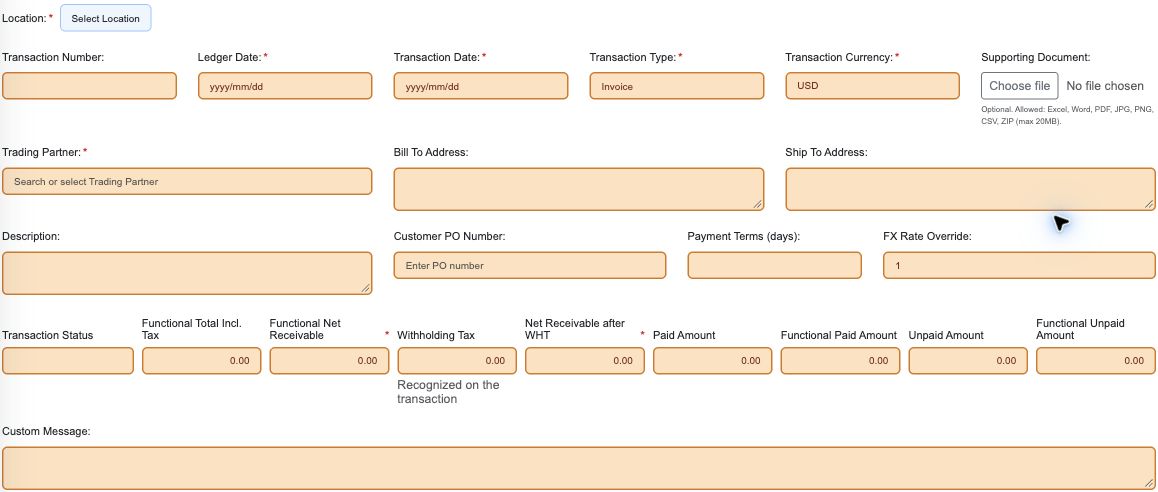
Figure 2 Invoice line identity and pricing

Figure 3 Invoice tax and contra account

Figure 4 Invoice calculated line amounts

Figure 5 Invoice optional links and actions

Invoice header field reference
Figure 1 shows all 24 regular header controls/displays, including Location. A required mark on a calculated display does not make it editable. Requirements and locks depend on the selected location, document state and approved setup.
| Field | Entry or source | Purpose and implication |
|---|---|---|
| Location | Required permitted location selection | Sets operational context and location-specific options; do not assume another site's accounts, defaults or permissions apply. |
| Transaction Number | System generated/read-only | Identifies the saved transaction; it is not the customer's PO number or a field to invent. |
| Ledger Date | Required date after Location | Determines accounting-period context. A closed-period error requires review, not bypass. |
| Transaction Date | Required document date | Records when the invoice/document is dated; distinguish it from posting and receipt dates. |
| Transaction Type | Select Invoice for this task; locked on an existing transaction | Determines invoice versus note behavior and sign/discount restrictions. Do not convert a saved invoice by relabelling it. |
| Transaction Currency | Selected/default currency; foreign-currency editing depends on setup | Denominates customer amounts. It is not necessarily the company's functional currency. |
| Supporting Document | Optional accepted file, maximum 20 MB | Attaches evidence. Accepted types shown are Excel, Word, PDF, JPG/PNG, CSV and ZIP. Uploading is not an import or fiscal acceptance. |
| Trading Partner | Required actual active customer result | Supplies the customer context, addresses, accounts and applicable defaults. Typed text alone is not a selected master record. |
| Bill To Address | Read-only from the partner | Shows the billed-party address. Review the master when wrong; it is not a free-text correction here. |
| Ship To Address | Read-only from the partner | Shows the delivery/service destination reference; it does not allocate stock or choose a warehouse. |
| Description | Header narrative | Identifies the document's purpose for review; it does not replace line item or account selection. |
| Customer PO Number | Optional approved customer reference | Helps matching to the customer's purchase order. It is not the system transaction number or a link to your own purchase order. |
| Payment Terms (days) | Approved number of days, potentially defaulted | Records credit terms used by receivables logic. Confirm the resulting due date and aging; entering terms does not record payment. |
| FX Rate Override | Conditional; locked for functional currency | Converts to functional currency under the document's rate convention. Do not invent a rate or use it to force totals to match. |
| Transaction Status | System/read-only | Reflects the transaction's saved/payment state. A status is not independent evidence of journal completion or fiscal acceptance. |
| Functional Total Incl. Tax | Calculated/read-only | Shows invoice total in functional currency; distinguish it from the transaction-currency amount. |
| Functional Net Receivable | Calculated/read-only | Shows the functional receivable measure. Review withholding recognition and actual journal treatment, not only this label. |
| Withholding Tax | Calculated/read-only; recognition label shown beneath | Shows the configured WHT measure. The recognition timing can differ by setup; no WHT applies in the fictional example. |
| Net Receivable after WHT | Calculated/read-only | Shows the net amount after displayed withholding treatment, not automatically the gross legal invoice or amount already collected. |
| Paid Amount | Calculated/read-only | Shows recorded settlement/application in transaction currency; an unrelated bank receipt is not sufficient to mark an invoice paid. |
| Functional Paid Amount | Calculated/read-only | Shows settlement in functional currency. Cross-currency/FX scenarios require separate reconciliation. |
| Unpaid Amount | Calculated/read-only | Shows the remaining invoice balance in transaction currency. Reconcile it to open lines and applications. |
| Functional Unpaid Amount | Calculated/read-only | Shows the remaining functional balance, which can differ from a simple currency-label substitution. |
| Custom Message | Optional/defaulted document message | May be used on the customer document. Review copied/defaulted wording and never enter secrets or inappropriate internal notes. |
Invoice line field reference
Figures 2 to 5 overlap so all regular line columns can be located. The Transaction columns menu controls presentation; hiding a column does not remove its data or requirement. Horizontal scrolling is necessary on this wide form.
| Field or control | Entry or source | Purpose and implication |
|---|---|---|
| Line # | System line identity | Distinguishes lines and their applications/links; do not confuse it with a document number. Figure 2. |
| Item Code | Choose an actual active item result | Supplies item identity and related defaults. Use a non-stock service item for this task; an inventory item requires allocation. Figure 2. |
| Description | Read-only item-derived display | Describes the selected line item; its placeholder does not mean it can be edited here. Correct the approved master if needed. Figure 2. |
| Quantity | Positive quantity for an invoice; precision validated | Multiplies unit price and drives quantity effects. The proposed service example uses 2. Credit-note signs belong to a separate task. Figures 2-3. |
| UOM | Read-only populated unit | Identifies what the quantity measures. Do not assume a service unit equals a stock unit. Figures 2-3. |
| Price | Item/default or authorised override | Unit price can be locked by Receivables Options. Commercial price precision is not necessarily the displayed total's decimal precision. Figures 2-3. |
| Discount percent | Editable only where allowed; 0 to 99.99 shown | Reduces the invoice base under the calculation rules. Debit/credit-note discounts are restricted; use 0 in this example. Figures 2-3. |
| Discount amount | Calculated/read-only | Shows the monetary discount from the percentage; do not treat it as a second independent discount. Figures 2-3. |
| Tax Code | Actual code choice, or deliberate approved clearing | Determines tax/WHT calculations. Pending/failed tax preview or typed-but-unselected code blocks safe saving; no-tax must be justified. Figure 3. |
| Contra Account | Approved default or permitted actual account choice | Determines the line's accounting counterpart, normally approved service revenue here. Override and fixed-asset locks must be respected. Figures 3-4. |
| Base Amount | Calculated | Check quantity, price and discount before reviewing tax. It is not a manually entered balancing value. Figures 3-4. |
| Chargeable Tax | Calculated | Shows chargeable tax from the selected treatment; tax detail and totals must reconcile. Figure 4. |
| Total Amount including Tax | Calculated | Shows gross line total under the system's calculation. Distinguish it from net cash due after WHT. Figure 4. |
| Withholding Tax | Calculated | Shows configured withholding for this line; review recognition timing. Figure 4. |
| Net Receivable after WHT | Calculated | Shows the line's net receivable measure. It is not proof that an application or payment has occurred. Figures 4-5. |
| SO Line | Conditional sales-order line selection | Links the invoice line to an order when applicable. It is not required for the standalone service example unless your workflow requires it. Figure 5. |
| Cost Center | Conditional permitted cost-centre selection | Adds analytical attribution where the account and setup allow/require it; it does not replace the contra account. Figure 5. |
| Is FA | Fixed-asset disposal indicator | Changes the line into the asset-disposal path. Leave clear for the service example; it is not a generic item checkbox. Figure 5. |
| FA Disposal | Conditional disposal-event link | Required for a fixed-asset line; not used for an ordinary service invoice. Do not fabricate an event to satisfy validation. Figure 5. |
| Actions | Context-dependent line actions | Remove unsaved erroneous lines or use the supported saved-record action. Credit applications, stock allocations, trade references and fiscal actions require separate verified instructions. Figure 5. |
Recognise the customer receipt screen
The regular form is available from Customer Receipts through Create New Customer Receipt, subject to your access. It identifies the customer, bank account, receipt amount, currency, dates and references. Bank details come from the selected bank master and are not free-text beneficiary instructions.
The receipt starts Unapplied. Its journal work can be queued after save. A receipt report, saved number or success message alone does not prove that bank and unapplied-control balances have updated in the ledger.
Figure 6 Receipt identity and bank details
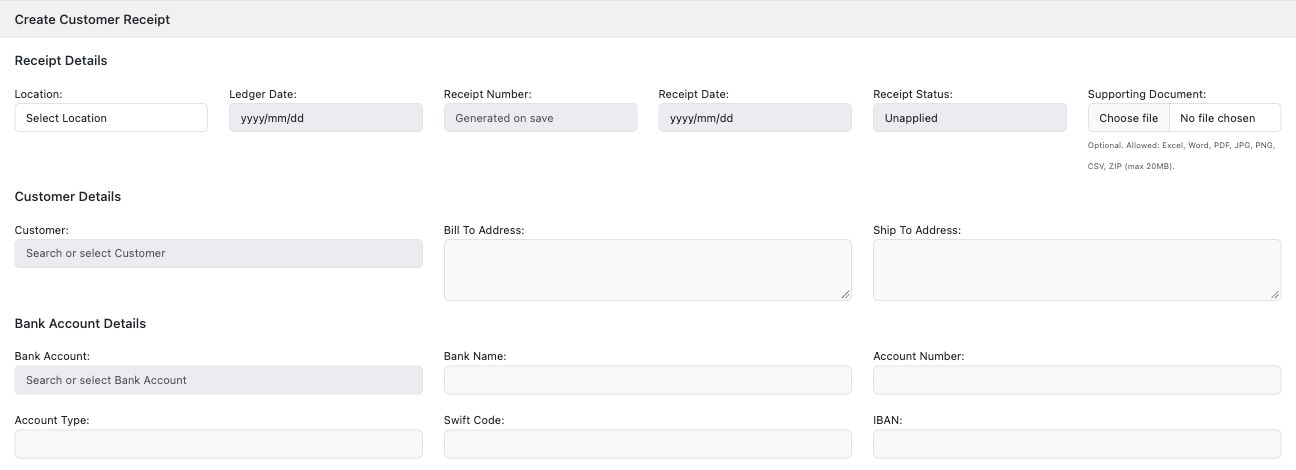
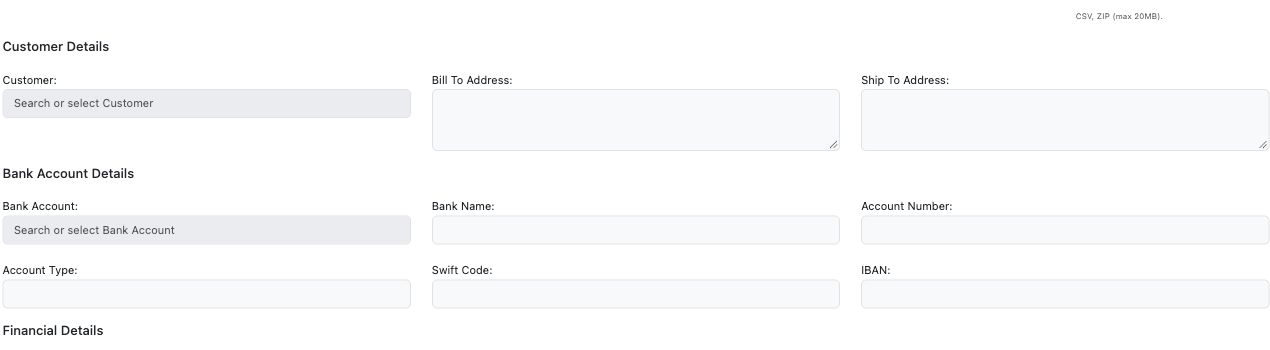
Figure 7 Receipt amounts and references
Receipt header field reference
Figures 6 and 7 cover all 26 regular receipt header fields/displays. The transaction-line picker is described separately below. Miscellaneous receipts, refund and reverse modes have different controls and must not be inferred from this regular-receipt task.
| Field | Entry or source | Purpose and implication |
|---|---|---|
| Location | Required permitted selection | Sets the receipt's operating context. Existing applications can lock it. Figure 6. |
| Ledger Date | Required accounting date | Sets the receipt's ledger period; closed-period restrictions apply. Figure 6. |
| Receipt Number | Generated/read-only on save | Identifies the receipt within company/location numbering; not a bank reference. Figure 6. |
| Receipt Date | Required payment/document date | Records when money was received; distinguish it from ledger and application dates. Figure 6. |
| Receipt Status | System/read-only; initially Unapplied | Tracks application/refund/reversal state, not bank-statement reconciliation or guaranteed GL completion. Figure 6. |
| Supporting Document | Optional accepted evidence file, maximum 20 MB | Links evidence to the receipt; it does not create another receipt, import a statement or prove funds cleared. Figure 6. |
| Customer | Required actual active customer | Determines whose receipt and eligible transactions are being settled; avoid merely matching a similar name. Figure 6. |
| Bill To Address | Read-only customer information | Helps confirm identity. Correct the master through the customer workflow if inaccurate. Figure 6. |
| Ship To Address | Read-only customer information | Provides the customer's destination context; not a payment beneficiary instruction. Figure 6. |
| Bank Account | Required actual configured bank account | Determines the bank and unapplied-receipt accounting mappings. Its currency must match the receipt currency. Figure 6. |
| Bank Name | Read-only bank-master display | Confirms which bank was selected; does not create or validate a bank account. Figure 6. |
| Account Number | Read-only bank-master display | Confirms the selected account. Protect real account details in screenshots and customer material. Figure 6. |
| Account Type | Read-only bank-master display | Describes the selected bank account; it is not the chart-of-account classification for the invoice. Figure 6. |
| Swift Code | Read-only bank-master display | Shows a stored routing reference; it is not evidence of an executed transfer. Figure 6. |
| IBAN | Read-only bank-master display | Shows the configured bank identifier where applicable. Do not infer it is verified or required for every country. Figure 6. |
| Total Amount | Required positive amount for a regular receipt | Records cash received in receipt currency. Refunds use a different flow/sign rule. Figure 7. |
| Currency | Required/defaulted subject to setup | Must match the selected bank account's currency; not just the customer's invoice currency. Figure 7. |
| FX Rate Override | Conditional; disabled for functional currency | Converts receipt to functional currency. The fictional same-currency example uses 1; foreign-currency rates need separate review. Figure 7. |
| Functional Total Amount | Calculated/read-only | Functional equivalent of the receipt amount; review rounding and saved rate. Figure 7. |
| Unapplied Amount | Calculated/read-only | Receipt-currency amount not yet consumed by applications/refunds; not the customer's total debt. Figure 7. |
| Functional Unapplied Amount | Calculated/read-only | Functional counterpart of the unapplied receipt balance. Figure 7. |
| Refunded Amount | Calculated/read-only | Tracks receipt amounts refunded under the separate refund workflow; do not edit it to clear an imbalance. Figure 7. |
| Functional Refunded Amount | Calculated/read-only | Functional counterpart of refunded amounts; not additional money received. Figure 7. |
| Customer Reference | Optional, browser limit 50 characters | Records the customer's payment/remittance reference for matching. It is not the receipt number. Figure 7. |
| Bank Reference | Optional, browser limit 50 characters | Records the bank's reference for evidence/reconciliation; it does not reconcile a bank statement automatically. Figure 7. |
| Description | Optional, limit 100 characters | Explains the receipt for accounting review; do not store unnecessary personal or sensitive data. Figure 7. |
Understand receipt applications
Select Transaction Line is available only for an eligible saved receipt/customer state. An application identifies the exact target document and line, its currency, the cash applied and the accounting dates. Apply Receipt is separate from Save Receipt: saving the receipt alone does not settle an invoice.
Figure 8 Receipt application controls

Application and lookup field reference
Figure 8 shows the empty table and picker. The reference below explains the application fields; no populated application row appears in this image.
| Field or control | Entry or source | Purpose and implication |
|---|---|---|
| Select Transaction Line | Eligible saved receipt/customer only | Chooses an outstanding invoice/debit line; typing search text does not apply money. |
| Application Line Number | Saved/system identity | Distinguishes the receipt's individual applications. |
| Transaction Type | Selected target/read-only | Confirms which kind of customer transaction is being settled. |
| Transaction Number | Selected target/read-only | Confirms the document number; pair it with type and line number. |
| Currency | Target transaction currency/read-only | Can differ from receipt currency in a separately reviewed FX case. |
| Transaction Line Number | Selected target/read-only | Identifies the exact outstanding line, not only the document header. |
| Transaction Date | Required application-row date | Dates the application record; verify the saved value. |
| Ledger Date | Required application-row accounting date | Determines accounting-period treatment; verify actual application and journal dates. |
| Net Cash Applied | Application cash amount against the target | Consumes the receivable's cash-settlement portion, not automatically its gross amount where WHT applies. |
| Settlement WHT | Calculated treatment | Displays withholding recognised with settlement where configured; not extra cash received. |
| Receipt Applied Amount | Amount consumed in receipt currency | Review both currencies; it is locked to the corresponding value in a same-currency case. |
| Cross Currency Rate | Calculated/read-only | Relates receipt-currency and target-currency amounts. It is not a free balancing field. |
| Functional Applied Amount | Calculated | Shows functional settlement used for reconciliation; distinguish it from cash in either foreign currency. |
| Gain/Loss | Calculated | Shows FX difference where applicable; validate its sign and linked journal in an FX-specific scenario. |
| Actions | State/permission dependent | Remove unsaved picks or use supported Update/Journal/Gain-Loss links for saved applications. Removing a saved application changes settlement and is not a harmless display action. |
| Application columns | Presentation control | Hides/shows columns, not their underlying requirements or financial effects. |
| Save Receipt | Saves the receipt header | Does not by itself settle the chosen invoice line. |
| Apply Receipt | Saves new application rows for a saved eligible receipt | Changes settlement and triggers related accounting; requires final review before action. |
The transaction-line lookup also displays Location, Transaction Type, Transaction Number, Currency and Line Number to identify the target. Gross Open Receivable is the outstanding gross target amount; Projected WHT is expected withholding under its treatment; Net Cash Receipt is the projected cash requirement; Functional Net Cash is that cash measure in functional currency. Do not confuse those lookup previews with saved application results.
Illustrative accounting relationship
The normal same-currency/no-tax path uses the configured account bindings, not account names typed into the document. The released receipt/application code uses the bank account's mapped bank and unapplied-receipt accounts, and the customer's mapped receivable account.
| Event | Expected debit | Expected credit |
|---|---|---|
| Service invoice USD 1,000 | Customer receivable 1,000 | Approved service revenue 1,000 |
| Receipt USD 600 | Mapped bank account 600 | Mapped unapplied-receipt control 600 |
| Apply receipt USD 600 | Mapped unapplied-receipt control 600 | Customer receivable 600 |
The illustrative balances are customer receivable 400, bank debit 600, service revenue credit 1,000 and zero net unapplied control for this receipt/application pair. Actual records must reconcile after all related journals have completed. Compare invoice open lines, receipt applications, customer statement, GL transactions and mapped controls on the same dates, company, location and currency basis.
A saved receipt or application status alone does not establish GL completeness, bank reconciliation or fiscal acceptance. If journals are missing or pending, retain document identities and ask the administrator to investigate processing rather than creating duplicate documents or manual balancing journals.
Corrections and common problems
| Problem | Safe response |
|---|---|
| Fields stay disabled | Select Location and Ledger Date first; check setup, document state and role. Do not bypass locks. |
| Item/tax text is not accepted | Choose a real list result, or deliberately clear tax only when approved. Resolve pending tax previews. |
| Wrong customer, bank, currency or account | Stop before saving. If already saved, review applications, locks and correction options before editing. |
| Receipt saved but invoice remains unpaid | Check whether a receipt application was actually saved to that invoice line. |
| Cannot change a receipt header | Applied, refunded, reversed or locked receipts have restrictions. Use the supported application/correction workflow with accounting review. |
| Connection times out after Save or Apply | Check the list and saved record first; a timeout does not prove failure. Avoid duplicate submissions. |
| Open balance differs from the simple example | Review tax/WHT recognition, discounts, currency/rates, partial applications, refunds, dates, filters and journal completion. |
Do not use credit/debit notes, refunds, reversals, application deletion or company deletion as interchangeable corrections. Applied receipts have additional restrictions. Use the approved correction procedure for the document and country, with accounting review of tax, discounts, applications and fiscal status.