
Configure GL controls and exchange rates
Company precision, posting mappings and dated currency conversions
GL Setup links the company's chart of accounts to shared posting controls. Use it to review precision, foreign-currency availability, manual-journal approval policy and the accounts assigned to exchange differences, rounding and bank transfers. Then maintain the currency quotations needed for the relevant transaction dates.
This chapter is for authorised accountants and Tenant Administrators in their own subscription workspace. A tenant is the subscription/account workspace; its Tenant Administrator manages authorised users and company access. Platform administration and tenant database management are outside this guide.
Examples use fictional training values, not current market rates. Obtain approved rates and account mappings for your company.
Before changing GL settings
Open the intended company and confirm its name in Current Company. Review its functional currency and chart before maintaining mappings. The released company form prevents changing functional currency after creation; enabling foreign-currency entry does not change that functional currency.
Prepare seven active posting combinations, each with its reporting account and sub-account. Use separate, clearly named gain, loss and clearing accounts consistent with your approved accounting policy. Starter charts may already have supplied these mappings; review the existing GL Setup rather than creating a second setup or replacing populated accounts without a reason.
Obtain approval for configuration changes and keep a before/after record of values and the reason. Coordinate changes while relevant transaction entry is paused, and reopen affected screens afterwards. A setting change is not a historical journal correction, a migration of old balances or a substitute for reconciliation.
Open and review GL Setup
- In the selected company, open General Ledger, then GL Setup, when your permissions expose that link.
- Read the company identity and existing settings. If no setup exists, the application routes to creation; an existing setup routes creation requests to its update form.
- Use Edit only when authorised to change the configuration. Review general settings first, then every mapped account.
- For account fields, search and choose the actual suggestion; confirm the full company-account-sub-account code and description. Do not rely on text merely typed into a lookup.
- Recheck all values, then use Create or Update as appropriate. Return to GL Setup and compare every displayed mapping and setting with the approved values.
All seven mappings are mandatory in this form, even with Allow Foreign Currency Transactions off. The visible account description is not the submitted identity; each picker maintains a selected account ID. If the lookup does not load, stop rather than attempting to enter or repair hidden values.
Figure 1 GL general settings
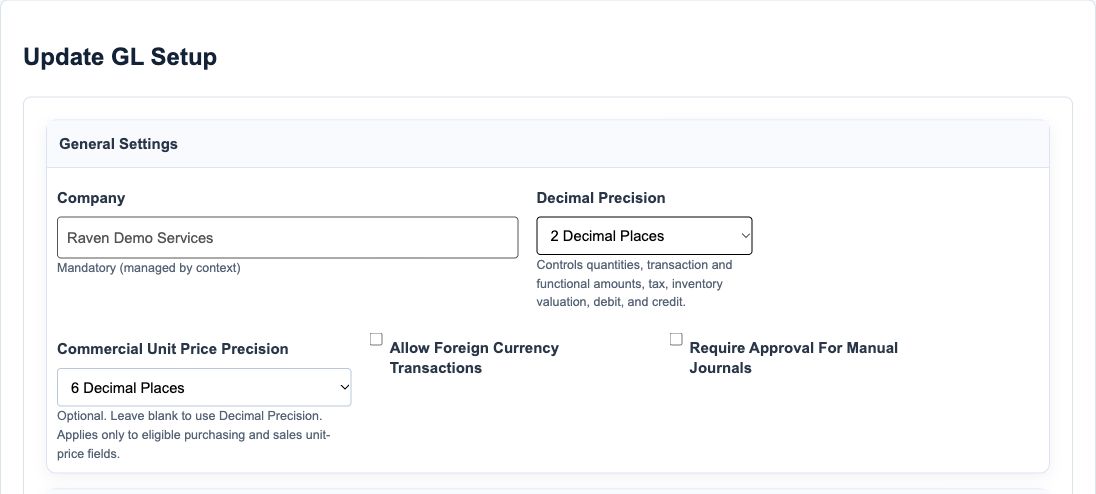
GL general settings field reference
| Field and screenshot | Entry rule and example | Purpose and implication |
|---|---|---|
| Company - Figure 1 | Required, locked display managed by the selected-company context; hidden form identity is disabled. Example: 1 - Raven Demo Services. | Determines which company's single GL Setup record is being maintained. Caution: If the company is wrong, cancel and switch context before reopening; do not try to edit this display. |
| Allow Foreign Currency Transactions - Figure 1 | Checkbox; off for a new manual setup. Example: Leave off for the functional-currency-only training company. | Provides the company flag used by consuming transaction screens to allow foreign-currency entry. Caution: It does not create rates, approve accounting policy or post revaluation; keep all seven mappings populated even when off. |
| Require Approval For Manual Journals - Figure 1 | Checkbox; off for a new manual setup. Example: Enable only after the authorised approval matrix has been prepared and tested. | Selects the manual-journal approval policy; the detail page exposes the approval-matrix link when enabled and permitted. Caution: A switch alone does not define approvers or approval limits. Do not disable an established approval control to clear a posting problem. |
| Decimal Precision - Figure 1 | Required choice of 2, 3 or 4 decimal places; new setup default is 2. Example: 2 Decimal Places. | Sets the company GL scale used by shared amount and quantity rounding helpers and consuming transaction paths. Caution: This is an accounting configuration, not just a display preference. Review effects across modules before changing a live company's precision. |
| Commercial Unit Price Precision - Figure 1 | Optional choice of 2 through 6; blank follows Decimal Precision. Example: 6 Decimal Places with GL precision 2. | Allows eligible purchasing and sales unit prices to retain more decimals while extended accounting amounts use GL precision. Caution: It does not increase all document totals, quantities, tax or ledger precision, and is not a universal rule for every price control. |
Understand the two precision controls
With GL precision 2 and eligible commercial price precision 6, a unit price can retain six decimals, such as 0.123456. For quantity 3, the rounded amount at two decimals is 0.37. Leaving commercial precision blank makes it follow GL precision instead. Verify the actual calculated amounts on the consuming document.
Exchange-rate precision is separate: Forex Conversion supports ten rate decimals regardless of the GL amount setting. Increasing price or rate precision does not justify changing accounting amounts or tax policy. Review each consuming module before changing settings on a company with history.
Review all posting mappings
Figure 2 Selected GL mappings
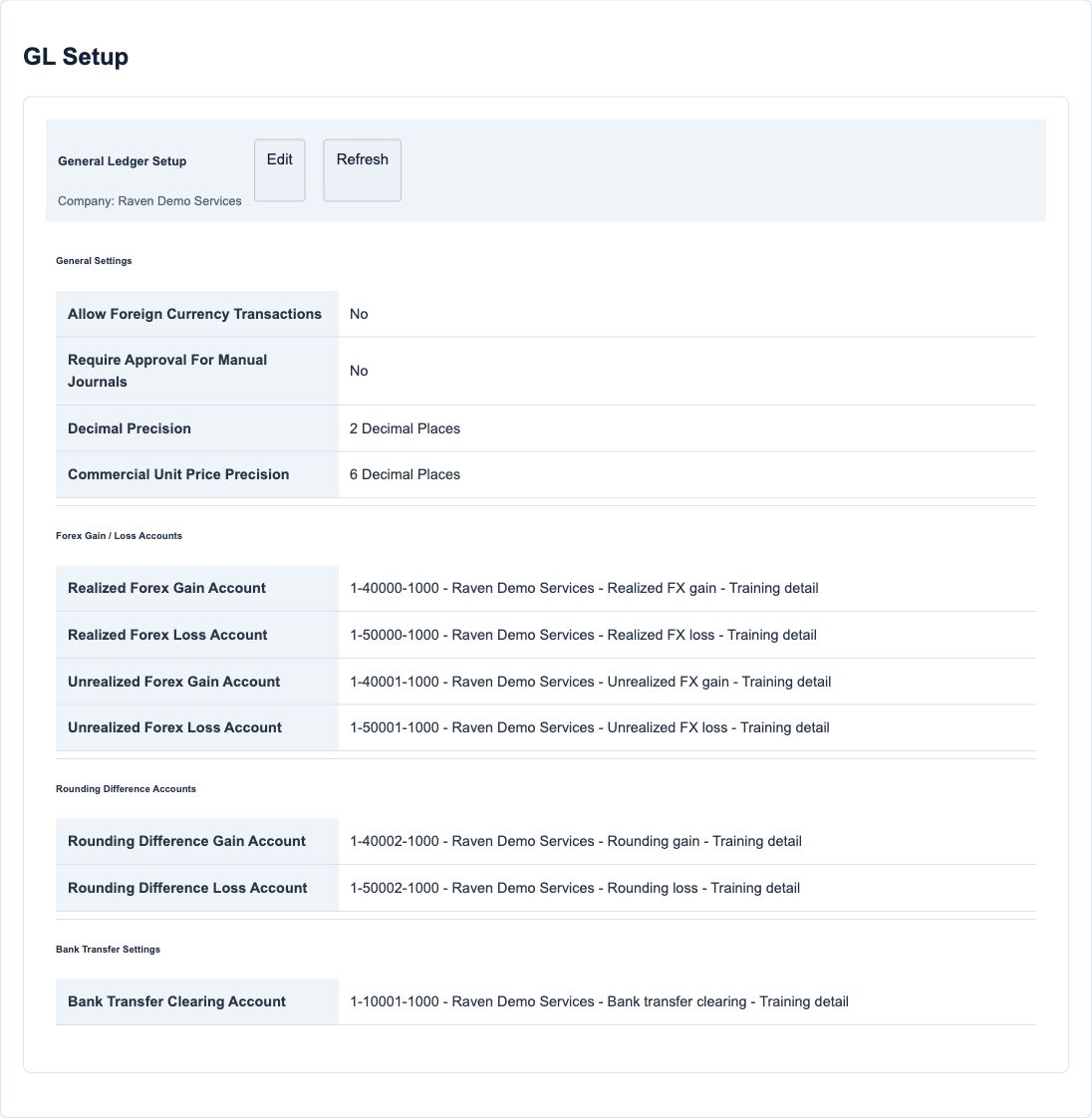
GL mapping field reference
| Field and screenshot | Entry rule and example | Purpose and implication |
|---|---|---|
| Realized Forex Gain Account - Figure 2 | Mandatory selected active posting combination in this company, including when foreign currency is disabled. Example: Realized FX gain - Training detail. | Identifies the configured destination for realized exchange gains in consuming settlement/posting paths. Caution: Use the approved gain account, not any suggested expense account. A valid selection does not certify its accounting classification. |
| Realized Forex Loss Account - Figure 2 | Mandatory selected active posting combination in this company. Example: Realized FX loss - Training detail. | Identifies the configured destination for realized exchange losses in consuming settlement/posting paths. Caution: Keep gain and loss mappings distinct unless an authorised accounting policy explicitly permits another arrangement. |
| Unrealized Forex Gain Account - Figure 2 | Mandatory selected active posting combination in this company. Example: Unrealized FX gain - Training detail. | Identifies the configured destination for unrealized exchange gains in eligible revaluation paths. Caution: A mapping does not run revaluation or determine whether every underlying balance should be retranslated. |
| Unrealized Forex Loss Account - Figure 2 | Mandatory selected active posting combination in this company. Example: Unrealized FX loss - Training detail. | Identifies the configured destination for unrealized exchange losses in eligible revaluation paths. Caution: Review the parent reporting account's Monetary property separately; do not classify every foreign-currency balance as monetary. |
| Rounding Difference Gain Account - Figure 2 | Mandatory selected active posting combination in this company. Example: Rounding gain - Training detail. | Provides the configured account for qualifying credit rounding differences, separate from exchange gains. Caution: Do not leave this blank or select an inactive account. Released validation can raise an application error in those cases; stop and ask authorised support to review. |
| Rounding Difference Loss Account - Figure 2 | Mandatory selected active posting combination in this company. Example: Rounding loss - Training detail. | Provides the configured account for qualifying debit rounding differences, separate from exchange losses. Caution: Do not use rounding to hide a substantive imbalance. A missing rounding mapping can raise an application error rather than a normal field message. |
| Bank Transfer Clearing Account - Figure 2 | Mandatory selected active posting combination in this company. Example: Bank transfer clearing - Training detail. | Provides the intermediary account used by bank-transfer source, destination and FX-adjustment posting paths. Caution: Select the approved clearing account, not an ordinary bank or income account. Reconcile outstanding transfers; this setting does not guarantee a zero balance. |
The six gain/loss pickers suggest active Income and Expense combinations for the selected company. Both types can appear in the same suggestion list: the word Gain in a label does not mean the system guarantees an Income selection. The clearing picker is broader. The form checks company/active choices but does not enforce every destination's accounting type or require seven different IDs. Your accounting review must do that.
These mappings do not replace customer/vendor control accounts, inventory/WIP setup, tax mappings, cash/bank accounts or fixed-asset configuration. Those belong to their respective module setup. Keep system-maintained accounts and their protections intact.
GL actions and conditional controls
| Action or display | Meaning | Safe use |
|---|---|---|
| Edit on GL Setup | Opens the current company's update form when allowed | Confirm company before editing; visibility alone is not evidence of every direct-route permission |
| Refresh on GL Setup | Reloads the saved detail | Use it to compare saved values; it does not save an unfinished form |
| Create or Update | Submits GL settings and mappings | Recheck all seven selected accounts; verify the returned detail after success |
| Cancel | Leaves the form for GL Setup detail | Unsaved edits are not a saved configuration |
| Manual Journal Approval Matrix | Conditional link when approval is enabled and the user is permitted | Review the approved matrix and intended approvers before relying on the approval workflow |
Maintain dated exchange rates
Open General Ledger, then Forex Conversion. Check existing rows before using Add New Forex Conversion. Use Edit to correct the intended row rather than adding an overlapping duplicate. Save creates or updates the selected company's quotation; it does not post a foreign-currency transaction or revaluation.
Store one quotation direction for each overlapping validity window. For example, EUR to USD at the synthetic rate 1.25 expresses one EUR as 1.25 USD. A EUR amount of 100 translates to USD 125.00 in the selected helper at GL precision 2. A reverse request uses 1 divided by 1.25, or 0.8000000000; do not save a second overlapping USD-to-EUR row.
Figure 3 Forex Conversion fields
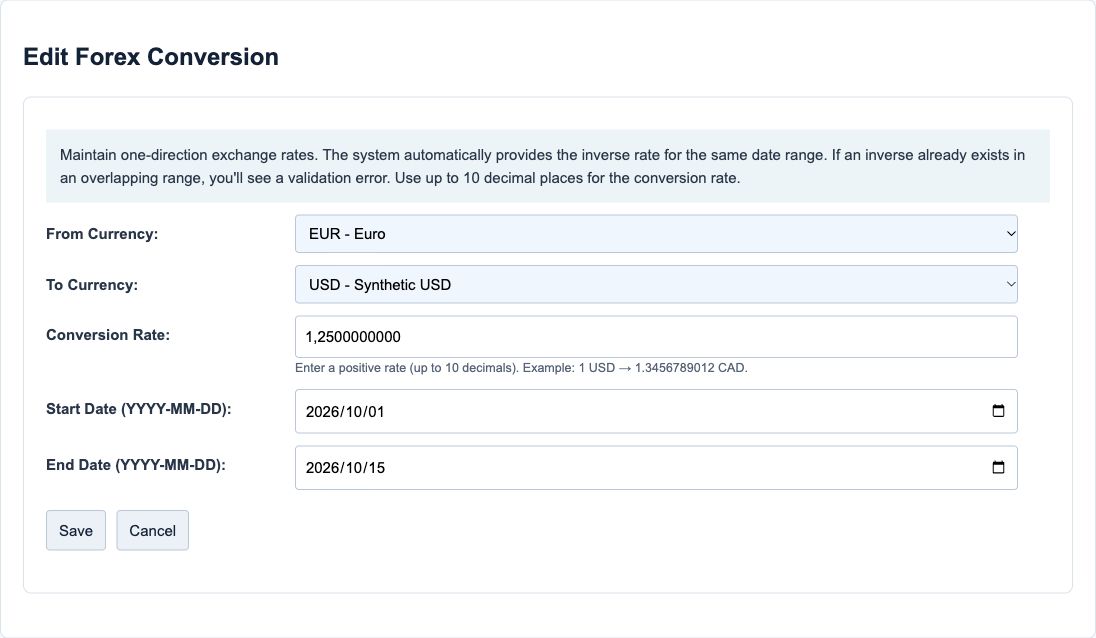
Forex Conversion field reference
| Field and screenshot | Entry rule and example | Purpose and implication |
|---|---|---|
| From Currency - Figure 3 and 4 | Required currency from the available currency reference list. Example: EUR - Euro. | Sets the one-unit source of the stored conversion quotation. Caution: Confirm direction before entry. EUR to USD at 1.25 means one EUR equals 1.25 USD, not the reverse. |
| To Currency - Figure 3 and 4 | Required currency, different from From Currency. Example: USD - US Dollar. | Sets the destination currency in which the rate expresses one source-currency unit. Caution: The company context remains separate from the pair. Do not create an overlapping inverse pair; the lookup computes its reciprocal. |
| Conversion Rate - Figure 3 and 4 | Required number greater than zero, up to 10 decimal places and 20 total digits. Example: 1.2500000000, a synthetic training quotation only. | Supplies the dated conversion factor; the selected translation helper multiplies the source amount by this factor. Caution: Obtain an approved rate with a documented source and date. Never use this example as a current market rate or substitute 1 for a missing quote. |
| Start Date - Figure 3 and 4 | Required valid date; submitted as YYYY-MM-DD. Included in the validity window. Example: 2026-10-01. | Makes the rate eligible from this date in the company's dated lookup. Caution: An earlier rate ending on this same day overlaps. The next non-overlapping window starts the following day. |
| End Date - Figure 3 and 4 | Required valid date on or after Start Date; included in the validity window. Example: 2026-10-15. | Keeps this rate eligible through the selected end date, not indefinitely. Caution: A long validity window is not automatically an acceptable accounting policy. Leave no unintended rate gaps and review volatile-period quotations. |
Date windows and missing rates
Start Date and End Date are both included. A rate valid from 1 October through 15 October can be followed by a new rate starting 16 October. Starting the next rate on 15 October would overlap, including for an inverse pair. A one-day window with the same start and end date is permitted by the form's date rule.
The selected lookup checks a direct stored pair first, then its inverse for the requested ledger date. It returns no rate when the company/pair/date has no valid row. Do not assume the most recent rate extends beyond its end date, that another company's rates are shared, or that entering a reverse row fills a missing interval.
Figure 4 Shared-boundary validation
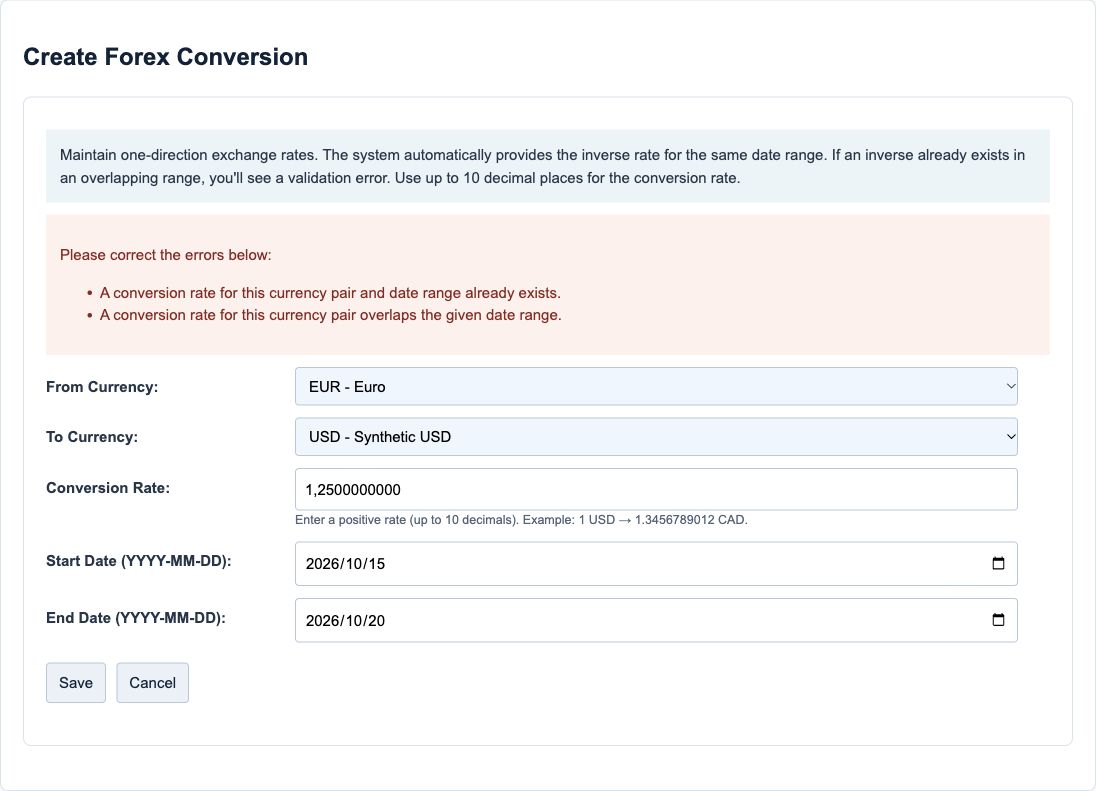
Accounting policy and rate selection
Choose the rate source and timing under your approved accounting policy. Initial recognition generally uses the transaction-date spot rate; an approximation must remain representative, and a period average is unsuitable when movements are significant. Subsequent measurement depends on the item and measurement basis, not just on whether a currency code is foreign. See the published NZ IAS 21 paragraphs 21 to 23.
RavenLedger's date window is a lookup mechanism, not automatic evidence that a monthly rate is acceptable. This setup guide does not cover hedging, translation of foreign operations, lack of exchangeability or every jurisdiction's tax/authority rate requirements. Revaluation and settlement require their own reviewed workflows.
Search and review conversion rows
Figure 5 Rate list and filters
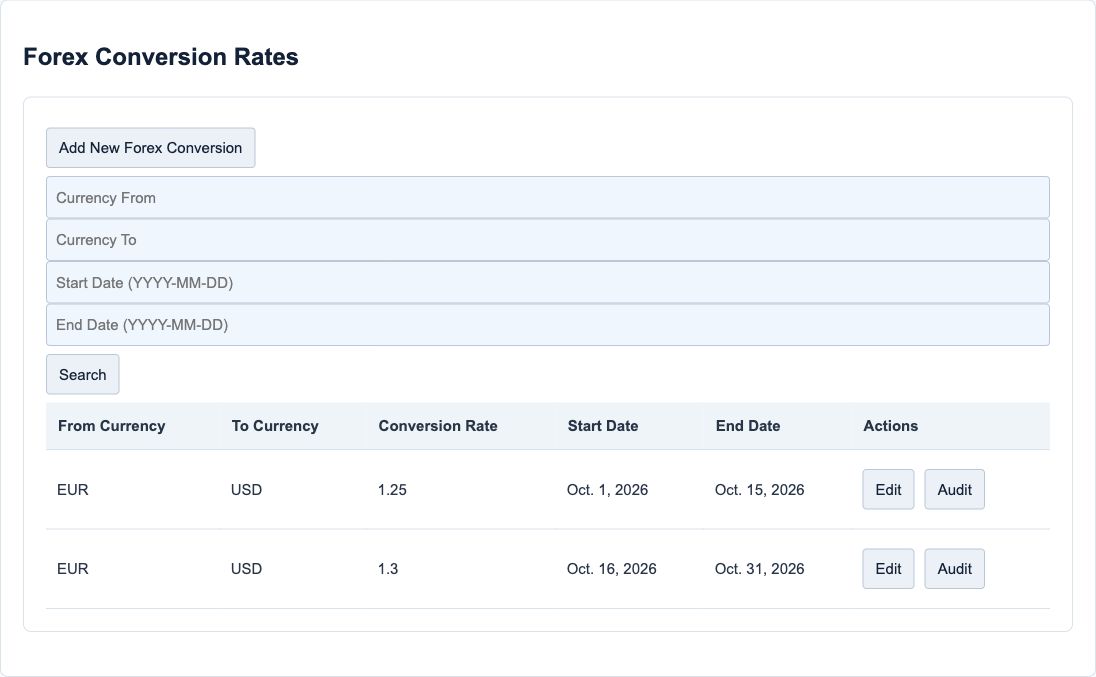
Forex list filter reference
| Field and screenshot | Entry rule and example | Purpose and implication |
|---|---|---|
| Currency From filter - Figure 5 | Optional text search in the stored source currency code. Example: EUR. | Narrows the current company's displayed rate rows by source-code text. Caution: It does not change the rate's direction or include inverse rows as if stored in that direction. |
| Currency To filter - Figure 5 | Optional text search in the stored destination currency code. Example: USD. | Narrows displayed rows by destination-code text. Caution: Clear unrelated filters when investigating a missing rate before creating another row. |
| Start Date filter - Figure 5 | Optional ISO date. With both dates entered, lists windows overlapping the requested range. Example: 2026-10-08. | On its own, retains windows ending on or after this lower boundary. Caution: This is not an exact-start-date filter. Use valid ISO dates and keep the start on or before the end. |
| End Date filter - Figure 5 | Optional ISO date; use an end on or after the filter start. Example: 2026-10-20. | On its own, retains windows starting on or before this upper boundary. Caution: Search only displays results; it neither saves rates nor closes an accounting period. |
Rate list displays and actions
| Display or action | Meaning and implication | Caution |
|---|---|---|
| From/To Currency and Conversion Rate | Shows the stored direction and quotation, not a separately stored reciprocal | Read direction before applying mental arithmetic |
| Start/End Date | Shows the inclusive validity interval | A gap can explain a missing-rate message even when a nearby row exists |
| Search | Applies currency-code and overlapping-date filters to this company | Clear filters to return to the full list; no rate is saved |
| Add New Forex Conversion | Opens a new rate form if allowed | First search for the pair and overlapping inverse |
| Edit | Opens the identified rate row when permitted | Retain approved source evidence; do not assume edits automatically recalculate historical documents |
| Audit | Opens available creator/updater information for that row | Keep the approved rate source separately; attribution is not a complete history of quotations |
| Bulk Upload | Launches the separate import workflow when allowed | Use only an approved import template and procedure; ordinary rate-entry instructions do not cover bulk imports |
The entry form has no user-settable Active checkbox. Do not treat an Active display on an audit page as the rate's availability switch; eligibility in the reviewed lookup depends on company, pair and validity dates.
Distinguish rate dates from accounting dates
| Date or context | What it controls | What it does not do |
|---|---|---|
| FX Start/End Date | When a stored quotation can be selected by the dated lookup | Does not open or close an accounting period |
| Document date | The business document's own date, according to its module | Does not universally replace the ledger date |
| Ledger date | Accounting-period timing and the lookup date on the reviewed rate endpoint | Must still satisfy module posting and closed-period rules |
| Company audit timezone | Display of audit timestamps in the company context | Does not redefine a stored FX validity day or reopen a closed period |
| Closed-through ledger date | Boundary used by the shared period guard | Is not a setting to change merely to accept an old document |
If a company is closed through 30 September, the shared date guard treats 30 September as closed and 1 October as the next open day. Some correction helpers can move an older ledger date to that first open day. Always read the actual date before saving a correction; do not assume every module rejects or adjusts it identically.
Close Period, blocker resolution, opening balances and correction postings are separate high-impact workflows. Do not close or reopen a period simply to complete this setup exercise. Reconcile the affected ledgers and obtain the appropriate authority first.
Review checklist
- Confirm the selected company, functional currency and authorised change owner.
- Compare every GL setting and all seven mappings against the approved accounting design; check account type, active status and sub-account identity.
- For a quotation, verify source, direction, positive value, precision and inclusive dates; check the inverse and adjacent intervals.
- After an authorised save, compare the saved detail/list with the intended values, then test a representative consuming workflow in an approved training environment.
- Review approval setup, historical-change effects and the resulting ledger reconciliation with the responsible accountant.