
Configure tax codes and understand withholding
Tax lines calculation bases recognition timing and transaction defaults
Set up approved transaction tax codes and understand how their lines affect invoice and settlement calculations. This guide is for authorised tax/accounting users in the selected company. It does not prescribe a statutory rate, register a business for tax or submit an electronic invoice.
Prepare and verify a tax code
Have the tax owner's approved design for the tax basis, rate, inclusive/exclusive treatment, withholding timing, ledger destination and authority reference. Chargeable tax adds or extracts tax under its configured calculation; withholding concerns an amount retained from settlement. They are not interchangeable.
- In Taxation, open Tax Code Headers and search for an existing suitable code before using Create Tax Code Header.
- Enter Name and optional Description, and review Active. A clear name helps selection but does not determine the calculation.
- Use Add Line for each approved component. Complete the field reference below, including type, recognition where applicable, nature, rank, posting account, percentage and any Applied To dependencies.
- Review Exclude Base together with Applied To. Do not tick it merely to mark a transaction exempt; it changes the amount on which the line calculates. Remove accidental empty lines before Save.
- Reopen the saved header and review all lines, then check a representative authorised transaction's line tax and totals before making this the normal default. Reopen the consuming transaction to confirm its actual selected code, not just the master name.
Maintain customer and vendor defaults and item defaults separately. Follow electronic invoicing for fiscal-document evidence and invoice/payment guidance for settlement-stage effects.
Separate tax configuration from country fiscal processing
Tax Code Headers group tax lines used by transaction calculations. Country e-invoice treatment, authority connections and tax registration evidence are separate. Selecting a tax code does not submit a return or establish that the transaction meets all statutory requirements.
Prepare approved tax design
Confirm current company, active posting accounts, chargeable/withholding treatment, rates, dependency order and recognition timing with the authorised tax/accounting owner. Use the approved applicable rules and effective operational setup; do not infer a country tax rate from a training example.
Read tax headers and line identities
A header supplies name, description and active state. Each tax line supplies name/description, Tax Type, Withholding Recognition, Tax Nature, Rank, Chart of Account, Percentage, Tax Authority, Active, Applied To and Exclude Base. The ledger destination must reflect the line's actual purpose.
Field explanations and training references
Each reference describes the field or control, entry rule, example and practical implication. Illustrations use blank or fictional training values. Conditional fields and actions depend on your selected policy, country, record state and permissions; choose actual application lookup records rather than copying text or hidden identities.
Tax Code Header field reference
Figure 1 Tax Code Header
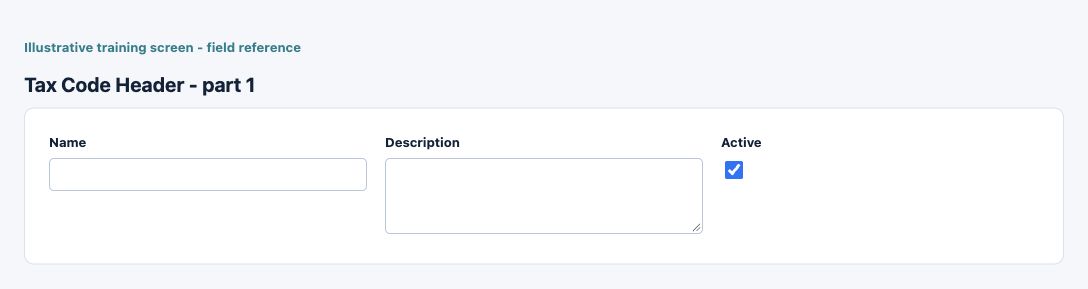
| Field and screenshot | Entry rule and example | Purpose and implication |
|---|---|---|
| Name - Figure 1 | Required entry. Maximum 50 characters. Example: Training configuration | Business description used to recognise this record in lists and selections; it is not a posting account or an approval. Enter the name of the tax group. Caution: Confirm the saved value and affected workflow before relying on the result. |
| Description - Figure 1 | Optional or policy-dependent entry. Maximum 100 characters. Example: Approved business purpose | Business explanation supporting the record and its review. Text does not replace source documents, approval or calculated accounting values. Provide a description for the tax group (optional). Caution: Confirm the saved value and affected workflow before relying on the result. |
| Active - Figure 1 | Checkbox policy setting; review the saved on/off state. Example: The approved on/off policy | Controls whether this configuration remains available for relevant use. Turning it off does not reverse earlier transactions or erase history. Indicates whether the tax group is active. Caution: Confirm the saved value and affected workflow before relying on the result. |
Tax Code Line field reference
Figure 2 Tax Code Line
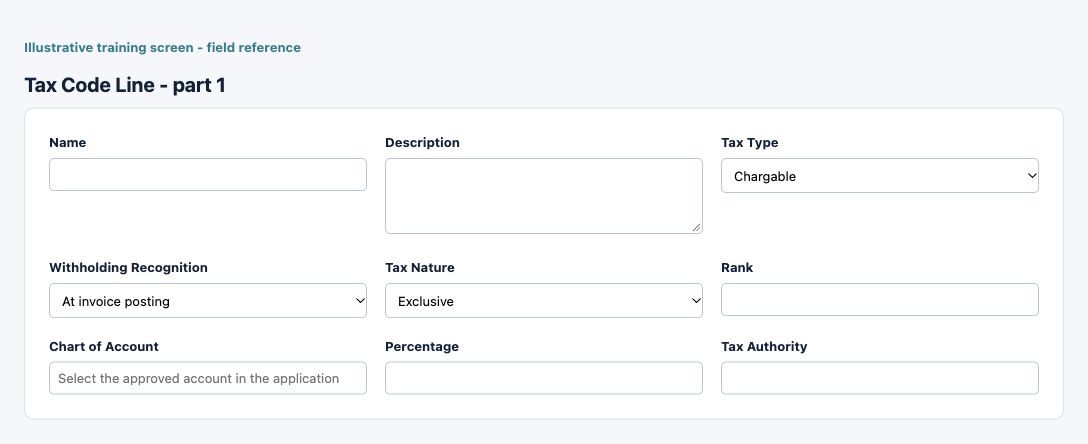
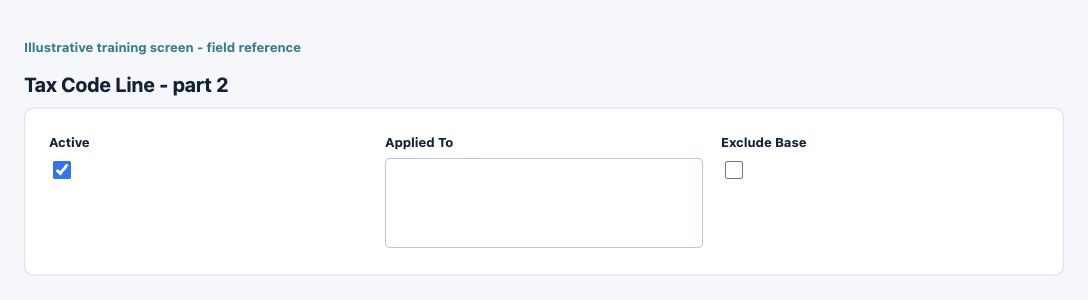
| Field and screenshot | Entry rule and example | Purpose and implication |
|---|---|---|
| Name - Figure 2 | Required entry. Maximum 50 characters. Example: Training configuration | Business description used to recognise this record in lists and selections; it is not a posting account or an approval. Name of the tax code (e.g., VAT, GST). Caution: Confirm the saved value and affected workflow before relying on the result. |
| Description - Figure 2 | Optional or policy-dependent entry. Maximum 100 characters. Example: Approved business purpose | Business explanation supporting the record and its review. Text does not replace source documents, approval or calculated accounting values. Description of the tax code. Caution: Confirm the saved value and affected workflow before relying on the result. |
| Tax Type - Figure 2 | Required entry. Choices: Chargable, Withholding. Example: Chargable | Distinguishes chargeable tax from withholding. This is separate from tax nature and from the country-specific fiscal treatment. Type of the tax code. Caution: Confirm the saved value and affected workflow before relying on the result. |
| Withholding Recognition - Figure 2 | Required for withholding; recognition changes can be locked after use. Example: At invoice posting | Selects invoice-stage or settlement-stage withholding recognition. Keep gross liability, tax liability and cash settlement separate; used timing may be locked. For withholding tax only: recognize the tax when the invoice is posted or when a payment/receipt is applied. Caution: Confirm the saved value and affected workflow before relying on the result. |
| Tax Nature - Figure 2 | Required entry. Choices: Inclusive, Exclusive. Example: Inclusive | Classifies the configured tax line for the application calculation. It is not the same as chargeable-versus-withholding type or a country fiscal treatment. Nature of the tax code (Inclusive/Exclusive). Caution: Confirm the saved value and affected workflow before relying on the result. |
| Rank - Figure 2 | Required entry. Example: 1 | Order used to evaluate related tax lines. Review dependencies so a later line does not refer to an unavailable calculation basis. Rank to determine the order of tax application. Caution: Confirm the saved value and affected workflow before relying on the result. |
| Chart of Account - Figure 2 | Required entry. Example: Approved active company posting account | Approved company ledger mapping for the tax, deduction or liability concerned. Select an active account with the correct accounting purpose; a search result alone is not approval. Chart of Account associated with this tax code. Caution: Form acceptance is not accounting approval; inspect company, active state and purpose. |
| Percentage - Figure 2 | Required entry. Form precision up to 2 decimal places; consuming company policy also applies. Example: 10.00 | Percentage applied by the selected calculation rule. Enter percentage units, not a currency amount or an assumed decimal fraction. Percentage rate of the tax. Caution: Confirm the saved value and affected workflow before relying on the result. |
| Tax Authority - Figure 2 | Required entry. Maximum 50 characters. Example: The approved business value or selected record | Business authority reference on the tax line. It does not create an e-invoice connection, credential or regulatory submission. Name of the tax authority (e.g., IRS, State Tax Department). Caution: Confirm the saved value and affected workflow before relying on the result. |
| Active - Figure 2 | Checkbox policy setting; review the saved on/off state. Example: The approved on/off policy | Controls whether this configuration remains available for relevant use. Turning it off does not reverse earlier transactions or erase history. Indicates whether the tax code is active. Caution: Confirm the saved value and affected workflow before relying on the result. |
| Applied To - Figure 2 | Optional or policy-dependent entry. Example: The approved business value or selected record | Selected other tax lines included in this line calculation basis, subject to supported type rules. Leaving it blank is not the same as selecting every tax line. Select the tax code line(s) on which this tax is applied. For chargeable taxes, select other chargeable taxes of the same type. For withholding taxes, select chargeable taxes to include in the base amount when exclude base is unchecked. Leave blank if not applicable. Caution: Confirm the saved value and affected workflow before relying on the result. |
| Exclude Base - Figure 2 | Checkbox policy setting; review the saved on/off state. Example: The approved on/off policy | Excludes the document base so only selected Applied To tax amounts form the relevant basis. Review this together with type and dependencies to avoid double taxation. Check this if the base for this tax should be calculated solely on the tax amounts from the selected 'Applied To' lines, excluding the overall base. Uncheck to include the base amount and selected chargeable taxes for withholding taxes. Caution: Confirm the saved value and affected workflow before relying on the result. |
Distinguish chargeable tax and withholding
Chargeable tax and withholding are not the same cash effect. Withholding can be recognised at invoice or settlement depending on the configured policy. Keep taxable base, added tax, gross liability, withholding liability and net cash distinct. Used recognition timing can be protected; do not force a policy change through a copied identifier.
Understand rank and dependencies
Rank controls evaluation order. Applied To selects supported other tax lines contributing to the basis. Exclude Base changes whether the document base is included; it is not an instruction to exempt the entire document. Review the dependency graph and supported type rules before activating compounded taxes.
Check a simple calculation
For an illustrative USD 100 base with a 10% chargeable line and no other rules, added tax USD 10 gives gross USD 110. A withholding amount is not automatically another added tax. Whether withholding uses USD 100, USD 110 or another approved basis depends on selected dependencies and recognition policy; do not deduct the same withholding twice.
Review customer and vendor defaults separately
Item and trading-partner customer defaults are separate from vendor defaults. Item-side exemption and explicit selections can change the effective result. A customer tax setting is not automatically the supplier purchase treatment. Review the actual selected or cleared transaction code rather than relying on a similarly named default.
Handle copies and imports deliberately
A copied new transaction and a historical reversal have different purposes. Review current defaults for a new copy while preserving the supported source history for a true reversal. Import choices such as automatic/default treatment, none/exemption and explicit code need deliberate review in the preview; an empty spreadsheet cell is not a universal instruction to remove tax.
Reconcile tax and settlement
Compare line-level calculations, transaction totals, tax account postings, invoice/payment application timing and relevant reports on the same company/currency/date basis. For settlement-stage withholding, inspect the application evidence rather than assuming invoice entry created the final withholding journal.
Control corrections and access
Keep tax mapping changes under authorised review. Investigate incorrect defaults or dependent bases at their source; do not overwrite tax values just to match a cash figure. Preserve supporting invoices and explanations and keep credentials/authority tokens out of tax descriptions or attachments.
Resolve a tax calculation difference
| Situation | What to do |
|---|---|
| Unexpected tax code on a new line | Review the actual selected code, explicit exemption and separate item/customer/vendor defaults; a similar master name does not establish the same result. |
| Tax basis or amount differs | Check inclusive/exclusive nature, rank, Applied To, Exclude Base, percentage units and consuming document rounding before changing amounts. |
| Withholding appears at another stage | Review the configured invoice/settlement recognition and actual applications; do not record the same withholding twice. |
Continue with the related task
Trading partners, items, vendor invoices/payments, customer invoices/receipts and fiscal evidence.
Data-loading prerequisites and limits for Taxation
Prepare tax codes and country rules in their supported setup screens. Item, partner and transaction templates can carry supported tax selections; they do not replace tax-code configuration or authority registration. Review resolved customer/vendor tax and withholding after importing those records.
Continue with the Imports documents and common controls bulk guidance.