
Review approvals and inspect audit evidence
Assigned work independent decisions document state and history
Use My Approvals to review work assigned to you and record an authorised decision. Use Approval History to inspect previous decisions. This guide is for assigned approvers and authorised auditors; it does not grant approval authority merely because someone is a Tenant Administrator.
Review one request from start to finish
Before starting, have the business evidence and permission to decide on this company, location and document type. The requester prepares the source document; the approver checks it independently under the applicable policy.
- Open My Approvals and search the document, requester or supplier. Check company, document number, amount/currency, location and current status.
- Expand the request or open its source document. Read the full lines and support, including the business reason; do not decide from the total alone.
- If the current request and evidence are correct and within your authority, choose Approve. If it should not proceed, choose Reject and enter the meaningful rejection reason requested by the prompt.
- Wait for the decision to finish. Processing or Finalizing is not a second request to click the same button. If delayed, use View in History when offered and inspect the existing source document before any further action.
- Check Approval History for the decision and inspect the source's posting/operational status separately. Give the requester the document reference and reason when a correction is needed; an approval does not itself prove bank settlement or fiscal acceptance.
For preparing or correcting the underlying record, use manual journals, purchase orders or the relevant workflow handbook journey.
Understand assigned approval work
My Approvals shows eligible assigned approval work; History shows completed and superseded work items. A visible document or Tenant Administrator role is not universal approval authority over every workflow.
Find the correct request
Search document, requester or supplier. Compare document identity, subledger, amount/currency, requester, location, submitted time and status. A similar supplier name or number does not establish that two requests are the same transaction.
Inspect the underlying document
Open or expand the request to review its actual document and available detail. Journal lines show accounts, currency, debit/credit and functional amounts; commercial lines can show quantity, unit price and total. Inspect supporting evidence and the business reason before deciding.
Field explanations and training references
Each reference describes the field or control, entry rule, example and practical implication. Illustrations use blank or fictional training values. Conditional fields and actions depend on your selected policy, country, record state and permissions; choose actual application lookup records rather than copying text or hidden identities.
Approval inbox controls field reference
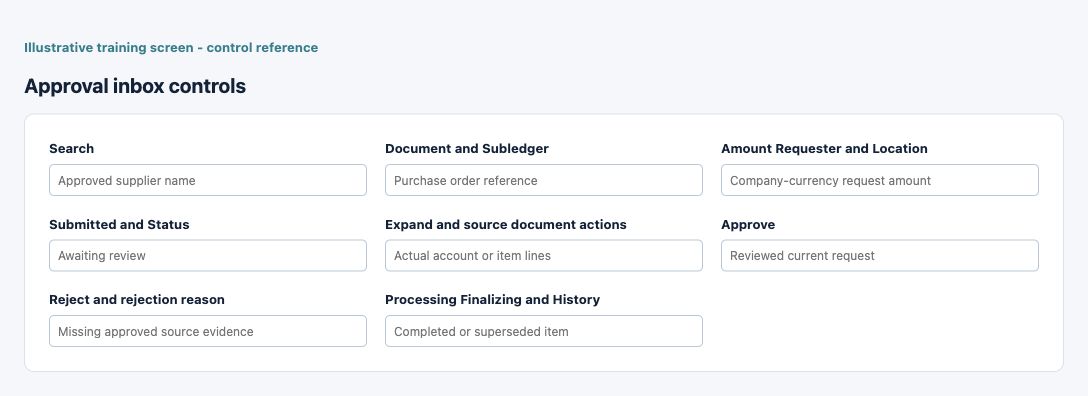
Figure 1 Approval inbox controls
| Field and screenshot | Entry rule and example | Purpose and implication |
|---|---|---|
| Search - Figure 1 | Search document requester or supplier. Example: Approved supplier name | Narrows assigned work; it does not approve or change a document. Caution: Check the selected record, scope and current state before a consequential action. |
| Document and Subledger - Figure 1 | Inspect the exact identity and process. Example: Purchase order reference | Prevents deciding on a similarly named but different request. Caution: Check the selected record, scope and current state before a consequential action. |
| Amount Requester and Location - Figure 1 | Review value, origin and scope. Example: Company-currency request amount | Context must agree with the underlying source and your authority. Caution: Check the selected record, scope and current state before a consequential action. |
| Submitted and Status - Figure 1 | Inspect timing and current work state. Example: Awaiting review | An old or superseded request may not represent the current source version. Caution: Check the selected record, scope and current state before a consequential action. |
| Expand and source document actions - Figure 1 | Review available document/line detail. Example: Actual account or item lines | Supports decision evidence; read functional and transaction amounts separately. Caution: Check the selected record, scope and current state before a consequential action. |
| Approve - Figure 1 | Make an authorised decision. Example: Reviewed current request | Approval does not itself certify stock/GL/fiscal/bank completion. Caution: Check the selected record, scope and current state before a consequential action. |
| Reject and rejection reason - Figure 1 | Provide the business reason. Example: Missing approved source evidence | Rejects the selected request under its workflow; preserve the explanation. Caution: Check the selected record, scope and current state before a consequential action. |
| Processing Finalizing and History - Figure 1 | Check completion before retrying. Example: Completed or superseded item | History is an evidence trail, not approval of later edited versions. Caution: Check the selected record, scope and current state before a consequential action. |
Distinguish approval and posting
Approval authorises the relevant document under its workflow. It does not by itself prove that a stock worker, financial journal, bank payment or fiscal authority request completed. Inspect the downstream record/status separately.
Make a deliberate decision
Approve and Reject are consequential decisions on the selected request. Rejection requires a meaningful reason in the decision prompt. Do not approve your own request where the workflow prevents it, use another person's session, or alter setup to route around independent review.
Handle processing and finalisation
Processing or Finalizing indicates the action is not yet reflected as a completed history item. After a delay, reload/review the existing request and document state with the authorised administrator. Repeated clicks or a duplicate source document are not a safe recovery method.
Understand superseded requests
An edited, withdrawn or superseded source can invalidate earlier work. Review the current version and assignment, not a stale browser tab or exported notification. A historical approval does not approve a later changed document automatically.
Read history and attribution
History and record Audit actions identify available actors, times and changes for the relevant object. They are not substitutes for supporting documents or bank/fiscal evidence. A creation timestamp and a posting timestamp can represent different stages.
Separate permissions and business responsibility
The Tenant Administrator manages access within the subscription workspace. Company/location duties, explicit approval permissions, groups and document rules still matter. A user who can view a record may not be able to edit, approve, reverse or post it.
Retain review evidence
Preserve the decision reason, document identity/version, supporting evidence and relevant resulting states. Escalate contradictory states or missing evidence without erasing history. Keep private payroll, bank and identity information out of unnecessary approval exports or screenshots.
Resolve a decision or history problem
| Situation | What to do |
|---|---|
| Expected work is missing | Confirm the source is actually submitted and current, then ask the authorised administrator to review assignment and company/location authority. |
| Decision is still finalizing | Find the existing request in history and check the source state. Retain its reference and message for support; do not create another source document. |
| Source changed after review | Review the latest eligible version and request. A historical decision does not approve later changes. |
Continue with the related task
Manual journals, purchase orders, Balance Sheet Review and user access.
Data-loading prerequisites and limits for Approvals and audit
Configure the journal/PO policy, groups, user membership and amount rules before importing documents. Creating an imported journal or order does not itself prove approval/posting. Use the supported approval queue and inspect the saved state; do not use import replay as an approval shortcut.
Continue with the Imports documents and common controls bulk guidance.